
ロジクール 920-010708
Logitech POP Keys メカニカルワイヤレスキーボード ユーザーマニュアル
ブランド: Logitech | モデル: 920-010708
導入
The Logitech POP Keys Mechanical Wireless Keyboard is designed to bring personality and efficiency to your workspace. Featuring customizable emoji keys and satisfying mechanical switches, this keyboard offers a unique typing experience. It supports multi-device connectivity via Bluetooth or the Logi Bolt USB receiver, making it versatile for various operating systems and devices. Its compact design promotes better posture and saves desk space, while its durable construction ensures long-lasting performance.

The Logitech POP Keys keyboard in Daydream Mint, showcasing its vibrant design.
設定
バッテリーの取り付け
The POP Keys keyboard requires 2 AAA batteries, which are included. To install the batteries:
- キーボードの裏側にある電池ボックスを見つけます。
- バッテリーカバーをゆっくりとスライドさせて開きます。
- 正しい極性 (+/-) を確認して、単 4 電池 2 本を挿入します。
- 電池カバーをしっかりと閉じてください。
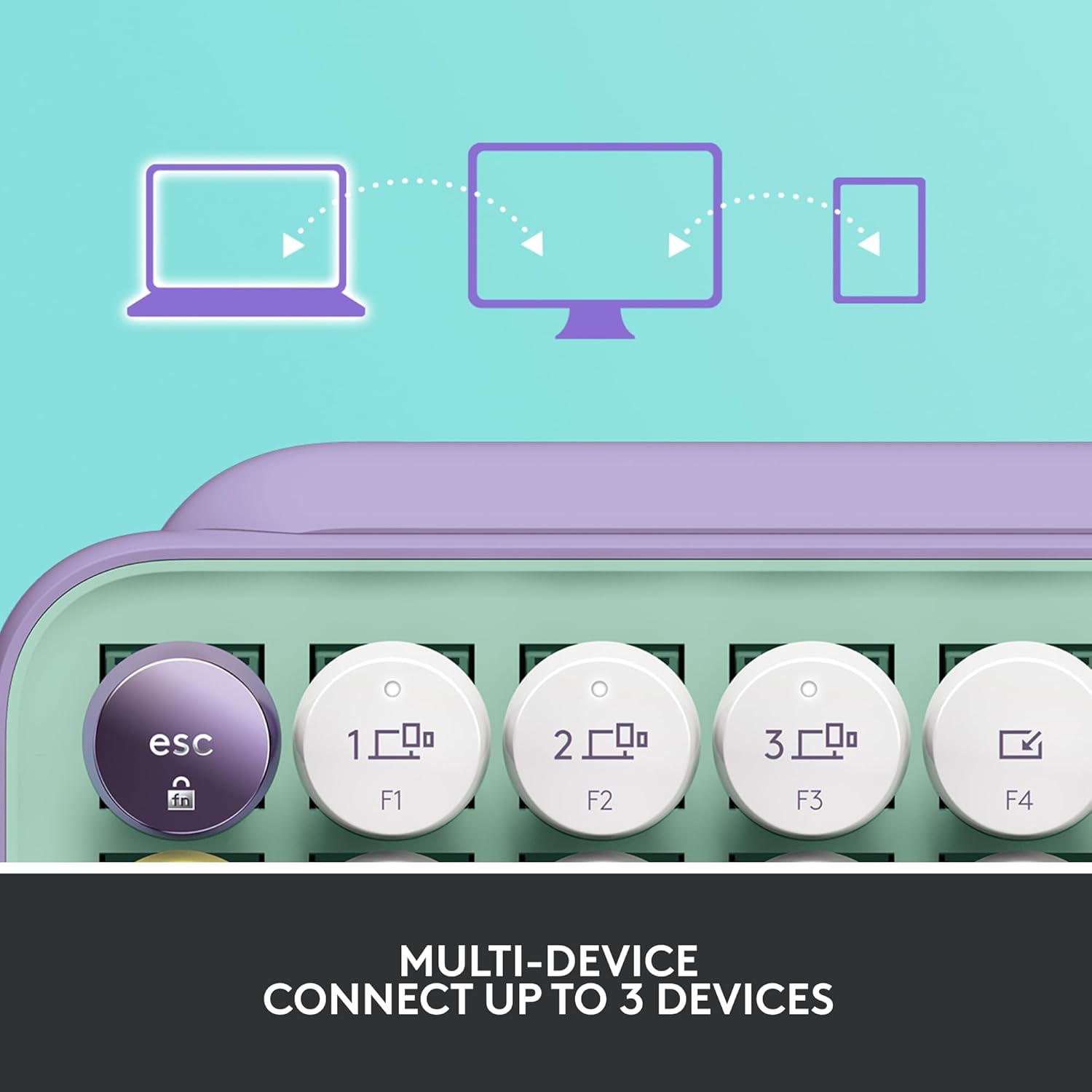
The battery compartment and Logi Bolt USB receiver storage on the back of the keyboard.
接続性
The Logitech POP Keys keyboard offers two primary connection methods: Bluetooth and the Logi Bolt USB receiver.
- Bluetoothの使用:
1. Ensure Bluetooth is enabled on your device (computer, laptop, iPad, tablet, or phone).
2. On the POP Keys keyboard, press and hold one of the Easy-Switch keys (F1, F2, or F3) for 3 seconds until the LED light above the key starts blinking rapidly.
3. On your device, search for Bluetooth devices and select "Logi POP Keys" to pair.
4. The LED light on the keyboard will turn solid for 5 seconds to confirm successful pairing. - Using Logi Bolt USB Receiver:
1. Plug the Logi Bolt USB receiver into an available USB port on your computer.
2. The keyboard should automatically connect to the receiver. If not, press any key on the keyboard to wake it up.

The keyboard can connect to up to three devices simultaneously, easily switching between them.
キーボードの操作
Customizable Emoji Keys
The POP Keys keyboard features 8 swappable emoji keys and 1 emoji menu key, allowing you to personalize your typing experience. Four emoji keys are pre-installed, with four extra keys included in the box. You can easily remove and replace these keys to match your preferred emojis.
To customize the emoji keys, download and install the Logitech Options software on your Windows or macOS device. This software allows you to assign specific emojis or other functions to these keys.
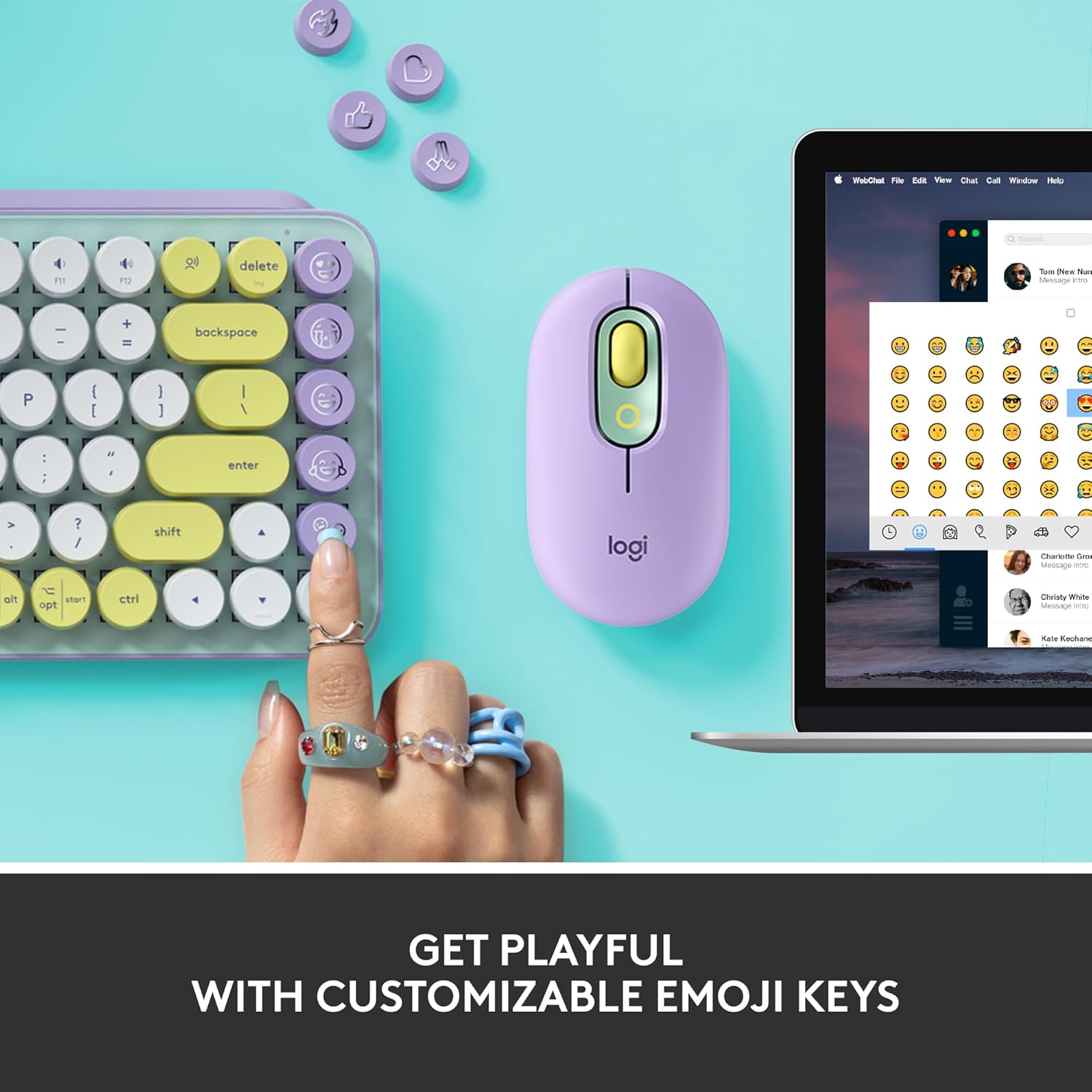
The customizable emoji keys are located on the right side of the keyboard.
マルチデバイス切り替え
The Easy-Switch keys (F1, F2, F3) allow you to seamlessly switch between up to three connected devices. Once paired with multiple devices, simply press the corresponding F-key to switch the keyboard's active connection.
Shortcut and Media Keys
The POP Keys keyboard includes a series of dedicated shortcut and media keys for enhanced productivity and control. These include:
- Snip Screen: スクリーンショットをすばやくキャプチャします。
- マイクミュート: Mute or unmute your microphone.
- メディアキー: Control playback (play/pause, next/previous track) and volume.
- 音声テキスト変換: Activate dictation features (availability may vary by operating system and region).
メンテナンス
バッテリー寿命
The Logitech POP Keys keyboard is designed for extended battery life, offering up to 3 years of use on a single set of AAA batteries. Actual battery life may vary based on usage patterns and environmental conditions.
クリーニング
To maintain your keyboard's appearance and functionality, regularly clean its surface. Use a soft, lint-free cloth slightly dampened with water or a mild cleaning solution. Avoid using harsh chemicals or abrasive materials that could damage the keyboard's finish or keys.
トラブルシューティング
If you encounter issues with your Logitech POP Keys keyboard, consider the following common troubleshooting steps:
- 接続なし/応答なし:
1. Ensure the keyboard is powered on and batteries are correctly installed.
2. Check if the batteries need replacement.
3. For Bluetooth connection, ensure Bluetooth is enabled on your device and the keyboard is paired. Try unpairing and re-pairing.
4. For Logi Bolt USB receiver, ensure the receiver is securely plugged into a working USB port. Try a different USB port.
5. Ensure the keyboard is within the wireless range (up to 32.81 ft / 10 m). - キーが機能しない:
1. Check for any debris or obstructions under the keys.
2. Restart your computer or device.
3. If specific keys are not responding, it might indicate a hardware issue. - Emoji Keys Not Customizing:
1. Ensure you have installed the latest version of Logitech Options software.
2. Verify your operating system is compatible with Logitech Options (Windows and macOS only).
For more detailed troubleshooting or persistent issues, refer to the official Logitech support webサイトまたは完全なユーザー マニュアルの PDF をご覧ください。
仕様
| 特徴 | 詳細 |
|---|---|
| ブランド | ロジテック |
| モデル番号 | 920-010708 |
| 接続技術 | Bluetooth, USB (Logi Bolt Receiver) |
| キーボードの説明 | 機械 |
| キースイッチ | 茶色、触覚 |
| キーの数 | 84 |
| オペレーティングシステムの互換性 | Windows 10以降、macOS 10.15以降、iPadOS 14以降、iOS 14以降、Chrome OS、Android 8以降 |
| アイテム重量 | 1.72ポンド(779グラム) |
| 製品寸法 | 12.65 x 5.45 x 1.4 インチ (321.2 x 138.47 x 35.4 mm) |
| 色 | Daydream Mint |
| 電源 | 電池駆動(単4電池2本付属) |
| バッテリー寿命 | 最長3年(変動する場合があります) |
| ワイヤレス範囲 | 32.81フィート(10メートル) |
箱の中身
パッケージを開けると、次のアイテムが見つかります。
- Logitech POP Keys Mechanical Wireless Keyboard
- Logi BoltUSBレシーバー
- 単4電池2本(プリインストールまたは別途付属)
- 4 Extra Emoji Keycaps
- ユーザードキュメント
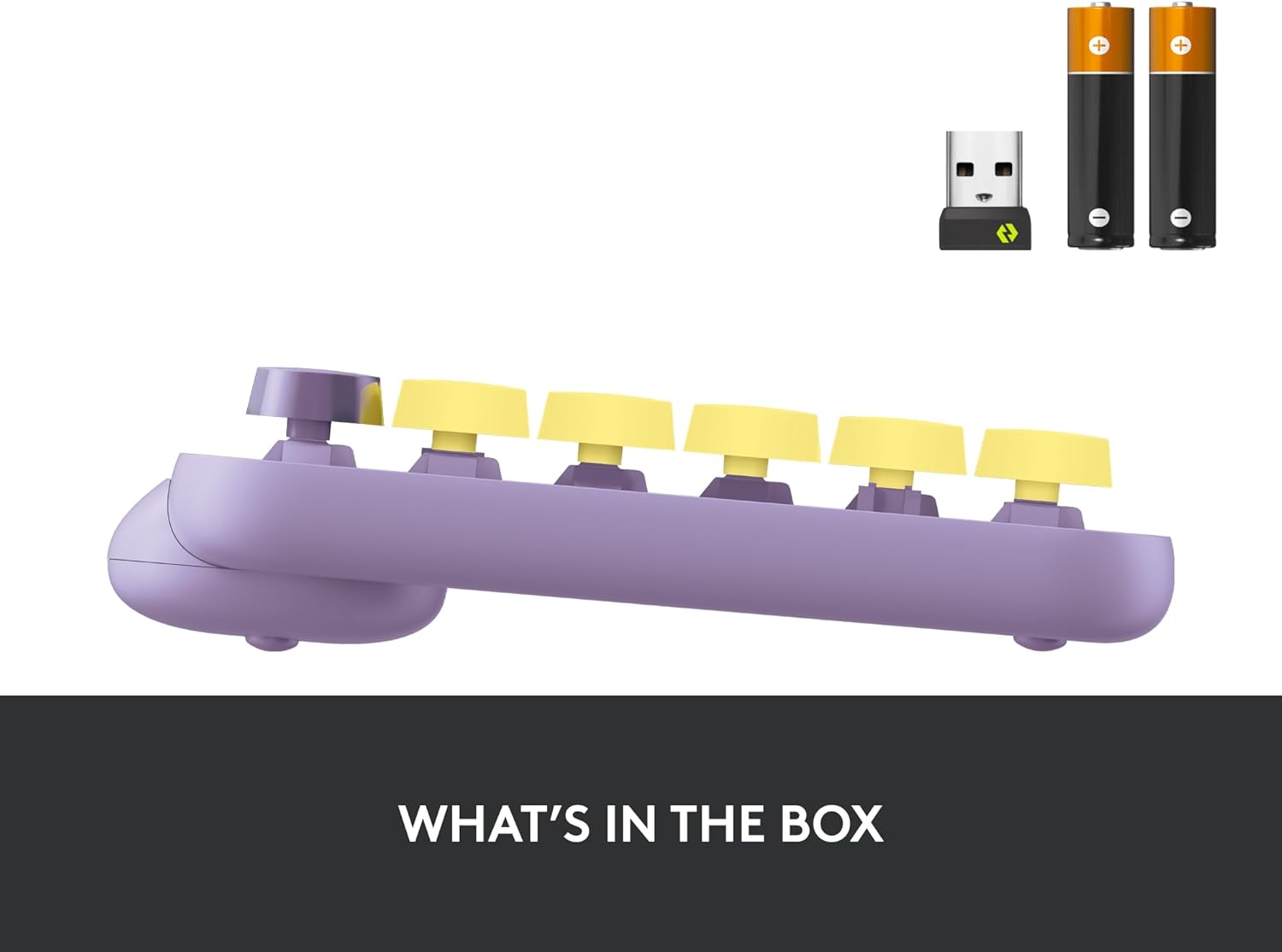
The Logitech POP Keys keyboard, Logi Bolt USB receiver, and AAA batteries as typically found in the product packaging.
保証とサポート
Logitech products are manufactured to high quality standards and come with a limited hardware warranty. For specific warranty terms and conditions applicable to your region, please refer to the warranty information provided in the product packaging or on the official Logitech webサイト。
For additional support, FAQs, and the latest drivers or software, please visit the official Logitech support page. You can also download the full user manual in PDF format for comprehensive instructions and information:
Ask a question about this manual
Ask about setup, troubleshooting, compatibility, parts, safety, or missing instructions. Manuals+ will review the question and use this page’s manual context to help answer it.