
ケンジントン K72327JP
Kensington SlimBlade トラックボール K72327JP ユーザーマニュアル
モデル: K72327JP
導入
The Kensington SlimBlade Trackball is designed to provide a versatile and intuitive user experience. With its unique ball and four-button control system, it offers multiple modes for various tasks, from precise cursor control to media management. This manual will guide you through the setup, operation, and maintenance of your SlimBlade Trackball.
製品の特徴
- 省スペース設計: No need to move the entire device like a traditional mouse, saving valuable desk space.
- マルチモード機能: Features three distinct modes:
- Cursor Mode: Standard left/right click and vertical/horizontal scrolling.
- View モード: Enables 360° scrolling and zoom in/out for detailed viewing。
- メディア モード: Allows for volume adjustment and track skipping for multimedia control.
- 人間工学に基づいたデザイン: Designed to reduce wrist strain during long hours of use, promoting comfort.
- Advanced Trackball Technology: Offers an unparalleled user experience across diverse scenarios.
- Multi-Function Large Ball: Easy scrolling by simply rotating the large trackball.
- USB接続: Connects via USB for reliable wired performance.
- 両手利きのデザイン: Symmetrical design suitable for both left and right-handed users.
- カスタマイズ可能なボタン: Downloadable driver allows assignment of functions to the four buttons.
- 制御機能: DPI adjustment, navigation buttons, and scroll wheel functionality.
- 128-bit AES Encrypted Communication: Adopts 128-bit AES encrypted communication to maximize security and prevent hacking.
設定
Setting up your Kensington SlimBlade Trackball is straightforward. Follow these steps to get started:
システム要件
コンピュータが次のオペレーティング システム要件を満たしていることを確認してください。
- Windows 7、Windows 8、Windows 8.1、Windows 10
- macOS 10.8, macOS 10.9, macOS 10.10, macOS X 10.11, macOS Sierra 10.12, macOS 10.14 or later
- Chrome OS44以降

Image: Windows and macOS compatibility logos, indicating support for various operating systems.
Connecting the Trackball
The SlimBlade Trackball connects via a standard USB port.
- コンピューターで使用可能なUSBポートを見つけます。
- Insert the USB connector of the SlimBlade Trackball into the USB port.
- The device is Plug & Play, meaning it should be recognized automatically by your operating system.

Image: A circular logo with "PLUG & PLAY" and a USB icon, indicating easy setup without additional drivers.
Installing KensingtonWorks Software (Optional but Recommended)
For full customization of the trackball's buttons and settings, download and install the KensingtonWorks software.
- Visit the official Kensington web地点 (www.kensington.com) and navigate to the support section for the K72327JP model.
- Download the latest version of KensingtonWorks software compatible with your operating system.
- 画面の指示に従ってインストールを完了します。

Image: Screenshots of the KensingtonWorks software interface, showing options for customizing buttons, pointer speed, and scroll settings.
トラックボールの操作
The Kensington SlimBlade Trackball offers intuitive control through its large ball and four buttons. Its ambidextrous design ensures comfortable use for all users.
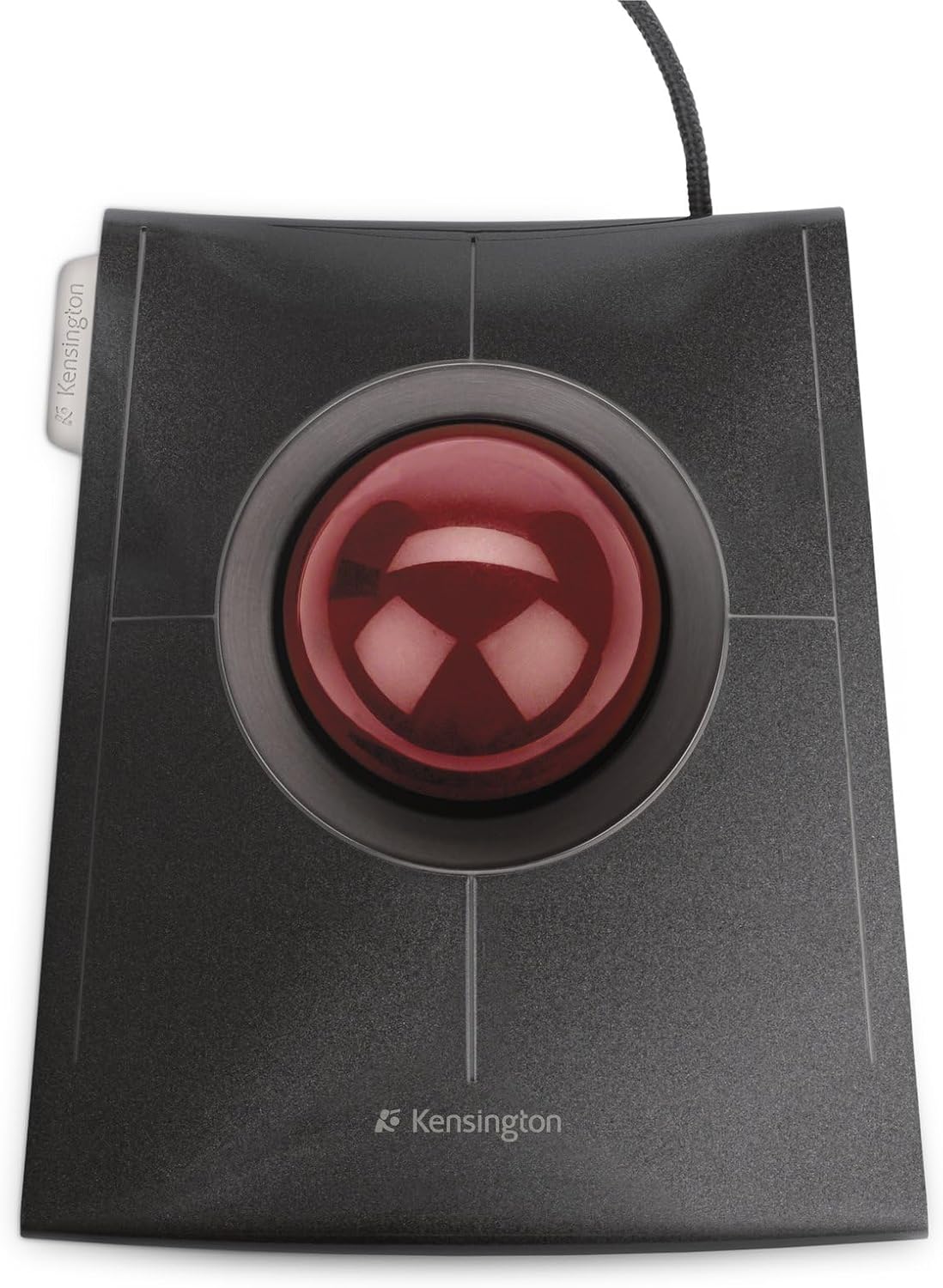
画像: トップダウン view of the Kensington SlimBlade Trackball, showcasing its large red trackball and four surrounding buttons.
基本操作
- カーソルの動き: Rotate the large red trackball with your fingers or palm to move the cursor on the screen. The optical tracking technology ensures precise and accurate cursor control.
- クリック: The trackball features four primary buttons.

画像: 上 view of the trackball with four buttons labeled 1, 2, 3, 4, and combined functions 5 (1+3) and 6 (2+4).
- Buttons 1, 2, 3, 4 can be assigned various functions using KensingtonWorks.
- By default, these buttons typically control left-click, right-click, and other common functions.
- Combined button presses (e.g., 1+3 or 2+4) can also be assigned unique functions, providing up to 6 customizable actions.
- スクロール: The SlimBlade Trackball offers an innovative scrolling method.

Image: A hand demonstrating the twisting motion on the trackball to activate scrolling, with circular arrows indicating the twist direction.
- To scroll, twist the trackball horizontally. This allows for smooth navigation through web ページとドキュメント。
- The trackball also supports vertical and 360-degree scrolling depending on the active mode.
動作モード
The SlimBlade Trackball features three distinct operating modes, each optimized for different tasks:
| モード | 説明 | 主な機能 |
|---|---|---|
| Cursor Mode | Standard mouse functionality for everyday computing. | Left-click, Right-click, Vertical/Horizontal Scrolling. |
| View モード | Ideal for navigating large documents, images, or maps. | 360° Scrolling, Zoom In/Out. |
| メディアモード | Control multimedia playback directly from your trackball. | Volume Adjustment, Track Forward/Backward. |
Switching between modes and assigning specific functions to buttons is done through the KensingtonWorks software. Refer to the software's help documentation for detailed instructions on customization.
メンテナンス
Proper maintenance ensures the longevity and optimal performance of your Kensington SlimBlade Trackball.
- トラックボールのクリーニング: Over time, dust and debris can accumulate around the trackball, affecting its smoothness.
- トラックボールをハウジングからゆっくりと取り外します。
- Use a soft, lint-free cloth to wipe the surface of the ball.
- Clean the inside of the trackball housing, paying attention to the optical sensor and the small support bearings. A cotton swab can be useful for this.
- トラックボールをハウジングに再度挿入します。
- 一般的な清掃: Wipe the exterior of the trackball with a slightly damp, soft cloth. Avoid using harsh chemicals or abrasive cleaners.
- ストレージ: When not in use for extended periods, store the trackball in a clean, dry environment away from direct sunlight and extreme temperatures.
トラブルシューティング
If you encounter issues with your Kensington SlimBlade Trackball, try the following troubleshooting steps:
| 問題 | 考えられる原因 | 解決 |
|---|---|---|
| Cursor does not move or moves erratically. |
|
|
| Buttons are unresponsive or perform incorrect actions. |
|
|
| Scrolling is not smooth or not working. |
|
|
If these steps do not resolve the issue, please contact Kensington customer support for further assistance.
仕様
| 特徴 | 詳細 |
|---|---|
| モデル番号 | K72327JP |
| 接続性 | 有線USB |
| 色 | 黒 |
| 追跡技術 | Laser (Optical) |
| 寸法(長さ×幅×高さ) | 15 x 13.3 x 6 cm(5.9 x 5.2 x 2.4インチ) |
| 重さ | 306 g (0.67 ポンド) |
| 対応OS | Windows 7/8/8.1/10, macOS 10.8-10.12, Chrome OS 44+ |
| 特集 | Ergonomic Design, Ambidextrous, Customizable Buttons, Multi-Mode Operation |

Image: Diagram showing the dimensions of the Kensington SlimBlade Trackball, including length (150mm), width (133mm), height (60mm), and ball diameter (55mm).
保証とサポート
Your Kensington SlimBlade Trackball K72327JP comes with a comprehensive warranty and dedicated customer support.
- 保証: This product is covered by a 5-year limited warranty. Please retain your proof of purchase for warranty claims. The warranty covers defects in materials and workmanship under normal use.
- カスタマーサポート: For technical assistance, troubleshooting, or warranty inquiries, please visit the official Kensington support webサイトにアクセスするか、カスタマー サービス チームに連絡してください。
- オンラインリソース:
- ケンジントン・オフィシャル Webサイト: www.kensington.com
- Product Support Page: Look for the K72327JP model on the support section for drivers, FAQs, and additional resources.
関連文書 - K72327JP
 |
Kensington Expert Mouse Wireless Trackball User Manual and Quick Start Guide Comprehensive guide for the Kensington Expert Mouse Wireless Trackball, covering setup, usage, troubleshooting, and safety information in multiple languages. |
 |
Kensington SlimBlade Pro Trackball User Manual, Features, and Specifications Comprehensive user guide for the Kensington SlimBlade Pro Trackball. Learn about its features, connectivity options (USB, 2.4GHz, Bluetooth 5.0), ergonomic design, usage instructions, safety precautions, technical specifications, and regulatory information. |
 |
Kensington SlimBlade Pro 2.4GHz 交換用ドングル ペアリングガイド Kensington SlimBlade Pro 2.4GHz 交換用ドングルのペアリング ガイド。トラックボールをドングルに接続する方法を詳しく説明します。 |
 |
Kensington Orbit Wireless Trackball with Scroll Ring - User Guide Comprehensive user guide for the Kensington Orbit Wireless Trackball with Scroll Ring. Includes setup instructions, connection methods (Bluetooth, 2.4GHz), DPI adjustment, software information, health warnings, and safety guidelines. |
 |
Kensington Pro Fit ワイヤレス トラックボール ユーザーガイド - セットアップと機能 Kensington Pro Fit ワイヤレストラックボール(モデル K72196)の総合ガイド。セットアップ、USBおよびBluetooth接続、ソフトウェアのカスタマイズ、規制遵守について解説します。 |
 |
Kensington TB800 トラックボール 取扱説明書 このドキュメントでは、Kensington TB800 トラックボールの接続方法、ソフトウェアのインストール、サポート リソースなどの手順とセットアップ ガイドを提供します。 |
Ask a question about this manual
Ask about setup, troubleshooting, compatibility, parts, safety, or missing instructions. Manuals+ will review the question and use this page’s manual context to help answer it.