
1.製品オーバーview
The ARPHA D01 Smart Lock offers advanced security and convenient access to your home. It integrates multiple unlocking methods and smart features for enhanced control and peace of mind.
主な特徴:
- 複数のロック解除方法: Fingerprint, Pin Password, App Control (Bluetooth), and Mechanical Key.
- Quick Fingerprint Identification: Identifies fingerprints in 0.3 seconds with 360° recognition, storing up to 50 fingerprints.
- オートロック: Automatically locks the door based on door position when closed, preventing accidental lockouts.
- Operation Record: View unlocking history via the mobile application.
- Advanced Secure Password: Features anti-peep password entry and stores up to 50 pin codes.
- 非常用電力: USB port for temporary power in case of battery depletion.
- 低バッテリー警告: Provides alerts when batteries are low.
- こじ開け防止アラーム: Activates an alarm if incorrect passwords are entered multiple times.
- 耐候性: Designed to withstand temperatures from -13°F to 131°F with IP65 rating.

Figure 1: Multiple ways to unlock the ARPHA D01 Smart Lock.

Figure 2: The ARPHA D01 Smart Lock, designed to be smart, secure, and reliable.
2. 含まれるもの
インストールを開始する前に、すべてのコンポーネントが揃っていることを確認してください。
- ARPHA D01 Smart Lock (Front and Rear Assemblies)
- デッドボルトラッチ
- 取り付けプレート
- ストライクプレートとボックス
- メカニカルキー (2)
- 取り付けネジとハードウェア
- ユーザーマニュアル
- インストールテンプレート
3.インストールガイド
Follow these steps carefully to install your ARPHA D01 Smart Lock. For a visual guide, please refer to the installation video below.
Video 1: ARPHA D01 Smart Lock Installation Guide. This video provides a step-by-step visual walkthrough of the installation process.
ステップ 1: ドアを準備する
- 既存のデッドボルトを取り外します。
- Use the provided template to mark and drill any necessary holes.
ステップ2:Deadboltをインストールする
- Adjust the deadbolt length if necessary (60mm or 70mm backset).
- Insert the deadbolt into the door hole with the word "TOP" facing up.
- Secure the deadbolt with the provided screws.
Step 3: Install the Lock Assemblies
- Install the connection columns onto the rear assembly.
- Adjust the paddle on the rear assembly to the horizontal direction.
- Guide the connection wire from the front assembly through the deadbolt opening.
- Align the front assembly with the door and the deadbolt.
- Install the iron plate (mounting plate) by aligning it with the connection columns and fixing the screws.
Step 4: Connect Wires and Install Batteries
- Connect the wire from the front assembly to the rear assembly.
- Insert 4 AA batteries into the battery compartment of the rear assembly.
Step 5: Lock Calibration
- Long press the RESET button until you hear a "Di" voice.
- Switch the knob from vertical to horizontal direction.
- A "successful" voice prompt indicates calibration is complete.
Step 6: Set Administrator Password
- リセットボタンを押します。
- Set your desired administrator password, followed by the '#' key.
- Re-enter the password to confirm.
4. 操作手順
ロック解除方法:
4.1 指紋ロック解除
- 登録した指を指紋センサーに置きます。
- 指紋が認識されるとロックが解除されます。

Figure 3: Quick fingerprint identification for unlocking.
4.2 パスコードロック解除
- Enter your registered 6-8 digit passcode on the touchscreen keypad.
- Press '#' to confirm. The lock will unlock.
- The anti-peep function allows you to enter random digits before or after your actual passcode to prevent others from guessing it.
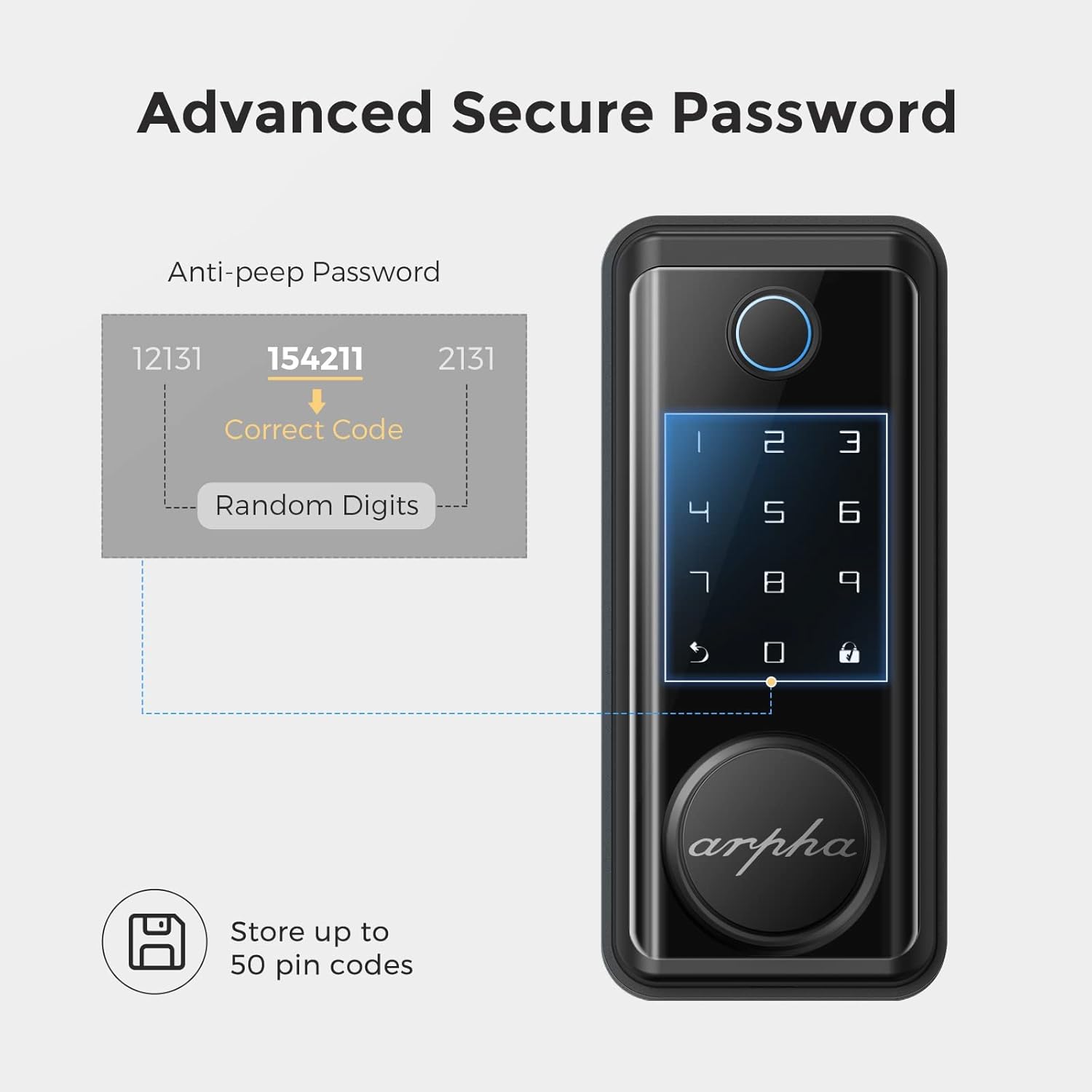
Figure 4: Advanced secure password entry with anti-peep function.
4.3 メカニカルキーロック解除
- Remove the magnetic cover at the bottom of the front assembly to reveal the keyhole.
- Insert the mechanical key and turn to unlock the door.
4.4 アプリロック解除(Bluetooth)
- スマートフォンで Bluetooth が有効になっており、ロックの範囲内にいることを確認してください。
- Open the Tuya Smart app and select your ARPHA D01 Smart Lock.
- Tap and hold the unlock icon in the app to unlock the door.
4.5 自動ロック機能
- The lock is equipped with a sensor that detects when the door is closed.
- It will automatically engage the deadbolt after a set period (configurable in the app) once the door is closed.

Figure 5: The auto-lock feature based on door position.
4.6 緊急電源
- In case the batteries are completely drained, connect a power bank to the micro-USB port located at the bottom of the front assembly.
- This will temporarily power the lock, allowing you to use the keypad or fingerprint sensor to gain entry.

Figure 6: USB port for emergency power supply.
5. アプリの機能
The Tuya Smart app provides comprehensive control and monitoring capabilities for your ARPHA D01 Smart Lock:
- バッテリーレベルの監視: View 現在のバッテリーのパーセントtage of your lock.
- レコードのロックを解除する: Access a detailed log of all unlocking events, including method and time.
- メンバー管理: Add or remove family members and assign specific access methods (fingerprint, passcode).
- 一時パスワード: ゲストまたはサービス プロバイダー用にワンタイム パスワードまたは定期的なパスワードを生成します。
- スマートリンケージ: Integrate your smart lock with other smart home devices for automated scenarios.
- 設定: Customize various lock parameters, including language, navigation volume, and auto-lock duration.

図7: View unlocking records and manage access via the app.

Figure 8: Easily share temporary passwords with guests.
6. メンテナンス
- バッテリー交換: Replace all 4 AA batteries when the low battery alert is triggered. Use high-quality alkaline batteries for optimal performance.
- クリーニング: Wipe the touchscreen and fingerprint sensor with a soft, dry cloth. Avoid abrasive cleaners or solvents.
- ネジチェック: Periodically check all mounting screws to ensure they are tight.

Figure 9: Low battery alert on the smart lock.
7。 トラブルシューティング
- ロックが応答しない: Check battery levels. Use emergency USB power if batteries are dead.
- 指紋が認識されません: 指が清潔で乾いていることを確認してください。問題が解決しない場合は、指紋を再登録してください。
- パスコードが機能しない: Verify the correct passcode is entered. Ensure the anti-peep function is not causing issues.
- アプリの接続の問題: Ensure Bluetooth is enabled and you are within range. Restart the app and try again.
- 自動ロックが作動しない: Check door sensor alignment. Verify auto-lock settings in the app.
8. 仕様
| 特徴 | 詳細 |
|---|---|
| ブランド | ARPHA |
| モデル番号 | D01 |
| ロックタイプ | 生体認証、キーパッド |
| 材料 | 亜鉛 |
| スタイル | モダンな |
| 特集 | Fingerprint, Touchscreen, Smart Lock, Wifi (via gateway, not direct) |
| 接続プロトコル | ブルートゥース |
| 制御方法 | アプリ、タッチ |
| アイテム重量 | 3.65ポンド |
| パッケージ寸法 | 9.02 x 7.13 x 3.7インチ |
| 動作温度 | -13°F ~ 131°F |
| 防水等級 | IP65 |

Figure 10: ARPHA D01 Smart Lock dimensions.

Figure 11: Weather resistance features of the smart lock.
9. 保証とサポート
ARPHA products come with a standard manufacturer's warranty. For detailed warranty information, technical support, or service inquiries, please refer to the contact information provided in your product packaging or visit the official ARPHA webサイト。