
導入
This manual provides essential information for setting up, operating, maintaining, and troubleshooting your HP 2021 15.6-inch Full HD Laptop. This device is equipped with an Intel Celeron N4020 Processor, 8GB DDR4 RAM, and a 256GB Solid State Drive, designed for everyday computing tasks.
箱の中身
Carefully unpack your new HP laptop and ensure all components are present.
- HP 15 ノートパソコン
- 45WスマートAC電源アダプター
- Documentation (Setup poster)

Image: Contents of the HP laptop box, showing the laptop, AC adapter, and setup poster.
設定
1. 初回電源投入と充電
Before first use, connect the AC power adapter to the laptop's power port and then to a wall outlet. Allow the battery to charge sufficiently before disconnecting the power adapter.
2. Windows 10 S Mode Setup
Follow the on-screen prompts to complete the initial Windows 10 S mode setup. This includes selecting your region, keyboard layout, connecting to a Wi-Fi network, and signing in with or creating a Microsoft account.
3. Activating Microsoft Office 365
Your laptop includes a 1-year subscription to Microsoft Office 365. To activate:
- Launch any Office application (e.g., Word, Excel).
- Start activation by signing in with your Microsoft account. Create one if you do not have one.
- Click "Activate Office."
- Sign in to your account and follow the prompts.
- Complete steps 1, 2, and 3 as indicated.
- Click "Refresh" once Office is ready.
- Open a document and accept the license agreement.
4. Switching Out of Windows 10 S Mode (Optional)
Windows 10 S mode is designed for security and performance, limiting app installations to the Microsoft Store. If you need to install apps from outside the Microsoft Store, you can switch to regular Windows 10 Home or Pro. This process is irreversible.
- Windows 10(Sモード)を実行しているPCで、 設定 > アップデートとセキュリティ > アクティベーション.
- 「Windows 10 Homeに切り替える」または「Windows 10 Proに切り替える」セクションで、 ストアへ. (Ensure you do not click a "Go to the Store" link in an "Upgrade your edition of Windows" section if present.)
- Microsoft Storeに表示される「Sモードを解除する」(または同様の)ページで、 得る ボタン。
- After you see a confirmation message on the page, you will be able to install apps from outside of the Microsoft Store.
画像: サイド view of the HP laptop highlighting the SuperSpeed USB Type-C, SuperSpeed USB Type-A, HDMI 1.4b, RJ-45 Ethernet port, headphone/microphone combo, and media card reader.
操作手順
キーボードとタッチパッド
The laptop features a full-size keyboard with an integrated numeric keypad for enhanced productivity. The precision touchpad supports multi-touch gestures for intuitive navigation.
周辺機器の接続
- USB デバイス: Connect USB devices such as external drives, mice, or keyboards to the SuperSpeed USB Type-A or Type-C ports.
- 外部ディスプレイ: Use the HDMI 1.4b port to connect an external monitor or projector.
- ネットワーク: 有線ネットワーク接続の場合は、イーサネット ケーブルを RJ-45 ポートに接続します。
- オーディオ: Plug headphones or an external microphone into the headphone/microphone combo jack.
Webカメラとマイク
The integrated HP True Vision 720p HD camera and dual array digital microphones are ready for online meetings and video calls. Ensure appropriate privacy settings are configured in Windows.
メディアカードリーダー
Insert compatible SD media cards into the multi-format SD media card reader to access photos and files.

Image: The HP laptop's display area, highlighting the HP True Vision 720p HD Camera, rich 6.5 mm micro-edge Full HD IPS display, Intel UHD Graphics, and tuned stereo speakers.
メンテナンス
バッテリーケア
To prolong battery life, avoid fully discharging the battery frequently. For optimal performance, use the provided HP 45W Smart AC power adapter. The laptop supports HP Fast Charge, allowing it to charge up to 50% in approximately 45 minutes when powered off.
ノートパソコンのクリーニング
柔らかく糸くずの出ない布で軽く拭き取ってください。ampディスプレイの清掃には、水またはスクリーンクリーナーを使用してください。キーボードと筐体の清掃には、柔らかく乾いた布を使用してください。刺激の強い化学薬品や研磨剤は使用しないでください。
ソフトウェアアップデート
Regularly check for and install Windows updates to ensure your system has the latest security patches and performance improvements. You can find these in 設定 > アップデートとセキュリティ > Windowsアップデート.
トラブルシューティング
ノートパソコンの電源が入らない
- AC アダプターがラップトップと機能している電源コンセントの両方にしっかりと接続されていることを確認します。
- 別のデバイスを接続して、電源コンセントが機能していることを確認します。
- バッテリーが完全に消耗している場合は、ノートパソコンの電源が入るまでに数分間充電が必要になることがあります。
Battery Not Holding Charge / Only Works When Plugged In
- Check the battery health status in Windows settings.
- Ensure all drivers, especially power management drivers, are up to date.
- If the issue persists, the battery may require service or replacement. Contact HP Support for assistance.
Wi-Fi接続なし
- Windows 設定で Wi-Fi が有効になっているかどうかを確認します。
- ルーターとモデムを再起動します。
- Wi-Fi ドライバーがインストールされ、最新であることを確認します。
表示の問題
- If the screen is blank, try connecting an external monitor to determine if the issue is with the laptop's display or graphics card.
- ファンクションキーを使用してディスプレイの明るさを調整します。
より複雑な問題については、HPサポートを参照してください。 webサイトにアクセスするか、カスタマーサービスにお問い合わせください。
仕様
Below are the key technical specifications for your HP 2021 15.6" FHD Laptop:
| 特徴 | 仕様 |
|---|---|
| ブランド | HP |
| モデル名 | 体力2021 |
| 画面サイズ | 15.6インチ |
| ディスプレイ解像度 | FHD (1920 x 1080) IPS, Anti-Glare |
| プロセッサ | Intel Celeron N4020 (up to 2.8 GHz, 2 Cores, 4MB Cache) |
| RAMメモリ | 8GB DDR4 SDRAM |
| ストレージ | 256GB SSD(ソリッドステートドライブ) |
| グラフィックス | インテルUHDグラフィックス |
| オペレーティング·システム | ウィンドウズ10S |
| ポート | 1x SuperSpeed USB Type-C, 2x SuperSpeed USB Type-A, 1x HDMI 1.4b, 1x RJ-45, 1x Headphone/Microphone Combo, 1x AC Smart Pin |
| ワイヤレス接続 | 802.11a/b/g/n/ac Wi-Fi、Bluetooth |
| Webカム | デュアルアレイデジタルマイクを内蔵したHP True Vision 720p HDカメラ |
| バッテリー | 3-Cell, 41 WHr, Integrated Lithium Ion |
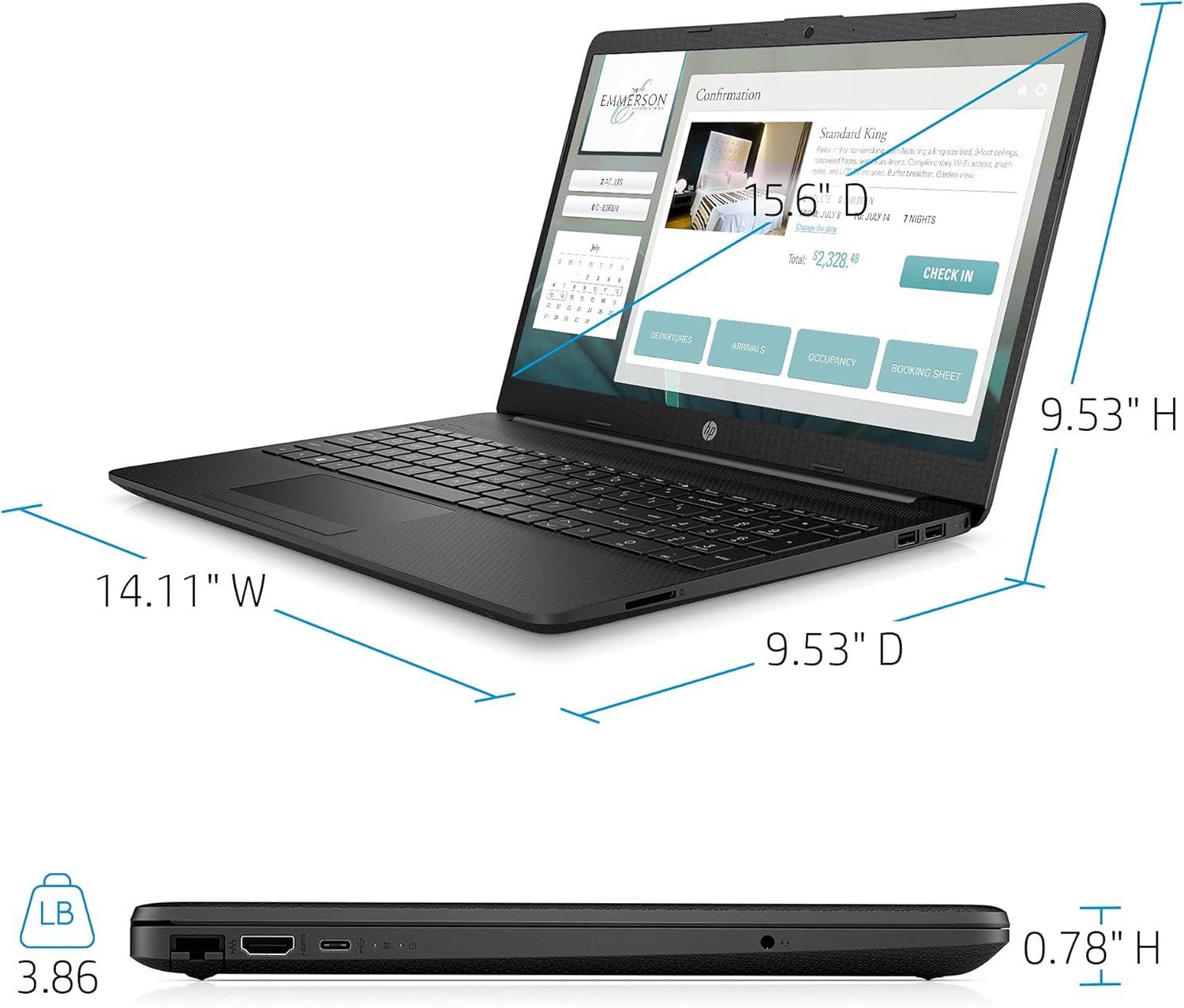
| 重さ | 3.86 ポンド |
| 色 | 黒 |

Image: Physical dimensions of the HP laptop (14.11" W x 9.53" D x 0.78" H) and weight (3.86 lbs).
保証情報
Your HP 2021 15.6" FHD Laptop comes with a limited manufacturer's warranty. Please refer to the documentation included in the box for specific terms, conditions, and duration of your warranty. Keep your proof of purchase for warranty claims.
サポート
For further assistance, technical support, or service inquiries, please visit the official HP support website or contact HP customer service directly. You can find contact information and resources on the HP webサイト: