
ロジクール 920-009320
Logitech Rugged Combo 3 iPad Keyboard Case User Manual
モデル: 920-009320 | ブランド: Logitech
1. はじめにview
The Logitech Rugged Combo 3 is a robust and versatile keyboard case designed for iPad (7th and 8th Generation) users, particularly in educational environments. It offers comprehensive protection and enhanced functionality, transforming your iPad into a powerful productivity tool.
This keyboard case is engineered for durability, meeting MIL SPEC 810G drop standards with 4.5 ft. drop protection, making it resilient against daily wear and tear. Its keys are pry-resistant and sealed, preventing damage and keeping out debris.
The Smart Connector technology ensures an instant, reliable physical connection to your iPad without the need for pairing or separate charging the keyboard, as it draws power directly from the iPad. The adjustable kickstand provides five versatile use modes, adapting to various tasks from typing to sketching.
Additionally, the case features a magnetic latch with integrated storage for a Logitech Crayon or Apple Pencil (1st gen), ensuring your stylus is always accessible. A large asset tagging window is also included for easy device management.
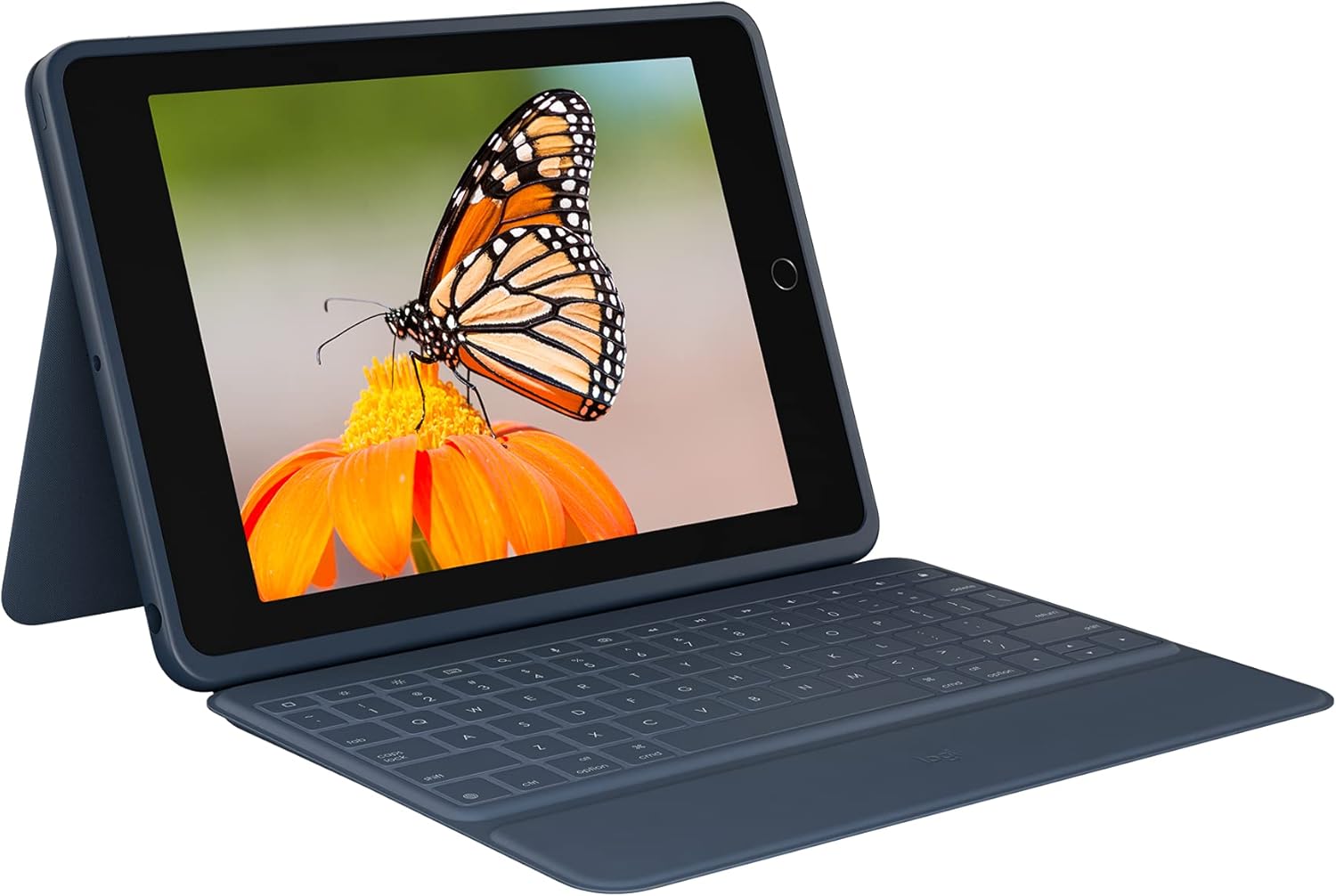
Figure 1.1: The Logitech Rugged Combo 3 with an iPad in typing mode, showcasing the integrated keyboard and adjustable stand.
2. セットアップと接続
The Logitech Rugged Combo 3 utilizes Apple's Smart Connector technology for a seamless and instant connection to your compatible iPad. No Bluetooth pairing or separate charging is required for the keyboard.
2.1. iPadの取り付け
- iPadの位置を合わせます。 Carefully align your iPad with the protective case portion of the Rugged Combo 3. Ensure the camera cutout and ports match the case openings.
- 所定の位置にスナップします: Gently press the iPad into the case until it securely snaps into all corners. The durable design provides a snug fit.
- Connect the Smart Connector: Once the iPad is seated in the case, align the Smart Connector on the edge of the iPad with the corresponding pins on the keyboard. The magnetic connection will automatically snap into place, establishing the connection.
The keyboard will instantly power on and be ready for use. There is no need to manually turn the keyboard on or off, as it draws power directly from the iPad via the Smart Connector.

Figure 2.1: The Logitech Rugged Combo 3 in its closed position, providing full protection for the iPad.
3. Operating the Keyboard Case
The Rugged Combo 3 offers multiple modes of use and a full-sized keyboard for efficient interaction with your iPad.
3.1. 使用モード
The adjustable kickstand and foldable keyboard allow for five distinct use modes:
- タイプモード: Position the iPad upright with the keyboard extended for comfortable typing.
- View モード: Fold the keyboard back and adjust the kickstand to an optimal angle for watching videos or presentations.
- スケッチモード: Lower the kickstand to a shallow angle, ideal for drawing or writing with a stylus.
- 読み取りモード: Fold the keyboard completely behind the iPad, allowing you to hold the tablet like a book.
- カメラモード: The design ensures the iPad camera remains unobstructed in all modes, allowing for easy photo and video capture.

図3.1:側面 view illustrating the adjustable kickstand, enabling various view角度を変える。
3.2. Keyboard Functionality
The integrated keyboard provides a comfortable and responsive typing experience. It includes a full row of iPadOS shortcut keys for quick access to common functions:
- 家: ホーム画面に戻ります。
- 画面の明るさ: ディスプレイの明るさを調整します。
- 検索: iPadの検索機能を有効にします。
- 仮想キーボード: Toggles the on-screen keyboard.
- メディアコントロール: 再生/一時停止、前のトラック、次のトラック。
- ボリュームコントロール: ミュート、音量を下げる、音量を上げる。
- ロック画面: Locks the iPad display.

図3.2: トップダウン view of the keyboard, highlighting the dedicated iPadOS shortcut keys for enhanced productivity.
4. メンテナンスとケア
To ensure the longevity and optimal performance of your Logitech Rugged Combo 3, follow these maintenance guidelines:
- クリーニング: 柔らかくてamp ケースとキーボードの外側を拭くときは布を使用してください。刺激の強い化学薬品や研磨剤は使用しないでください。
- こぼれ耐性: The keyboard features sealed keys designed to resist spills. In case of a spill, immediately wipe off any liquid and allow the keyboard to air dry before continued use.
- キーケア: The keys are pry-resistant, but avoid excessive force when cleaning or handling to prevent damage.
- ストレージ: When not in use, keep the case closed to protect both the iPad and the keyboard from dust and potential damage.

Figure 4.1: The keyboard's spill-resistant design helps protect against accidental liquid exposure.
5。 トラブルシューティング
If you encounter issues with your Logitech Rugged Combo 3, refer to the following common troubleshooting steps:
5.1. キーボードが反応しない
- Check Smart Connector: Ensure the iPad is correctly seated in the case and the Smart Connector on the iPad is firmly connected to the keyboard. Remove and re-attach the iPad to ensure a proper connection.
- iPadを再起動します。 場合によっては、iPad を再起動するだけで接続の問題が解決することがあります。
- クリーンスマートコネクタ: Inspect the Smart Connector pins on both the iPad and the keyboard for any debris or dust. Gently clean them with a soft, dry cloth.
5.2. キーが正しく機能しない
- 破片がないか確認します。 キーの下に異物が入っていないことを確認してください。
- Spill Damage: If the keyboard has been exposed to a significant liquid spill, allow it to dry completely. If issues persist, contact support.
5.3. iPad Not Fitting Securely
- 互換性の確認: Ensure your iPad model (7th or 8th Generation) is compatible with the Rugged Combo 3.
- 適切な挿入: Make sure the iPad is inserted correctly and all corners are snapped into place.
6. 仕様
| 特徴 | 詳細 |
|---|---|
| ブランド | ロジテック |
| シリーズ | 頑丈なコンボ 3 |
| モデル番号 | 920-009320 |
| 対応デバイス | iPad (7th Generation: A2200, A2197, A2198), iPad (8th Generation: A2270, A2428, A2429, A2430) |
| 接続技術 | スマートコネクタ |
| キーボードの説明 | 膜 |
| 電源 | iPad via Smart Connector (no battery required for keyboard) |
| アイテム重量 | 1.33ポンド |
| 製品寸法(長さx幅x高さ) | 10.24 x 7.44 x 0.94インチ |
| 色 | 青 |
| 材料 | プラスチック |
| 特集 | Foldable, 4.5 ft. Drop Protection (MIL SPEC 810G), Pry-resistant keys, Integrated stylus storage |
| 含まれるコンポーネント | Keyboard case, Documentation |
7. 保証とサポート
For warranty information, technical support, or further assistance with your Logitech Rugged Combo 3, please visit the official Logitech support web公式サイトをご覧いただくか、カスタマーサービスまでお問い合わせください。保証請求の際は、購入証明としてレシートを保管してください。
ロジクールサポート: www.logitech.com/support
関連文書 - 920-009320
 |
Logitech Combo Touch & Crayon ユーザーマニュアル Logitech Combo Touch キーボード ケースと Logitech Crayon デジタル ペンシルの詳細なユーザー ガイド。さまざまな iPad モデルのセットアップ、機能、互換性、および手入れについて説明しています。 |
 |
Logitech Folio Touch for iPad Pro 11-inch: Getting Started Guide Learn how to get started with your Logitech Folio Touch keyboard case for iPad Pro 11-inch (1st and 2nd gen). This guide covers initial setup and attachment. |
 |
Logitech POP Icon Combo: セットアップと簡単なスイッチガイド Easy Switch 機能の説明を含む、Bluetooth と Logi アプリを使用して Logitech POP Icon Combo キーボードとマウスを設定するための簡潔なガイドです。 |
 |
Logi CREATE iPad Pro用バックライトキーボードケース(スマートコネクタ付き) - セットアップガイド Logitech CREATEバックライトキーボードケース(iPad Pro用スマートコネクタ付き)の包括的なセットアップガイド。インストール、使用方法、 viewing 位置、旅行時の保管、トラブルシューティング、ショートカット キーについて説明します。 |
 |
ロジクールのiPad用コンボタッチキーボード:よくある質問とトラブルシューティング ショートカット キー、クリーニング、接続の問題のトラブルシューティング、ファームウェアの更新、トラックパッドのジェスチャなど、iPad 用 Logitech Combo Touch キーボードに関するよくある質問への回答を見つけます。 |
 |
Logitech K750 SOLAR ワイヤレスキーボード - ソーラーパワー、環境に優しい ロジクール K750 SOLAR ワイヤレスキーボードをご覧ください。ソーラー充電、長時間バッテリー、環境に優しいデザイン、そしてWindowsユーザーにとって信頼性の高いワイヤレス接続を特長としています。そのメリットと仕様をご覧ください。 |
Ask a question about this manual
Ask about setup, troubleshooting, compatibility, parts, safety, or missing instructions. Manuals+ will review the question and use this page’s manual context to help answer it.