1. はじめに
The Poly Studio is an all-in-one USB video and audio conferencing system designed for home offices and small meeting rooms. It integrates a 4K camera, smart microphones, and a speaker into a single, sleek bar, offering a plug-and-play solution for enhanced virtual meetings.

Image: Poly Studio Premium USB Video & Audio Conferencing System, showcasinコンパクトなデザイン。
主な特徴:
- オールインワンソリューション: Combines a 4K camera, smart microphone, and speaker into a single bar, ideal for small meeting rooms and home offices.
- プラグアンドプレイ USB 接続: No software required for basic functionality. Connect via USB to instantly elevate your Zoom, Teams, Skype, and Google Meet experience.
- Exceptional Audio Clarity: Features Polycom noise-blocking technology and beamforming microphones for crystal-clear sound.
- Smart Camera Framing: Automatically adjusts framing and tracking based on speaker movement and participants in the room.
2. セットアップ
Follow these steps to set up your Poly Studio conferencing system:
- デバイスを開梱します。 Carefully remove the Poly Studio bar and all accessories from the packaging.
- 取り付けオプションを選択してください: The Poly Studio can be mounted on a tabletop, wall, or tripod.
- 卓上マウント: デバイスを安定した場所に置いてください。
- ウォールマウント: Use the provided wall mount bracket and hardware to securely attach the device to a wall, typically above or below your display.
- 三脚マウント: Attach the device to a standard tripod using the integrated tripod thread.
- 接続電源: Plug the power cable into the Poly Studio and then into a power outlet.
- コンピュータに接続します: Connect the USB cable from the Poly Studio to an available USB port on your laptop or PC.
- ソフトウェア認識: Your computer should automatically recognize the device as a USB camera, microphone, and speaker.

Image: Poly Studio connected to a display, highlighting its compatibility with various video conferencing applications.
3. 操作手順
The Poly Studio is designed for ease of use with popular video conferencing platforms.
- アプリケーションでデバイスを選択: In your preferred video conferencing application (e.g., Zoom, Microsoft Teams, Skype, Google Meet), navigate to the audio and video settings. Select "Poly Studio" as your camera, microphone, and speaker.
- Utilize Smart Camera Features: The device's smart camera framing and speaker tracking features will automatically adjust the view to keep participants in frame and focus on the active speaker.
- Experience Clear Audio: Polycom's noise-blocking and beamforming technologies work automatically to ensure clear audio transmission and reception.
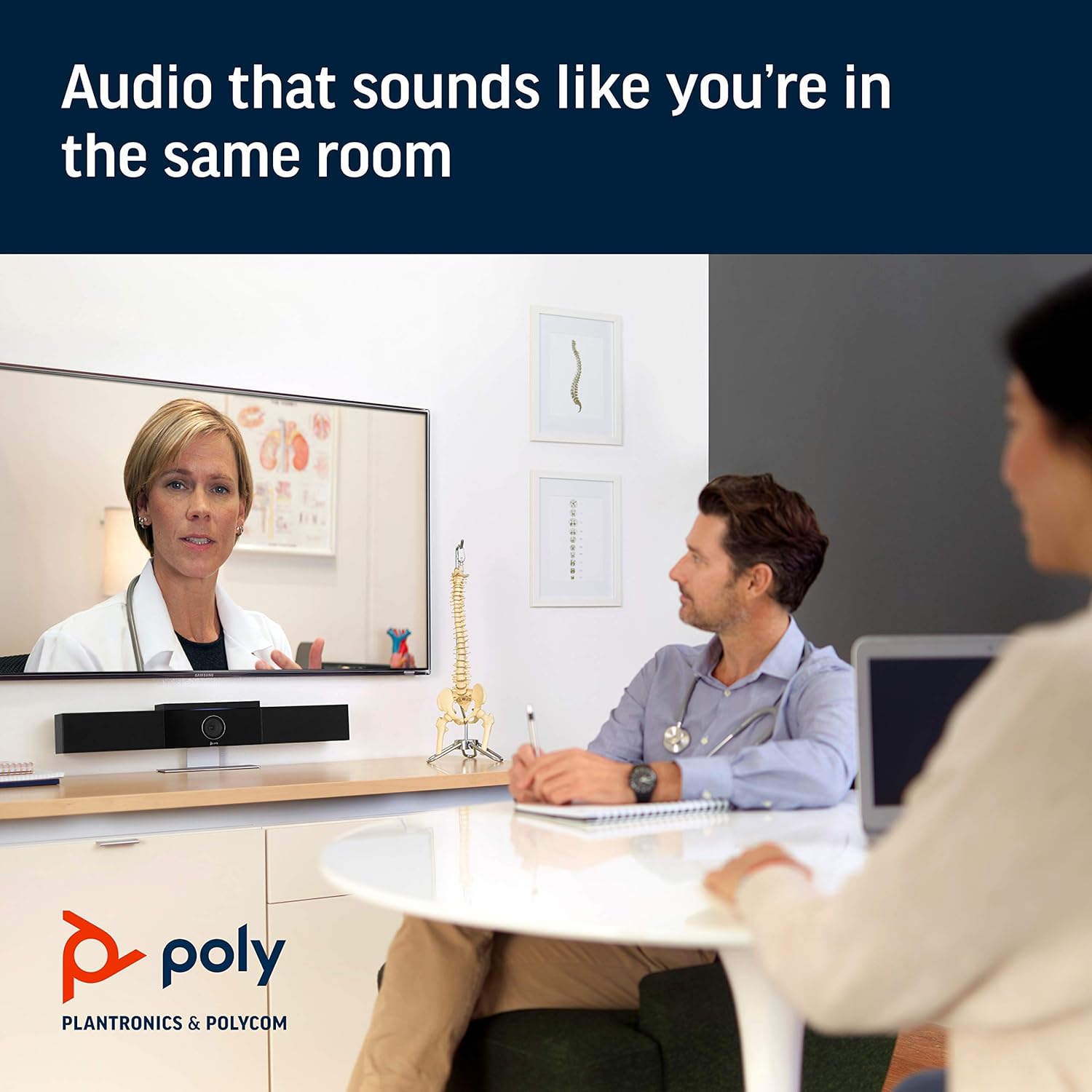
Image: Poly Studio in a meeting room, illustrating its capability to deliver clear audio for all participants.

Image: Poly Studio capturing vivid details and facial expressions of meeting participants.
4. メンテナンス
To ensure optimal performance and longevity of your Poly Studio, regular maintenance is recommended:
- クリーニング: 柔らかく乾いた布で優しく拭いてください。刺激の強い化学薬品や研磨剤の使用は避けてください。
- ソフトウェアアップデート: Regularly check for and install software updates. These updates often include performance improvements, new features, and bug fixes. Poly Lens remote device management software can assist with this.
- ケーブル管理 損傷を防ぐために、すべてのケーブルがきちんと整理され、張力がかかっていないことを確認してください。
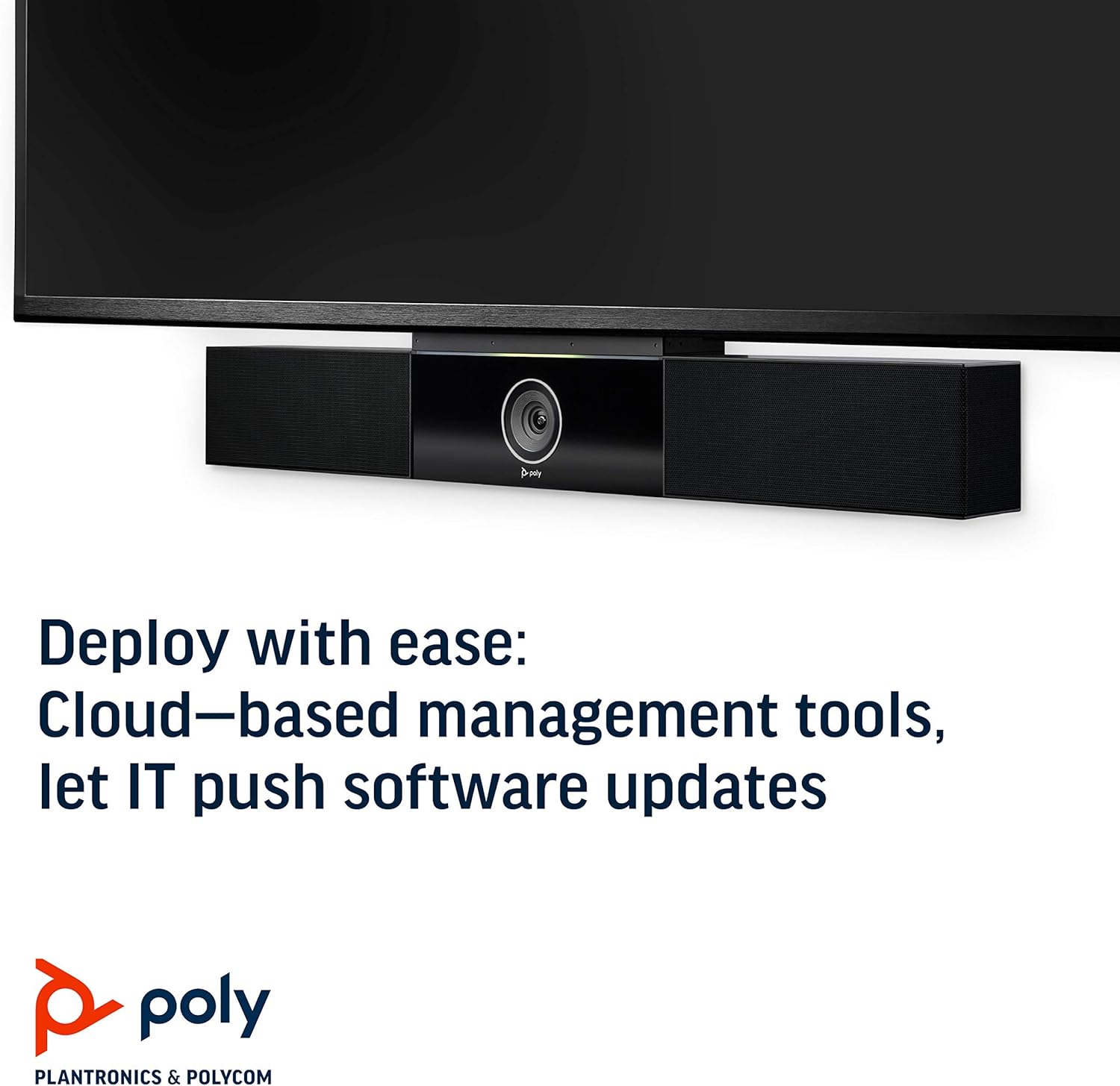
Image: Poly Studio, illustrating its compatibility with cloud-based management tools for easy software updates.
5。 トラブルシューティング
If you encounter issues with your Poly Studio, try the following troubleshooting steps:
- 電源なし: Ensure the power cable is securely connected to both the device and the power outlet. Try a different outlet if necessary.
- ビデオ/オーディオなし: Verify that the USB cable is securely connected to both the Poly Studio and your computer. Check your video conferencing application settings to ensure the Poly Studio is selected as the active camera, microphone, and speaker.
- 音質が悪い: Ensure the device is placed in a central location in the room. Check for any physical obstructions blocking the microphones or speakers. Update the device firmware via the Poly Lens app.
- カメラが追跡されない: Ensure the room is adequately lit. Check the Poly Lens app settings for camera tracking modes and adjust as needed.
- デバイスが認識されません: Try connecting the USB cable to a different USB port on your computer. Restart your computer.
6. 仕様
| 特徴 | 詳細 |
|---|---|
| 取り付けタイプ | 卓上マウント |
| モデル名 | 649661882596 |
| スピーカータイプ | ステレオ |
| 特集 | 低光量 |
| 製品の推奨用途 | video conferencing in home offices and small conference rooms |
| 対応デバイス | ラップトップ |
| サラウンドサウンドチャンネル構成 | 2.0 |
| 色 | 黒 |
| 含まれるコンポーネント | camera, stereo speakers, microphones, control unit |
| 防水です | 間違い |
| 保証タイプ | 限定 |
| アイテム数 | 1 |
| 制御方法 | 声 |
| 無線通信技術 | 無線通信技術なし |
| スピーカーサイズ | 21.59センチメートル |
| 電源 | コード式電気 |
| 耐水性レベル | 耐水性はありません |
| オーディオドライバータイプ | ダイナミックドライバ |
| サブウーファー接続技術 | 有線 |
| 製品の具体的な用途 | Home office, Small conference rooms, Video conferencing with Zoom and Microsoft Teams |
| 欧州連合 | 649661882596 |
| 屋内/屋外での使用 | 屋内 |
| メーカー | ポリコム株式会社 |
| 形 | 直方体 |
| 製品寸法 | 30 x 6 x 4インチ |
| アイテム重量 | 10.58ポンド |
| ASIN | B091YCFF84 |
| 商品型番 | 649661882596 |
| 初回利用可能日 | 7年2021月XNUMX日 |
| ブランド | ポリ |
| スピーカー最大出力 | 40ワット |
| 周波数応答 | 120 kHz |
| 接続技術 | USB |
| オーディオ出力モード | ステレオ |
7. 保証とサポート
Your Poly Studio Premium USB Video & Audio Conferencing System comes with a 限定保証. For specific details regarding the warranty period and coverage, please refer to the official Poly documentation or contact Poly support.
この商品は、 90日間の返金/交換 policy under the Amazon Renewed Guarantee, as it is a renewed product. For support or to claim warranty/return, please contact the seller or refer to the product's official support channels.