
導入
Welcome to the user manual for your AWOW Funtab 701 Kids Tablet. This guide provides essential information on setting up, operating, maintaining, and troubleshooting your device to ensure a safe and enjoyable experience for your child. Please read this manual thoroughly before using the tablet.
パッケージ内容
以下にリストされているすべてのアイテムがパッケージに含まれていることを確認してください。
- AWOW Funtab 701 Kids Tablet (7 inch)
- Exclusive Kid-Proof Case
- アクティブペン
- ユーザーマニュアル(このドキュメント)
- 電源アダプター
製品終了view
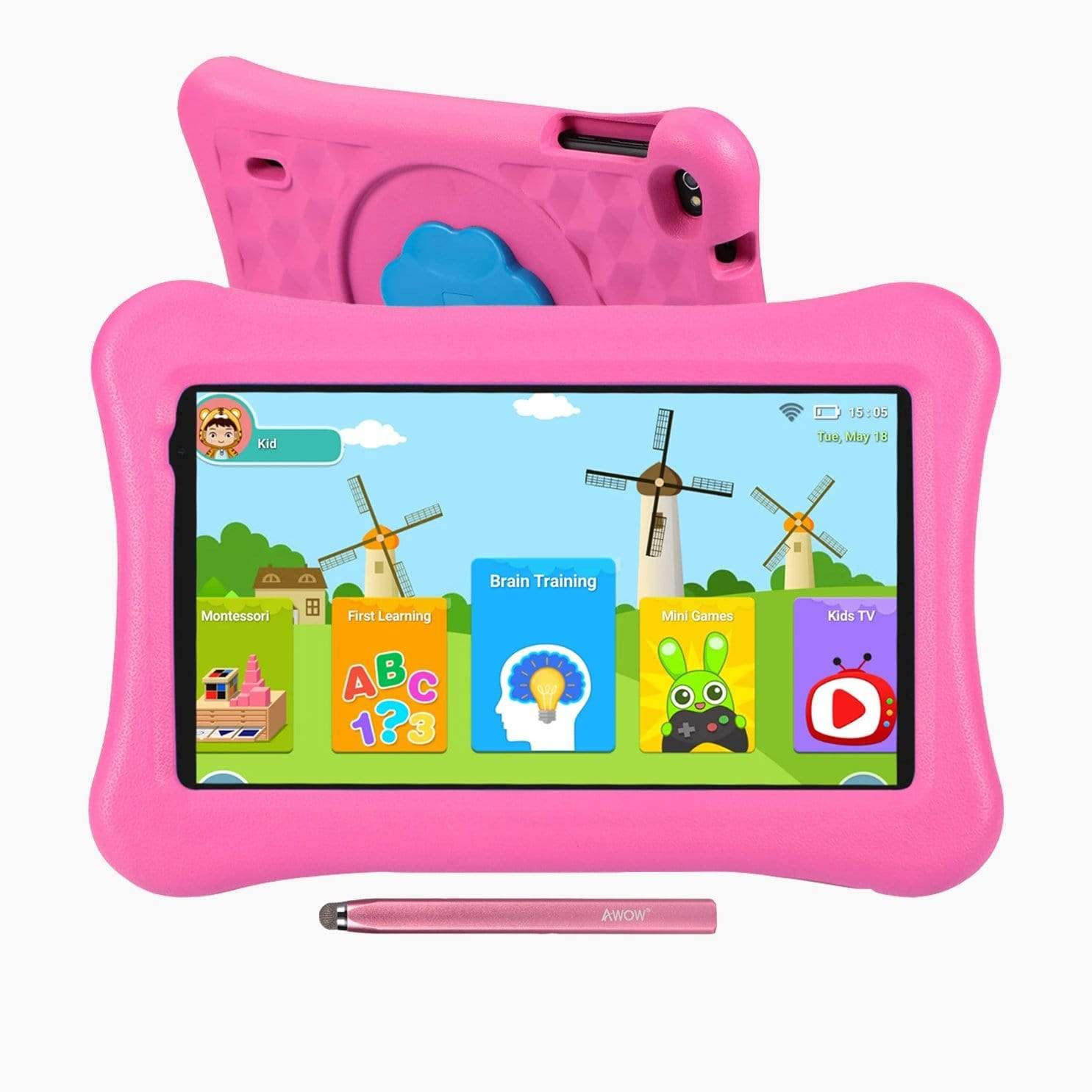
Image: The AWOW Funtab 701 Kids Tablet, shown with its protective pink kid-proof case and the accompanying active pen. The tablet features a 7-inch display.
The AWOW Funtab 701 is a 7-inch kids tablet designed for educational and entertainment purposes. It runs on Android 10 Go, powered by a 1.5GHz Quad-core processor, with 2GB RAM and 16GB ROM. It features a 1024x600 IPS HD display and supports 2.4G Wi-Fi connectivity. The tablet comes with a durable kid-proof case and an active pen for interactive learning and creativity.
設定
1. タブレットの充電
Before first use, fully charge the tablet. Connect the provided power adapter to the tablet's charging port and plug it into a wall outlet. The charging indicator will typically light up. A full charge may take several hours.
2.電源のオン/オフ
- 電源を入れるには: Press and hold the Power button (usually located on the side or top edge) until the screen lights up.
- 電源を切るには: 電源ボタンを長押しし、画面に電源オフメニューが表示されるまで待ちます。「電源を切る」を選択して確定します。
3. 初期設定
初めて電源を入れると、タブレットが初期セットアップのプロセスを案内します。
- 言語の選択: お好みの言語を選択してください。
- Wi-Fi接続: Select your 2.4G Wi-Fi network from the list and enter the password.
- Google アカウント: 既存のGoogleアカウントでログインするか、新しいアカウントを作成してください。これは、Google Playストアやその他のGoogleサービスにアクセスするために必要です。
- 日時: 正しい日付と時刻を設定するか、ネットワークで自動的に設定できるようにします。
4. iWawa App and Parental Controls
The AWOW Funtab 701 comes with the iWawa app pre-installed, offering a safe environment for children and robust parental controls.
- プロの作成files: Open the iWawa app to create individual profileそれぞれの子供に対して。
- コンテンツ管理: Within the parental control mode, you can hand-pick specific apps, games, videos, and websites that your child can access.
- Screen Time Control: Set daily time limits for tablet usage and specific play periods.
- セーフブラウジング: Ensure children browse only safe and approved webサイト。
- 設定の調整: Parental control settings can be adjusted as your child grows to tailor content to their age and development.
タブレットの操作
1. 基本的なナビゲーション
タブレットはタッチスクリーンインターフェースを採用しています。一般的な操作は以下の通りです。
- タップ: 項目を選択したり、アプリを開いたりします。
- スワイプ: ページまたはメニューをスクロールします。
- ピンチ: 画像を拡大または縮小するには web ページ。
- 長押し: コンテキスト メニューにアクセスしたり、アプリ アイコンを移動したりします。
2. Using the Active Pen
The included active pen allows for more precise interaction, drawing, and writing. Simply touch the pen to the screen as you would with your finger. No pairing is typically required for basic functionality.
3. アプリケーションの管理
- アプリのダウンロード: Access the Google Play Store to download new applications. Ensure parental controls are set to manage app downloads for children.
- アプリのアンインストール: Long-press an app icon on the home screen or in the app drawer, then drag it to the 'Uninstall' option that appears. Alternatively, go to Settings > Apps & notifications > See all apps, select the app, and tap 'Uninstall'.
4.Wi-Fiへの接続
To connect or reconnect to a Wi-Fi network:
- へ移動 設定 > ネットワークとインターネット > Wi-Fi.
- Ensure Wi-Fi is turned On.
- Select your desired 2.4G network from the list of available networks.
- プロンプトが表示されたらネットワークパスワードを入力し、タップします 接続する.
メンテナンス
1. 清掃
タブレットの画面を清掃するには、柔らかく糸くずの出ない布を使用してください。頑固な汚れには、軽くampen the cloth with water or a screen-specific cleaning solution. Avoid harsh chemicals or abrasive materials. The kid-proof case can be cleaned with mild soap and water.
2. バッテリーのお手入れ
バッテリー寿命を延ばすには:
- タブレットを極端な温度(高温または低温)にさらさないでください。
- バッテリーを頻繁に完全に放電させないでください。
- 充電には付属の電源アダプターのみを使用してください。
- Reduce screen brightness and close unused apps to conserve power.
3. ストレージ
When not in use for extended periods, store the tablet in a cool, dry place away from direct sunlight. Ensure the battery has at least a 50% charge before storing.
トラブルシューティング
If you encounter issues with your AWOW Funtab 701, refer to the solutions below:
- タブレットが電源が入らない: Ensure the tablet is fully charged. Connect it to the power adapter and wait a few minutes before attempting to power it on again. If it still doesn't turn on, try holding the power button for 10-15 seconds.
- Wi-Fi接続の問題: Check if your Wi-Fi router is working correctly. Restart both the tablet and the router. Ensure you are connecting to a 2.4G network and have entered the correct password.
- アプリが遅い、またはクラッシュする: Close unused applications. Clear the cache of problematic apps (Settings > Apps & notifications > App info > Storage & cache > Clear cache). If the issue persists, consider uninstalling and reinstalling the app.
- バッテリーの消耗が早い: The average battery life is approximately 4 hours. To optimize, reduce screen brightness, disable Wi-Fi when not needed, and close background apps. Avoid running multiple demanding applications simultaneously.
- 画面が反応しません: Try restarting the tablet. If the issue persists, ensure the screen is clean and free of debris.
仕様
| 特徴 | 詳細 |
|---|---|
| ブランド | すごい |
| モデル名 | Funtab 701 |
| オペレーティング·システム | Android 10 ゴー |
| 画面サイズ | 7インチ |
| ディスプレイ解像度 | 1024 x 600 ピクセル |
| プロセッサ | 1.5 GHz Quad-core (Qualcomm) |
| ラム | 2ギガバイト |
| 内部ストレージ | 16ギガバイト |
| 拡張可能なストレージ | Micro SD slot (up to 512GB) |
| リアカメラ | 2.0 MP |
| フロントカメラ | 2.0 MP |
| ワイヤレス接続 | 2.4G Wi-Fi (802.11b) |
| 平均バッテリー寿命 | 4時間 |
| 製品寸法 | 18.5 x 10.5 x 1 cm |
| アイテム重量 | 453.59グラム |
保証とサポート
For warranty information, please refer to the documentation provided at the time of purchase. This typically includes details on coverage duration and terms. For technical assistance or further inquiries, please contact AWOW customer service through their official support channels.