
1.製品オーバーview
The SIIG JU-DK0L11-S1 is a versatile USB 3.0 Dual Monitor Docking Station designed to expand your laptop or desktop's connectivity and display capabilities. It supports up to two 1080p@60Hz Full HD video displays via two HDMI ports, along with multiple USB ports, Gigabit Ethernet, and a 3.5mm audio jack. This docking station is compatible with both Windows and macOS operating systems, including Mac M1/M2/M3 Pro&Max.
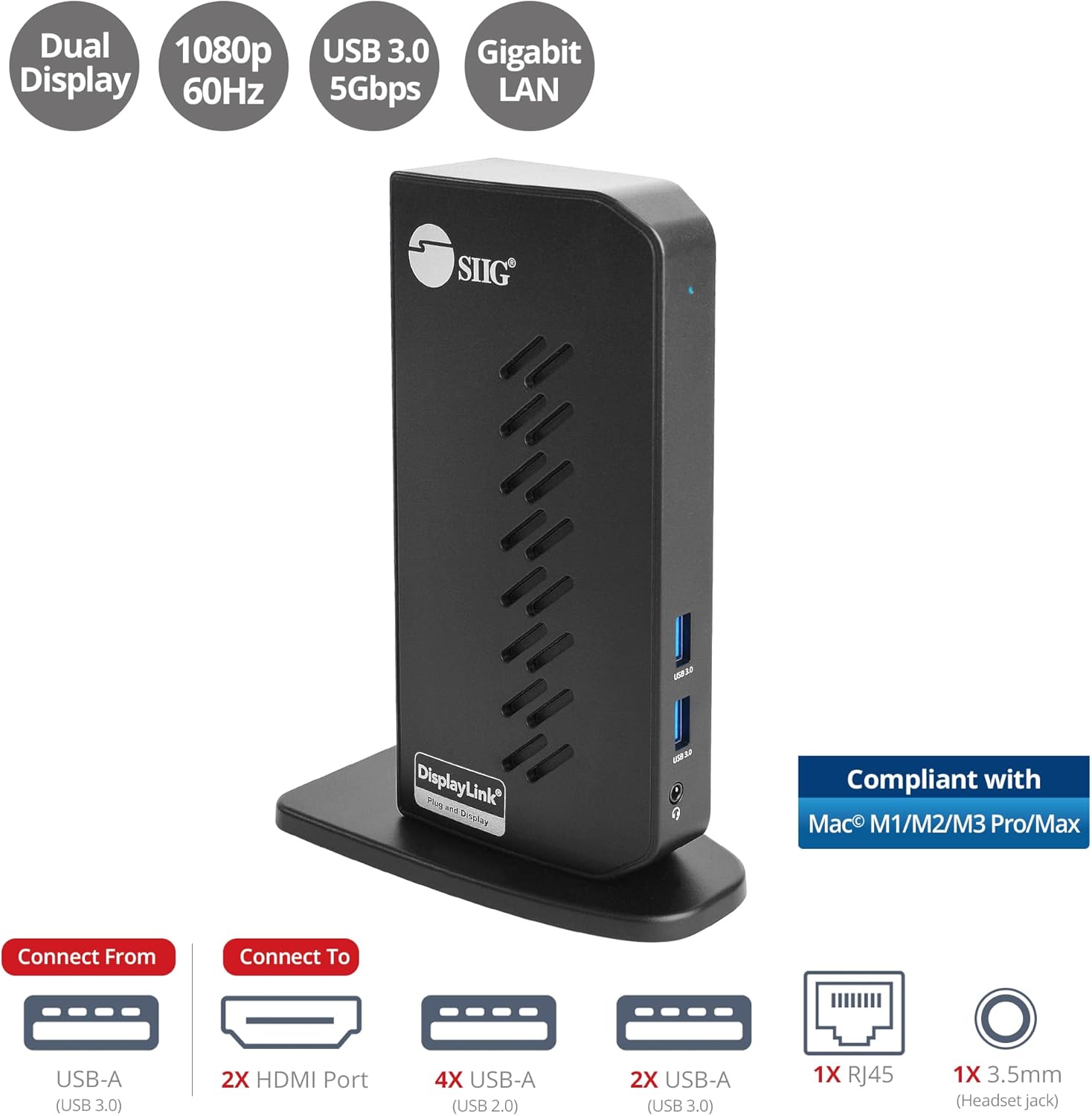
Image 1.1: The SIIG JU-DK0L11-S1 Dual Monitor Docking Station, showcasing its compact vertical design and various connectivity options.
2. パッケージ内容
インストールを続行する前に、パッケージにすべてのアイテムが揃っていることを確認してください。
- SIIG JU-DK0L11-S1 Dual Head Full HD HDMI Video Docking Station
- 電源アダプタ(12V / 2A)
- USB 3.0 タイプA - タイプB ケーブル
- Driver CD (Drivers can also be downloaded from the official SIIG web地点)
- ユーザーマニュアル

Image 2.1: All components included in the SIIG JU-DK0L11-S1 docking station package, including the docking station, power adapter, USB cable, driver CD, and user manual.
3. ハードウェアレイアウト
Familiarize yourself with the ports and indicators on the docking station.
フロントパネル
- 電源LED: 電源の状態を示します。
- 2x USB 3.0 ポート: For connecting high-speed USB devices (5Gbps, 4.5W/900mA).
- 3.5mmヘッドセットジャック: For connecting headphones or stereo speakers with microphone input.
背面パネル
- 4x USB 2.0 ポート: For connecting standard USB devices (480Mbps, 5V/900mA).
- RJ45 ギガビット イーサネット ポート: For wired network connection (10/100/1000Mbps).
- 2x HDMI Outputs: For connecting external displays (up to 1080p@60Hz).
- USB 3.0 タイプB ポート: For connecting the docking station to your host computer.
- 電源ジャック: 12V/2A電源アダプターを接続します。

画像3.1: 詳細 view of the front and rear panels of the docking station, highlighting all available ports and their functions.
4. セットアップ手順
ドッキング ステーションをセットアップするには、次の手順に従います。
- DisplayLink ドライバーをインストールします。 Before connecting the docking station, install the necessary DisplayLink drivers on your computer. You can use the included driver CD or download the latest drivers from the official DisplayLink web地点 (www.displaylink.com/downloads) or SIIG's support page.
- 接続電源: Plug the provided 12V/2A power adapter into the docking station's power jack and then into a wall outlet. The Power LED on the front panel should illuminate.
- ホストコンピュータに接続します: Use the supplied USB 3.0 Type-A to Type-B cable to connect the docking station's USB 3.0 Type-B port to an available USB 3.0 Type-A port on your laptop or desktop computer.
- ディスプレイを接続する: Connect your external monitors to the two HDMI output ports on the rear of the docking station using HDMI cables.
- 周辺機器を接続します。 Connect your USB devices (keyboard, mouse, printer, flash drives, etc.) to the available USB 3.0 and USB 2.0 ports. Connect an Ethernet cable to the RJ45 port for a wired network connection. Plug your headset or speakers into the 3.5mm audio jack.
Video 4.1: An official video demonstrating the setup and connectivity of the SIIG JU-DK0L11-S1 Dual Head Full HD HDMI Docking Station, showing how to connect monitors and peripherals.
5. 操作手順
Once the docking station is set up, you can configure your display settings and utilize the connected peripherals.
表示モード
The docking station supports three primary display modes:
- ミラーモード: プライマリディスプレイを外部モニターに複製します。
- 拡張モード: デスクトップを複数の画面に拡張し、作業スペースを広げます。
- プライマリモード: Designates one of the connected displays as the main display.
これらの設定は、オペレーティング システムのディスプレイ設定 (例: Windows のディスプレイ設定、または macOS のシステム設定 > ディスプレイ) を通じて構成できます。

Image 5.1: A typical dual 1080p monitor setup utilizing the SIIG docking station, demonstrating an extended display configuration for enhanced productivity.
USB接続
The docking station provides two USB 3.0 ports for high-speed data transfer (e.g., external hard drives, SSDs) and four USB 2.0 ports for standard peripherals (e.g., keyboard, mouse, printer). Simply plug your devices into the corresponding ports.
ギガビットイーサネット
For a stable and fast internet connection, connect an Ethernet cable from your router or modem to the RJ45 port on the docking station. This provides a more reliable connection than Wi-Fi, supporting 10/100/1000 BASE-T wired networks.

画像5.2: クローズアップ view of the Gigabit RJ45 Ethernet port and USB ports, illustrating their use for network and high-speed data transmission.
オーディオ接続
The 3.5mm headset jack allows you to connect headphones, speakers, or a microphone. Ensure your operating system's audio settings are configured to use the docking station's audio output/input.
6. Specifications (Model: JU-DK0L11-S1)
| ブランド | SIIG |
| モデル番号 | JU-DK0L11-S1 |
| ハードウェアインターフェイス | 3.5mm Audio, Ethernet, HDMI, USB 1.1, USB 2.0, USB 3.0 |
| 対応デバイス | Desktop or laptop computer with an available USB 3.0 Type-A port. Compatible with Windows® 11/10/8.1/8/7 and macOS® 11 / 10.15 to 10.10. |
| USBポート合計 | 6 (USB 3.0 x 2、USB 2.0 x 4) |
| 合計HDMIポート | 2 |
| 最大解像度 | 1080p@60Hz (per display) |
| イーサネット速度 | ギガビット(10/100/1000Mbps) |
| 入力ボリュームtage | 100ボルト(AC) |
| 製品寸法(長さ x 幅 x 高さ) | 5.31インチ x 2.87インチ x 7.36インチ |
| アイテム重量 | 0.75 ポンド |

Image 6.1: Physical dimensions of the SIIG JU-DK0L11-S1 docking station, illustrating its compact and space-saving design.
7。 トラブルシューティング
- ディスプレイ出力なし:
- ドッキング ステーションの電源がオンになっていて、電源 LED が点灯していることを確認します。
- Verify that the USB 3.0 cable is securely connected between the docking station and your computer.
- Check that HDMI cables are firmly connected to both the docking station and your monitors.
- Confirm that DisplayLink drivers are correctly installed and up to date.
- コンピュータを再起動してみてください。
- USBデバイスが認識されない:
- Ensure the docking station is powered and connected to your computer.
- USB デバイスをドッキング ステーションの別のポートに接続してみてください。
- デバイスの問題を排除するには、USB デバイスをコンピューターに直接接続します。
- ネットワーク接続なし:
- Verify the Ethernet cable is securely connected to the RJ45 port on the docking station and your network source.
- Check your computer's network settings to ensure the Ethernet adapter is enabled.
- Confirm that your router/modem is functioning correctly.
- オーディオの問題:
- Ensure your headset/speakers are properly plugged into the 3.5mm jack.
- Check your computer's sound settings to select the docking station as the default audio output/input device.
8. メンテナンス
To ensure the longevity and optimal performance of your SIIG docking station, follow these maintenance guidelines:
- 柔らかく乾いた布で拭いて、デバイスを清潔に保ちましょう。液体クリーナーやエアゾールの使用は避けてください。
- Ensure proper ventilation around the docking station to prevent overheating. The vertical design with heat dissipation features aids in this.
- デバイスを極端な温度、湿度、または直射日光にさらさないでください。
- 損傷を防ぐため、ケーブルやコネクタを丁寧に扱ってください。
9. 保証とサポート
For warranty information and technical support, please refer to the documentation included with your product or visit the official SIIG website. SIIG is committed to providing reliable products and customer assistance.
For further assistance, you may contact SIIG customer support directly through their webサイトまたは製品のパッケージに記載されている連絡先情報を参照してください。