
WiMiUS W2
WiMiUS W2 WiFi Bluetooth Mini Projector
ユーザーマニュアル
モデル:W2
1. はじめに
ご購入ありがとうございますasing the WiMiUS W2 WiFi Bluetooth Mini Projector. This projector is designed to provide a versatile and immersive viewing experience, supporting Full HD 1080p input and a display size of up to 250 inches. With built-in WiFi and Bluetooth, it offers seamless connectivity for various devices, making it ideal for home cinema, gaming, and portable entertainment.
2. パッケージ内容
パッケージをよくチェックして、すべてのアイテムが揃っていて良好な状態であることを確認してください。
- WiMiUSW2プロジェクター
- リモートコントロール
- 電源コード
- 3-in-1AVケーブル
- HDMIケーブル
- 取扱説明書
- Hand Storage Bag

Image: WiMiUS W2 Projector and its accessories, including the remote control, various cables, user manual, and a grey hand storage bag.
3.セットアップガイド
- 配置: プロジェクターは安定した平らな場所に設置してください。プロジェクターの周囲に十分な換気があることを確認してください。最適な状態を保つために viewプロジェクターをスクリーンまたは壁に対して垂直に配置します。
- 電源接続: 電源コードをプロジェクターの電源入力に接続し、電源コンセントに差し込みます。
- 電源オン: プロジェクターまたはリモコンの電源ボタンを押して電源を入れます。
- フォーカス調整: 投影された画像が鮮明になるまで、プロジェクター レンズのフォーカス リングを回転させます。
- キーストーン補正: Adjust the keystone ring (if available) to correct any trapezoidal distortion, ensuring a rectangular image.

Image: The WiMiUS W2 mini projector, highlighting its compact design and connectivity features.
4. 操作手順
4.1 Wireless Mirroring Function
The WiMiUS W2 supports wireless screen mirroring from iOS, Android, and Windows devices, allowing you to project content without cables.
- プロジェクターとモバイル デバイスが同じ Wi-Fi ネットワークに接続されていることを確認します。
- プロジェクターのメイン メニューで「スクリーンミラーリング」または「ワイヤレス ディスプレイ」オプションを選択します。
- モバイルデバイスで画面ミラーリング(例:iOSのAirPlay、Smart View/Cast for Android, Project to a second screen for Windows) and select the projector from the list of available devices.

Image: Demonstration of wireless mirroring from a smartphone to the projector screen, compatible with Android, iOS, and Windows devices.
4.2 Bluetooth接続
外部 Bluetooth スピーカーまたはヘッドフォンを接続すると、オーディオ体験が向上します。
- Go to the 'Bluetooth Settings' on the projector's menu.
- プロジェクターで Bluetooth を有効にし、Bluetooth オーディオ デバイスをペアリング モードにします。
- Select your audio device from the list of available devices on the projector to connect.

Image: The projector connected via Bluetooth to various wireless audio devices, including a speaker, headphones, and earbuds.
4.3 Multimedia Connection
プロジェクターには、さまざまなデバイスを接続するための複数のポートが備わっています。
- HDMI: Connect laptops, gaming consoles (PS4), TV sticks, Blu-ray players.
- USB: USB ドライブから直接メディアを再生します。
- VGA: Connect older computers.
- AV: Connect legacy devices using the included 3-in-1 AV cable.

Image: The projector's versatile connectivity, showing connections to a Nintendo Switch, smartphone, headphones, and laptop.
4.4 ズーム機能
Adjust the screen size from 100% down to 50% without moving the projector, providing flexibility for different room sizes and view設定を行います。

Image: Visual representation of the projector's zoom function, allowing adjustment of screen size.
4.5 TV Stick Support
Easily connect popular TV sticks (e.g., Amazon Fire Stick, Roku) to access streaming services directly through the projector.

Image: The projector's compatibility with TV sticks, showing a Fire TV Stick connected and various streaming app icons on the projected screen.
5. メンテナンス
- レンズクリーニング: Use a soft, lint-free cloth to gently wipe the projector lens. Avoid abrasive cleaners.
- ほこりの除去: 冷却性能に影響を及ぼす可能性のあるほこりの蓄積を防ぐために、定期的に通気口を掃除してください。
- ストレージ: When not in use for extended periods, store the projector in its protective bag in a cool, dry place.
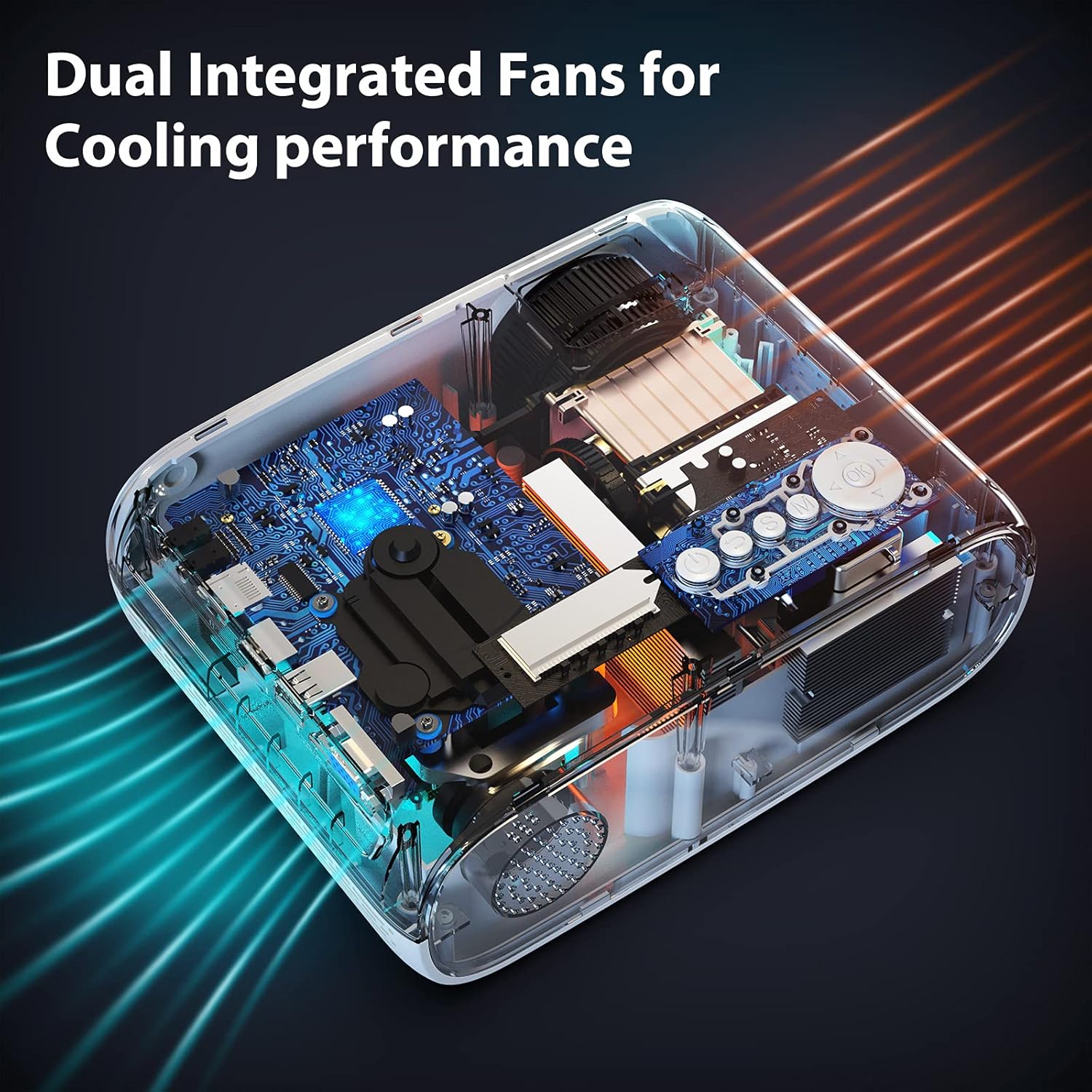
画像: 内部 view of the projector, illustrating the dual integrated fans designed for optimal cooling performance.
6。 トラブルシューティング
- 写真なし: Check power connection, input source selection, and cable connections. Ensure the lens cap is removed.
- ぼやけた画像: Adjust the focus ring. Ensure the projector is at an optimal distance from the screen. Check for smudges on the lens.
- 音が出ない: Check volume settings on both the projector and the connected device. Ensure external speakers are properly connected or paired via Bluetooth.
- ワイヤレスミラーリングの問題: Ensure both devices are on the same Wi-Fi network. Restart both the projector and the mobile device. Some streaming apps (e.g., Netflix, Hulu) may block screen mirroring due to copyright protection; use a TV stick for these services.
- 過熱: Ensure ventilation vents are not blocked. Turn off the projector and let it cool down if it feels excessively hot.
7. 仕様
| 特徴 | 詳細 |
|---|---|
| ブランド名 | WiMiUS |
| モデル番号 | W2 |
| アイテム重量 | 2.2ポンド |
| 製品寸法 | 3.5 x 5 x 7インチ |
| 色 | 白 |
| ディスプレイ解像度 | 1280 x 720(ネイティブ) |
| 接続技術 | VGA、Bluetooth、USB、HDMI |
| 特集 | Wi-Fi、Bluetooth内蔵 |
| 推奨用途 | Home entertainment, outdoor activities (not for presentations) |
8. 保証とサポート
WiMiUS provides customer support for its products. For any issues not covered in this manual, or for warranty inquiries, please contact WiMiUS customer service through their official webご購入いただいたサイトまたは販売店にお問い合わせください。保証請求のために購入証明書を保管してください。
Ask a question about this manual
Ask about setup, troubleshooting, compatibility, parts, safety, or missing instructions. Manuals+ will review the question and use this page’s manual context to help answer it.