
1. はじめに
This manual provides essential information for the safe and efficient operation of your iProda 2 in 1 Laptop, Model M1169YM. Please read this manual thoroughly before using the device and retain it for future reference. This convertible laptop features an 11.6-inch touchscreen, powered by an Intel N4100 processor, and runs on Windows 10 Pro.

Image: The iProda 2 in 1 Laptop can be used in multiple configurations, including traditional laptop, tent, stand, and tablet modes, showcasinその汎用性。
2. 安全情報
デバイスの損傷や怪我を防ぐために、次の安全上の注意事項を守ってください。
- デバイスを極端な温度、直射日光、高湿度にさらさないでください。
- デバイスを落としたり、強い衝撃を与えたりしないでください。
- Use only the provided or approved power adapter for charging.
- デバイスを水やその他の液体から遠ざけてください。
- ご自身でデバイスの分解や修理を試みないでください。資格のあるサービス担当者にご相談ください。
3. パッケージ内容
パッケージにすべてのアイテムが含まれていることを確認します。
- iProda 2 in 1 Laptop (Model M1169YM)
- 電源アダプター
- ユーザーマニュアル(このドキュメント)
4.製品オーバーview
The iProda 2 in 1 Laptop is designed for versatility, offering multiple usage modes and essential connectivity options.
4.1. 主な特徴
- 11.6インチ IPSタッチスクリーン: A responsive 10-point precision touchscreen with 1920x1080 resolution for interactive use.
- コンバーチブルデザイン: 360-degree hinge allows seamless transition between laptop, tablet, tent, and stand modes.
- Intel N4100 プロセッサー: Provides efficient performance for daily tasks.
- Windows 10 Pro: Pre-installed operating system for productivity and security.
- 拡張可能なストレージ: Supports M.2 2242 SSD for additional storage capacity.

Image: Key features of the iProda laptop, including its touchscreen, operating system, display specifications, and camera resolution.

Image: The laptop's 360-degree hinge allows it to convert into a tablet, enabling direct interaction via its precision touchscreen.
4.2. ポートとボタン
Familiarize yourself with the various ports and buttons on your laptop:
- タイプCポート: Used for power supply and data transfer.
- マイクロHDMI: 外部ディスプレイに接続します。
- マイクロUSB: USB デバイスを接続します。
- TFカードスロット: TF(MicroSD)カードでストレージを拡張します。
- 電源ボタン: デバイスの電源をオン/オフにしたり、スリープ状態にしたりします。
- 音量ボタン: オーディオ出力を調整します。
- イヤホンジャック: ヘッドホンや外部スピーカーを接続します。

画像: 詳細な view of the laptop's side panels, indicating the location and function of each port and button for easy identification.
5. セットアップ
5.1. バッテリーの充電
Before first use, fully charge the laptop's battery. Connect the provided power adapter to the Type-C port on the laptop and plug it into a power outlet. The charging indicator light will illuminate.
5.2. 最初の起動とWindowsのセットアップ
- 画面がオンになるまで電源ボタンを押し続けます。
- 画面の指示に従って、言語の選択、ネットワーク接続、ユーザー アカウントの作成などの Windows 10 Pro の初期セットアップを完了します。
6. ノートパソコンの操作
6.1. タッチスクリーンの使用
The 10-point precision touchscreen allows for intuitive interaction with Windows 10 Pro. Use gestures such as tapping, swiping, pinching, and stretching to navigate, zoom, and interact with applications.
6.2. キーボードとタッチパッド
内蔵キーボードとタッチパッドは、従来の入力方法に対応しています。タッチパッドは、スクロール、ズーム、アプリケーションの切り替えなど、マルチタッチジェスチャーをサポートしています。

Image: The laptop's full-size American keyboard and responsive touchpad, designed for comfortable typing and navigation.
6.3. コンバーチブルモード
The 360-degree hinge allows you to switch between various modes:
- ラップトップモード: タイピングと生産性のための標準構成。
- タブレットモード: Fold the screen back completely for a tablet experience, ideal for browsing or drawing.
- テントモード: Position the laptop like a tent for media consumption or presentations.
- スタンドモード: Flip the keyboard face down to use the screen as a display, suitable for watching videos.

Image: The laptop configured in tent mode, demonstrating its flexibility for viewキーボードを邪魔することなくコンテンツを操作できます。
7. ストレージの拡張
The laptop comes with 64GB eMMC storage. You can expand the storage capacity by installing an M.2 2242 SSD (128GB/256GB/512GB, not included).
7.1. Installing an M.2 2242 SSD
To install an M.2 2242 SSD:
- Power off the laptop and disconnect the power adapter.
- Carefully open the back cover of the laptop.
- Locate the M.2 slot.
- Insert the M.2 2242 SSD into the slot and secure it with the appropriate screw (if provided).
- 背面カバーを元に戻します。
- Upon booting, you may need to initialize and format the new SSD through Windows Disk Management.
Note: If you are unsure about this procedure, it is recommended to seek professional assistance.

Image: Visual representation of the M.2 SSD slot, illustrating how additional storage can be integrated into the laptop.
8. 接続性
8.1。 Wi-Fi接続
The laptop supports dual-frequency 2.4GHz/5GHz Wi-Fi. To connect to a wireless network:
- システム トレイの Wi-Fi アイコンをクリックします。
- リストから希望のネットワークを選択します。
- プロンプトが表示されたらネットワーク パスワードを入力し、「接続」をクリックします。
8.2. External Display (Micro HDMI)
Connect an external monitor or TV using a Micro HDMI to HDMI cable. Once connected, you can configure display settings (duplicate, extend, second screen only) through Windows display settings.
8.3.USBデバイス
Use the Micro USB port or the Type-C port (with an appropriate adapter) to connect peripherals such as a mouse, keyboard, or external storage devices.
9. メンテナンス
9.1. 清掃
To clean the laptop, power it off and disconnect the power adapter. Use a soft, lint-free cloth slightly damp水またはディスプレイ用クリーナーで拭いてください。刺激の強い化学薬品や研磨剤は使用しないでください。
9.2. バッテリーのお手入れ
バッテリー寿命を延ばすには:
- バッテリーを頻繁に完全に放電することは避けてください。
- Do not expose the laptop to high temperatures.
- ノートパソコンを長期間保管する場合は、バッテリーが 50 ~ 70% 程度充電されていることを確認してください。
10。 トラブルシューティング
発生する可能性のある一般的な問題に対する解決策は次のとおりです。
| 問題 | 解決 |
|---|---|
| ノートパソコンの電源が入りません。 | Ensure the battery is charged. Connect the power adapter and try again. If still unresponsive, perform a hard reset by holding the power button for 10-15 seconds. |
| 画面が空白またはちらつきます。 | Restart the laptop. Check if an external display is connected and interfering. Update display drivers if possible. |
| Wi-Fi接続の問題。 | Wi-Fiが有効になっていることを確認してください。ルーターとノートパソコンを再起動してください。Windowsのネットワーク設定を確認してください。 |
| タッチスクリーンが反応しません。 | ノートパソコンを再起動してください。画面がきれいであることを確認してください。保留中のWindowsアップデートやタッチスクリーンのドライバーアップデートがないか確認してください。 |
11. 仕様
Technical specifications for the iProda 2 in 1 Laptop (Model M1169YM):
| 特徴 | 詳細 |
|---|---|
| ブランド | アイプロダ |
| モデル番号 | M1169YM |
| オペレーティング·システム | ウィンドウズ10プロ |
| 画面サイズ | 11.6インチ |
| 画面解像度 | 1920 x 1080 ピクセル (1080p) |
| プロセッサ | Intel N4100 (up to 2.4 GHz Burst Frequency) |
| ラム | 4GB DDR4 |
| ハードドライブ | 64 GB eMMC |
| グラフィックカード | Integrated (UHD 600 Graphics) |
| ワイヤレスタイプ | 2.4 GHz / 5 GHz Dual-frequency Wi-Fi |
| 平均バッテリー寿命 | 8 Hours (3500mAh, 27Wh) |
| アイテム重量 | 3.63ポンド |
| 製品寸法 | 11.99 x 11.6 x 0.5インチ |
| 接続技術 | HDMI, USB Type-C, Micro USB |
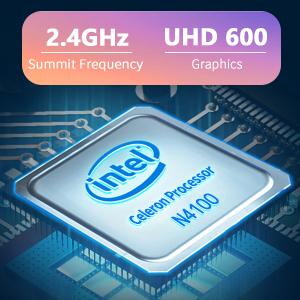
Image: The Intel Celeron N4100 processor, central to the laptop's performance, highlighting its clock speed and integrated graphics capabilities.

Image: The laptop's battery specifications, indicating its power capacity for extended use.
12. 保証とサポート
For warranty information and technical support, please refer to the documentation included with your purchase or visit the official iProda website. Contact information for customer service can typically be found on the manufacturer's support page.