
1. はじめに
This user manual provides detailed instructions for the proper use and maintenance of your Zebra DS8178 Wireless 2D/1D Barcode Scanner. Please read this manual thoroughly before operating the device to ensure optimal performance and safety. The DS8178 is designed for efficient and reliable barcode scanning in various environments, offering both 1D and 2D barcode reading capabilities with wireless connectivity.
2. 安全情報
怪我やデバイスの損傷を防ぐために、次の安全上の注意事項を守ってください。
- Do not expose the scanner or cradle to extreme temperatures, moisture, or corrosive substances.
- スキャナーの光源が直接目に入らないようにしてください。
- Use only the specified power adapter and USB cable for charging.
- 本製品を分解または改造しないでください。修理は必ず資格のある専門家にご依頼ください。
- デバイスを強い磁場から遠ざけてください。
3. パッケージ内容
パッケージにすべてのアイテムが含まれていることを確認します。
- Zebra DS8178 Wireless Barcode Scanner
- USB Communication/Charging Cradle
- USBケーブル
- クイックスタートガイド(このマニュアルには含まれていません)
4.製品オーバーview
Familiarize yourself with the components of your Zebra DS8178 scanner and its cradle.

図4.1: 側 view of the Zebra DS8178 Wireless Barcode Scanner, showing its ergonomic design.

図4.2: フロント view of the Zebra DS8178 Wireless Barcode Scanner, highlighting the scanning window and trigger button.

図4.3: フロント view of the USB Communication/Charging Cradle, featuring the pairing button.
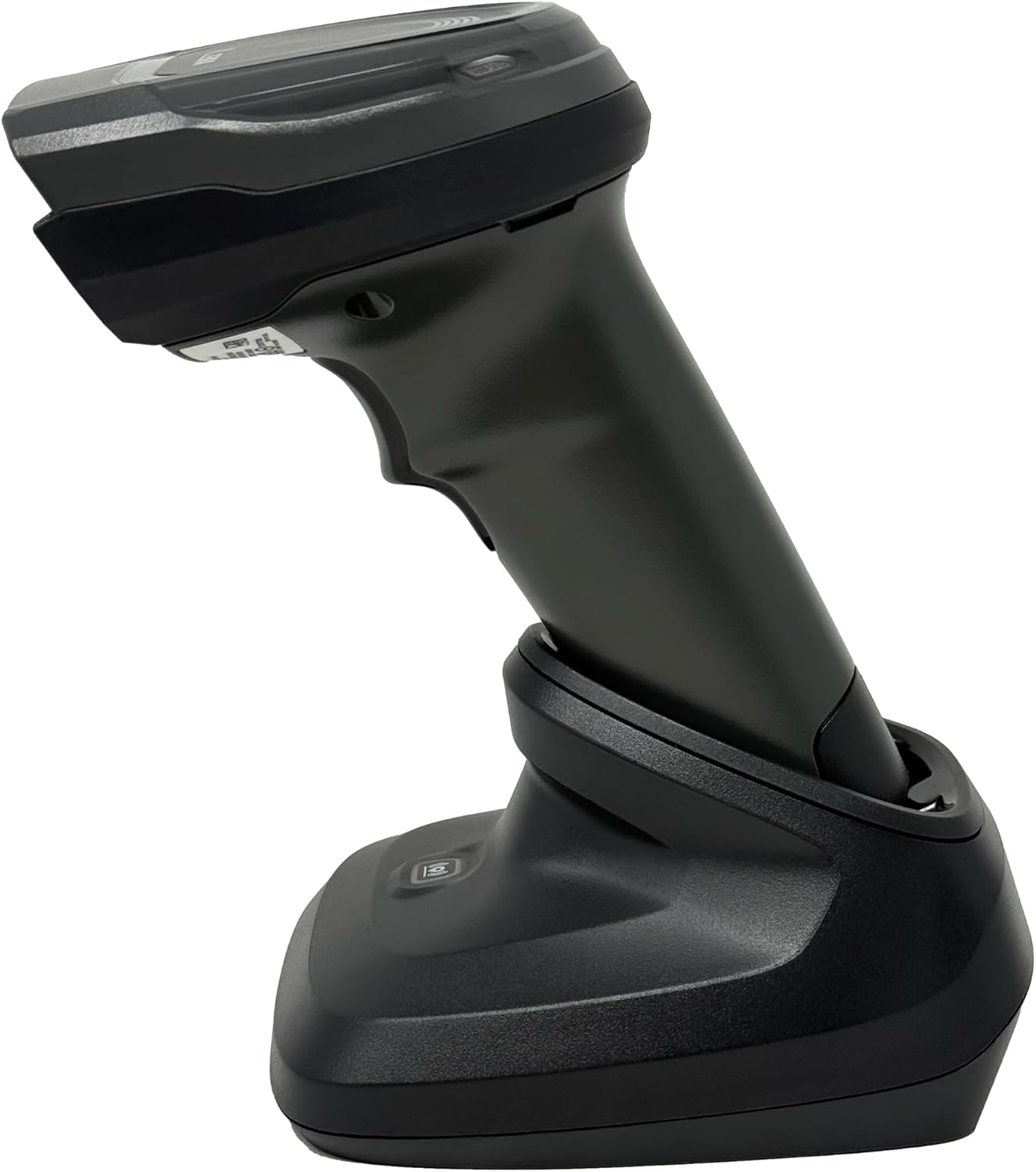
図4.4: The Zebra DS8178 scanner securely docked in its USB cradle, ready for charging or communication.
4.1 スキャナコンポーネント
- スキャンウィンドウ: バーコードを読み取る領域。
- トリガー: スキャンビームをアクティブにします。
- LEDインジケーター: Provide status feedback (e.g., battery, scan success).
- バッテリーコンパートメント: Houses the removable/rechargeable battery.
4.2 Cradle Components
- Scanner Slot: Where the scanner docks for charging and communication.
- USBポート: Connects the cradle to a host device (PC, laptop).
- ペアリングボタン: Initiates Bluetooth pairing with the scanner.
- LEDインジケーター: Show cradle status (e.g., power, connection).
5. セットアップ
5.1 スキャナの充電
- Connect the USB cable to the cradle's USB port.
- USB ケーブルのもう一方の端を、コンピューターの電源が入った USB ポートまたは USB 壁面アダプタに接続します。
- Place the DS8178 scanner into the cradle. Ensure it is seated correctly.
- The scanner's LED indicator will show charging status. A full charge typically takes approximately 3-4 hours.
5.2 Connecting the Cradle to a Host Device
The cradle connects to your computer via a standard USB cable.
- Plug the USB cable into the USB port on the back of the cradle.
- USB ケーブルのもう一方の端をデスクトップ コンピュータまたはラップトップ コンピュータの使用可能な USB ポートに接続します。
- オペレーティング システムは必要なドライバーを自動的に検出してインストールします。
5.3Bluetoothペアリング
The DS8178 offers two primary Bluetooth pairing methods: via the cradle or direct to a host device.
5.3.1 Pairing via Cradle (Recommended for PC/Laptop)
- Ensure the cradle is connected to your host device (PC/Laptop) via USB.
- Place the DS8178 scanner into the cradle.
- The scanner will automatically pair with the cradle. Once paired, the scanner can be removed from the cradle and will communicate wirelessly with the host device through the cradle.
- A successful connection is indicated by a specific LED pattern on both the scanner and cradle (refer to the scanner's LED guide for details).
5.3.2 Direct Bluetooth Pairing (for Phones/Tablets or PC/Laptop without cradle)
- Power on the DS8178 scanner.
- Scan the "Pairing Barcode" (usually found in a quick start guide or on the scanner itself) to put the scanner into discoverable mode. Alternatively, press and hold the Bluetooth pairing button on the scanner (if available) or scan a specific Bluetooth pairing configuration barcode.
- On your phone, tablet, or computer, navigate to the Bluetooth settings.
- 検索する available devices. The DS8178 should appear in the list (e.g., "Zebra DS8178").
- Select the scanner to initiate pairing. You may be prompted to confirm a passkey or scan a pairing barcode displayed on your screen.
- Once paired, the scanner's LED will indicate a successful connection.
6. 操作
6.1 バーコードのスキャン
- Point the scan window of the DS8178 scanner at the barcode you wish to read.
- トリガーボタンを押し続けます。赤い照準パターンが表示されます。
- Center the aiming pattern over the barcode. For 1D barcodes, the aiming line should cross the entire barcode. For 2D barcodes, the aiming pattern should encompass the entire code.
- Once the barcode is successfully read, the scanner will emit an audible beep and/or the LED indicator will flash green.
- トリガーを放します。
6.2 Cordless Range
The Zebra DS8178 offers a cordless range of up to 330 feet (100 meters) from its cradle or directly paired host device, depending on environmental conditions and line of sight. Obstructions such as walls or other electronic devices may reduce the effective range.
6.3 スキャンモード
- トリガーモード: The scanner reads a barcode only when the trigger is pressed.
- Presentation Mode (Hands-Free): When placed in the presentation cradle, the scanner can be configured to automatically detect and read barcodes placed within its field of view without requiring a trigger press. This mode is ideal for high-volume scanning applications.
7. メンテナンス
7.1 スキャナのクリーニング
To maintain optimal scanning performance, keep the scan window clean.
- 柔らかく、清潔で、糸くずの出ない布を使用してください。ampened with water or a mild cleaning solution (e.g., isopropyl alcohol).
- Gently wipe the scan window and the exterior of the scanner.
- 研磨剤入りの洗剤、溶剤、または刺激の強い化学薬品は使用しないでください。
- クリーニングする前に、スキャナーの電源がオフになっていることを確認してください。
7.2バッテリーケア
The DS8178 features a 2500mAh removable and rechargeable battery. Proper battery care extends its lifespan.
- 最初に使用する前に、バッテリーを完全に充電してください。
- 定期的にバッテリーを完全に放電することは避けてください。
- スキャナーを長期間使用しない場合は、涼しく乾燥した場所に保管してください。
- If the battery performance significantly degrades, it may need replacement. Contact support for genuine replacement batteries.
8。 トラブルシューティング
| 問題 | 考えられる原因 | 解決 |
|---|---|---|
| スキャナーの電源が入りません。 | バッテリー残量が少ない、または消耗しています。 | Charge the scanner using the USB cradle and cable. |
| スキャナーが Bluetooth 経由で接続されません。 | ペアリング モードではありません。範囲外です。干渉があります。ホスト デバイスの Bluetooth がオフになっています。 | Ensure scanner is in pairing mode. Check host device Bluetooth settings. Move closer to the host device. Reduce interference. |
| スキャナーがバーコードを読み取れません。 | Barcode damaged/poor quality; scan window dirty; incorrect symbology enabled; scanner not aimed correctly. | Try scanning a different barcode. Clean the scan window. Ensure correct aiming. Check scanner configuration for enabled symbologies. |
| ホストにデータが送信されません。 | Not paired; application not in focus; incorrect interface settings. | Confirm successful Bluetooth pairing. Ensure the target application (e.g., text editor, POS software) is active and ready to receive input. |
9. 仕様
| 特徴 | 詳細 |
|---|---|
| モデル | DS8178 |
| ブランド | Zebra (formerly Symbol) |
| 接続技術 | Bluetooth, USB Cable, Wireless |
| 対応デバイス | Desktop, Laptop, Phones, Tablets |
| 電源 | 電池式、コード式、充電式 |
| バッテリー容量 | 2500mAh (Removable/Rechargeable) |
| コードレスレンジ | 最大330フィート(100メートル) |
| スキャン機能 | 1Dおよび2Dバーコード |
| の本当の角度 View | 17度 |
| UPC / GTIN | 649661651499 |
10. 保証とサポート
This Zebra DS8178 Barcode Scanner comes with a 90日間の限定保証この保証は、通常の使用における材料および製造上の欠陥を対象とします。誤用、事故、不正な改造、または外的要因による損傷は保証の対象外となります。
For technical support, warranty claims, or to purchase genuine replacement parts (such as batteries), please contact your reseller or visit the official Zebra support website. Please have your model number (DS8178) and any purchase information ready when contacting support.