
1. はじめに
The ASTRO Gaming A20 Wireless Headset Gen 2 provides a high-quality audio experience for gaming across multiple platforms. This manual details the setup, operation, maintenance, and troubleshooting for your headset, ensuring optimal performance and longevity.

Image 1.1: The ASTRO Gaming A20 Wireless Headset Gen 2, featuring a white and green design.
2. パッケージ内容
製品パッケージにすべてのアイテムが揃っていることを確認します。
- ASTRO Gaming A20 Wireless Headset Gen 2
- USB Transmitter (Console Specific)
- USB-C-USB-A充電ケーブル
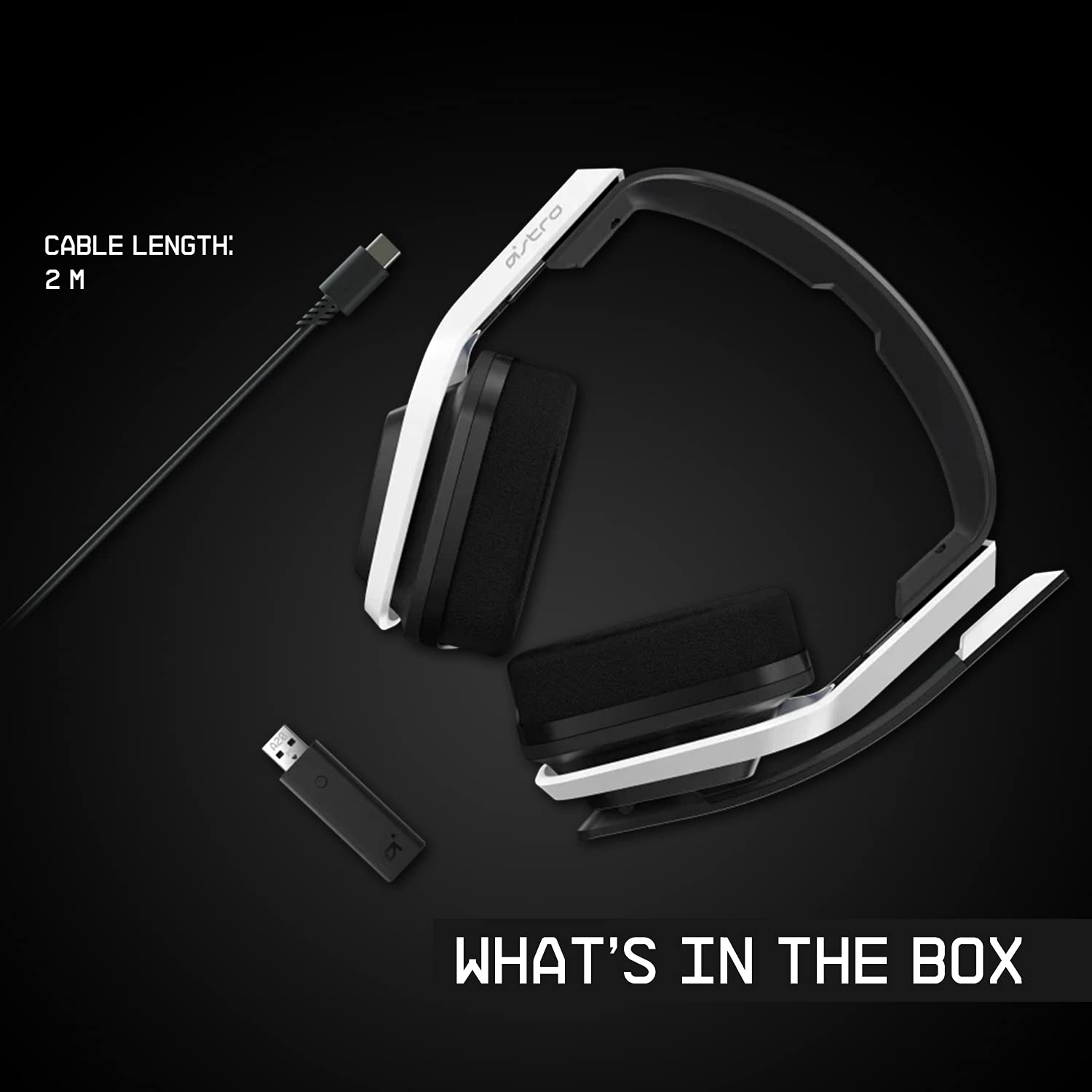
Image 2.1: Contents of the ASTRO Gaming A20 Wireless Headset Gen 2 package, including the headset, USB transmitter, and charging cable.
3. セットアップ
3.1 初期充電
Before first use, fully charge the headset. Connect the USB-C end of the charging cable to the headset's USB-C port and the USB-A end to a powered USB-A port on your console, PC, or a wall adapter. A full charge provides approximately 15 hours of battery life.
3.2 Connecting to Xbox (Series X|S, Xbox One)
- Plug the USB Transmitter into an available USB port on your Xbox console.
- Power on your ASTRO A20 Wireless Headset.
- The headset and transmitter should automatically pair. The LED indicator on both devices will show a solid light when connected.
- Ensure your Xbox audio output settings are configured to send audio to the headset.
3.3 Connecting to PC / Mac
- Plug the USB Transmitter into an available USB port on your PC or Mac.
- Power on your ASTRO A20 Wireless Headset.
- The headset and transmitter should automatically pair. The LED indicator on both devices will show a solid light when connected.
- Navigate to your operating system's sound settings and select the ASTRO A20 as the default playback and recording device.

Image 3.1: The ASTRO Gaming A20 Wireless Headset Gen 2 demonstrating cross-platform connectivity with an Xbox console.
4. 操作手順
4.1 ヘッドセットのコントロール
The ASTRO A20 Gen 2 features intuitive controls located on the headset for easy access during gameplay.
- 電源ボタン: ヘッドセットの電源をオンまたはオフにします。
- ボリュームホイール: 全体的なオーディオの音量を調整します。
- Game/Voice Balance Buttons: Allows you to adjust the balance between game audio and voice chat audio. Press the 'Game' button to increase game volume relative to chat, or the 'Voice' button to increase chat volume relative to game.
- EQ Preset Button: Cycles through 3 different equalizer presets to optimize audio for various content types.
- フリップミュートマイク: Flipping the microphone boom arm up mutes the microphone. Flipping it down unmutes it.

Image 4.1: The ASTRO Gaming A20 Wireless Headset Gen 2 demonstrating the flip-to-mute microphone feature.
4.2 バッテリー寿命と充電
The headset provides over 15 hours of continuous use on a full charge. When the battery is low, you will hear an audible alert. Recharge the headset using the provided USB-C to USB-A cable as described in Section 3.1.

Image 4.2: The ASTRO Gaming A20 Wireless Headset Gen 2 highlighting its 15+ hours of battery life.
5. メンテナンス
適切な手入れにより、ヘッドセットの寿命とパフォーマンスが保証されます。
- クリーニング: Use a soft, dry cloth to clean the headset. Avoid abrasive cleaners or solvents.
- ストレージ: ヘッドセットは、直射日光や極端な温度を避け、涼しく乾燥した場所に保管してください。
- バッテリーのケア: For optimal battery health, avoid fully discharging the battery frequently. Recharge when the low battery indicator appears.
6。 トラブルシューティング
If you encounter issues with your ASTRO A20 Wireless Headset Gen 2, refer to the following common solutions:
| 問題 | 考えられる解決策 |
|---|---|
| No audio / Headset not connecting |
|
| Microphone not working / Static in mic |
|
| Short battery life / Not charging |
|
| Audio cutting out / Wireless range issues |
|
7. 仕様
| 特徴 | 詳細 |
|---|---|
| モデル名 | ASTRO A20 Wireless Headset Gen 2 |
| 商品型番 | 939-001882 |
| 接続技術 | ワイヤレス(RF 2.4 GHz) |
| ワイヤレス範囲 | 最大15メートル(50フィート) |
| バッテリー寿命 | 約15時間 |
| オーディオドライバーのサイズ | 40 mmダイナミックドライバー |
| 周波数範囲 | 20 Hz - 20 kHz |
| マイクロフォン | Flip-to-mute functionality |
| コントロール | Volume wheel, Game/Voice balance, EQ preset button |
| 充電ポート | USB-C (for charging via USB-A source) |
| 重さ | 318グラム(11.2オンス) |
| 対応デバイス | Xbox Series X|S, Xbox One, PC, Mac |
8. 保証とサポート
For detailed warranty information, technical support, and additional resources, please visit the official Logitech G / ASTRO Gaming support website. You can also refer to the official User Guide PDF for further details:
- 公式ユーザーガイド(PDF): ダウンロードはこちら
- Logitech G Support: 訪問 Webサイト