
導入
This manual provides detailed instructions for the installation, operation, maintenance, and troubleshooting of the HP ProDesk 400 G3 MS-7957 motherboard. Please read this manual thoroughly before proceeding with any installation or operation to ensure proper functionality and safety.
安全情報
マザーボードの損傷や怪我を防ぐために、常に次の安全上の注意事項を守ってください。
- コンポーネントの取り付けまたは取り外しを行う前に、壁のコンセントから電源を外してください。
- マザーボードを扱う前に、静電気防止リストストラップを着用するか、接地された金属物に頻繁に触れて静電気を放電してください。
- 敏感なコンポーネントに触れないように、マザーボードの端を持ってください。
- 過熱を防ぐために、コンピューターケース内の換気が適切であることを確認してください。
- マザーボードを湿気や極端な温度から遠ざけてください。
製品終了view
The HP ProDesk 400 G3 MS-7957 is a MicroATX motherboard designed for Intel processors with an LGA 1151 socket. It supports DDR4 RAM and features a B250 chipset, offering a reliable foundation for desktop computing.
主な特徴
- Compatible CPU Brand: インテル
- ソケットタイプ: LGA 1151/Socket H4
- フォームファクター: マイクロATX
- I / Oコネクタ: Ethernet (RJ-45), USB 2.0, USB 3.0, VGA, DisplayPort, HD Audio Jack
コンポーネントの識別
Familiarize yourself with the layout of the motherboard to facilitate proper installation and connection of components.

図1: 角度付き view of the HP ProDesk 400 G3 MS-7957 motherboard. This image highlights the CPU socket (LGA 1151), four DDR4 RAM slots, PCIe slots, and various headers for front panel connections and storage devices.
セットアップとインストール
始める前に
- Ensure your computer case is compatible with the MicroATX form factor.
- Gather all necessary components: CPU, RAM, CPU cooler, power supply, storage devices, and graphics card (if not using integrated graphics).
- Prepare your workspace by ensuring it is clean, well-lit, and static-free.
マザーボードの取り付け
- Install the CPU into the LGA 1151 socket. Carefully align the CPU with the socket's notch and gently lower it into place. Close the retention arm.
- CPU にサーマルペーストを塗布し、製造元の指示に従って CPU クーラーを取り付けます。
- Install the DDR4 RAM modules into the designated slots. Ensure they are fully seated until the clips lock into place.
- Mount the motherboard into the computer case using the appropriate standoffs and screws.
- メインの 24 ピン ATX 電源コネクタと、電源装置の 4 ピンまたは 8 ピン CPU 電源コネクタをマザーボードに接続します。
- Install any expansion cards (e.g., graphics card) into the PCIe slots.

図2: 上から下への角度 view of the HP ProDesk 400 G3 MS-7957 motherboard. This perspective provides a clear view of the processor socket, memory slots, and the layout of the various internal connectors and components.
周辺機器の接続
- Connect SATA storage devices (HDDs/SSDs) to the SATA ports on the motherboard.
- Connect front panel headers (power button, reset button, USB ports, audio jacks) to their respective pins on the motherboard. Refer to your case manual for specific pin assignments.
- Connect external peripherals such as monitor, keyboard, mouse, and Ethernet cable to the rear I/O panel.
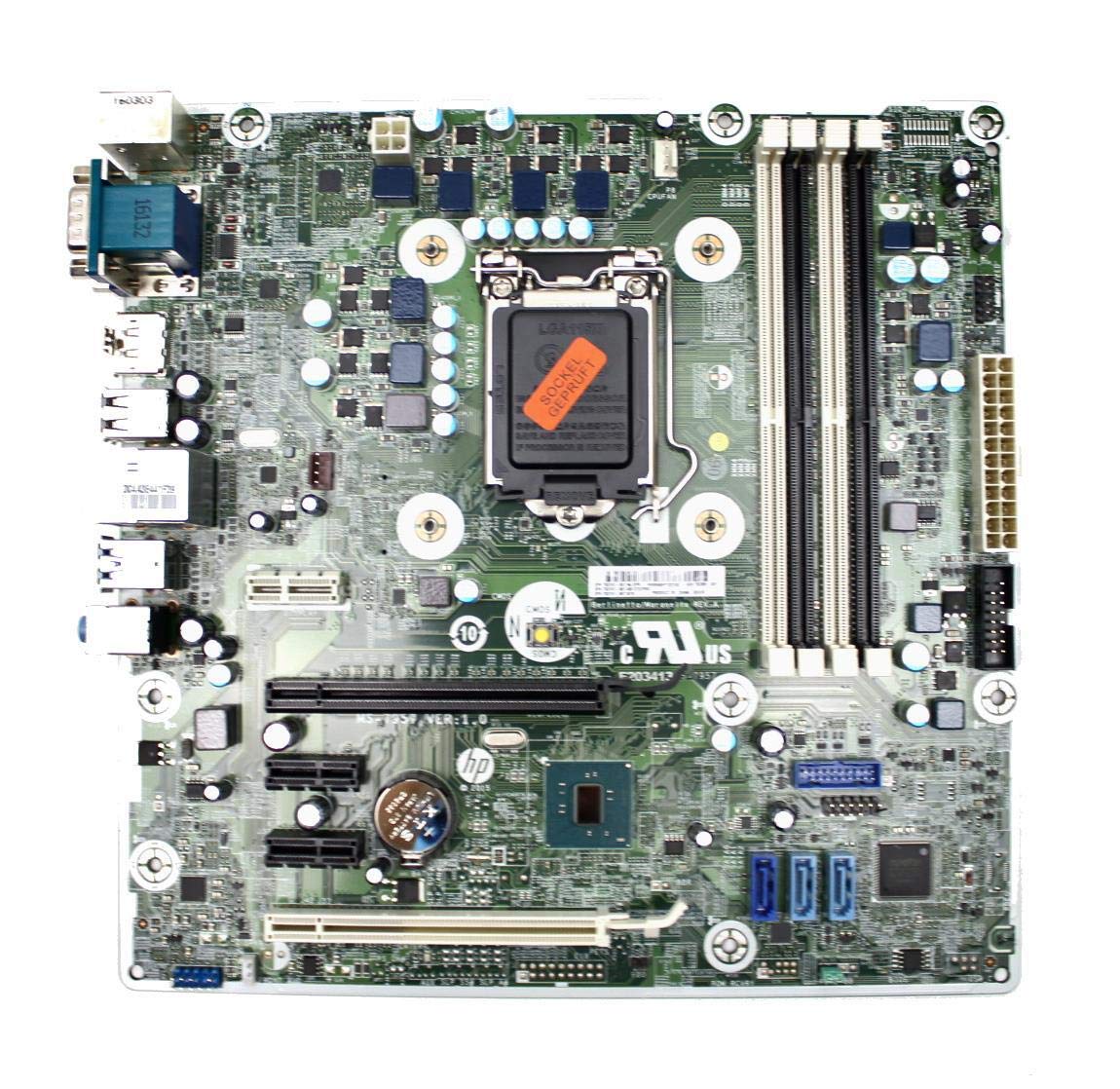
Figure 3: Rear I/O panel of the HP ProDesk 400 G3 MS-7957 motherboard. This image displays the available external connectivity options, including PS/2 ports, serial port, VGA, DisplayPort, USB 2.0, USB 3.0, Ethernet (RJ-45), and HD audio jacks.
操作手順
初期電源オン
After all components are installed and connected, connect the power cable to the power supply and press the power button on your computer case. The system should initiate the boot process.
BIOS/UEFI構成
BIOS/UEFIセットアップユーティリティにアクセスするには、指定されたキー(通常は デル, F2, F10、 または F12) during the initial boot sequence. Here you can configure boot order, system time, and other hardware settings.
ドライバーのインストール
After installing your operating system, it is crucial to install the latest drivers for your motherboard's chipset, integrated graphics, audio, and network adapter. These drivers can typically be found on the HP support webサイトまたはチップセットメーカーの webサイト。
メンテナンス
- クリーニング: マザーボードとコンポーネントの埃は、圧縮空気を使って定期的に除去してください。清掃の前に、システムの電源をオフにし、電源プラグを抜いてください。
- BIOS/UEFI アップデート: Periodically check for BIOS/UEFI updates from HP's official support website. Updates can improve stability, compatibility, and performance. Follow update instructions carefully to avoid system damage.
- ドライバーの更新: 最適なパフォーマンスと新しいソフトウェアおよびハードウェアとの互換性を確保するために、すべてのシステム ドライバーを最新の状態に保ってください。
トラブルシューティング
このセクションでは、発生する可能性のある一般的な問題に対する解決策を示します。
- 電源なし: Check all power connections, including the 24-pin ATX and CPU power cables. Ensure the power supply is switched on and the wall outlet is functional.
- 表示なし: Verify that your monitor is connected to the correct video output (VGA or DisplayPort) and is powered on. Reseat the graphics card (if applicable) and RAM modules.
- システムの不安定性/クラッシュ: This could be due to overheating, faulty RAM, or outdated drivers. Check CPU and GPU temperatures, run memory diagnostic tools, and update drivers.
- 周辺機器が検出されません: Ensure the peripheral is properly connected. Try a different port or update the relevant drivers.
- BIOS/UEFI の問題: If you encounter issues after changing BIOS settings, try resetting the CMOS by removing the CMOS battery for a few minutes or using the clear CMOS jumper (refer to motherboard diagram for location).
仕様
| 特徴 | 仕様 |
|---|---|
| ブランド | HP |
| CPUソケット | 1151 号線 |
| 対応デバイス | デスクトップコンピュータ |
| RAMテクノロジー | DDR4 |
| 互換性のあるプロセッサ | Intel Core i3-6xxx, Intel Core i5-6xxx, Intel Core i7-6xxx, Intel Core i3-7xxx, Intel Core i5-7xxx, Intel Core i7-7xxx, Intel Core i3-8xxx, Intel Core i5-8xxx, Intel Core i7-8xxx |
| チップセットタイプ | インテル B250 |
| プラットフォーム | ウィンドウズ |
| モデル名 | MS-7957 |
| CPUモデル | Core i3 (Note: Supports i3, i5, i7 as listed above) |
| 主電源コネクタのタイプ | 24ピン |
| グラフィックカードインターフェース | PCIエクスプレス |
| 利用可能なメモリスロット | 4 |
| SATAポート合計 | 6 |
| USBポート合計 | 2 (Note: Refers to internal headers, rear I/O has more) |
| イーサネットポート合計 | 1 |
| Total PCIe Ports | 3 |
| メーカー | Computer Store Berlin (Reseller/Supplier) |
| 部品番号 | 4061435962741 |
| ASIN | B08CS13PTQ |
保証とサポート
この製品には、 1年間保証 購入日から。この保証は通常の使用における材料および製造上の欠陥をカバーします。
For technical support, warranty claims, or further assistance, please contact your point of purchase or refer to the official HP support resources for the ProDesk 400 G3 series.