
1. はじめに
This manual provides essential instructions for the safe and efficient use of your LIFX Color Smart LED Bulb. The LIFX Color bulb offers a wide spectrum of colors and white tones, controllable via Wi-Fi without the need for a separate hub. It is designed to enhance your lighting experience with smart features and energy efficiency.

Image: The LIFX Color Smart LED Bulb alongside its product packaging, highlighting its features.
主な特徴:
- Billions of Colors: Access a vast range of colors and a wide cool-to-warm white spectrum (1500K to 9000K).
- 800ルーメンの明るさ: 提供する ampさまざまな設定に対応したイルミネーション。
- E26 Edison Screw Base: Standard fitting for easy installation.
- Wi-Fi接続: Connects directly to your 2.4GHz Wi-Fi network, no hub required.
- 音声コントロール: Compatible with Alexa, Apple HomeKit/Siri, and Hey Google.
- Scheduling & Scenes: Customize lighting schedules and create personalized scenes.
2. 安全情報
Please read and follow these safety guidelines to prevent injury or damage to the product.
- 屋内使用のみ: This bulb is designed for indoor use in dry locations.
- 適切な取り付け: 電球を取り付けたり取り外したりする前に、電源がオフになっていることを確認してください。
- 巻tage互換性: Use only within the specified voltage range (AC 100-240V, 50/60 Hz).
- 密閉された器具を避ける: Do not use in fully enclosed luminaires as this may reduce bulb life.
- 調光スイッチ: Do not use with standard dimmer switches. Dimming is controlled via the app or voice assistants.
- 廃棄: 電子廃棄物は地域の規制に従って責任を持って処分してください。
3. パッケージ内容
Your LIFX Color Smart LED Bulb package should contain the following:
- 1 x LIFX Color Smart LED Bulb (E26 Edison Screw)
4.セットアップガイド
4.1物理的な設置
- スイッチで照明器具の電源がオフになっていることを確認します。
- Carefully screw the LIFX Color Smart LED Bulb into a standard E26 Edison screw socket. Do not overtighten.
- Turn the power back on at the switch. The bulb should illuminate with a default white light.

Image: A visual guide showing the three simple steps for setting up the LIFX bulb: screwing it into a lamp, downloading the app, and enjoying the light.
4.2アプリのダウンロードとWi-Fi接続
- Download the official LIFX app from the Apple App Store or Google Play Store.
- Open the LIFX app and create an account or log in.
- Follow the in-app instructions to add your new LIFX bulb. This typically involves scanning a QR code on the bulb or its packaging and connecting to your home's 2.4GHz Wi-Fi network.
- Ensure your mobile device is connected to the 2.4GHz Wi-Fi network during the setup process.
4.3 音声アシスタントの統合
The LIFX Color bulb is compatible with popular voice assistants. Follow the instructions within your preferred voice assistant's app to link your LIFX account.
- アマゾンアレクサ: Enable the LIFX skill in the Alexa app and discover devices.
- Apple HomeKit/Siri: Use the Home app on your iOS device to add the accessory.
- ねえGoogle: Link your LIFX account in the Google Home app.

Image: A collage of logos indicating compatibility with various smart home platforms and voice assistants.
5. 操作手順
5.1 Controlling Color and Brightness
Use the LIFX app to adjust the bulb's color and brightness. The app features a color wheel and sliders for precise control.
- Open the LIFX app and select your bulb.
- Drag your finger across the color wheel to choose a desired color.
- Adjust the brightness slider to set the light intensity from 1% to 100%.
- For white light, select from the warm to cool white spectrum options.

Image: A smartphone displaying the LIFX app interface, featuring a color wheel for selecting light colors and adjusting brightness.
5.2 音声制御
Once integrated with a voice assistant, you can control your LIFX bulb using simple voice commands.
- 「アレクサ、リビングのライトをつけて。」
- "Hey Google, set the kitchen light to blue."
- "Siri, dim the bedroom light to 50%."
- "Alexa, set the kitchen to 'Frozen'."

Image: A person in a kitchen interacting with a voice assistant to control the lighting, demonstrating hands-free operation.
5.3 スケジュールとシーン
Automate your lighting to fit your daily routine or create custom ambiances.
- スケジュール: In the LIFX app, set specific times for your lights to turn on/off, change color, or adjust brightness. For example, schedule lights to gradually brighten in the morning for a gentle wake-up or dim in the evening for winding down.
- シーン: Create and save custom lighting configurations (e.g., "Movie Night," "Relax," "Party"). Activate these scenes with a single tap in the app or via voice command.
- 安全: Use scheduling to make it appear as if someone is home when you are away.

画像: 外観 view of a house at dusk, illustrating how scheduled lighting can provide added security by making it appear occupied.

Image: A person waking up in bed as a smart light gradually brightens, demonstrating the use of light as an alarm clock replacement.
6. メンテナンス
The LIFX Color Smart LED Bulb requires minimal maintenance.
- クリーニング: Ensure the bulb is cool and the power is off before cleaning. Wipe with a soft, dry cloth. Do not use liquid cleaners or abrasive materials.
- ストレージ: If storing the bulb, keep it in its original packaging or a protective container in a cool, dry place.
7。 トラブルシューティング
If you encounter issues with your LIFX Color Smart LED Bulb, refer to the following common solutions:
| 問題 | 考えられる解決策 |
|---|---|
| 電球がWi-Fi/アプリに接続できない |
|
| Bulb is unresponsive or offline |
|
| 音声コマンドが機能しない |
|
8. 仕様
Detailed technical specifications for the LIFX Color Smart LED Bulb (Model: L3A19LC08E26US):
| 特徴 | 詳細 |
|---|---|
| モデル名 | LIFX Color - 800 Lumens |
| モデル番号 | L3A19LC08E26US |
| ライトタイプ | 導かれた |
| 電球の形状サイズ | A19 |
| 電球ベース | E26 |
| 輝度 | 800ルーメン |
| ワットtag使用 | 9.0W at full brightness |
| 白熱電球相当 | 60W |
| 巻tage範囲 | AC 100-240V 50 / 60 Hz |
| 色温度 | 1500K~9000K |
| 演色評価数(CRI) | 80 |
| ビーム角度 | 235° |
| 減光 | Software dimming 1% - 100% |
| Wi-Fi | 2.4GHz (WPA, WPA2 Security) |
| 寸法(幅×高さ) | 2.36 in x 4.13 in (60mm x 105mm) |
| 材料 | アルミニウム、プラスチック |
| 平均寿命 | 206,432時間(約22.8年) |
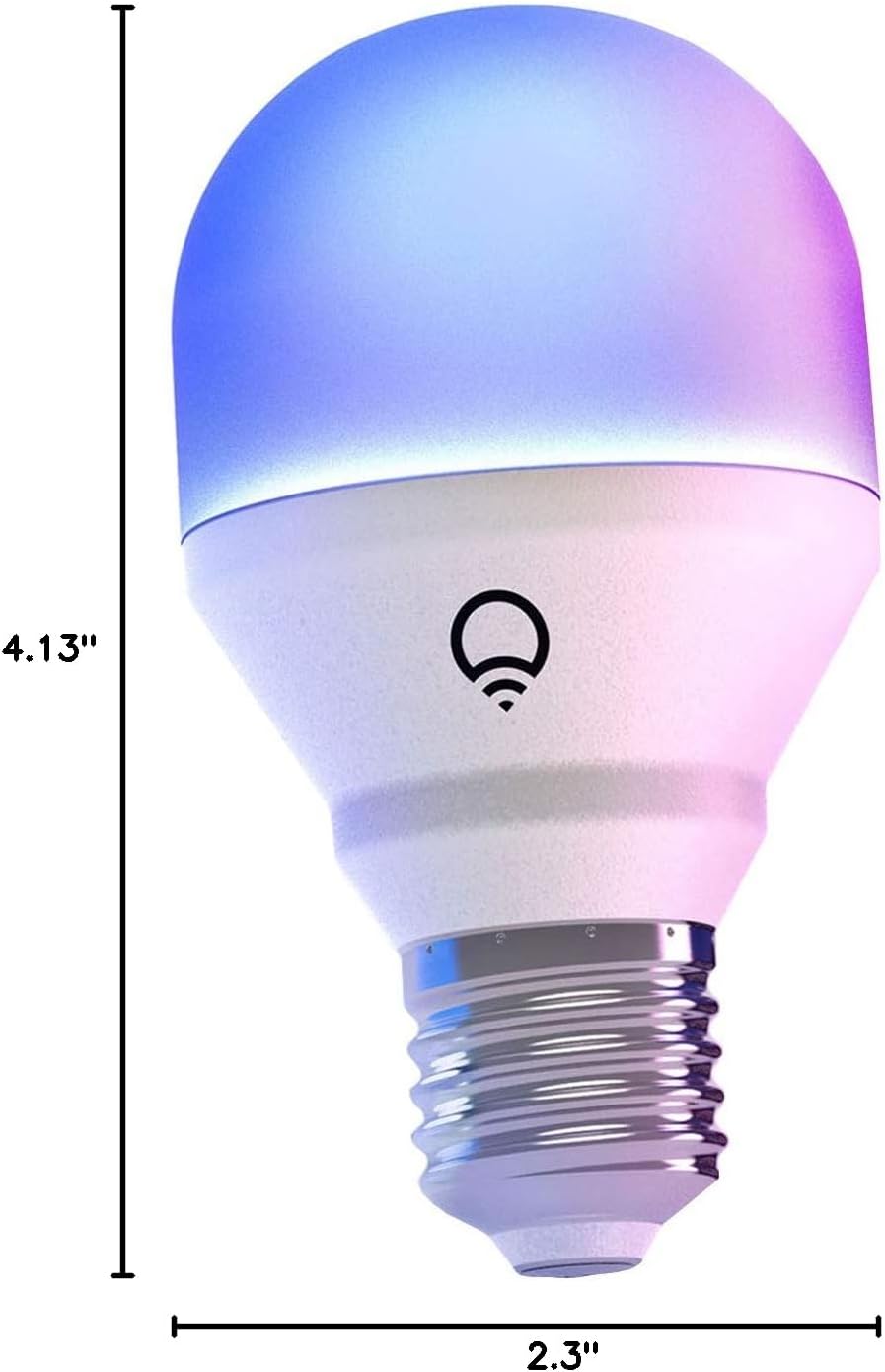
Image: A diagram illustrating the physical dimensions of the LIFX Color Smart LED Bulb.
9. 保証情報
The LIFX Color Smart LED Bulb comes with a 2年間保証. Please retain your proof of purchase for warranty claims. For specific terms and conditions, refer to the official LIFX webサイトをご覧いただくか、カスタマー サポートにお問い合わせください。
10. サポート
さらに詳しいサポート、技術サポート、または view frequently asked questions, please visit the official LIFX support webカスタマーサービスの連絡先は通常、 webサイトも。
オンラインリソース:
- LIFX Official Webサイト: www.lifx.com
- Support Section: Refer to the support or FAQ section on the official website for troubleshooting guides and contact options.