
星雲D2131
NEBULA by Anker ソーラーポータブル 1080p プロジェクター 取扱説明書
モデル: D2131 | ブランド: NEBULA
1. はじめに
This manual provides essential information for the safe and efficient operation of your NEBULA by Anker Solar Portable 1080p Projector. Please read it thoroughly before using the device and retain it for future reference.

図1: 前面 view of the NEBULA Solar Portable 1080p Projector.
2. 箱の中身
以下にリストされているすべてのアイテムがパッケージに含まれていることを確認してください。
- NEBULA Solar Portable Projector
- リモートコントロール
- クイックスタートガイド
- PD Charger (65W, output 20V/3.25A)
- USB-C から USB-C へのケーブル
3.製品オーバーview
The NEBULA Solar Portable Projector is designed for versatile entertainment, offering a Full HD 1080p image with 400 ANSI lumens brightness. It supports 4K content and features autofocus and keystone correction for easy setup. The device runs on Android TV 9.0, providing access to over 5,000 applications.
主な特徴:
- ディスプレイ技術: 0.23DMD in 1080p DLP
- 解決: 1920x1080(フルHD)
- 輝度: 400 ANSIルーメン
- オートフォーカス: 3-second autofocus for clear images.
- キーストーン補正: Auto (vertical ±40°) and Manual (horizontal ±40°, Quadrilateral ±40°).
- オペレーティング·システム: Android TV 9.0 with Google Play Store access.
- オーディオ: Dual 3W speakers with Dolby Digital Plus support. Can function as a portable Bluetooth speaker.
- 接続性: HDMI, USB-A, Type-C (Power Delivery charging), Wi-Fi (2.4/5GHz), Bluetooth 4.2.
- バッテリー寿命: Up to 3 hours of video playtime (in battery mode).
- 一体型スタンド: Adjustable up to 13 degrees for optimal view角度を変える。

Figure 2: Visual representation of the projector's 1080p image clarity at 400 ANSI lumens.
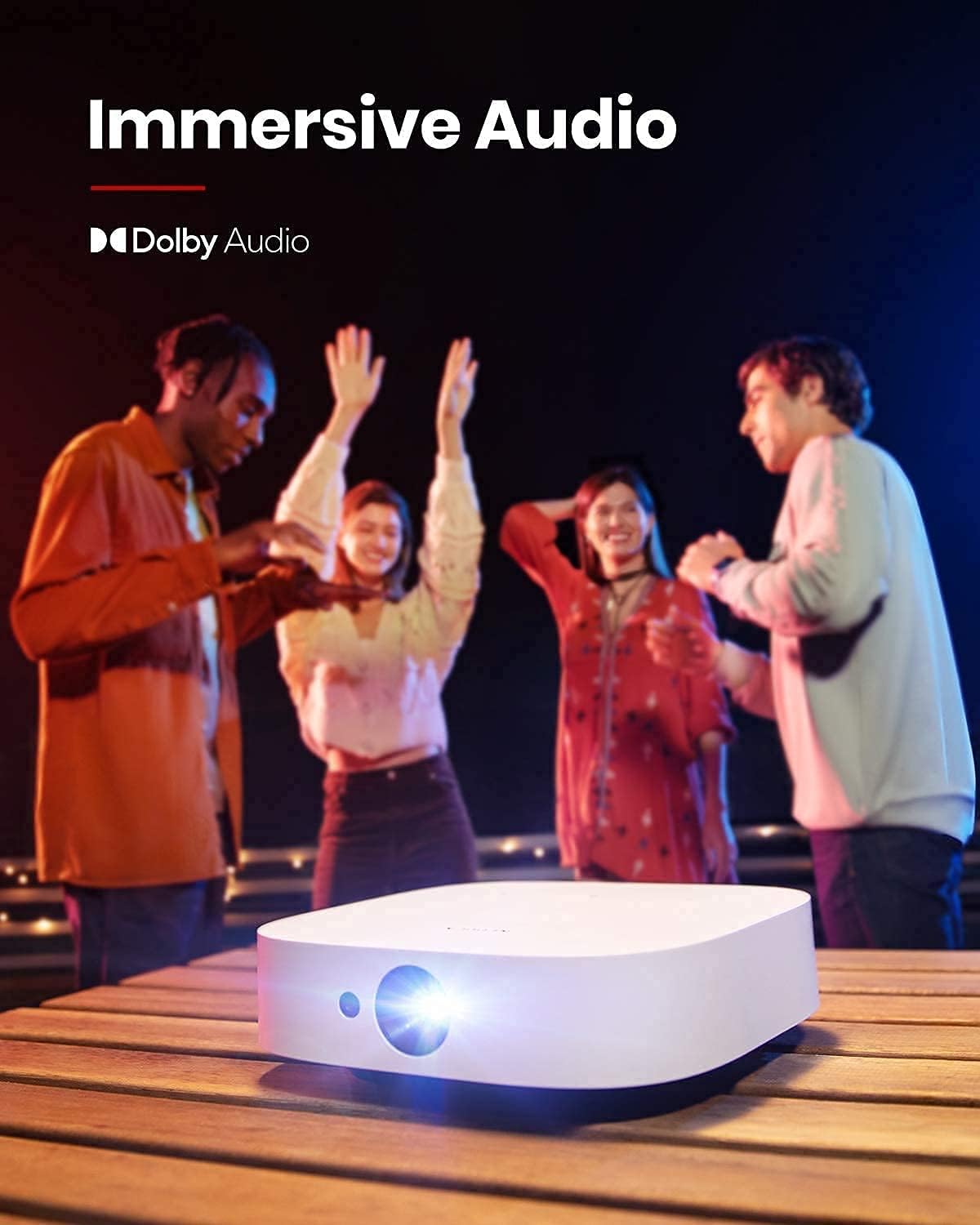
Figure 3: The projector in use for outdoor group view携帯性とバッテリー寿命を強調しています。
4. セットアップ
4.1 初回電源投入と充電
- Connect the provided PD charger to the Type-C port on the projector.
- Plug the charger into a power outlet. The projector can be used while charging.
- プロジェクターまたはリモコンの電源ボタンを長押しして電源を入れます。
Video 1: A short video demonstrating the charging process and initial power-on of the projector.
4.2 投影角度の調整
The projector features an integrated stand on its base, allowing for angle adjustments up to 13 degrees. Simply adjust the stand to achieve your desired projection height and angle.
Figure 4: The adjustable stand on the bottom of the projector for angle customization.
4.3 接続ポート
The rear of the projector provides various ports for connecting external devices:
- HDMI: ノートパソコン、ゲーム機、その他の HDMI 対応デバイスに接続します。
- USB-A: For connecting USB flash drives or other USB accessories.
- タイプC: Primarily for Power Delivery charging.

図5:以上view プロジェクターの入力/出力ポート。
5. 操作手順
5.1 Android TV 9.0 and App Access
The projector runs on Android TV 9.0, providing access to the Google Play Store. You can download and install a wide range of streaming applications and games directly onto the device.
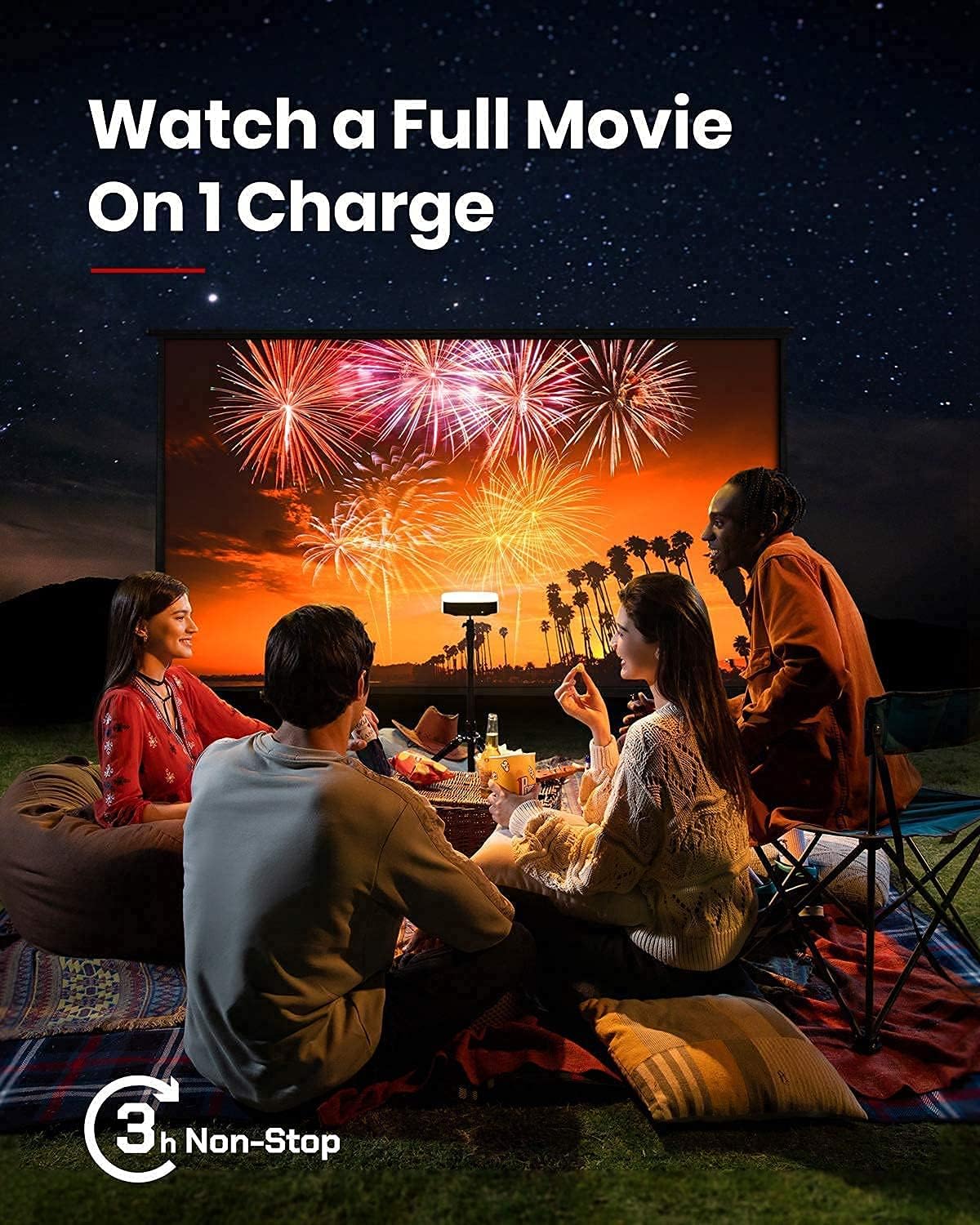
Figure 6: The Android TV 9.0 interface with access to various applications.
5.2 Installing Netflix
To install Netflix, navigate to the Google Play Store and install the "Nebula Manager" app. Within "Nebula Manager", you can then install Netflix. It is recommended to use the "Nebula Connect" app on your phone in mouse mode to control Netflix, as the remote control may have limited functionality with the mobile version of the Netflix app.
Video 2: Instructions on how to install and use Netflix on the projector.
5.3 Screen Mirroring (iOS Devices)
For iOS devices (iPhone, iPad, MacBook), install the "AirScreen" app from the Google Play Store on your projector. Ensure both your projector and iOS device are connected to the same Wi-Fi network. Then, use the "Screen Mirroring" function on your iOS device to connect to the projector.
Video 3: A guide on how to screen mirror and cast content from an iPhone to the projector.
5.4 USBフラッシュドライブの再生
To play movies or media from a USB flash drive, install a file management app (e.g., File Explorer, File Manager) and a video player from the Google Play Store. Insert your USB flash drive into the USB-A port and use the file manager to access and play your content.
5.5 Autofocus and Keystone Correction
The projector features 3-second autofocus. To trigger autofocus, slightly move the device or press the dedicated "focus" button on the remote. For keystone correction, the device supports auto vertical (±40°) and manual horizontal (±40°) and quadrilateral (±40°) adjustments. If the image is tilted, disable auto keystone correction via "Settings > Projector Settings > Keystone Correction" and manually adjust both vertical and horizontal keystone correction.

Figure 7: The autofocus feature ensures a clear image automatically.

Figure 8: Keystone correction allows for adjusting the image shape to be rectangular.
6. メンテナンス
プロジェクターの寿命を延ばし、最適なパフォーマンスを確保するには、次のメンテナンス ガイドラインに従ってください。
- クリーニング: プロジェクターの外装は、柔らかく乾いた布で拭いてください。レンズには、専用のレンズクリーニングクロスと洗浄液をご使用ください。研磨剤入りのクリーナーは使用しないでください。
- ストレージ: Store the projector in a cool, dry place away from direct sunlight and extreme temperatures. If storing for extended periods, ensure the battery is partially charged (around 50%) to maintain battery health.
- 換気: Ensure the ventilation grilles are not obstructed during operation to prevent overheating.
7。 トラブルシューティング
This section addresses common issues you might encounter with your NEBULA Solar Portable Projector.
- Netflix App Control Issues: If the remote control has limited functionality with Netflix, use the "Nebula Connect" app on your smartphone in mouse mode for better navigation.
- iOS Screen Mirroring Failure: Ensure both the projector (with "AirScreen" installed) and your iOS device are connected to the same Wi-Fi network. Some protected content may not mirror due to DRM restrictions.
- Image Tilted/Distorted: If the projected image is tilted, turn off auto keystone correction via "Settings > Projector Settings > Keystone Correction" and manually adjust both vertical and horizontal keystone correction.
- バッテリーの消耗が早い: The projector offers different brightness modes. "Battery Mode" (80% volume, Wi-Fi off) provides up to 3 hours. "Standard Mode" offers 2 hours. Ensure the device is fully shut down (hold power button and select "Shut down") rather than just standby to prevent battery drain.
- ファンの騒音: In "Normal Brightness Mode," the fan may be noticeable. For quieter operation, use the less-bright "Battery Mode."
- App Compatibility/Performance: Some apps may experience issues due to the Android TV 9.0 version. Ensure apps are updated to their latest versions.
8. 仕様
| 特徴 | 詳細 |
|---|---|
| 製品寸法 | 7.56 x 7.57 x 2.15インチ |
| アイテム重量 | 2.77ポンド |
| 商品型番 | D2131 |
| バッテリー | リチウムイオン電池1個(付属) |
| ディスプレイ技術 | 0.23DMD in 1080p DLP |
| 解決 | 1920x1080 |
| 輝度 | 400 ANSIルーメン |
| LED寿命 | 30,000時間 |
| 投射比 | 1.2 |
| フォーカス調整 | 3-second autofocus |
| キーストーン補正 | Auto (vertical ±40°), Manual (horizontal ±40°, Quadrilateral ±40°) |
| HDMI | x 1 |
| USB-A | x 1 |
| タイプC | x 1 (Power Delivery charging) |
| ラム | 2GB DDR |
| ロム | 8GB eMMC |
| バッテリー | 20,000mAh / 3.7v |
| スピーカー | 2×3W |
| Wi-Fi | Dual Frequency 2.4/5GHz |
| ブルートゥース | BT4.2 |
| ファンの騒音 | <30dB |
| OS | Android TV 9.0 |
| クロームキャスト | サポート |
| 動作モード | Projector Mode, Bluetooth Speaker Mode |
| アプリストア | Google Play |
| Video Playtime | 3 hours (battery mode); 2 hours (standard mode) |
| 充電時間 | 3 hours with Power Delivery 20V-3.25A |
| オーディオデコード | Dolby supported |
| ビデオデコード | 高画質 |
9. 保証とサポート
Your NEBULA Solar Portable Projector is covered by a manufacturer's warranty. For detailed warranty information, technical support, or service inquiries, please visit the official NEBULA brand store or contact customer support.
Official NEBULA Store: https://www.amazon.com/stores/Nebula/page/A836DB9B-3AD4-4696-A071-A0A11B4E59A2
Ask a question about this manual
Ask about setup, troubleshooting, compatibility, parts, safety, or missing instructions. Manuals+ will review the question and use this page’s manual context to help answer it.