
Lorex W463AQD-E
Lorex 2K デュアルレンズ 屋内 Wi-Fi セキュリティカメラ W463AQD-E ユーザーマニュアル
Model: W463AQD-E
1. はじめに
This manual provides detailed instructions for the installation, configuration, and operation of your Lorex 2K Dual Lens Indoor Wi-Fi Security Camera, model W463AQD-E. Please read this manual thoroughly before using the product to ensure proper functionality and safety. Keep this manual for future reference.

Image 1.1: Lorex 2K Dual Lens Indoor Wi-Fi Security Camera with its retail packaging.
2. パッケージ内容
Verify that all items listed below are included in your package. If any items are missing or damaged, please contact Lorex customer support.
- 1 × 2K Dual-Lens Indoor Pan-Tilt Camera
- 1 × 32GB MicroSD Card (pre-installed)
- 1 × 6.5 ft (2 m) Power Cable
- 1×取付金具
- 3×アンカーとネジ
- 電源アダプター×1
3.製品オーバーview
Familiarize yourself with the components and features of your Lorex security camera.
3.1 カメラコンポーネント

画像3.1:正面 view of the camera, showing the dual lenses and call button.

画像3.2: 側面 view of the camera, highlighting its dome shape.

画像3.3: 背面 view of the camera, showing the power input and reset button.

Image 3.4: Bottom label displaying model number W463AQD-E and other regulatory information.
3.2 主な特徴
- 2K クアッド HD ビデオ: 鮮明で詳細なビデオ映像を撮影tage.
- デュアルレンズ設計: Provides enhanced surveillance capabilities.
- 360°パンチルト: カメラの遠隔調整 viewing angle to cover a full 360-degree area.
- 自動追跡: 自動的にその範囲内で検知された動きを追跡します view.
- Smart Person & Pet Detection: Differentiates between human and pet activity to reduce false alerts.
- IRナイトビジョン: Provides clear video in low-light conditions up to 33 feet.
- 双方向トーク: カメラに内蔵されたマイクとスピーカーを通じてリアルタイム通信が可能になります。
- Quick Call Button: Enables visitors to initiate a call to your connected device.
- 柔軟なストレージ: Supports local storage via an included 32GB MicroSD card and optional cloud storage or Lorex Fusion recorders.
- プライバシーモード: Physically hides the camera lens for enhanced privacy when needed.
- Wi-Fi接続: Connects to your home network wirelessly (2.4GHz).
4. セットアップ
4.1 初期設定とアプリの接続
- 電源オン: Connect the power adapter to the camera and plug it into a power outlet. The camera will power on and begin its startup sequence.
- Download Lorex Home App: Download the Lorex Home app from the App Store (iOS) or Google Play Store (Android) on your smartphone or tablet.
- アカウントを作成する: Open the Lorex Home app and follow the on-screen instructions to create a new account or log in to an existing one.
- デバイスを追加: Tap the '+' icon in the app to add a new device. Scan the QR code located on the bottom of your camera or on its packaging.
- Wi-Fiに接続します: Follow the app's prompts to connect the camera to your 2.4GHz Wi-Fi network. Ensure your mobile device is connected to the same Wi-Fi network during setup.
- セットアップを完了します: Once connected, follow the remaining steps in the app to name your camera and finalize the setup process.

Image 4.1: The Lorex Home application interface for managing camera feeds.
4.2カメラの取り付け
The camera can be placed on a flat surface or mounted to a ceiling or wall using the included mounting bracket.
- 場所を選択してください: Select a suitable indoor location with a clear view and within range of your Wi-Fi network.
- マークホールズ: Place the mounting bracket at the desired location and mark the screw holes with a pencil.
- ドリル穴: Drill pilot holes at the marked spots. If mounting on drywall, insert the included anchors.
- 安全なブラケット: Align the mounting bracket with the holes and secure it using the provided screws.
- カメラを取り付ける: Twist the camera onto the mounting bracket until it clicks securely into place.
5. 操作
5.1 ライブ View およびコントロール
ライブにアクセス view of your camera through the Lorex Home app. From the live view 画面では、さまざまなカメラ機能を制御できます。
- パンとチルト: Use the directional controls in the app to remotely adjust the camera's horizontal (pan) and vertical (tilt) angles.
- デジタルズーム: Pinch to zoom in or out on the live video feed.
- デュアルレンズ View: The app may offer options to switch between or combine views from the dual lenses.

Image 5.1: Camera shown with a smartphone displaying the dual lens live view LorexHomeアプリで。
5.2 Two-Way Talk and Call Button
The camera features two-way audio for communication and a physical call button.
- 双方向トーク: ライブでは viewマイクアイコンをタップすると、カメラのスピーカーから話せます。もう一度タップすると終了します。
- コールボタン: A person near the camera can press the physical call button on the camera to initiate a call to your connected mobile device.

Image 5.2: Demonstrating two-way talk functionality via the Lorex Home app.

Image 5.3: A user pressing the quick call button on the camera.
5.3 動きの検出とアラート
The camera uses smart detection to identify important events.
- スマート検出: The camera can detect and differentiate between people and pets, sending specific alerts to your phone.
- 自動追跡: When motion is detected, the camera can automatically pan and tilt to follow the subject.
- カスタマイズ: Adjust motion detection zones and sensitivity settings within the Lorex Home app to minimize unwanted alerts.

Image 5.4: Auto-tracking feature following a baby's movement.

画像5.5: 別の view of the auto-tracking feature in action.

Image 5.6: Smart motion detection alerting to a person's presence.

Image 5.7: Pet detection and auto-tracking following a dog.
5.4 Night Vision and Smart Lighting
カメラは暗い場所でも鮮明な監視を提供します。
- IRナイトビジョン: Infrared LEDs provide black and white video up to 33 feet in complete darkness.
- スマートセキュリティ照明: The camera features integrated lighting that can be configured to activate upon motion detection or on a schedule.

Image 5.8: Comparison of daytime and IR night vision footage of a sleeping baby.

Image 5.9: Clear night vision image of a baby sleeping.

Image 5.10: The camera's smart security lighting feature in action.
5.5 記録と保存
Your camera offers multiple options for storing recorded video footage.
- ローカルストレージ: A 32GB MicroSD card is pre-installed for local recording. This ensures your footage is stored directly on the device.
- クラウドストレージ: Optional cloud storage plans are available for off-site backup of your recordings. Refer to the Lorex Home app for details.
- Lorex Fusion Recorders: The camera is compatible with Lorex Fusion recorders for integrated system storage.

Image 5.11: The included 32GB MicroSD card for private and secure local storage.
5.6 プライバシーモード
Activate Privacy Mode to physically conceal the camera lens when surveillance is not desired.
- アクティベーション: Privacy Mode can be activated through the Lorex Home app. When active, the camera lens will rotate downwards, blocking its view.
- 非アクティブ化: Deactivate Privacy Mode via the app to resume normal operation.
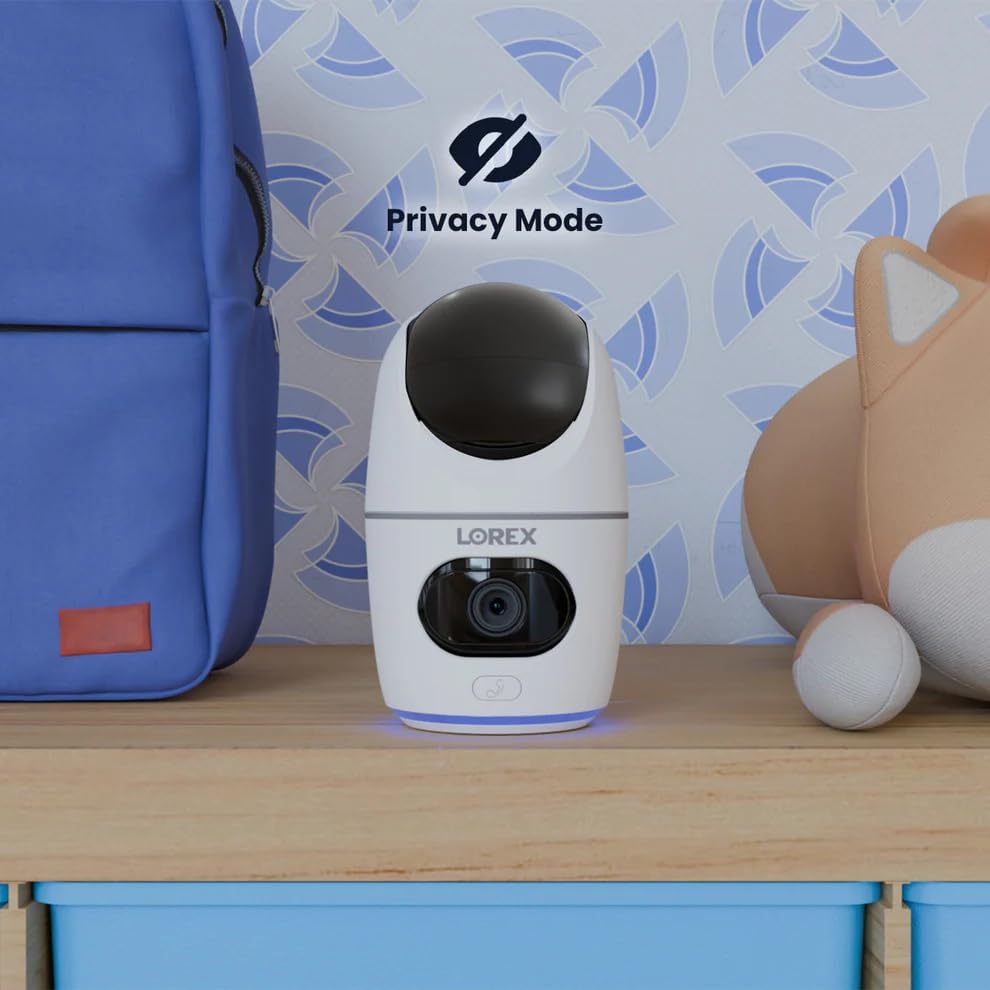
Image 5.12: The camera in Privacy Mode, with the lens retracted.
6. メンテナンス
- クリーニング: カメラのレンズと本体のお手入れには、柔らかく乾いた布をご使用ください。研磨剤入りの洗剤や溶剤は使用しないでください。
- ファームウェアの更新: Regularly check the Lorex Home app for available firmware updates to ensure optimal performance and security.
- MicroSDカード: Periodically check the status of the MicroSD card in the app. If the card is full and continuous recording is enabled, older footage will be overwritten. Back up important footag必要に応じて。
- 電源: Ensure the camera is connected to a stable power source. Avoid using third-party power adapters that are not specified for this device.
7。 トラブルシューティング
| 問題 | 解決 |
|---|---|
| カメラはオフラインまたは切断されています。 |
|
| Wi-Fiに接続できません。 |
|
| No video or poor video quality. |
|
| モーションアラートが頻繁すぎるか、受信されません。 |
|
8. 仕様
| 特徴 | 詳細 |
|---|---|
| モデル番号 | W463AQD-E |
| ビデオ解像度 | 2K(1440p) |
| 実効静止画解像度 | 4 MP |
| View角度 | 360 Degrees (Pan-Tilt), 135 Degrees (Field of View) |
| 暗視範囲 | 33 Feet (IR Night Vision) |
| 接続性 | Wi-Fi(2.4GHz) |
| ストレージ | 32GB MicroSD Card (included), supports up to 256GB, Cloud Storage (optional), Lorex Fusion compatible |
| オーディオ | 双方向通話(内蔵マイクとスピーカー) |
| 検出 | Smart Person & Pet Detection, Auto-Tracking |
| 電源 | Corded Electric (5V=2A) |
| 寸法(長さ×幅×高さ) | 5 x 6 x 5インチ |
| アイテム重量 | 15.2オンス |
| 屋内/屋外での使用 | 屋内のみ |
| 含まれるコンポーネント | Camera, 32GB MicroSD Card, Power Cable, Mounting Bracket, Power Adapter |
9. 保証とサポート
For warranty information, technical support, or additional resources, please visit the official Lorex webサイトまたは顧客サービス部門に連絡してください。
- ロレックス Webサイト: www.lorex.com
- カスタマーサポート: Lorexを参照してください web連絡先の詳細とサポート時間については、サイトをご覧ください。
アップデートやサポートを受けるには、製品登録をお勧めします。
Ask a question about this manual
Ask about setup, troubleshooting, compatibility, parts, safety, or missing instructions. Manuals+ will review the question and use this page’s manual context to help answer it.