
1. はじめに
Thank you for choosing the Moonka 10.1-inch Wi-Fi Digital Photo Frame. This device allows you to easily share and display your cherished photos and videos with family and friends from anywhere in the world. Featuring a vibrant 10.1-inch IPS touch screen, Wi-Fi connectivity, and 32GB of internal storage, this frame offers a convenient way to relive your memories. This manual will guide you through the setup, operation, and maintenance of your new digital photo frame.
2. 重要な安全情報
製品を使用する前に、すべての安全に関する指示をよくお読みください。指示に従わない場合、感電、火災、または製品の損傷につながる可能性があります。
- 電源: 付属の電源アダプターのみを使用してください。互換性のないアダプターを使用すると、デバイスが損傷し、保証が無効になる可能性があります。
- 水と湿気: Do not expose the device to water, rain, or excessive moisture. Keep it away from sinks, bathtubs, and other wet areas.
- 熱: デバイスをラジエーター、暖房送風口、ストーブ、その他の熱を発生する器具などの熱源から遠ざけてください。
- 換気: 適切な換気を確保してください。通気口を塞がないでください。
- クリーニング: 清掃する前にデバイスの電源プラグを抜いてください。柔らかく乾いた布を使用してください。液体クリーナーやエアゾールクリーナーは使用しないでください。
- サービス: この製品を自分で修理しようとしないでください。 すべてのサービスを資格のあるサービス担当者に依頼してください。
- 配置: Place the frame on a stable, flat surface to prevent it from falling.
3. パッケージ内容
パッケージにすべてのアイテムが含まれていることを確認します。
- Moonka 10.1-inch Wi-Fi Digital Photo Frame
- 電源アダプター
- 取り外し可能なスタンド
- ユーザーマニュアル

Figure 3.1: Digital Photo Frame and Accessories
4.製品オーバーview
4.1フロント View

図4.1: 前面 View デジタルフォトフレームの
The front of the frame features a 10.1-inch IPS touch screen display. The screen provides a wide viewing angle and clear image quality.
4.2 リア View およびポート

図4.2:背面 View およびポートレイアウト
- 電源オン/オフ: デバイスの電源をオンまたはオフにするボタン。
- リセット: Small hole for resetting the device (use a pin).
- ミニUSB: コンピューターやその他の USB デバイスに接続します。
- マイクロSDカードスロット: Insert a Micro SD card for additional storage.
- DC電源入力: ここに電源アダプターを接続します。
- 壁取り付け穴: フレームを壁に取り付けるためのもの。
- ブラケット: Detachable stand for tabletop placement.
5. セットアップ
5.1 ステップ1: 電源オン
- Connect the power adapter to the DC Power Input port on the back of the frame.
- 電源アダプタを壁のコンセントに差し込みます。
- Press the Power ON/OFF button to turn on the frame.
5.2 ステップ2: 初期設定
Upon first power-on, the frame will guide you through initial settings:
- ご希望の言語を選択します。
- タイムゾーンを設定します。
- Connect to your Wi-Fi network by selecting it from the list and entering the password. The frame supports 2.5GHz Wi-Fi.
5.3 Step 3: Download the "SSA WiFi Frame" App
To easily upload and manage photos and videos, download the free "SSA WiFi Frame" app on your smartphone or tablet.
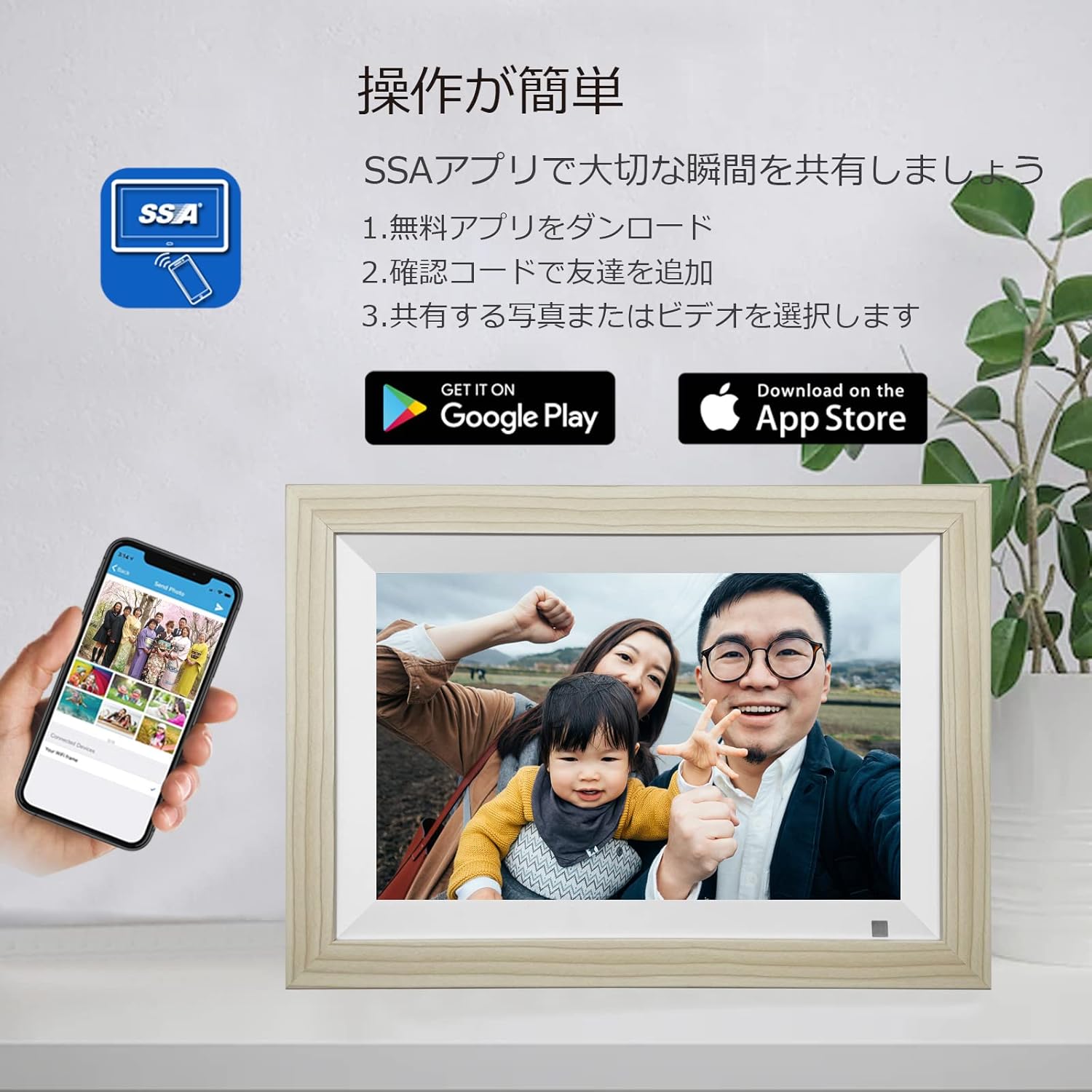
Figure 5.1: SSA WiFi Frame App Download
- Scan the QR code displayed on the frame or in the manual, or search for "SSA WiFi Frame" in your device's app store (Google Play for Android, App Store for iOS).
- アプリをインストールしてアカウントを作成します。
- Follow the in-app instructions to pair your smartphone with the digital photo frame using the unique device ID provided on the frame.
6. 操作手順
6.1 写真とビデオのアップロード
6.1.1 Via "SSA WiFi Frame" App
The app allows for real-time sharing of photos and short videos (up to 15 seconds) directly to your frame.
- Open the "SSA WiFi Frame" app on your smartphone.
- Select the photos or videos you wish to upload.
- Tap the upload button to send them to your connected digital photo frame.
- Photos and videos will appear on the frame almost instantly, allowing family and friends to share moments regardless of distance.
6.1.2 Via Micro SD Card or USB Drive
You can also transfer media files directly using a Micro SD card or a USB drive.
- Insert a Micro SD card into the Micro SD Card Slot or a USB drive into the Mini USB port on the back of the frame.
- 「Files' or 'Gallery' section on the frame's touch screen.
- Select the external storage device and choose the files you want to copy to the frame's internal memory.
6.2 View写真とビデオを作成する
6.2.1 Slideshow Mode
The frame automatically starts a slideshow of all uploaded photos and videos. You can customize slideshow settings such as transition effects and display time per image in the settings menu.
6.2.2 Manual Browsing
Tap the screen to pause the slideshow and browse through your media manually. Swipe left or right to navigate between photos and videos. Tap on a video to play it.
6.3 設定の調整
Access the settings menu by tapping the screen and selecting the 'Settings' icon. Here you can customize various aspects of your frame:
- 画面: Adjust brightness, contrast, and screen orientation (the frame also supports automatic rotation).
- スリープモード: Set schedules for the frame to automatically turn on/off.
- モーションセンサー: Enable or disable the human motion sensor. When enabled, the frame will automatically turn on when motion is detected and turn off after a period of inactivity.
- 日時: Manually set or synchronize date and time via Wi-Fi.
- 音量: Adjust the volume for video playback.

図6.1: モーションセンサーの動作
6.4追加機能
The Moonka digital photo frame offers several convenient features:
- カレンダー: View 現在の日付と月。
- クロック: 現在の時刻を表示します。
- 天気: Get real-time weather updates for your selected location (requires Wi-Fi connection).
7. メンテナンス
- 画面の掃除: 柔らかく糸くずの出ない布で画面を優しく拭いてください。頑固な汚れには、軽くamp布に水または画面洗浄液を含ませてください。刺激の強い化学薬品は使用しないでください。
- 一般的なケア: Keep the frame in a dry environment. Avoid extreme temperatures and direct sunlight.
8。 トラブルシューティング
| 問題 | 考えられる原因 | 解決 |
|---|---|---|
| フレームがオンになりません。 | 電源がありません。アダプタに障害があります。 | 電源接続を確認してください。アダプタがしっかりと差し込まれていることを確認してください。別のコンセントを試してください。 |
| Wi-Fiに接続できません。 | パスワードが間違っています、範囲外です、5GHz ネットワークです。 | Verify Wi-Fi password. Move frame closer to router. Ensure your network is 2.5GHz. |
| 写真/ビデオが表示されません。 | App not connected, incorrect file format, storage full. | Check app connection status. Ensure files are in supported formats (JPEG, MP4). Check available storage. |
| 画面が反応しません。 | 一時的なソフトウェアの不具合。 | Restart the frame. If issue persists, use the RESET button. |
9. 仕様
| 特徴 | 詳細 |
|---|---|
| ブランド | ムーンカ |
| モデル番号 | ZN-DP1002 |
| 画面サイズ | 10.1インチ |
| 解決 | 1280x800 |
| 表示タイプ | IPSタッチパネル |
| 内部メモリ | 32GB |
| 外部ストレージ | Supports Micro SD card (up to 32GB, sold separately) |
| 接続性 | Wi-Fi(2.5GHz) |
| サポート File フォーマット | JPEG, JPG (photos); MPEG-1, MPEG-2, MPEG-4, H.263 (videos) |
| 製品寸法 | Approximately 4 x 3 x 2.51 cm (frame thickness) |
| 製品重量 | 約930g |
10. 保証とサポート
Your Moonka Digital Photo Frame comes with a 1-year quality guarantee from the date of purchase. If you encounter any issues or have questions regarding your product, please contact our customer support team. We offer 24-hour Japanese customer support.
連絡先:
- Please refer to your Amazon order history: Go to "Account Service" > "Order History" > "Seller" > "Ask a Question" to send us an email.
- Our team will respond promptly within 24 hours.
We are committed to providing high-quality products and services to ensure your satisfaction.


