
1. はじめに
The CHUWI Mini PC HeroBox is a compact and powerful desktop computer designed for various applications including business, education, and everyday use. It features an Intel N100 processor, ample memory, and versatile connectivity options, all within a small form factor.
2. 仕様
- プロセッサ: 12th Gen Intel Alder Lake-N100 (4 Cores, 4 Threads, up to 3.4GHz, 10nm process, 13W TDP)
- グラフィック: 12th Gen Intel UHD Graphics
- ラム: 8GB LPDDR5 4800MHz
- ストレージ: 256GB M.2 SSD (expandable with 2.5-inch SATA HDD up to 2TB, TF card up to 512GB)
- オペレーティング·システム: Pre-installed Windows 11 (supports Linux)
- ワイヤレス接続: Wi-Fi 6(802.11ax)、Bluetooth 5.2
- 有線接続: RJ45ギガビットイーサネット
- ビデオ出力: 2x HDMI (4K@60FPS), 1x VGA (supports dual display)
- USB ポート: USB 3.0 x 2、USB 2.0 x 2、Type-C x 1
- オーディオ: イヤホンジャック×1
- 電源入力: DC12V
- 寸法: 7.39 x 5.43 x 1.46インチ
- 重さ: 1.1ポンド
- 取り付け: VESAマウント互換
- 認定: FCC、RoHS、CE
3. パッケージ内容
- CHUWI Mini PC HeroBox
- 電源アダプター
- HDMIケーブル
- VESAマウントブラケット
- ユーザーマニュアル
4. フィジカルオーバーview
The HeroBox Mini PC features a compact design with various ports for connectivity and expansion.
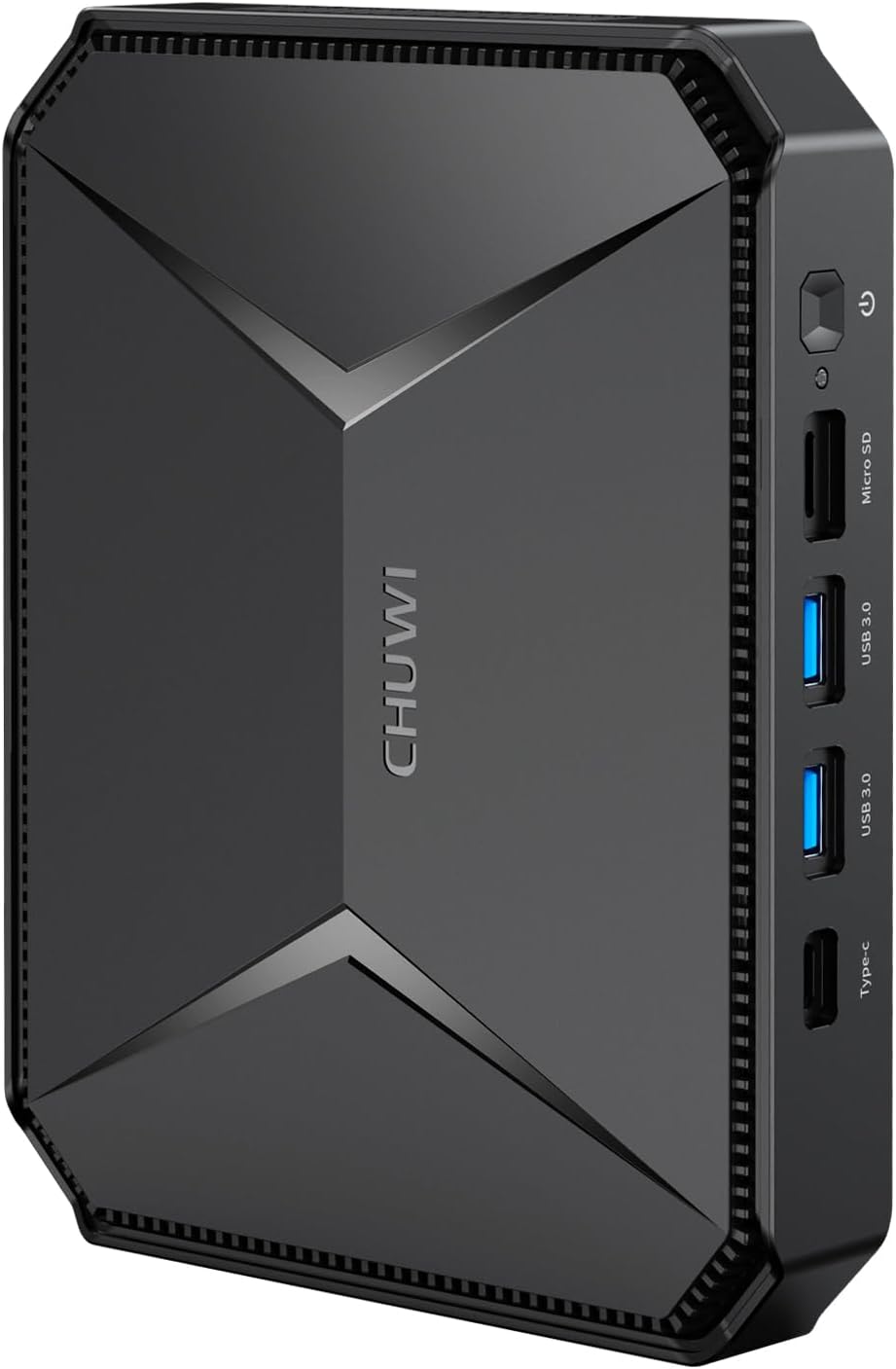
図1: 前面 view of the CHUWI Mini PC HeroBox, showcasinコンパクトなサイズと洗練されたデザイン。

図2:詳細 view of the port layout on the CHUWI Mini PC HeroBox. The front features a power button, Micro SD card slot, two USB 3.0 ports, and a Type-C port. The rear includes a DC-12V power input, VGA port, HDMI port, LAN port, two USB 2.0 ports, and an earphone jack.
5. セットアップ
Follow these steps to set up your CHUWI Mini PC HeroBox:
- ディスプレイを接続する: Connect your monitor(s) to the HDMI and/or VGA ports on the rear of the Mini PC using appropriate cables.
- 周辺機器を接続します。 利用可能な USB ポートに USB キーボードとマウスを接続します。
- 接続電源: Connect the power adapter to the DC-12V port on the rear of the Mini PC and plug it into a power outlet.
- 電源オン: Press the power button located on the front of the Mini PC. The device will boot up.
- Windows 11の初期セットアップ: 画面の指示に従って、言語、地域、ネットワーク接続、ユーザー アカウントの作成など、Windows 11 の初期セットアップを完了します。
Video 1: CHUWI HeroBox Mini PC overview. This video demonstrates the physical aspects and connectivity of the device.
6. オペレーティングシステム
The CHUWI HeroBox comes with an authorized Windows 11 system pre-installed, offering a familiar and efficient user experience. The device also supports Linux-based operating systems, providing flexibility for advanced users and specific application needs.
7. ストレージの拡張
The Mini PC is equipped with a 256GB M.2 SSD. For additional storage, you can expand it in several ways:
- 2.5インチSATA SSD/HDD: The HeroBox supports adding a 2.5-inch SATA SSD or HDD, allowing for up to 2TB of extra storage.
- TFカード: A TF card (Micro SD card) can be inserted into the dedicated slot on the front of the device, supporting up to 512GB.

図3:内部 view of the CHUWI Mini PC HeroBox, illustrating the M.2 SSD and the space available for a 2.5-inch SATA drive for storage expansion.
8. 接続性
The HeroBox offers robust connectivity options:
- Wi-Fi 6(802.11ax): Provides significantly faster network speeds and improved efficiency compared to previous Wi-Fi standards, ensuring seamless streaming and downloads.
- Bluetooth 5.2: Enables quick and stable connections to wireless peripherals such as keyboards, mice, headphones, and speakers.
- RJ45 ギガビット イーサネット: For a stable and high-speed wired network connection, supporting data transfer speeds of over one billion bits per second.

Figure 4: The CHUWI Mini PC HeroBox highlighting its Wi-Fi 6 capabilities for fast and efficient wireless connectivity.
9. ディスプレイの設定
The Mini PC supports dual display output at 4K@60FPS, enhancing productivity and visual experience:
- HDMI ポート: Two HDMI ports are available for connecting 4K monitors or TVs.
- VGAポート: An additional VGA port allows for connection to older monitors or as a third display option (though the JSON only mentions dual display, the image shows VGA).

Figure 5: The CHUWI Mini PC HeroBox connected to a 4K display, demonstrating its smooth 4K decoding and output capabilities for high-resolution video playback and editing.
10. 熱管理
The HeroBox is designed with an effective heat dissipation system to ensure stable and efficient operation even during prolonged use. It utilizes thermal conductive aluminum alloys and a cooling fan to maintain optimal temperatures.
11. VESAマウント
The compact size of the HeroBox allows for flexible placement. It is VESA mount compatible, enabling you to install it on the back of a monitor or TV, effectively creating an all-in-one PC setup and saving desk space.

Figure 6: The CHUWI Mini PC HeroBox shown VESA mounted on the back of a monitor, illustrating its space-saving installation option.
12。 トラブルシューティング
- 表示なし: Ensure all display cables (HDMI/VGA) are securely connected to both the Mini PC and the monitor(s). Verify the monitor input source is correctly selected.
- 電源なし: 電源アダプタがミニPCに正しく接続され、電源コンセントが機能していることを確認してください。必要に応じて別のコンセントを試してください。
- 接続の問題: For Wi-Fi, ensure the network is available and the password is correct. For Ethernet, check the cable connection. For Bluetooth, ensure the peripheral is in pairing mode.
- パフォーマンスが遅い: Check for background applications consuming resources. Ensure sufficient free storage space. Consider updating drivers or running system diagnostics.
13. 安全性と認証
The CHUWI HeroBox Mini PC complies with international safety and quality standards, holding FCC, RoHS, and CE certifications. Always use the device in a well-ventilated area and avoid blocking air vents to prevent overheating.
14.保証とサポート
For warranty information, technical support, or service inquiries, please refer to the documentation included in your product package or visit the official CHUWI webサポートサイト。