
ユニック UC68
Unic UC68 Multimedia Home Theatre LED Projector User Manual
モデル: UC68
1. はじめに
ご購入ありがとうございますasing the Unic UC68 Multimedia Home Theatre LED Projector. This manual provides essential information for setting up, operating, and maintaining your projector to ensure optimal performance and longevity. Please read this manual thoroughly before using the product and keep it for future reference.
2. 安全情報
安全な操作を確保し、損傷を防ぐために、次の安全上の注意事項を守ってください。
- プロジェクターレンズを直接見ないでください。amp 強い光により目が損傷する恐れがあるため、電源をオンにしないでください。
- プロジェクターの周囲に十分な換気を確保してください。通気口を塞がないでください。
- プロジェクターが落下しないように、安定した水平な場所に置いてください。
- Use only the power adapter supplied with the projector. Using an incorrect adapter may cause damage or fire.
- Keep the projector away from water, moisture, and other liquids. Do not operate in wet environments.
- Do not attempt to open or repair the projector yourself. Refer all servicing to qualified service personnel.
- 雷雨のときや長期間使用しない場合は、プロジェクターを電源コンセントから抜いてください。
3. パッケージ内容
下記のすべてのアイテムがパッケージに含まれていることを確認してください。
- Unic UC68 Projector Host
- リモートコントローラー
- 電源ケーブル
- AVケーブル
- 取扱説明書
- レンズキャップ
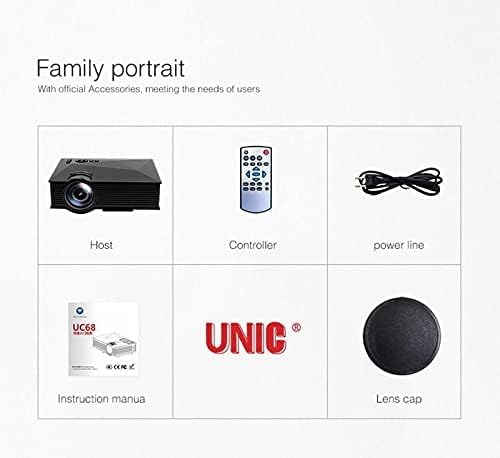
Image: The Unic UC68 projector package contents, showing the main unit, remote control, power cord, instruction manual, and lens cap.
4.製品オーバーview
Familiarize yourself with the various parts and ports of your Unic UC68 projector.

画像: 詳細な view of the Unic UC68 projector, highlighting its lens, control buttons on top, and various input/output ports on the side.
入力/出力ポート

Image: A visual representation of the Unic UC68 projector's rear and side panels, indicating ports for HDMI, USB, SD card, AV, VGA, and audio out, along with examp接続できるデバイスの数。
| ポート | 説明 |
|---|---|
| HDMI | Connect to devices like laptops, Blu-ray players, game consoles. |
| USB 2.0(x2) | Connect USB flash drives for media playback or power external devices (5Vout-500mA). |
| SDカードスロット | Insert SD cards for direct media playback. |
| アナログ | 古いコンピューターやラップトップに接続します。 |
| AV | 複合ビデオおよびステレオオーディオ出力を備えたデバイス (DVD プレーヤーなど) に接続します。 |
| Headphone Port (3.5mm) | 外部スピーカーまたはヘッドフォンを接続します。 |
5. セットアップ
プロジェクターの初期セットアップについては、次の手順に従ってください。
- 配置: Place the projector on a stable, flat surface. Ensure there is enough space around the projector for proper ventilation. The ideal projection distance is between 1.07m and 3.8m.
- 電源接続: 電源ケーブルをプロジェクターの電源入力に接続し、壁のコンセントに差し込みます。
- 入力ソースを接続します: Connect your desired input device (e.g., laptop, game console, USB drive) to the appropriate port on the projector (HDMI, VGA, USB, AV, SD card).
- 電源オン: Press the power button on the projector or the remote control to turn on the projector. The LED indicator will light up.
- フォーカス調整: Once an image is displayed, rotate the focus ring on the projector lens until the image appears clear and sharp.
- キーストーン補正: If the projected image appears trapezoidal, adjust the keystone correction (if available on your model, typically a manual slider near the lens) to square the image.
6. 操作手順
電源オン/オフ
- 電源を入れるには: プロジェクターまたはリモコンの電源ボタンを押します。
- 電源を切るには: Press the power button again. Wait for the fan to stop completely before unplugging the power cable.
入力ソースの選択
Use the 'Source' button on the remote control or the projector's control panel to cycle through available input sources (HDMI, VGA, AV, USB, SD).
メニューナビゲーション
Use the arrow keys on the remote or projector to navigate through the on-screen menu. Press 'OK' or 'Enter' to confirm selections. Adjust settings such as picture mode, aspect ratio, and sound.
メディア再生(USB/SD)
Insert a USB flash drive or SD card into the respective port. The projector will typically prompt you to select the media type (Movie, Music, Photo, Text). Navigate to your desired file 「OK」を押して再生します。
7. メンテナンス
適切なメンテナンスを行うことで、プロジェクターの寿命とパフォーマンスが維持されます。
- レンズクリーニング: 光学レンズ専用の柔らかく糸くずの出ない布を使用してください。研磨剤入りのクリーナーを使用したり、過度の力を加えたりしないでください。
- ダストフィルターのクリーニング: Regularly check and clean the dust filter (if accessible) to maintain proper airflow and prevent overheating. Refer to the specific location in your manual if applicable.
- 外装清掃: プロジェクターの外側は、柔らかく乾いた布で拭いてください。頑固な汚れには、軽く湿らせた布で拭いてください。amp 布を使用することもできますが、デバイス内に水分が入らないようにしてください。
- ストレージ: When not in use for extended periods, store the projector in a cool, dry, dust-free environment. Use the lens cap to protect the lens.
8。 トラブルシューティング
プロジェクターで問題が発生した場合は、次の一般的な問題と解決策を参照してください。
| 問題 | 考えられる原因 | 解決 |
|---|---|---|
| 電源なし | Power cable not connected; Power outlet faulty; Projector in standby mode. | 電源ケーブルの接続を確認し、別のコンセントを試し、電源ボタンを押します。 |
| 画像なし | Incorrect input source selected; Input device not connected properly; Lens cap on. | Select correct input source; Reconnect input cable; Remove lens cap. |
| 画像がぼやけている | フォーカスが調整されていません。投影距離が遠すぎる/近すぎます。 | フォーカスリングを調整し、投影距離を調整します。 |
| 音が出ない | Volume too low; Muted; External speakers not connected/configured. | Increase volume; Unmute; Check external speaker connection. |
| リモコンが動作しない | 電池が切れている/正しく挿入されていない、リモコンとプロジェクターの間に障害物がある。 | 電池を交換してください。IR 受信機までの見通しが確保されていることを確認してください。 |
| プロジェクターの過熱 | Ventilation blocked; Dusty filters. | Ensure clear ventilation; Clean dust filters. |
9. 仕様
| 特徴 | 仕様 |
|---|---|
| モデル番号 | UC68 |
| 輝度 | 1800ルーメン(80 ANSI) |
| ネイティブ解像度 | 800×480RGB |
| 解決サポート | 最大1920 x 1080ピクセル(1080p) |
| アスペクト比 | 4:3 / 16:9 |
| LCD Contrast Ratio | 800:1 |
| LED大amp 人生 | 20,000時間以上 |
| レンズ | 125 倍 |
| View距離 | 1.07~3.8メートル |
| 投影サイズ | 34~130インチ |
| 管理 | マニュアル |
| 消費電力 | 55 W Max |
| USB出力 | 5 Vout-500 mA |
| 電源 | 100 V - 240 V / 0.9A (50/60Hz) |
| 入力/出力ポート | 1 AV, 1 Headphone (3.5mm), 2 USB 2.0, 1 SD Card Slot, 1 HDMI, 1 VGA |
| 色 | 黒 |
| アイテム重量 | 1.34キログラム |
| パッケージ寸法 | 30 x 19.3 x 10.6 cm |
10. 保証とサポート
This product comes with a standard manufacturer's warranty. For warranty claims, technical support, or service inquiries, please refer to the contact information provided with your purchase documentation or visit the official UNIC webサイトで確認してください。デバイスを自分で修理しようとしないでください。保証が無効になる可能性があります。
Ask a question about this manual
Ask about setup, troubleshooting, compatibility, parts, safety, or missing instructions. Manuals+ will review the question and use this page’s manual context to help answer it.