
1. はじめに
This manual provides detailed instructions for the installation, operation, and maintenance of your Lorex D841A82B Series 8 Channel 4K HD Digital Video Recorder (DVR). This DVR is designed to provide high-resolution surveillance with advanced features such as 4K recording, person/vehicle detection, and smart home integration. Please read this manual thoroughly before using the product to ensure proper setup and functionality.
2. パッケージ内容
Verify that all items listed below are included in your product packaging. If any items are missing or damaged, please contact Lorex customer support.
- Lorex D841A82B Series DVR
- HDMIケーブル
- 電源アダプター
- イーサネットケーブル
- USBマウス
- クイックスタートガイド(本書)
3.製品オーバーview

Figure 3.1: Front Panel of the Lorex D841A82B DVR. This image displays the front of the DVR unit, featuring the "4K Ultra HD DVR" label, a central circular button, and a USB port for connecting a mouse or other peripherals.

Figure 3.2: Side Panel with Ventilation. This image shows the side of the DVR, highlighting the ventilation grilles designed for heat dissipation, crucial for continuous operation.
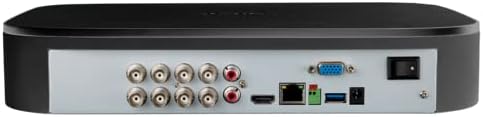
図 3.3: 背面パネルの接続。 This image illustrates the rear panel of the DVR, displaying various input/output ports including BNC connectors for cameras, audio inputs/outputs, HDMI, VGA, Ethernet, USB ports, and the power input with an on/off switch.
4. 主な特徴
- 4KウルトラHD録画: Capable of recording up to 4K (8MP) resolution on all channels, providing detailed video footage.
- 高度なモーション検出: Reduces false alarms with intelligent person and vehicle detection, sending push notifications when relevant motion is detected (available on up to 4 channels).
- スマートホーム互換性: Integrates with Amazon Alexa and Google Assistant for hands-free voice control, and Chromecast for viewing live or recorded video on your TV.
- Lorex Home Mobile Application: リモート viewing and control of active deterrence features from a smartphone or tablet.
- ローカルストレージ: Equipped with a pre-installed 2TB security-grade hard drive, ensuring secure local storage without monthly cloud fees. Expandable up to 10TB.
- スマート検索: Filter motion events to quickly review フーtage.
- パニックボタン: Located on the DVR, activates lights and sirens on connected cameras for immediate response.
- 24/7モニタリング: Designed for continuous operation and reliable surveillance.
5.セットアップガイド
5.1 初期接続
- カメラを接続する: Connect your analog HD security cameras to the BNC video input ports on the rear of the DVR. Ensure connections are secure.
- モニターに接続: Use the provided HDMI cable to connect the DVR's HDMI output port to an HDMI input on your TV or monitor. Alternatively, use a VGA cable for VGA monitors.
- USBマウスを接続します: Plug the included USB mouse into one of the USB ports on the DVR (front or rear).
- ネットワークに接続する (オプションですが推奨): リモート用 viewing and smart features, connect the DVR to your router using the supplied Ethernet cable.
- 接続電源: Connect the power adapter to the DVR's power input and then plug it into a power outlet. Turn on the DVR using the power switch on the rear panel.
5.2 初回セットアップウィザード
Upon first power-up, the DVR will guide you through a setup wizard. Follow the on-screen prompts to:
- 安全なパスワードを作成します。
- 日付と時刻の設定を構成します。
- Set up network parameters (if not automatically detected).
- Adjust recording preferences.
It is crucial to complete these steps to ensure your system is secure and functioning correctly.
6. 操作手順
6.1 ライブ View
初期設定後、DVRはライブ映像を表示します。 view from all connected cameras on your monitor.
- シングルカメラ View: 任意のカメラフィードをダブルクリックすると view フルスクリーンで表示します。もう一度ダブルクリックするとマルチカメラに戻ります。 view.
- デジタルズーム: 全画面で view, use the digital zoom function to magnify specific areas of interest.
6.2 録音と再生
The DVR is configured for continuous recording by default. You can adjust recording schedules and motion detection settings via the main menu.
- 再生にアクセス: ライブを右クリック view screen and select "Playback" from the menu.
- Search Footage: Use the date and time filters to locate specific recordings. The Smart Search feature allows filtering by motion events.
- Export Footage: Connect a USB flash drive to a USB port on the DVR to export selected video clips.
6.3 Lorex Home Mobile Application
Download the Lorex Home app from your smartphone's app store.
- アカウントを作成してログインします。
- Add your DVR by scanning the QR code displayed on the DVR's monitor (found in the network settings) or by manually entering the device ID.
- 接続すると、次のことができます view live feeds, play back recordings, receive push notifications, and control active deterrence features remotely.
6.4 スマートホーム統合
The Lorex D841A82B DVR supports integration with Amazon Alexa, Google Assistant, and Chromecast.
- 音声コントロール: Enable the Lorex skill/action in your smart home app (Alexa or Google Home). Use voice commands to view camera feeds on compatible smart displays or TVs (e.g., "Alexa, show me the front door camera").
- クロームキャスト: Link your Lorex account to Google Home and cast live or recorded video directly to a Chromecast-enabled display.
7. メンテナンス
7.1 ハードドライブ管理
The DVR's hard drive is designed for continuous operation. When the hard drive is full, the system will automatically overwrite the oldest recordings.
- 重要なファイルを定期的にバックアップするtag外部ストレージデバイスに保存します。
- Check the hard drive status periodically through the DVR's system settings to ensure optimal performance.
7.2 クリーニング
To maintain the DVR's performance and longevity:
- Wipe the exterior of the DVR with a soft, dry cloth.
- Ensure ventilation openings are clear of dust and debris to prevent overheating. Do not use liquid cleaners or aerosol sprays directly on the unit.
7.3ファームウェアアップデート
Lorex periodically releases firmware updates to improve performance and add new features. Check the Lorex support website for the latest firmware for your model and follow the provided instructions for updating.
8。 トラブルシューティング
If you encounter issues with your Lorex D841A82B DVR, refer to the following common troubleshooting steps.
| 問題 | 考えられる原因 | 解決 |
|---|---|---|
| モニターにビデオ出力がありません。 | HDMI/VGA ケーブルが緩んでいる、モニターの入力が正しくない、DVR の電源がオンになっていない。 | Check cable connections. Ensure monitor is set to the correct input source. Verify DVR power. |
| カメラ画像がありません。 | Loose BNC cable, camera power issue, camera malfunction. | Check BNC connections. Ensure cameras are receiving power. Test camera with another channel or DVR if possible. |
| Lorex Home アプリに接続できません。 | No network connection, incorrect device ID, firewall settings. | Verify DVR is connected to the internet. Double-check device ID. Ensure router/firewall allows DVR access. |
| モーション検出アラートが頻繁すぎるか、機能していません。 | 感度設定、検出ゾーンの設定。 | Adjust motion detection sensitivity and detection zones in the DVR settings. Ensure person/vehicle detection is enabled for relevant channels. |
For further assistance, please contact Lorex customer support.
9. 仕様
| 特徴 | 詳細 |
|---|---|
| モデル番号 | D841A82B |
| Video Channels | 8チャンネル |
| 録画解像度 | Up to 4K (8MP) Ultra HD |
| ハードディスクサイズ | 2 TB(プリインストール済み)、最大10 TBまで拡張可能 |
| 接続技術 | イーサネット、HDMI |
| 対応デバイス | Cameras, Smartphone, Tablet, Television |
| 製品寸法 | 13.25 x 16 x 5.5インチ |
| アイテム重量 | 6.41ポンド |
10. 対応カメラ
The D841B series DVR is compatible with a wide range of Lorex cameras. Below is a list of compatible camera models:
- LW2287, LW2297, LW4211B
- C841CA, LAB243
- LBV1511, LBV1521B, LBV2521, LBV2531, LBV2561U, LBV2711, LBV2723, LBV4711, LBV8531B, LBV8451XB, LBV8721AB
- LEV2750AB, LEV4712
- LZV2722, LZV2925
- C241XC-E, C241DA-E, C581CB, C581CD, C581DA, C861CF, C861CH, C861XC-E, C881DA, C882DA
11.サポートと保証
For technical support, product registration, and warranty information, please visit the official Lorex website or contact Lorex customer service directly. Keeping your product registered helps ensure you receive timely updates and support.
ロレックス Webサイト: www.lorex.com