
導入
This manual provides essential information for the proper setup, operation, and maintenance of your Philips 346B1C Curved Monitor. This 34-inch WQHD (3440 x 1440) display features a 100 Hz refresh rate, 5ms response time, and a curved VA panel for an immersive viewing experience. Key features include USB-C docking, MultiView functionality, FreeSync technology, LowBlue Mode, and FlickerFree technology for enhanced user comfort and productivity.

画像: 正面 view of the Philips 346B1C curved monitor, showcasing its ultrawide display and key features like WQHD, USB-C Docking, and MultiView.
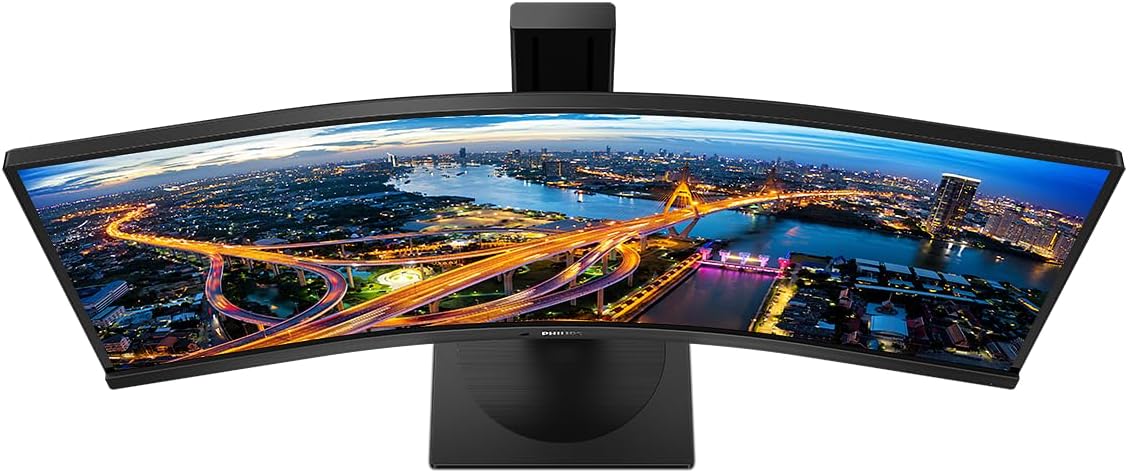
画像: トップダウン view of the Philips 346B1C curved monitor, emphasizing the curvature of the screen.
箱の中身
セットアップを続行する前に、すべてのコンポーネントが揃っていることを確認してください。
- Philips 346B1C Curved Monitor
- モニタースタンド(ベースとネック)
- 電源ケーブル
- HDMIケーブル
- DisplayPortケーブル
- USB-C から USB-C へのケーブル
- USB-A to USB-B Cable (Upstream)
- Documentation (Quick Start Guide, User Manual CD)
セットアップ手順
1. スタンドの組み立て
- 傷がつかないように、モニターを柔らかくて清潔な表面の上に下向きに置いてください。
- スタンドネックをモニターパネルに取り付けます。カチッと音がしてしっかりと固定されているか、付属のネジでしっかりと固定されているかを確認してください。
- スタンドベースをスタンドネックに取り付けます。ベースの底部からつまみネジを締めます。

画像: 背面 view of the Philips 346B1C monitor, showing the stand attachment point and VESA mounting holes.
2. コンピュータへの接続
次のいずれかの方法でモニターをコンピューターに接続します。
- HDMI接続: HDMI ケーブルの一方の端をモニターの HDMI ポートに接続し、もう一方の端をコンピューターの HDMI 出力に接続します。
- DisplayPort接続: Connect one end of the DisplayPort cable to the monitor's DisplayPort and the other end to your computer's DisplayPort output.
- USB-C接続: Connect one end of the USB-C cable to the monitor's USB-C port and the other end to your computer's USB-C port. This connection supports video, data, and power delivery (up to 90W) to your laptop.
For USB hub functionality, connect the USB-A to USB-B upstream cable from your computer to the monitor's USB-B upstream port.
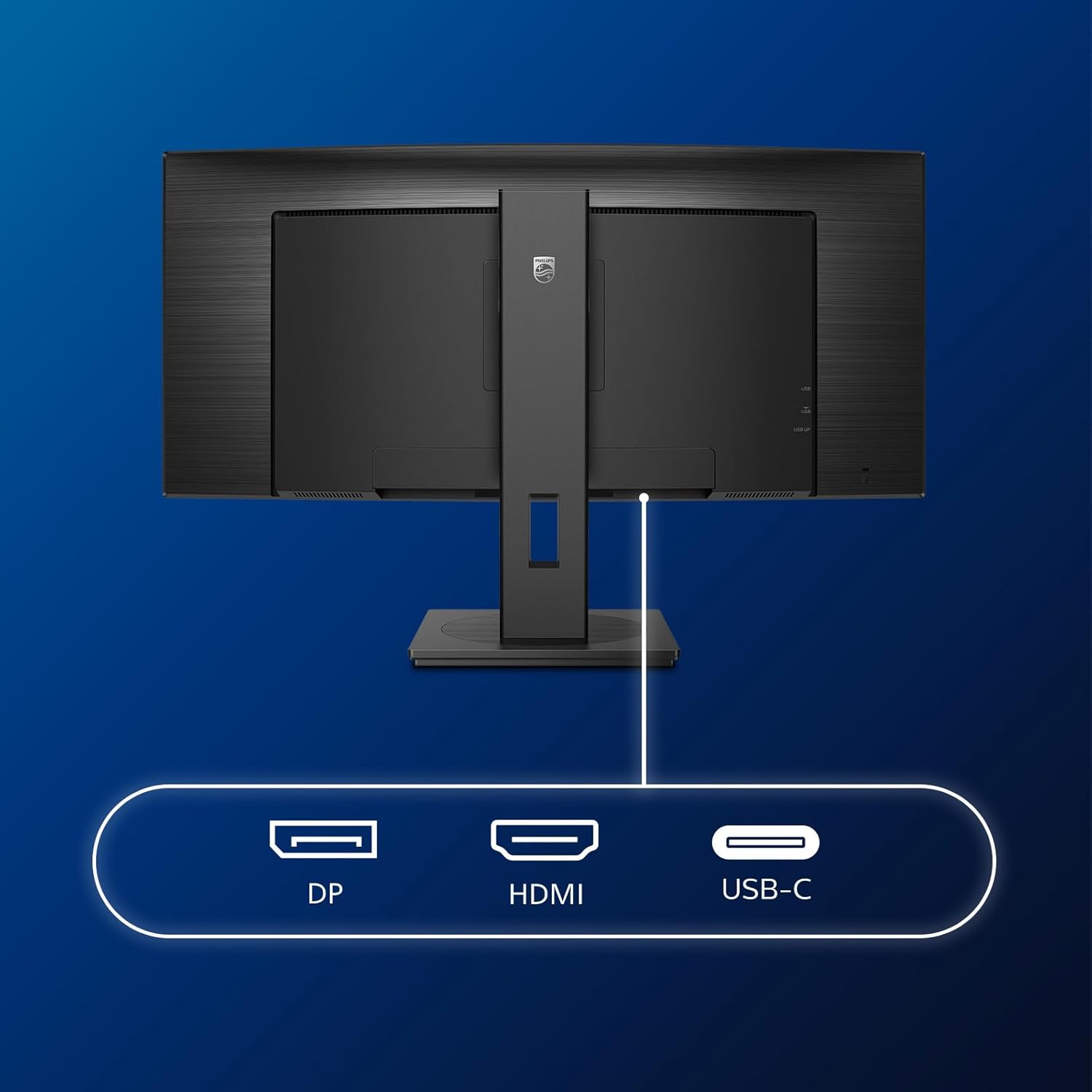
画像: 詳細 view of the monitor's input ports, including DisplayPort (DP), HDMI, and USB-C, for connecting to various devices.
3. 電源接続
電源ケーブルをモニターの電源入力に接続し、次に接地された電源コンセントに接続します。
4. 初回電源投入
Press the power button located on the monitor to turn it on. The monitor should automatically detect the input signal. If not, use the On-Screen Display (OSD) menu to select the correct input source.
操作手順
オンスクリーンディスプレイ(OSD)メニュー
OSDメニューでは、モニターのさまざまな設定を調整できます。メニューの操作には、モニターの背面または底面にあるジョイスティックコントロールをご利用ください。
- 輝度コントラスト: ディスプレイ全体の輝度とコントラストを調整します。
- 色の設定: 色温度、ガンマ、色空間を微調整します。
- 入力選択: HDMI、DisplayPort、USB-C 入力を手動で切り替えます。
- オーディオ: 音量を調整したり、内蔵スピーカーをミュートしたりします。
- 画像モード: Select from preset picture modes (e.g., Standard, Gaming, Text).
マルチView 機能性
マルチView feature allows you to connect and view content from two different sources simultaneously on the screen. Access this feature through the OSD menu to select Picture-by-Picture (PbP) or Picture-in-Picture (PiP) modes and configure input sources.
USB-Cドッキング
When connected via USB-C, the monitor acts as a docking station, providing video, data transfer through its integrated USB hub, and power delivery to charge your connected laptop (up to 90W).
SmartErgoBase and Adjustability
The monitor's SmartErgoBase allows for ergonomic adjustments including height, swivel, and tilt to optimize your view快適さを。

Image: Illustrations demonstrating the monitor's adjustable features, including height adjustment, tilt, and swivel capabilities for ergonomic positioning.
目の快適さの機能
- ローブルー モード: Reduces harmful shortwave blue light emissions to prevent eye strain. Activate this mode via the OSD menu.
- フリッカーフリーテクノロジー: Regulates brightness and reduces flicker for more comfortable viewing. This feature is always active.
- PowerSensor & LightSensor: These sensors automatically adjust monitor brightness based on ambient light conditions and user presence, saving energy and reducing eye strain.
メンテナンス
モニターの掃除
- 清掃する前に必ずモニターのプラグを抜いてください。
- 柔らかく糸くずの出ない布を軽く拭いてください。amp水または、研磨剤を含まない低刺激のスクリーンクリーナーで拭いてください。
- Do not use alcohol, solvents, or ammonia-based cleaners, as these can damage the screen surface.
- 画面を軽く拭いてほこりや汚れを取り除きます。
- モニターを清掃するasin柔らかく乾いた布で拭いてください。
一般的なケア
- モニターやそのケーブルの上に重い物を置かないでください。
- モニターを直射日光、高温、極度の寒さにさらさないでください。
- モニターの周囲に適切な換気を確保してください。
トラブルシューティング
モニターに問題が発生した場合は、次の一般的なトラブルシューティング手順を参照してください。
| 問題 | 考えられる原因 | 解決 |
|---|---|---|
| 画面に画像がありません | 電源ケーブルが外れています。ビデオ ケーブルが外れています。入力ソースが正しく選択されていません。 | Ensure power cable is securely connected; Check video cable connections (HDMI, DP, USB-C); Select correct input source via OSD menu. |
| 画像がぼやけたり歪んだりする | 解像度が正しくありません。グラフィック ドライバーの問題です。 | ディスプレイの解像度を 3440 x 1440 に設定します。グラフィック カード ドライバーを更新します。 |
| スピーカーから音が出ない | Volume muted or too low; Incorrect audio output selected on computer. | Adjust monitor volume via OSD; Check computer's audio output settings. |
| USBポートが機能しない | USBアップストリームケーブルが接続されていません。 | Ensure the USB-A to USB-B upstream cable is connected from the monitor to your computer. |
For further assistance, please refer to the support section or contact Philips customer service.
仕様
| 特徴 | 詳細 |
|---|---|
| ブランド | フィリップス |
| モデル番号 | 346B1C |
| 画面サイズ | 34インチ(86 cm) |
| 解決 | 3440x1440(WQHD) |
| アスペクト比 | 21:9 |
| スクリーン表面 | 曲面VAパネル |
| リフレッシュレート | 100Hz |
| 応答時間 | 5 Milliseconds (GtG) |
| コントラスト比 | 3000:1 (標準) |
| 輝度 | 300 cd/m² |
| View角度 | 178° (水平) / 178° (垂直) |
| 接続性 | 1x HDMI 2.0, 1x DisplayPort 1.2, 1x USB-C 3.2 Gen 1 (upstream, power up to 90W), 1x USB-B (upstream), 4x USB 3.2 (downstream), RJ45 (Ethernet) |
| アダプティブ同期 | フリーシンク |
| 内蔵スピーカー | 2x 5W |
| 消費電力 | 5 Watts (Eco mode) |
| 重さ | 7.8キログラム(スタンド付き) |
保証とサポート
保証情報
This Philips monitor comes with a 2年間のメーカー保証. The specific terms and conditions of the warranty can be found in the detailed documentation provided with your product or on the official Philips support website. Your statutory rights as a consumer are not affected by this warranty.
カスタマーサポート
For technical assistance, product inquiries, or warranty claims, please visit the official Philips support website or contact their customer service department. You may need your monitor's model number (346B1C) and serial number (found on the back of the monitor) when contacting support.
フィリップスサポート Webサイト: www.philips.com/support


