
1. はじめに
This manual provides comprehensive instructions for the Microsoft Surface Laptop 3, Model VGY-00001. Designed for productivity and portability, this device features a 13.5-inch touchscreen, Intel Core i5 processor, 8GB RAM, and a 128GB Solid State Drive. Please read this manual thoroughly to ensure proper setup, operation, and maintenance of your device.
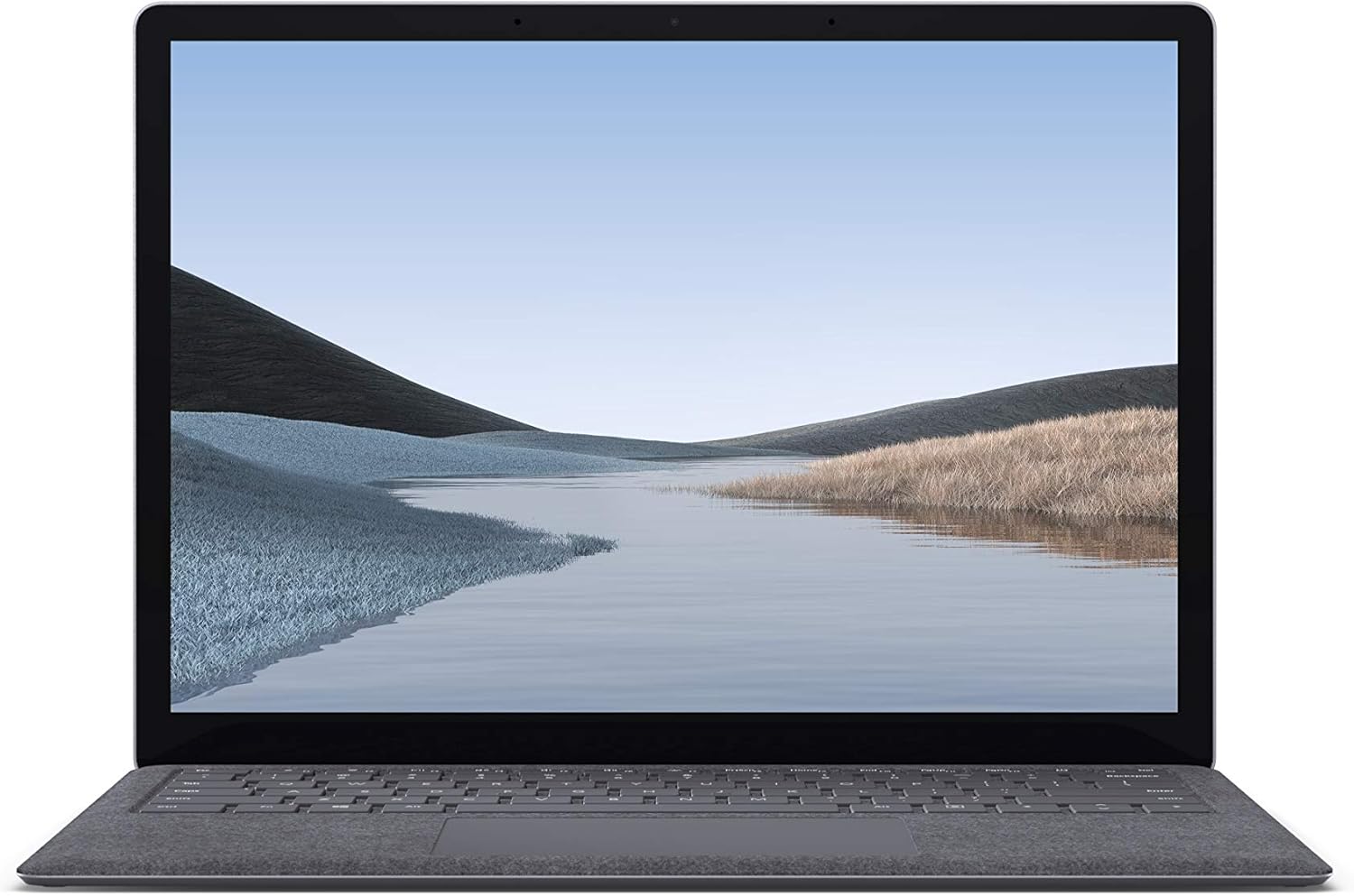
画像1.1:正面 view of the Microsoft Surface Laptop 3 with its display active.
The Surface Laptop 3 offers a clean, elegant design, weighing approximately 2.79 pounds, making it easy to carry. It features improved speed and performance with its 10th Gen Intel Core processors, offering up to two times faster performance than previous models. Connectivity options include USB-C and USB-A ports for connecting to displays, docking stations, and accessories. The device provides up to 11.5 hours of battery life and supports fast charging, reaching up to 80% in about one hour.
2. 箱の中身
Upon unboxing your Microsoft Surface Laptop 3, verify that all the following items are present:
- Microsoft Surface Laptop 3 (Model VGY-00001)
- クイックスタートガイド(QSG)
- 電源(ACアダプター)
3. セットアップ
3.1初期電源オン
- 接続電源: Plug the power supply into a wall outlet and connect the magnetic Surface Connect port to your laptop. The LED indicator on the connector will light up when properly connected.
- 電源オン: Open the laptop lid or press the power button located on the keyboard.
- Windowsセットアップ 画面の指示に従って、Windows 10 Home のセットアップを完了してください。これには、地域の選択、Wi-Fi ネットワークへの接続、ユーザーアカウントの作成が含まれます。
- Windows Hello: Configure Windows Hello for secure and fast login using facial recognition.
3.2 周辺機器の接続
Surface Laptop 3 には、外部デバイスを接続するためのさまざまなポートが搭載されています。
- USB-Cポート: For data transfer, video output, and charging compatible devices.
- USB-A ポート: For connecting traditional USB devices like mice, keyboards, and external storage.
- 3.5 mmヘッドフォンジャック: ヘッドフォンまたは外部スピーカーへのオーディオ出力用。
- Surface Connect ポート: For the power supply and compatible Surface docking stations.

画像3.1: 側面 view illustrating the available ports on the Surface Laptop 3.
4. Operating Your Surface Laptop 3
4.1 ディスプレイとタッチスクリーン
The 13.5-inch PixelSense touchscreen display offers a resolution of 2256 x 1504 pixels. It supports multi-touch gestures and is compatible with the Surface Pen (sold separately) for writing and drawing directly on the screen.
4.2 キーボードとタッチパッド
The full-size ergonomic keyboard features backlighting for comfortable typing in various lighting conditions. The large precision touchpad supports multi-finger gestures for navigation and control.
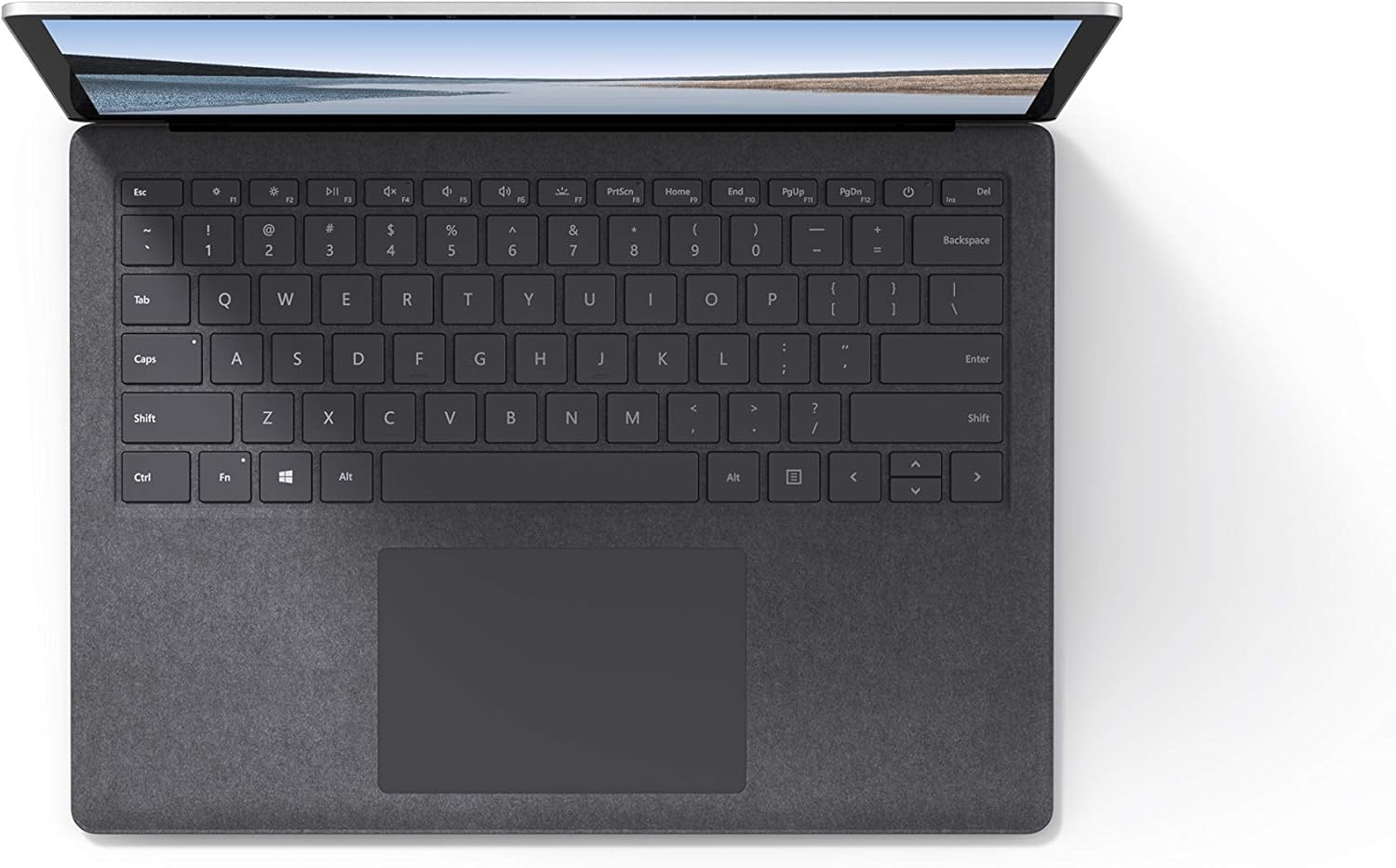
画像4.1: トップダウン view キーボードとタッチパッド領域の。
4.3 オーディオとカメラ
The laptop is equipped with Omnisonic Speakers with Dolby Audio Premium for clear sound. Dual far-field Studio Mics enhance voice clarity for calls and recordings. A front-facing 720p HD camera supports video conferencing and Windows Hello facial authentication.
4.4 ワイヤレス接続
The Surface Laptop 3 supports Wi-Fi 6 (802.11ax) for fast and reliable internet access, and Bluetooth 5.0 for connecting wireless accessories.
Video 4.1: Official Microsoft video showcasing the Surface Laptop 3's features and design.
5. メンテナンス
5.1 デバイスのクリーニング
- 柔らかく糸くずの出ない布を使用してください。ampened with water or an approved screen cleaner to clean the display.
- キーボードとシャーシのお手入れには、柔らかく乾いた布をご使用ください。刺激の強い化学薬品や研磨剤は使用しないでください。
- ポートにほこりやごみが付かないようにしてください。
5.2ソフトウェアアップデート
最適なパフォーマンス、セキュリティ、最新機能へのアクセスを確保するため、Windowsのアップデートを定期的に確認し、インストールしてください。 設定 > 更新とセキュリティ > Windows Update.
5.3バッテリーケア
- 極端な温度を避けてください。
- バッテリー寿命を最適にするには、バッテリーを継続的に 0% まで放電したり、長期間にわたって 100% に維持したりしないでください。
- 付属の電源のみを使用してください。
6。 トラブルシューティング
6.1 電源の問題
- デバイスの電源が入らない: Ensure the power supply is securely connected and the outlet is functional. Try a forced shutdown by holding the power button for 30 seconds, then release and press again briefly to restart.
- バッテリーが充電されない: Verify the Surface Connect cable is properly attached. Check for any damage to the cable or port.
6.2 パフォーマンスの問題
- パフォーマンスが遅い: Close unnecessary applications. Check Task Manager for resource-intensive processes. Ensure Windows is up to date.
- 過熱: Ensure ventilation vents are not blocked. Avoid using the laptop on soft surfaces that can obstruct airflow.
6.3 接続の問題
- Wi-Fi が接続されない: Restart your router and the laptop. Check Wi-Fi settings and ensure the correct network is selected and password entered.
- Bluetoothデバイスがペアリングされない: Bluetoothデバイスがペアリングモードになっており、範囲内にあることを確認してください。ノートパソコンのBluetooth設定を確認してください。
7. 仕様
| 特徴 | 詳細 |
|---|---|
| ブランド | マイクロソフト |
| モデル名 | サーフェス ラップトップ 3 |
| モデル番号 | VGY-00001 |
| 画面サイズ | 13.5インチ |
| 解決 | 2256 x 1504 ピクセル |
| CPUモデル | Intel Core i5 (10th Generation) |
| プロセッサ速度 | 1.2 GHz (up to 3.7 GHz with Turbo Boost) |
| RAMメモリインストールサイズ | 8GB LPDDR4 |
| ハードディスクサイズ | 128GB SSD |
| オペレーティング·システム | Windows 10 Home (Free Upgrade to Windows 11 when available) |
| グラフィックスコプロセッサ | Intel Iris Plus |
| 接続技術 | 1 x USB-C, 1 x USB-A, 3.5 mm headphone jack, 1 x Surface Connect port |
| ワイヤレステクノロジー | Wi-Fi 6(802.11ax)、Bluetooth 5.0 |
| バッテリー寿命 | 最大11.5時間 |
| アイテム重量 | 2.79 ポンド |
| Dimensions (L x W x Thickness) | 長さ8.8インチ x 幅12.1インチ x 厚さ0.57インチ |
| カメラ | Front-facing 720p HD camera with Windows Hello face authentication |
| オーディオ | ドルビーオーディオプレミアムとデュアルファーフィールドスタジオマイクを搭載したオムニソニックスピーカー |
8. 保証とサポート
8.1製品保証
The Microsoft Surface Laptop 3 (Model VGY-00001) comes with a 1年間のメーカー限定保証. This warranty covers defects in materials and workmanship under normal use. For specific terms and conditions, please refer to the warranty documentation included with your product or visit the official Microsoft support webサイト。
8.2 カスタマーサポート
For technical assistance, troubleshooting, or warranty claims, please contact Microsoft Support. You can find contact information and additional resources on the official Microsoft Surface support webサイトをご覧ください。サポートにお問い合わせの際は、購入証明書と製品のシリアル番号をご用意ください。
オンラインサポート: 訪問 support.microsoft.com/surface for FAQs, drivers, and software downloads.