1. はじめに
The Roccat Vulcan 122 is a high-performance mechanical gaming keyboard designed for precision and durability. It features Roccat's unique Titan switches, advanced AIMO RGB lighting, and a robust aluminum construction. This manual provides detailed instructions for setting up, operating, maintaining, and troubleshooting your keyboard.

Image: The Roccat Vulcan 122 keyboard shown with a Roccat mouse and headset, demonstrating its vivid, dynamic lighting synergy with AIMO.
主な特徴:
- Unique design with lowered keycaps and reduced reaction time.
- RGB lighting with configurable LED effects and adjustable AIMO effects.
- High-quality and resistant design with robust materials and an anodized aluminum surface.
- Advanced anti-ghosting with N-Key Rollover (NKRO).
- Programmable macro keys and ROCCAT Easy-Shift[+].
2. セットアップ
2.1 キーボードの接続
To connect your Roccat Vulcan 122 keyboard:
- キーボードとその付属品を梱包から取り出します。
- キーボードの USB コネクタをコンピューターの使用可能な USB ポートに接続します。
- オペレーティング システムが必要なドライバーを自動的に検出してインストールします。
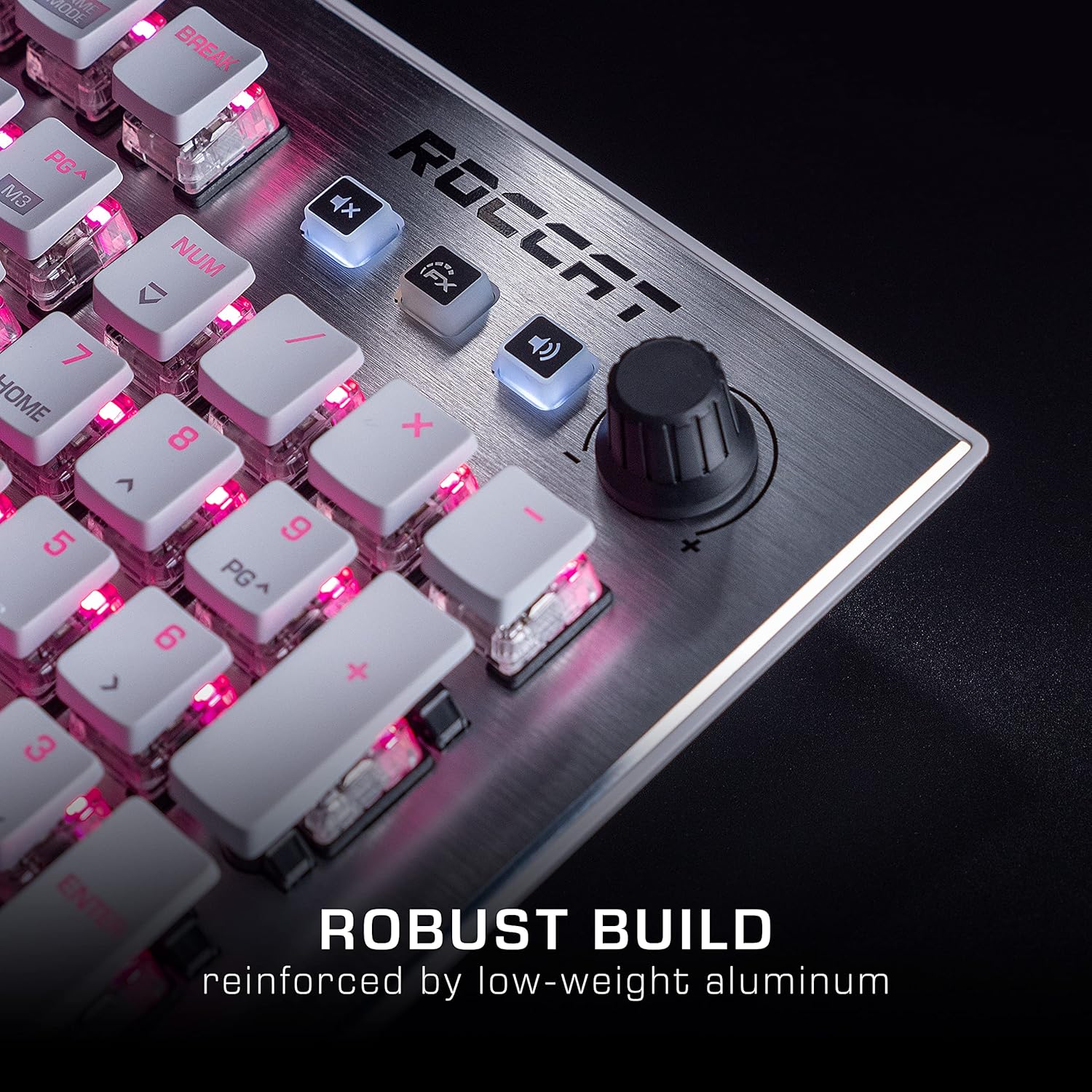
Image: The Roccat Vulcan 122 keyboard shown with its detachable wrist rest, ready for connection.
2.2 ソフトウェアのインストール (ROCCAT Swarm)
For full functionality and customization, install the ROCCAT Swarm software:
- ROCCATの公式ウェブサイトをご覧ください web地点 (www.roccat.com) をクリックして、サポート セクションに移動します。
- お使いのオペレーティング システム用の ROCCAT Swarm ソフトウェアの最新バージョンをダウンロードしてください。
- インストーラーを実行し、画面の指示に従います。
- After installation, launch ROCCAT Swarm to configure your keyboard settings, lighting, and macros.
3. キーボードの操作
3.1 標準キー機能
The Vulcan 122 functions as a standard QWERTY keyboard. All alphanumeric keys, function keys (F1-F12), navigation keys, and the numeric keypad operate as expected.
3.2 メディアコントロール
The keyboard features dedicated media controls for convenient audio management.
- ボリュームノブ: Located in the upper right corner, rotate to adjust system volume.
- 消音ボタン: 押すと音声がミュート/ミュート解除されます。
- FXボタン: Cycles through lighting effects or other programmable functions.

画像: クローズアップ view of the mixer-style media controls on the Roccat Vulcan 122, including the volume knob and dedicated function keys.
3.3 RGB Lighting Customization (AIMO)
The Vulcan 122 features advanced RGB lighting with Roccat's AIMO intelligent lighting system. Use the ROCCAT Swarm software to:
- Select from various pre-set lighting effects.
- Customize individual key illumination.
- 明るさとエフェクトの速度を調整します。
- Synchronize lighting with other AIMO-compatible devices.
3.4 Programmable Macro Keys and Easy-Shift[+]
The keyboard includes programmable macro keys and the Easy-Shift[+] function, allowing you to assign secondary functions to keys.
- Use the ROCCAT Swarm software to record and assign macros to designated keys.
- Easy-Shift[+] allows you to double the number of assignable functions by holding down the Easy-Shift[+] key (usually Caps Lock by default, configurable in Swarm) and pressing another key.
3.5 Anti-Ghosting with NKRO
The Vulcan 122 features advanced anti-ghosting technology with N-Key Rollover (NKRO), ensuring that every key press is registered accurately, even when multiple keys are pressed simultaneously.

Image: A hand demonstrating typing on the Roccat Vulcan 122 keyboard, emphasizing the ergonomic design of the keys for comfortable use.
4. メンテナンス
4.1 キーボードのクリーニング
To ensure the longevity and optimal performance of your Vulcan 122 keyboard, regular cleaning is recommended.
- 清掃する前に、キーボードをコンピューターから取り外してください。
- 柔らかく糸くずの出ない布で軽く拭き取ってください。ampened with water or a mild cleaning solution to wipe the keycaps and surface. Avoid harsh chemicals.
- For dust and debris between keys, use compressed air. The raised keycap design makes cleaning easier.
- キーボードを再接続する前に、キーボードが完全に乾いていることを確認してください。

Image: A close-up of the Roccat Vulcan 122 keyboard keys, illustrating their design which facilitates easy cleaning and resistance to dust and liquids.
5。 トラブルシューティング
If you encounter issues with your Roccat Vulcan 122 keyboard, refer to the following common problems and solutions:
- キーボードが反応しない:
- USB ケーブルがキーボードとコンピュータの両方にしっかりと接続されていることを確認します。
- キーボードを別の USB ポートに接続してみてください。
- コンピュータを再起動します。
- オペレーティング システムのデバイス マネージャーでキーボードが無効になっているかどうかを確認します。
- RGB 照明が機能しない、または正しくない:
- Ensure the ROCCAT Swarm software is installed and up to date.
- Swarm ソフトウェア内で照明設定を確認します。
- Perform a firmware update for the keyboard via Swarm.
- キーが登録されない、またはゴーストが発生する:
- Clean the affected keys as described in the Maintenance section.
- キーボードのファームウェアが最新であることを確認してください。
- システム固有の問題を排除するために、別のコンピューターでキーボードをテストします。
- ROCCAT Swarm software not detecting keyboard:
- キーボードが正しく接続されていることを確認してください。
- Restart the Swarm software and your computer.
- ROCCAT Swarm ソフトウェアを再インストールします。
- Check for any conflicting software or drivers.
6. 仕様
| 特徴 | 詳細 |
|---|---|
| ブランド | ROCCAT |
| モデル名 | バルカン122 |
| モデル番号 | ROC-12-940-BN |
| キーボードの説明 | 機械 |
| スイッチタイプ | 触覚 |
| 材料 | アルミニウム |
| 特集 | バックライト |
| 対応デバイス | ラップトップ(PC) |
| オペレーティング システムのサポート | Windows 10、Windows 7、Windows 8 |
| 製品寸法 | 46.2 x 23.5 x 3.2 cm |
| アイテム重量 | 1.15キロ |

画像: 爆発した view diagram illustrating the components of a Roccat Titan Tactile mechanical switch, highlighting its design for swift and precise response.
7. 保証とサポート
7.1 保証情報
Your Roccat Vulcan 122 keyboard is covered by a manufacturer's warranty. The specific terms and duration of the warranty may vary by region and retailer. Please retain your proof of purchase for warranty claims. For detailed warranty information, refer to the warranty card included with your product or visit the official ROCCAT webサイト。
7.2 テクニカルサポート
For technical assistance, driver updates, or further inquiries, please visit the official ROCCAT support page:
You can find FAQs, troubleshooting guides, and contact information for customer service on their webサイト。