
1. はじめに
ご購入ありがとうございますasing the VIVIBRIGHT GP100UP LED Projector. This manual provides essential information for the safe and efficient operation of your device. Please read it thoroughly before use and retain it for future reference.
The VIVIBRIGHT GP100UP is an Android 6.0-based LED projector featuring built-in Wi-Fi and Bluetooth, designed for home theater and office presentations. It supports Full HD content and offers a bright projection experience.
2. 安全情報
- 電源: 指定された電源アダプタのみを使用してください。tage はお住まいの地域の電源に適合します。
- 換気: 通気口を塞がないでください。プロジェクターの過熱を防ぐため、周囲に十分な空気の流れを確保してください。
- 液体への暴露: プロジェクターを水やその他の液体から遠ざけてください。高温の場所では使用しないでください。amp 環境。
- クリーニング: 清掃する前に電源を切ってください。柔らかく乾いた布を使用してください。液体やエアゾールクリーナーは使用しないでください。
- オブジェクトの挿入: Never insert objects of any kind into the projector openings as they may touch dangerous voltag点やショート部品。
- サービス: この製品を自分で修理しようとしないでください。 すべてのサービスを資格のあるサービス担当者に依頼してください。
- 目の保護: プロジェクターレンズを直接見ないでください。amp 点灯しています。明るい光は目を傷める可能性があります。
3. パッケージ内容
以下にリストされているすべてのアイテムがパッケージに含まれていることを確認してください。
- VIVIBRIGHT GP100UP Projector
- 電源ケーブル
- VGAケーブル
- AVケーブル
- リモートコントロール
- ユーザーマニュアル(このドキュメント)
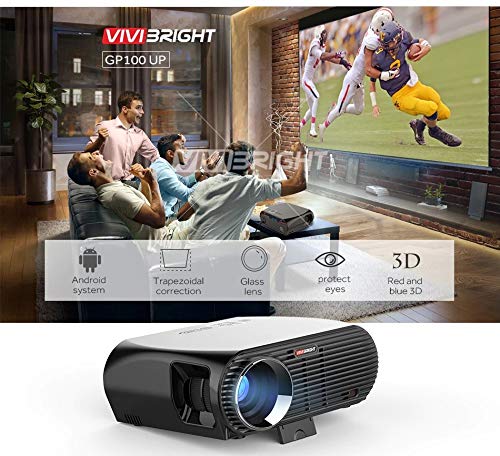
図3.1: Included accessories with the VIVIBRIGHT GP100UP projector, including power cable, VGA cable, remote control, and AV cable.
4.製品オーバーview
4.1. Projector Dimensions
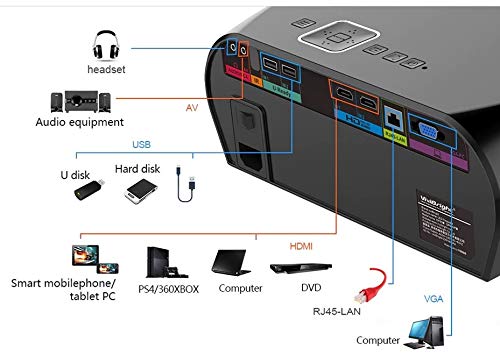
図4.1: フロントとトップ view of the VIVIBRIGHT GP100UP projector with approximate dimensions: 11 inches (length), 8.85 inches (width), and 4 inches (height).
4.2. 入出力ポート
プロジェクターには、外部デバイスを接続するためのさまざまなポートが備わっています。
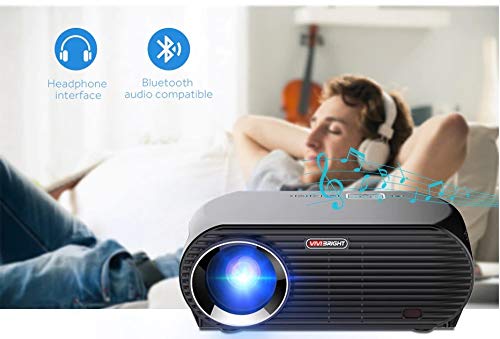
図4.2: Detailed diagram of the projector's rear panel, illustrating connectivity options including headset, audio equipment (AV), USB ports for U disk and hard disk, HDMI ports, RJ45-LAN, and VGA port.
- HDMI: Connect to Blu-ray players, gaming consoles, laptops, or other HDMI-enabled devices.
- USB: For connecting USB drives (U disk) or external hard drives.
- AV: 複合ビデオとステレオオーディオを使用して古いデバイスを接続します。
- VGA: For connecting to computers or laptops with a VGA output.
- RJ45-LAN: 有線ネットワーク接続用。
- ヘッドフォンジャック: 外部ヘッドフォンやスピーカーを接続します。
4.3. リモートコントロール
付属のリモコンでプロジェクターを便利に操作できます。
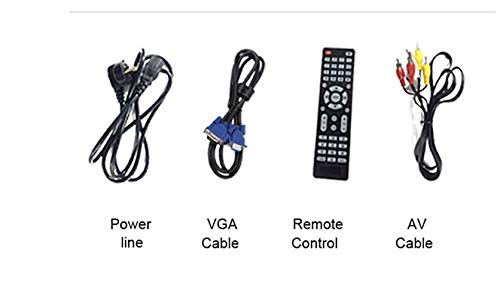
図4.3: Remote control layout with key functions: ON/OFF, Volume Up/Down, OK, Menu, Home, Speed, Mute, Back, Mouse Mode, and the USB receiver.
- オン/オフ: Power on or off the projector.
- ボリューム+/-: オーディオの音量を調整します。
- OK: 選択を確認します。
- メニュー: プロジェクターの設定にアクセスします。
- 家: Return to the main Android interface.
- 戻る: 前の画面に戻ります。
- マウスモード: Activate/deactivate air mouse function (if applicable).
- ミュート: オーディオをミュートまたはミュート解除します。
5. セットアップ
5.1.配置
Place the projector on a stable, flat surface or mount it to the ceiling. Ensure there are no obstructions to the lens or ventilation ports. The optimal projection distance for a clear image is between 1 to 5 meters.
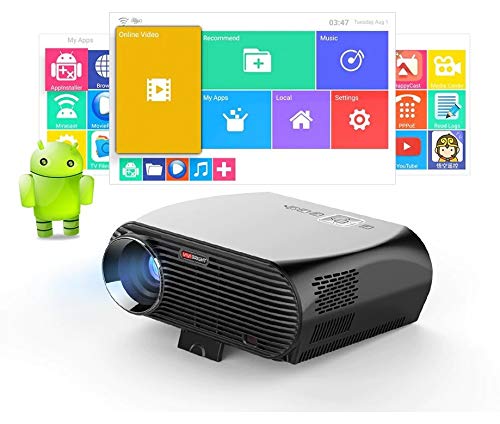
図5.1: Illustration of projection distances and corresponding screen sizes, along with the location of the keystone correction and focus rings on the projector.
- For a 72-inch screen, the recommended distance is approximately 7.2 feet (2.2 meters).
- For a 120-inch screen, the recommended distance is approximately 11.8 feet (3.6 meters).
5.2. 電源接続
- 電源ケーブルをプロジェクターの電源入力に接続します。
- 電源ケーブルのもう一方の端を適切な電源コンセントに差し込みます。
- プロジェクターの電源インジケータ ライトが点灯します。
5.3. フォーカスとキーストーン補正
After powering on, adjust the image for clarity and proper geometry.
- 集中: 投影された画像が鮮明になるまで、レンズの近くにあるフォーカス リングを回転させます。
- キーストーン補正: If the projected image appears trapezoidal (wider at the top or bottom), use the keystone correction ring or lever (usually located near the focus ring) to adjust the image until it is rectangular. The GP100UP supports +/- 15 degrees vertical keystone correction.
6. 操作手順
6.1. Initial Power On and Android Interface
Press the power button on the projector or remote control to turn on the device. The projector will boot into its Android 6.0 operating system interface.
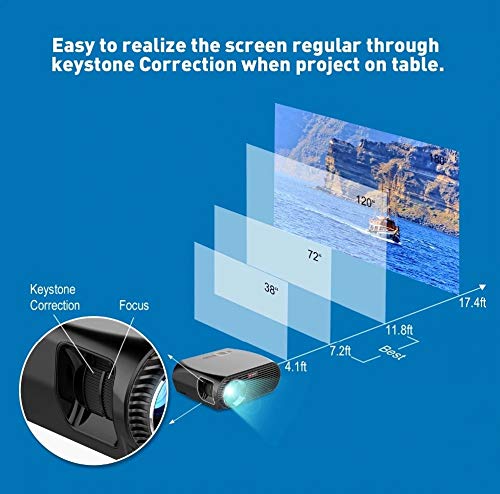
図6.1: The VIVIBRIGHT GP100UP projector in operation, highlighting its Android system capabilities and other features.
Navigate the Android interface using the remote control. You can access pre-installed applications, settings, and media files.
6.2. 外部機器の接続
To project content from external sources:
- Connect your device (e.g., laptop, gaming console, USB drive) to the appropriate port on the projector (HDMI, USB, AV, VGA).
- On the projector's Android interface, navigate to the "Input Source" or "Source" option.
- Select the corresponding input source (e.g., HDMI1, USB, AV, VGA) to display content from your connected device.
6.3. Wireless Connectivity (Wi-Fi, Bluetooth, Screen Mirroring)
The GP100UP supports various wireless functions:
- Wi-Fi:
- Go to "Settings" on the Android interface.
- 「Wi-Fi」を選択し、オンにします。
- Choose your desired network and enter the password to connect.
- ブルートゥース:
- Go to "Settings" on the Android interface.
- Select "Bluetooth" and turn it on.
- Pair with Bluetooth audio devices like headphones or speakers.
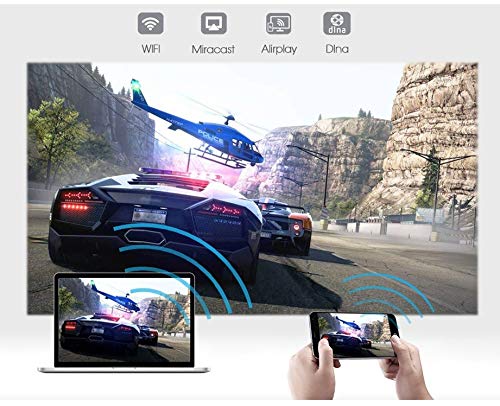
図6.2: The projector's Bluetooth audio compatibility, allowing connection to wireless headphones or speakers.
- Screen Mirroring (Miracast/Airplay/DLNA):
The projector supports mirroring content from compatible smartphones, tablets, and laptops via Wi-Fi, Miracast, Airplay, and DLNA.
- デバイスとプロジェクターの両方が同じ Wi-Fi ネットワークに接続されていることを確認します。
- On the projector's Android interface, open the relevant screen mirroring application (e.g., Miracast, Airplay, DLNA).
- On your smartphone/tablet/laptop, activate its screen mirroring function (e.g., "Screen Mirroring," "Smart View," "Cast," "AirPlay").
- Select the projector from the list of available devices to begin mirroring.

図6.3: Wireless screen mirroring capabilities, enabling content from mobile devices and laptops to be displayed on the projector.
7. メンテナンス
7.1. レンズのクリーニング
光学レンズ専用の柔らかく糸くずの出ない布を使用してください。レンズを優しく拭いて、ほこりや汚れを取り除きます。研磨剤や刺激の強い化学薬品の使用は避けてください。
7.2. プロジェクターのクリーニング Casing
プロジェクターの外側は、柔らかく乾いた布で拭いてください。頑固な汚れには、軽く湿らせた布で拭いてください。amp 布で拭いた後、乾いた布で拭いてください。通気口に液体が入らないようにしてください。
7.3. Air Filter (if applicable)
While LED projectors typically have sealed optical engines, regularly check ventilation openings for dust accumulation. Use a soft brush or compressed air to clear any blockages.
8。 トラブルシューティング
| 問題 | 考えられる原因 | 解決 |
|---|---|---|
| 画像が表示されない |
|
|
| 画像がぼやけている |
|
|
| 画像は台形です |
|
|
| 音が出ない |
|
|
| Wi-Fi/Bluetooth接続の問題 |
|
|
9. 仕様
| 特徴 | 詳細 |
|---|---|
| モデル番号 | GP100UP |
| ディスプレイ技術 | 液晶 |
| ネイティブ解像度 | 1280x800dpi (WXGA) |
| 輝度 | 3500ルーメン |
| コントラスト比 | 1000:1-2000:1 |
| 光源 | 導かれた |
| 光源寿命 | Not specified (typically 20,000+ hours for LED) |
| 投影距離 | 1-5m |
| 投影寸法 | 40-300 inches (Best image size: 72-120 inches) |
| スクリーンスケール | 4:3/16:9 |
| キーストーン補正 | Manual Correction, +/- 15 degrees (vertical) |
| システム | Android 6.0.1, CPU: Quad core ARM Cortex-A53 |
| メモリ (RAM/ROM) | RAM: 1G / ROM: 8G |
| ワイヤレス接続 | Wi-Fi, Bluetooth, DLNA, Miracast, Airplay |
| 入力ポート | HDMI, USB, AV, VGA, RJ45-LAN |
| 電源 | AC 90-240V、50/60Hz |
| 消費電力 | 140W |
| 寸法(約) | 37 x 30.5 x 15.9 cm |
| 重量(約) | 2.6kg |
| 3D機能 | Red-blue 3D |
10. 保証とサポート
The VIVIBRIGHT GP100UP Projector comes with a 1年間保証 ご購入日から有効です。この保証は通常の使用における製造上の欠陥をカバーします。
For technical support, warranty claims, or service inquiries, please contact your retailer or the official VIVIBRIGHT customer service channel. Please have your product model number (GP100UP) and proof of purchase ready when contacting support.