
1.製品オーバーview
The FIYAPOO 4K 5G Wireless Miracast Dongle is designed to facilitate screen mirroring from your devices to a larger display. It supports various interactive multi-screen features, including Airplay, DLNA, Miracast, and Chromecast. This portable dongle allows you to stream high-definition videos, photos, and presentations from your smartphone, tablet, or computer to an HDTV or projector.
主な機能は次のとおりです。
- Support for Airplay, DLNA, Miracast, and Chromecast.
- コンパクトで持ち運びに便利なデザイン。
- 有効にする viewing of videos and games on larger screens.
- Simple plug-and-play operation; no dedicated app or driver installation required.
- Automatic online firmware upgrades.
- HDMI output with Full HD 1080p support.
2. パッケージ内容
パッケージにすべてのアイテムが揃っていることを確認してください:
- 1 x WiFi Display Receiver (Miracast Dongle)
- 1 x Micro USB WiFi Cable
- ユーザーマニュアル x 1
- HDMIケーブル x 1
3. 仕様
| ブランド | フィヤプー |
| モデル番号 | ZNM7-5G |
| 接続技術 | HDMI, USB, Wi-Fi (2.4GHz & 5GHz) |
| サポートされているインターネットサービス | Amazon Prime Video, Netflix (Note: iOS devices do not support Netflix mirroring) |
| コントローラータイプ | ボタンコントロール |
| 色 | M7-5G |
| 欧州連合 | 718689246106 |
4. セットアップ手順
Follow these steps to connect your FIYAPOO Miracast Dongle. Ensure all cables are securely connected for proper functionality.
- ディスプレイに接続: ドングルの HDMI コネクタをテレビ、プロジェクター、またはモニターの使用可能な HDMI ポートに差し込みます。
- 電力供給: Connect the USB cable to a power adapter (minimum 5V/1A) to supply power to the dongle. The dongle requires stable power to operate.
- 入力を選択します: On your display device (TV/projector), switch the input source to the corresponding HDMI port where the dongle is connected.
- 初期画面: The FIYAPOO main screen will appear on your display, showing the SSID (network name) and password for the dongle's Wi-Fi network.
- Connect Device to Dongle Wi-Fi: On your smartphone, tablet, or computer, go to Wi-Fi settings and connect to the FIYAPOO dongle's network (SSID displayed on screen). The default password is usually
12345678. - Access Setup Page (Optional): 開く web browser on your connected device and enter the IP address
http://192.168.203.1(as shown on the dongle's display) to access the setup page. Here you can configure settings like connecting the dongle to your home Wi-Fi network for internet access.
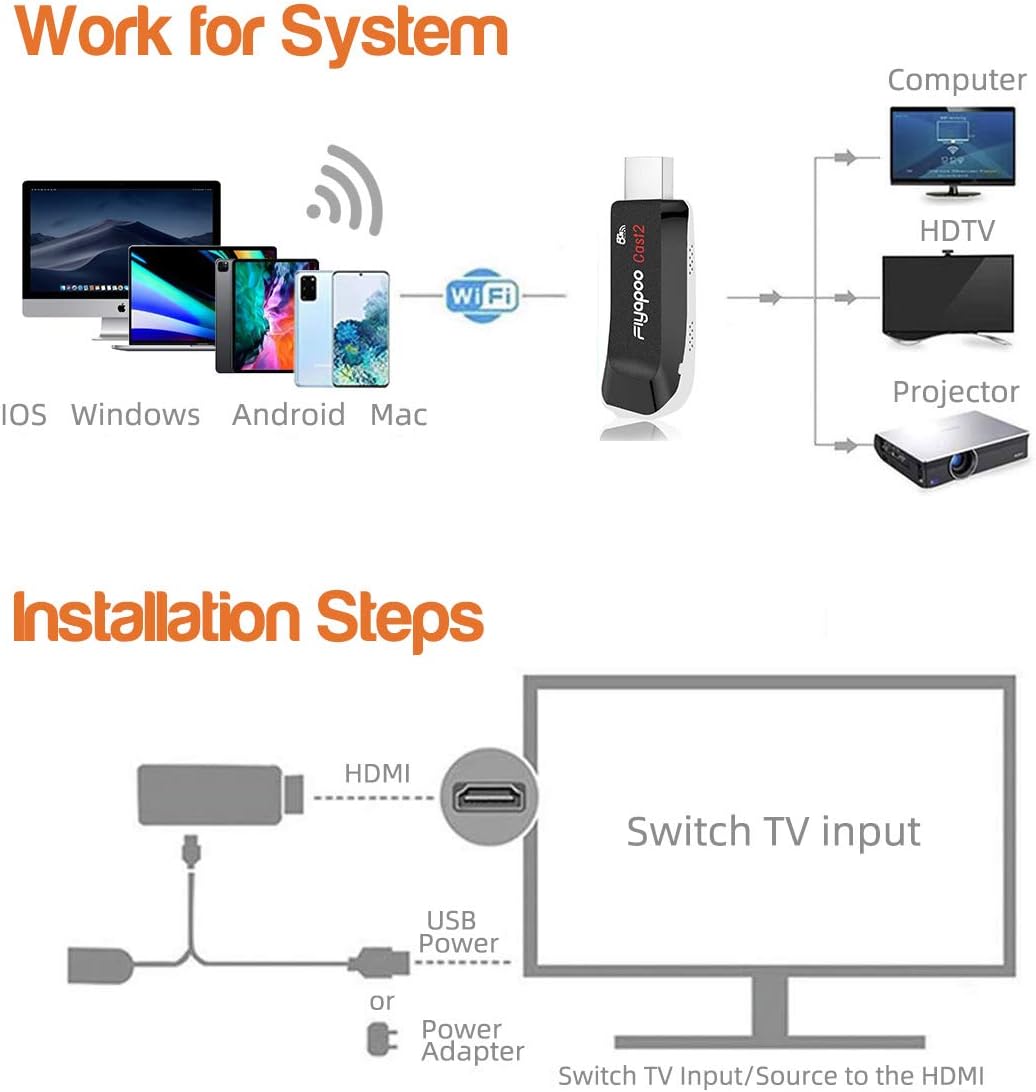
Figure 1: Basic connection diagram for the Miracast dongle.
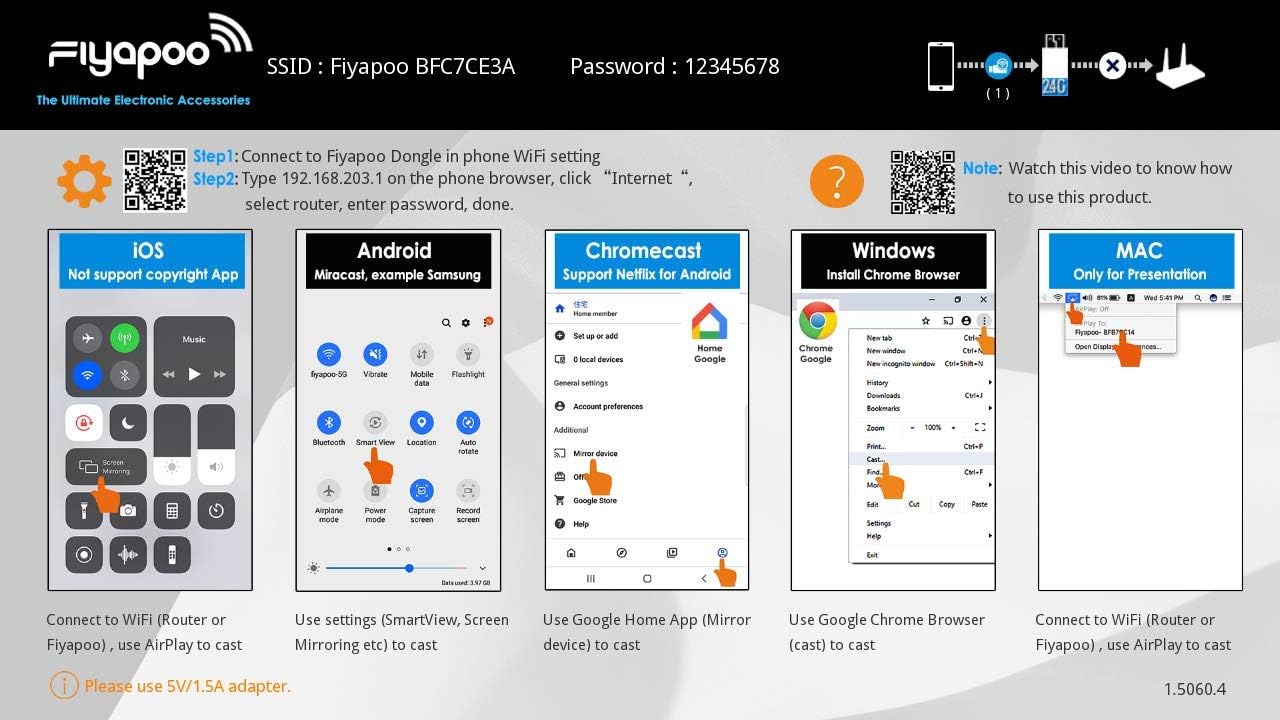
Figure 2: Fiyapoo dongle setup screen with Wi-Fi details and device-specific connection guidance.
5. 操作手順
Once connected, you can begin mirroring content from your device to the large screen using the appropriate casting protocol.
General Mirroring Steps:
- プラグ: Connect the dongle to your TV and power source.
- 接続する: Connect your smart device to the dongle's Wi-Fi network.
- 鏡: Initiate screen mirroring from your device using Airplay, Miracast, or Chromecast.
Device-Specific Mirroring:
- iOS Devices (iPhone, iPad, MacBook, iMac): Use AirPlay. Swipe down from the top-right corner (or up from the bottom for older models) to open Control Center, then tap 'Screen Mirroring' and select the FIYAPOO dongle.
- Android Devices (Samsung, Google Pixel, LG, Huawei, etc.): Use Miracast or Chromecast. Look for options like 'SmartView', 'Screen Mirroring', 'Cast', or 'Wireless Display' in your device's settings or quick panel. For Chromecast, use the Google Home app.
- Windows デバイス: Open the Google Chrome browser, click the three-dot menu, select 'Cast...', then choose 'Cast tab' or 'Cast desktop' and select the FIYAPOO dongle.
- Mac デバイス: Use AirPlay. Click the AirPlay icon in the menu bar and select the FIYAPOO dongle.

Figure 3: System compatibility and connection flow.

図4:例ample of content mirrored to a large screen.

Figure 5: Enhanced gaming experience through screen mirroring.

Figure 6: Benefits of 5GHz Wi-Fi for reduced delay.
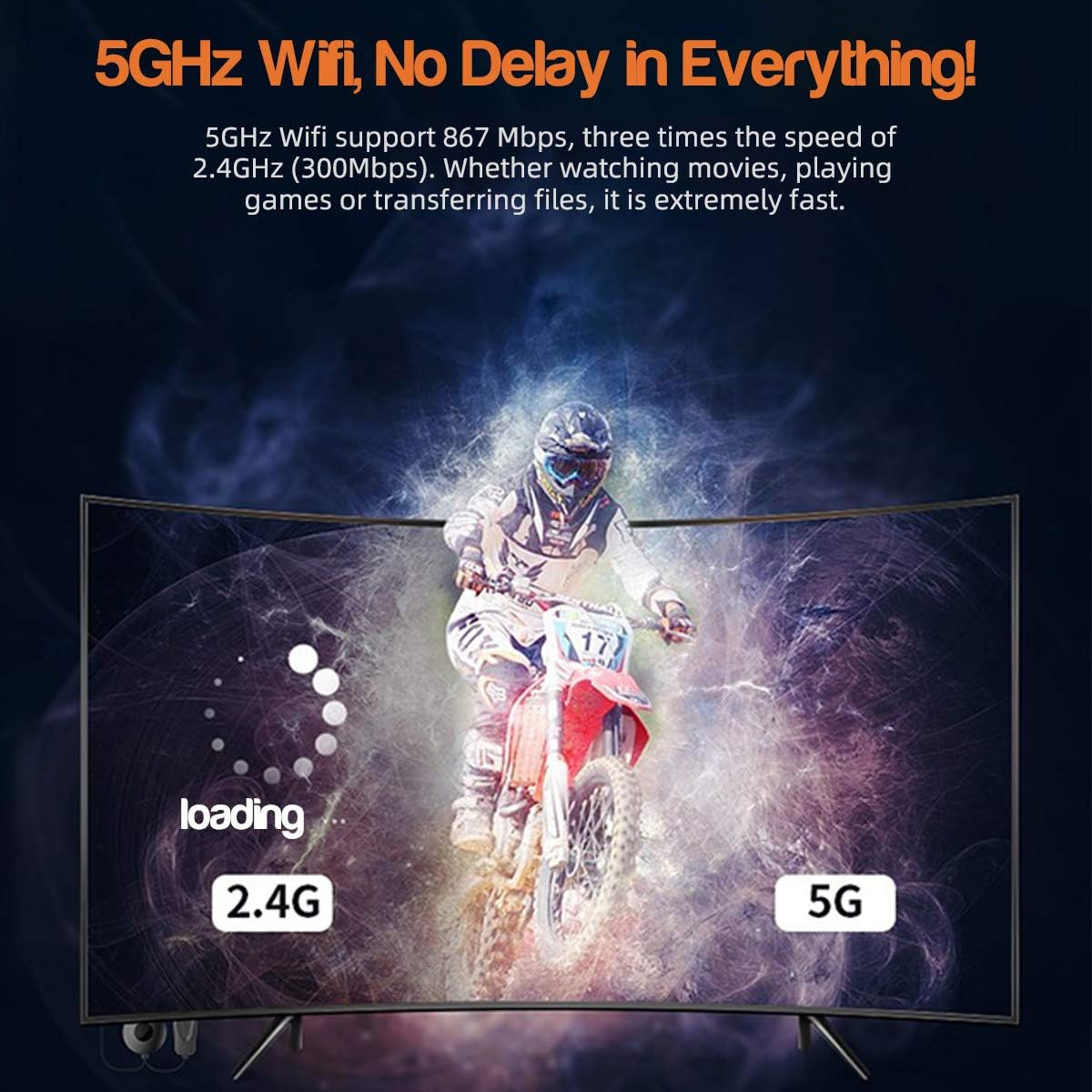
Figure 7: Supported applications for casting content.
6. 互換性
The FIYAPOO Miracast Dongle is compatible with a wide range of operating systems and devices:
- アンドロイド: Version 5.0 and later (e.g., Samsung Galaxy S9/S8/S7/Note 8/5/4, Google Pixel 2, LG, Sony, Huawei).
- iOS: Version 9.0 and later (e.g., iPhone, iPad, MacBook, iMac).
- ウィンドウズ: Version 8.1 and later.
- マック: Version 10.9 and later.
7. 重要な注意事項とトラブルシューティング
- 電源: The dongle requires a stable power supply of at least 5V/1A. Insufficient power can lead to unstable performance or failure to operate.
- Encrypted Content (Netflix, Amazon Prime Video): Only Android smartphones support mirroring encrypted video content from services like Netflix and Amazon Prime Video. iOS devices do not support this functionality due to copyright protection.
- 工場出荷時設定へのリセット: If the dongle is not functioning correctly, you can perform a factory reset by pressing the 'Fn' button located on the side of the dongle.
- オンラインアップデート: The dongle supports automatic online firmware updates when connected to Wi-Fi, ensuring you have the latest features and improvements.
- ビデオチュートリアル: For additional assistance, you can refer to video tutorials available online. A playlist of instructional videos can be found at: FIYAPOO YouTube Playlist.
8. 保証とサポート
FIYAPOO is committed to providing quality products and customer service.
- 30日間の返品ポリシー: You may return the product within 30 days of purchase without justification.
- 365日間の交換: In case of any quality issues, the product is eligible for a replacement within 365 days from the purchase date.
- 顧客の連絡先: For any issues or to request a replacement, please contact FIYAPOO customer support directly.