
1. はじめに
This manual provides detailed instructions for the proper setup, operation, and maintenance of your Zerone USB Digital Microscope. This device is designed for various applications including industrial testing, laboratory research, educational purposes, and detailed examination of small objects. Please read this manual thoroughly before using the product to ensure optimal performance and longevity.
2. 安全情報
- デバイスを極端な温度、湿度、腐食性物質にさらさないでください。
- Avoid direct exposure of the LED lights to eyes.
- デバイスを子供の手の届かない場所に保管してください。
- Use only the provided accessories or compatible replacements.
- 使用していないときや清掃中は、デバイスを電源から外してください。
3. パッケージ内容
パッケージにすべてのアイテムが揃っていることを確認します。
- Zerone USB Digital Microscope
- 調節可能なスタンド
- USB Cable with LED Dimming Knob
- ソフトウェアインストールCD(またはダウンロードリンク)

Image 3.1: Contents of the Zerone USB Digital Microscope package, including the microscope, stand, USB cable, and software CD.
4.製品オーバーview
The Zerone USB Digital Microscope features a compact design with adjustable magnification and integrated LED illumination. Key components include:
- 顕微鏡本体: Contains the lens, sensor, and control buttons.
- ズーム/フォーカスホイール: Located on the microscope body for adjusting magnification and focus.
- LEDライト: Eight adjustable LEDs surrounding the lens for illuminating the specimen.
- スナップボタン: 静止画を撮影します。
- USBケーブル: Connects the microscope to a computer.
- LED Dimming Knob: Integrated into the USB cable for brightness control.
- 調整可能なスタンド: Provides stable support and allows for precise positioning of the microscope.

Image 4.1: The Zerone USB Digital Microscope mounted on its adjustable stand, connected via USB cable.

画像4.2: 拡大 view of the Zerone USB Digital Microscope on its stand, highlighting its portable design and 1000X zoom capability.
5. セットアップ
5.1 ソフトウェアのインストール
- Insert the provided software installation CD into your computer's CD-ROM drive. If your computer does not have a CD-ROM drive, please refer to the manufacturer's webソフトウェアのダウンロード手順のサイト。
- Follow the on-screen prompts to install the digital microscope software.
- インストールが完了したら、プロンプトが表示されたらコンピューターを再起動します。
5.2 顕微鏡の接続
- Attach the microscope to the adjustable stand. Ensure it is securely fastened.
- Connect the USB cable from the microscope to an available USB port on your computer.
- The computer should automatically detect the device. If not, check your device manager for driver installation status.

Image 5.1: The Zerone USB Digital Microscope set up on a surface, demonstrating its use in a typical research or inspection environment.
6. 操作手順
6.1 ソフトウェアの起動
Launch the digital microscope software installed on your computer. The live feed from the microscope should appear on your screen.
6.2 フォーカスとズームの調整
- Place the object you wish to examine under the microscope lens.
- 回転する Zoom/Focus Wheel on the microscope body to adjust the magnification and bring the image into clear focus on your computer screen.
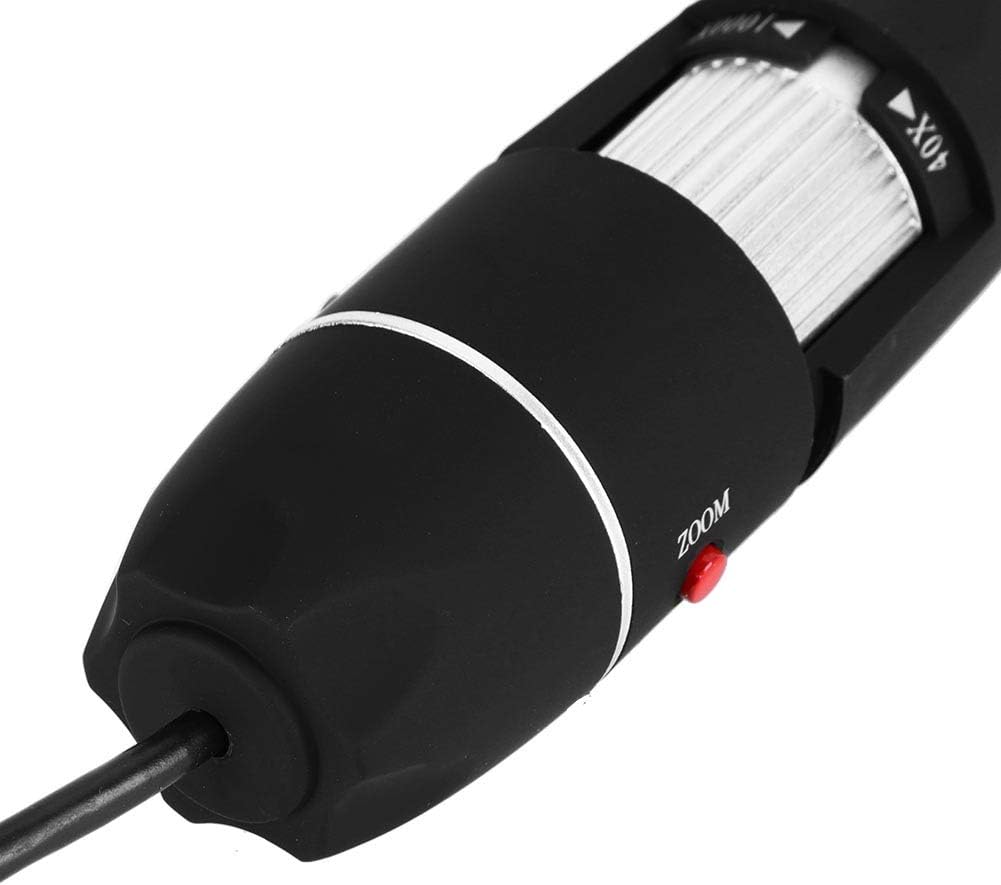
画像6.1: 詳細な view of the zoom and focus adjustment wheel on the microscope body, used for precise image clarity and magnification.
6.3 LEDの明るさの調整
顕微鏡には8つの調整可能なLEDライトが搭載されています。 LED Dimming Knob located on the USB cable to increase or decrease the brightness. Adjust the lighting to achieve optimal visibility of your specimen.

Image 6.2: A close-up showing the arrangement of the 8 LEDs around the microscope lens, designed to provide even illumination.

Image 6.3: The front of the microscope with its 8 LEDs illuminated, demonstrating the lighting capability for view標本を採取する。
6.4 画像とビデオのキャプチャ
静止画を撮影するには、 スナップボタン on the microscope body or use the corresponding function within the software. To record video, select the video recording option in the software and follow the prompts.

Image 6.4: A hand holding the Zerone USB Digital Microscope, illustrating its ergonomic design and portability for handheld use.
6.5 製品デモビデオ
Watch this video for a visual guide on the features and operation of the Zerone USB Digital Microscope.
ビデオ6.1: デモビデオasing the Zerone 1000X Zoom USB Digital Microscope, highlighting its features and how it functions as a digital magnifier and endoscope camera.
7. メンテナンス
7.1 クリーニング
- 顕微鏡本体を柔らかく乾いた布で優しく拭いてください。
- レンズには、傷を防ぐために専用のレンズクリーニングクロスと洗浄液を使用してください。
- 研磨剤や溶剤は使用しないでください。
7.2 ストレージ
When not in use, store the microscope in a clean, dry place, away from direct sunlight and extreme temperatures. Use the original packaging or a protective case to prevent dust accumulation and physical damage.
8。 トラブルシューティング
| 問題 | 考えられる原因 | 解決 |
|---|---|---|
| 画面に画像がありません | Microscope not connected properly; Software not launched; Driver issue. | Ensure USB cable is securely connected. Launch the software. Reinstall drivers if necessary. |
| 画像がぼやけている | Incorrect focus; Incorrect working distance. | Adjust the Zoom/Focus Wheel. Ensure the microscope is at an appropriate distance from the object. |
| LEDが点灯しない | LED dimming knob set to minimum; Power issue. | Rotate the LED Dimming Knob to increase brightness. Check USB connection. |
| ソフトウェアがデバイスを検出しない | Driver not installed or corrupted; USB port issue. | Reinstall the software and drivers. Try a different USB port. |
9. 仕様
| 特徴 | 詳細 |
|---|---|
| ブランド | ゼロネ |
| モデル番号 | SKIESOARtbx1zsgua2 |
| 倍率 | 最大1000倍 |
| 光源 | 8 つの調整可能な LED |
| 接続性 | USB |
| 対応デバイス | パソコン |
| 材料 | 金属 |
| 色 | ブラック、シルバー |
| 製品寸法 | 5.31 x 5.12 x 1.77インチ |
| アイテム重量 | 7オンス |
10. 保証とサポート
For warranty information and technical support, please refer to the documentation included with your product or visit the official Zerone webサイトでご確認ください。保証請求の際は購入証明として領収書を保管してください。