
1. はじめに
The Autel MaxiLink ML519 is an advanced OBDII/EOBD scanner designed to assist in diagnosing vehicle issues. This tool provides comprehensive diagnostic functions, including reading and clearing trouble codes, viewing live data, performing I/M readiness tests, and more. It is compatible with most OBDII-compliant vehicles manufactured from 1996 onwards in the US, and from 2000 for EU-based and Asian cars.
2.製品オーバーview
2.1 主な特徴
- Reads and clears generic (P0, P2, P3, U0) and manufacturer-specific (P1, P3, U1) codes, and pending codes.
- チェック エンジン ライト (MIL) をオフにし、コードをクリアし、モニターをリセットします。
- Patented One-Click I/M Readiness Status Key for quick emissions readiness check.
- Viewフリーズフレームデータ。
- Displays live PCM data stream in text and graphing formats.
- Performs O2 Monitor Test, On-Board Monitor Test (Mode 6), and Component Test.
- Retrieves vehicle identification information (VIN, CALID, and CVN).
- Built-in DTC lookup library for code definitions.
- Memory backup for off-vehicle data review および分析。
- Internet updatable for software and language.
- Prints data via Windows-based PC.
2.2 パッケージ内容
The Autel MaxiLink ML519 package typically includes the following items:
- MaxiLink ML519 Unit
- OBD II Connector Cable
- USB Data Line
- クイックガイド
- 収納バッグ

Image: Contents of the Autel MaxiLink ML519 package, including the scanner unit, cables, quick guide, and storage bag.
3. セットアップ
3.1 Connecting the Scanner to the Vehicle
- Turn the vehicle's ignition off.
- 車両の16ピンデータリンクコネクタ(DLC)の位置を確認します。DLCは通常、運転席側のダッシュボードの下にあります。
- Connect the OBD II connector cable from the ML519 scanner to the vehicle's DLC. Ensure a secure connection.
- 車両のイグニッションをON(エンジンOFF)にしてください。スキャナーの電源が自動的にオンになります。
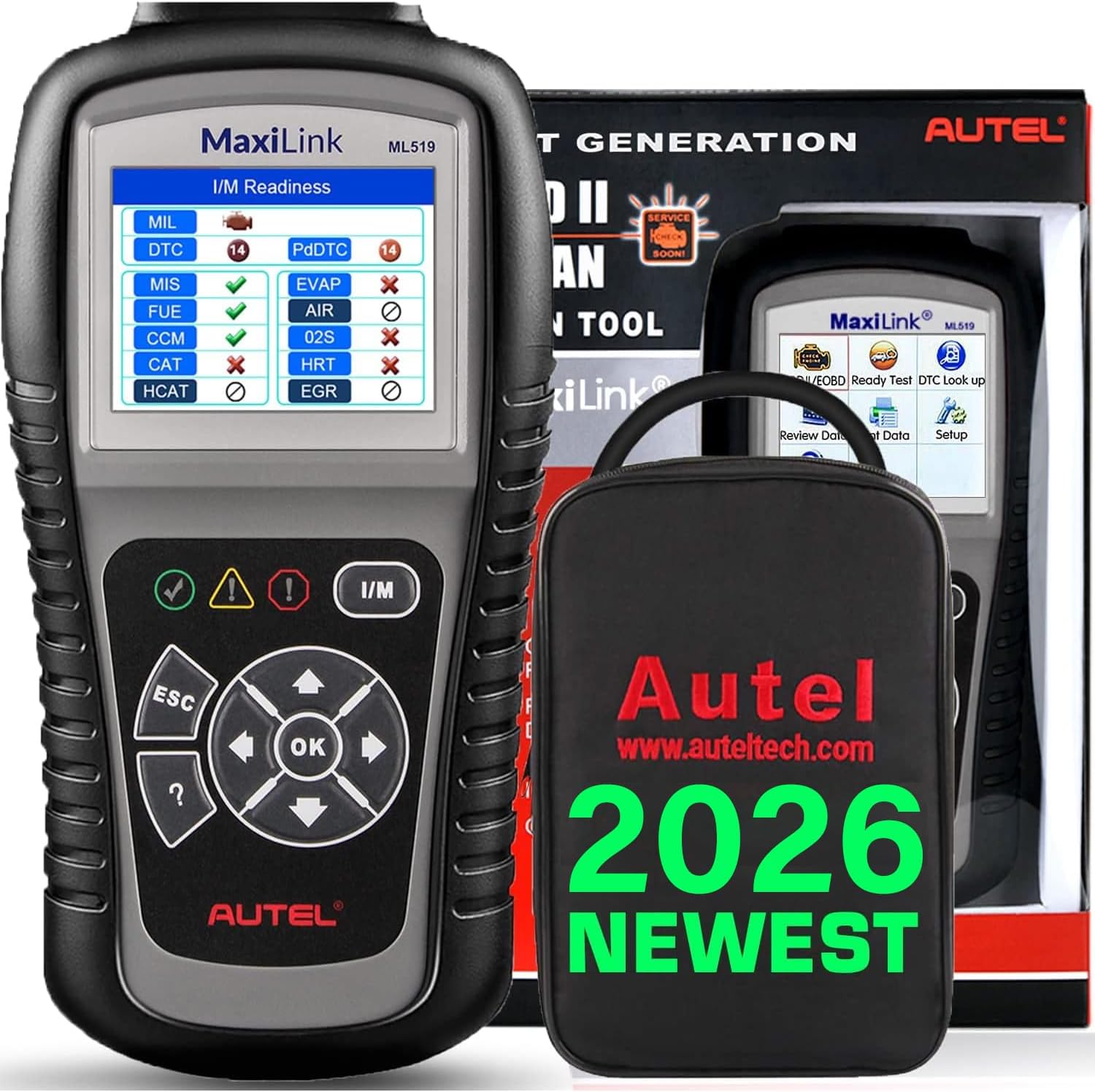
Image: The Autel MaxiLink ML519 scanner connected to a vehicle's OBD-II port, displaying its main menu.
4. 操作手順
4.1 Full OBDII Scan Tool Functions
The ML519 supports all 10 modes of OBD II operation, providing comprehensive diagnostic capabilities.

画像: オーバーview of the Autel MaxiLink ML519's full OBDII scan tool functions, including erase codes, DTC definition, live data, and more.
4.2 診断トラブルコード(DTC)の読み取りとクリア
To read DTCs:
- メインメニューから、 「コードを読む」.
- The scanner will display any stored or pending DTCs.
To clear DTCs:
- メインメニューから、 「消去コード」.
- Confirm the action when prompted. This will turn off the Check Engine Light (MIL) and reset monitors.
4.3 One-Click I/M Readiness (Ready Test)
This function allows you to quickly check the readiness status of the vehicle's emission system, which is crucial for annual emission tests. The ML519 provides visual and audible indications.
- 専用の I/M の準備 button on the scanner.
- The screen will display the status of various monitors (e.g., Misfire, Fuel System, O2 Sensors, EVAP). A green checkmark indicates readiness, while an 'X' indicates not ready.

Image: The Autel MaxiLink ML519 displaying the I/M Readiness screen, showing the status of various emission monitors with checkmarks and 'X' symbols.
4.4 Viewライブデータ
The ML519 can display real-time sensor data from the vehicle's Powertrain Control Module (PCM) in both text and graphical formats. This allows for detailed analysis of vehicle performance.
- メインメニューから、 「ライブデータ」.
- Choose between 'View Data' (text list) or 'Graph Data' (graphical representation).
- Use the navigation buttons to scroll through parameters or zoom in/out on graphs.

Image: The Autel MaxiLink ML519 displaying live data, showing RPM in a graphical format and a list of data parameters.
4.5 DTC Lookup Function
The built-in DTC lookup library provides detailed definitions for generic and manufacturer-specific trouble codes, helping you understand the cause of a fault.
- メインメニューから、 「DTCルックアップ」.
- Enter the DTC code using the scanner's buttons.
- The scanner will display the definition of the entered code.

Image: The Autel MaxiLink ML519 displaying the DTC Lookup function, showing how to input a code and view その定義。
4.6 Other Diagnostic Tests
- O2モニターテスト: 車両のオンボード コンピュータから、最近完了したテストの O2 センサー モニター テスト結果を取得します。
- オンボードモニターテスト(モード6): 継続的に監視されていない排出ガス関連のパワートレイン コンポーネントおよびシステムのテスト結果を取得します。
- コンポーネントテスト: 車両の EVAP システムのリーク テストを開始できます。
- 車両情報の取得: Displays the Vehicle Identification Number (VIN), Calibration ID (CALID), and Calibration Verification Number (CVN).
4.7 データ印刷
The ML519 allows you to print diagnostic data via a Windows-based PC. Connect the scanner to your PC using the provided USB cable and use the Autel PC Suite software (available for download from the Autel website) to manage and print data.
5. メンテナンス
5.1一般的なケア
- Keep the scanner dry and clean. Avoid exposure to moisture or extreme temperatures.
- Do not use abrasive cleaners or solvents on the unit. Use a soft, damp 掃除用の布。
- Store the scanner in its protective storage bag when not in use to prevent damage.
6。 トラブルシューティング
6.1 一般的な問題と解決策
- スキャナーの電源が入らない: Ensure the OBD II cable is securely connected to the vehicle's DLC and the vehicle's ignition is in the ON position. Check the vehicle's battery voltage (must be 8.0 to 18.0 V).
- Link error: Verify the vehicle is OBDII compliant. Check the connection of the OBD II cable. Turn the ignition off, wait 10 seconds, then turn it back on.
- 車両との通信なし: Confirm the vehicle supports OBDII protocols. Try connecting to a different OBDII-compliant vehicle to rule out scanner issues.
- Screen freezes: Disconnect the scanner from the vehicle, then reconnect. If the issue persists, perform a software update.
7. 仕様
| 仕様 | 価値 |
|---|---|
| 画面 | TFTカラーディスプレイ(320 x 240 dpi) |
| 動作温度 | 0°C ~ 60°C (32°F ~ 140°F) |
| 保管温度 | -20°C ~ 70°C (-4°F ~ 158°F) |
| 外部電源 | 車両バッテリー経由の8.0~18.0V |
| 画面サイズ | 3.5インチ |
| オペレーティング システム (PC 接続用) | Windows XP (or later for updates) |
| アイテム重量 | 300グラム |
8. ソフトウェアの更新
The Autel MaxiLink ML519 comes with lifetime free software updates. Regular updates ensure compatibility with newer vehicle models and provide enhanced features. To update the software:
- Download the Autel PC Suite software from the official Autel webサイト。
- Install the software on a Windows-based PC.
- Connect the ML519 scanner to your PC using the provided USB cable.
- Follow the on-screen instructions in the PC Suite to download and install the latest software updates to your device.
9. 保証とサポート
9.1 保証情報
The Autel MaxiLink ML519 is backed by a 12-month warranty against defects in materials and workmanship from the date of purchase. This warranty covers repair or replacement of the product under normal use conditions.
9.2 カスタマーサポート
For any questions, technical assistance, or warranty claims, please contact Autel customer service. Refer to the official Autel website for the most current contact information or use the email provided in your product documentation.