
1. はじめに
This manual provides detailed instructions for the installation, operation, and maintenance of your Yosoo AR5B22 Dual Band Wireless Mini PCI-E 802.11N WLAN Card. This card is designed to provide wireless network connectivity (Wi-Fi) and Bluetooth 4.0 capabilities to compatible devices. Please read this manual thoroughly before proceeding with installation or use.
2. 安全情報
- Always disconnect power from your computer before opening the chassis or installing any internal components.
- Handle the WLAN card by its edges to avoid touching the gold connectors or electronic components, which can be damaged by static electricity.
- Use appropriate anti-static precautions, such as an anti-static wrist strap, when handling the card.
- Ensure proper ventilation for your computer to prevent overheating.
- Keep the card away from moisture and extreme temperatures.
3. パッケージ内容
パッケージに次のアイテムが含まれていることを確認してください。
- Yosoo AR5B22 Dual Band Wireless Mini PCI-E 802.11N WLAN Card
Note: Antennas are typically sold separately and are required for optimal performance.
4.製品オーバーview
The Yosoo AR5B22 is a half-mini PCI-E card designed for laptops, desktops, all-in-one PCs, and other devices with a compatible interface. It offers enhanced wireless connectivity and Bluetooth capabilities.
- デュアルバンドサポート: Operates on both 2.4GHz and 5GHz frequencies for versatile network access.
- 高速ワイヤレスレート: Achieves wireless transmission rates up to 300Mbps (802.11N standard).
- Bluetooth 4.0: ワイヤレス周辺機器を接続するための Bluetooth 4.0 を統合。
- インタフェース: Half Mini PCI-E.
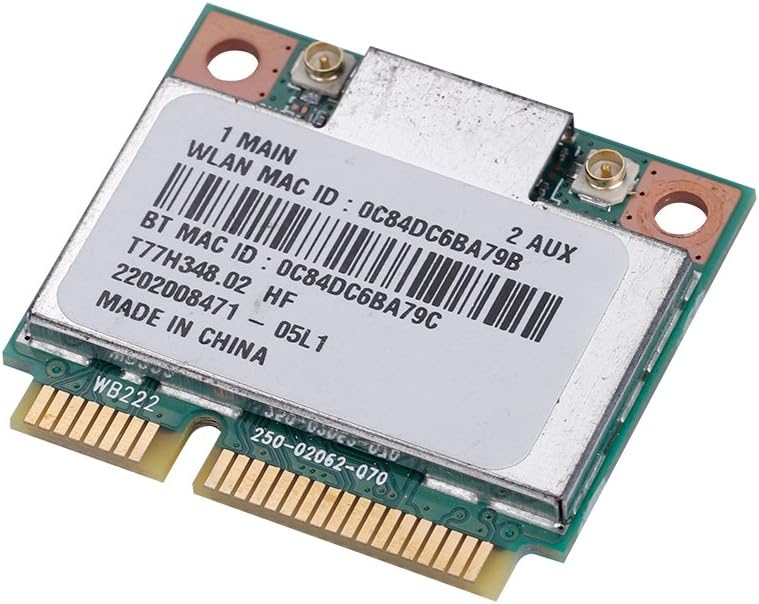
図1: Yosoo AR5B22 Dual Band Wireless Mini PCI-E WLAN Card. This image displays the top view of the network card, highlighting its compact form factor and the two antenna connectors labeled '1 MAIN' and '2 AUX'.

図2: Yosoo AR5B22 WLAN Card supporting Bluetooth 4.0. The image shows the card with a graphic indicating Bluetooth 4.0 High Speed (HS) capability.

図3: Yosoo AR5B22 WLAN Card highlighting its 300Mbps wireless transmission rate. A graphic of a running figure symbolizes high-speed data transfer.

図4: Yosoo AR5B22 WLAN Card compatible with Mini Card Slots. The image emphasizes its design for Mini PCI-E interfaces.
5. セットアップとインストール
5.1 インストール前のチェックリスト
- Ensure your computer has a compatible Half Mini PCI-E slot.
- Gather necessary tools: small Phillips head screwdriver, anti-static wrist strap (recommended).
- Backup important data before beginning installation.
5.2物理的な設置
- Power off your computer and disconnect all cables, including the power cord.
- Open your computer's chassis or access panel to expose the Mini PCI-E slot. Refer to your computer's service manual for specific instructions.
- If an existing WLAN card is present, carefully disconnect its antenna cables and remove the retaining screw, then gently slide it out of the slot.
- Align the Yosoo AR5B22 card with the Mini PCI-E slot. Gently push the card into the slot until it is fully seated.
- Secure the card with the retaining screw.
- Connect your Wi-Fi antenna cables to the card. The '1 MAIN' connector is typically for the primary antenna, and '2 AUX' for the auxiliary. For Bluetooth functionality, ensure at least one antenna is connected to the '1 MAIN' connector.
- Close your computer's chassis or access panel.
- すべてのケーブルを再接続し、コンピューターの電源を入れます。
5.3 ドライバのインストール
Upon first boot after installation, your operating system (e.g., Windows 10) may automatically detect and install the necessary drivers. If not, follow these steps:
- Access Device Manager (e.g., right-click on 'This PC' or 'My Computer', select 'Manage', then 'Device Manager').
- Look for any unknown devices or devices with a yellow exclamation mark under 'Network adapters' or 'Bluetooth'.
- Right-click on the device and select 'Update driver'.
- Choose 'Search automatically for updated driver software' or 'Browse my computer for driver software' if you have downloaded drivers from the manufacturer's webサイト。
- 画面上の指示に従ってドライバーのインストールを完了します。
Note: Some users may need to manually search for Atheros AR5B22 drivers online if automatic installation fails.
6. 操作手順
6.1 Wi-Fiネットワークへの接続
- Once drivers are installed, click on the Wi-Fi icon in your system tray (usually bottom-right of the screen).
- 利用可能な Wi-Fi ネットワークのリストが表示されます。目的のネットワークを選択します。
- プロンプトが表示されたら、ネットワーク セキュリティ キー (パスワード) を入力します。
- 「接続」をクリックします。これでコンピューターがWi-Fiネットワークに接続されます。
6.2 Bluetoothデバイスのペアリング
- Ensure Bluetooth is enabled on your computer (check system settings or action center).
- Put your Bluetooth device (e.g., headphones, mouse) into pairing mode. Refer to your device's manual for specific instructions.
- On your computer, go to 'Settings' > 'Devices' > 'Bluetooth & other devices'.
- 「Bluetooth またはその他のデバイスを追加する」をクリックし、「Bluetooth」を選択します。
- リストからデバイスを選択し、画面上の指示に従ってペアリング プロセスを完了します。
7. メンテナンス
- ドライバーの更新: Periodically check for updated drivers from the operating system manufacturer or the chipset manufacturer (Atheros) to ensure optimal performance and compatibility.
- 物理的な清掃: If your computer is opened for other maintenance, gently clean any dust accumulation on the WLAN card using compressed air. Ensure the computer is powered off and unplugged before cleaning.
8。 トラブルシューティング
If you encounter issues with your Yosoo AR5B22 WLAN card, refer to the following common troubleshooting steps:
- Wi-Fi Not Detected / No Networks:
- Ensure the card is properly seated in the Mini PCI-E slot.
- Verify that antenna cables are securely connected to both the card and the antennas.
- Check Device Manager to confirm the card is recognized and drivers are installed correctly. Reinstall drivers if necessary.
- オペレーティング システムの設定で Wi-Fi が有効になっていることを確認します。
- Bluetoothが動作しない:
- オペレーティング システムの設定で Bluetooth が有効になっていることを確認します。
- Crucially, ensure an antenna is connected to the '1 MAIN' connector on the card, as Bluetooth functionality often relies on this connection.
- Check Device Manager for Bluetooth device status and reinstall drivers if needed.
- コンピュータを再起動してみてください。
- Wi-Fi速度が遅い:
- Ensure you are connected to a 5GHz network if available and your router supports it, for potentially faster speeds.
- ドライバーの更新を確認します。
- ルーターのファームウェアが最新であることを確認してください。
- 他の電子機器からの干渉を最小限に抑えます。
- 断続的な接続:
- Check antenna connections for looseness.
- Ensure the card is not overheating.
- Consider moving closer to your wireless router or access point.
9. 仕様
| 特徴 | 仕様 |
|---|---|
| ブランド | Yosoo |
| モデル番号 | AR5B22 (Yosooua3bgqyfgo) |
| ハードウェアインターフェイス | ミニPCI-E |
| ワイヤレス標準 | 802.11N |
| データ転送速度 | 最大300メガビット/秒 |
| 周波数帯域 | 2.4GHz、5GHz(デュアルバンド) |
| Bluetoothバージョン | ブルートゥース4.0 |
| 対応デバイス | Desktop, Laptop (with Half Mini PCI-E slot) |
| 製品寸法 | 2.6 x 1.2 x 1.02 インチ (6.6 x 3.0 x 2.6 cm) |
| アイテム重量 | 0.704 オンス (0.02 キログラム) |
| 色 | 緑 |

図5: Yosoo AR5B22 WLAN Card displaying various regulatory compliance labels and certifications.
10. 保証とサポート
保証情報およびテクニカルサポートについては、ご購入時に付属の説明書をご参照いただくか、販売店にお問い合わせください。保証請求の際は、購入証明書を保管してください。