
1. はじめに
This manual provides instructions for the proper setup, operation, and maintenance of your Acer B247Y 23.8-inch LED LCD Monitor. Please read this manual thoroughly before using your monitor to ensure optimal performance and to prevent damage.
The Acer B247Y is a 23.8-inch Full HD (1920 x 1080) monitor featuring an IPS panel for wide viewing angles, an anti-glare display, and a frameless design on three sides. It includes multiple connectivity options and an ergonomic stand for comfortable viewing。
2. パッケージ内容
パッケージ内のすべての品目が揃っていることを確認してください。不足品や破損品がある場合は、販売店にご連絡ください。
- Acer B247Y 23.8-inch LED LCD Monitor
- モニタースタンド(ベースとネック)
- Power Adapter (Internal) and Power Cable
- VGAケーブル
- DisplayPort1.2ケーブル
- HDMIケーブル
- Audio-in Cable (if included)
- Audio-out Cable (if included)
- ユーザーマニュアル(このドキュメント)
3. セットアップ
3.1 モニタースタンドの組み立て
The monitor comes with a detachable foot stand. Follow these steps to assemble:
- モニターとスタンドのコンポーネントをパッケージから慎重に取り出します。
- スタンドネックをモニターパネルに取り付けます。カチッと音がしてしっかりと固定されていることを確認してください。
- スタンドベースをスタンドネックに取り付けます。ベース裏側にネジが付いている場合は、締めてください。
- 組み立てたモニターを安定した平らな面に置きます。
注記: The monitor also supports VESA mount (100 x 100 mm) for wall or arm mounting. Refer to your VESA mount kit instructions for installation.
3.2 モニターの接続
適切なケーブルを使用して、モニターをコンピューターまたはその他のデバイスに接続します。
- ビデオ接続:
- DisplayPort ケーブルの一方の端をコンピューターの DisplayPort 出力に接続し、もう一方の端をモニターの DisplayPort 入力に接続します。
- Alternatively, connect an HDMI cable from your computer's HDMI output to the monitor's HDMI input.
- For older systems, connect a VGA cable from your computer's VGA output to the monitor's VGA input.
- オーディオ接続:
- If using VGA or DisplayPort without audio, connect an audio cable from your computer's audio output to the monitor's audio-in port for integrated speakers.
- To connect external speakers or headphones, use the monitor's audio-out port.
- 電源接続:
- 電源ケーブルをモニターの電源入力に接続し、もう一方の端をアースされた電源コンセントに差し込みます。

Figure 3.2.1: Acer B247Y Monitor with Stand. This image illustrates the overall appearance of the monitor when fully assembled on its stand.
4. 操作手順
4.1 電源のオン/オフ
モニターの電源をオン/オフにするには、通常モニターの右下または背面にある電源ボタンを押します。モニターの電源がオンになると、電源インジケーターライトが点灯します。
4.2 Adjusting Monitor Settings (OSD)
The monitor features an On-Screen Display (OSD) menu for adjusting various settings. Use the control buttons (typically located near the power button) to navigate and select options within the OSD menu.
一般的な OSD 設定は次のとおりです。
- 写真: Brightness, Contrast, Color Temperature, Gamma, Acer eColor Management modes (e.g., Dark Room, Eco).
- オーディオ: Volume control for integrated speakers or audio-out.
- 入力: Select the active video input source (VGA, DisplayPort, HDMI).
- OSD: OSD タイムアウト、言語。
- 管理: 工場出荷時のデフォルトにリセットします。
4.3 人間工学的調整
The Acer B247Y monitor stand offers several ergonomic adjustments to optimize your view経験:
- Adjust the screen angle from -5 degrees to 25 degrees (forward/backward).
- スイベル: Rotate the monitor horizontally up to +/- 45 degrees.
- 高さ調整: 画面の高さを最大120mmまで調整できます。
- ピボット: 画面を90度回転させて縦向きにする viewing。
5. メンテナンス
適切なメンテナンスを行うことで、モニターの寿命が長くなり、最適なパフォーマンスが確保されます。
- 画面の掃除: 柔らかく糸くずの出ない布で画面を優しく拭いてください。頑固な汚れには、ampen the cloth with a small amount of water or a non-abrasive screen cleaner. Do not spray liquid directly onto the screen.
- Cのクリーニングasing: モニターを清掃するには、柔らかく乾いた布を使用してください。asing. 強力な洗剤や研磨剤入りの洗剤の使用は避けてください。
- 換気: 過熱を防ぐため、モニターの通気口が塞がれていないことを確認してください。
- 電源を切る: 清掃する前、または長期間使用しない場合は、必ずモニターの電源をオフにして、電源コンセントからプラグを抜いてください。
6。 トラブルシューティング
モニターに問題が発生した場合は、次の一般的なトラブルシューティング手順を参照してください。
- No Power / Monitor Does Not Turn On:
- 電源ケーブルがモニターと正常な電源コンセントの両方にしっかりと接続されていることを確認します。
- 別のデバイスを接続して、電源コンセントが機能していることを確認します。
- 電源ボタンをしっかりと押します。
- No Image / "No Signal" Message:
- Check that the video cable (DisplayPort, HDMI, or VGA) is securely connected to both the monitor and your computer.
- コンピュータの電源がオンになっており、スリープ モードではないことを確認します。
- OSD メニューを使用して、正しい入力ソースを手動で選択します。
- 可能な場合は別のビデオ ケーブルまたはポートを試してください。
- 画像が歪んでいるか不鮮明です:
- コンピューターのディスプレイ解像度がモニターのネイティブ解像度 (1920 x 1080) に設定されていることを確認します。
- Adjust brightness, contrast, and other picture settings via the OSD menu.
- 画面やケーブルに物理的な損傷がないか確認します。
- スピーカーから音が出ない:
- OSD メニューまたはコンピューターのサウンド設定を使用して音量を上げます。
- オーディオ ケーブル (使用している場合) が正しく接続されていることを確認します。
- コンピュータのサウンド設定で正しいオーディオ出力デバイスが選択されていることを確認します。
7. 仕様
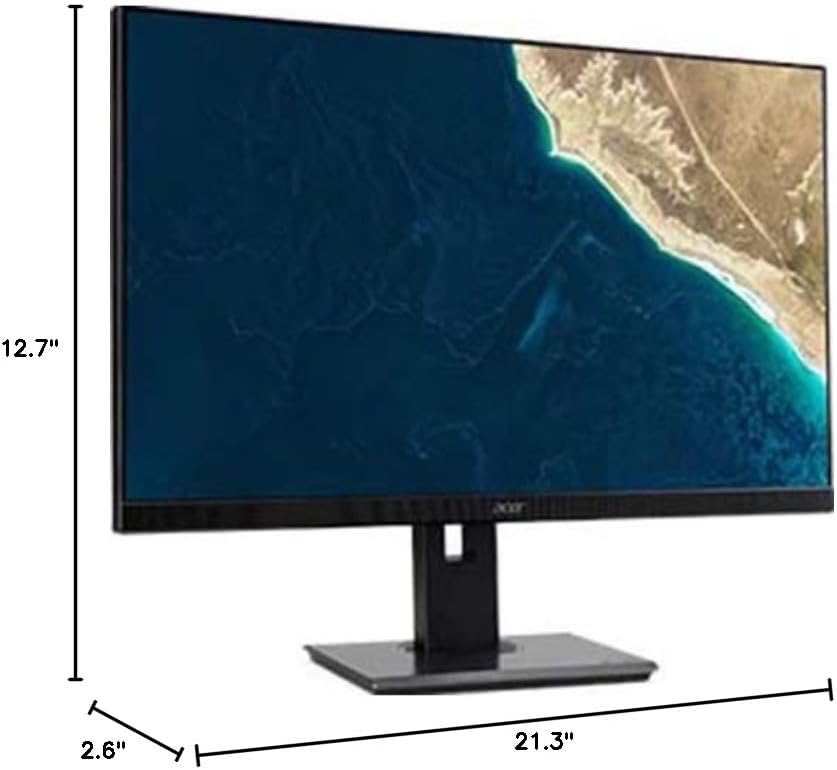
Figure 7.1.1: Acer B247Y Monitor Dimensions. This image shows the approximate height (12.7"), width (21.3"), and depth (2.6") of the monitor without the stand.
| 特徴 | 仕様 |
|---|---|
| モデル番号 | B247Y |
| 画面サイズ | 23.8インチ(60.5 cm) |
| 表示タイプ | LED LCD, IPS Panel, Anti-glare (AG) |
| 最大解像度 | 1920 x 1080 (フルHD) |
| アスペクト比 | 16:9 |
| リフレッシュレート | 75Hz |
| 応答時間 | 4ms (gray-to-gray) |
| 明るさ(標準) | 250 cd/m² |
| ネイティブコントラスト比 | 1,000:1 |
| ダイナミックコントラスト比 | 100,000,000:1 |
| View角度(H / V) | 178° / 178° |
| 接続性 | VGA, DisplayPort 1.2, HDMI, Audio-in, Audio-out |
| 一体型スピーカー | 2 x 2.0W |
| 人間工学に基づいた調整 | Tilt (-5° to 25°), Swivel (+/- 45°), Height Adjustment (120mm), Pivot (90°) |
| VESAマウントサポート | 100×100ミリ |
| スタンドを含む寸法 (幅 x 高さ x 奥行き) | 21.3" x 14.9"~19.6" x 7.6" (54.0cm x 37.9cm~49.9cm x 19.3cm) |
| スタンドを含む重量 | 12.3 ポンド (5.6 kg) |
| 電源アダプター | 内部 |
| 色 | 黒 |
8. 保証とサポート
Your Acer B247Y monitor comes with a Limited Three-Year Warranty. Please retain your proof of purchase for warranty claims.
For technical support, service, or warranty inquiries, please refer to the official Acer support website or contact their customer service department. Contact information can typically be found on the Acer webサイトまたは製品に付属の保証カードに記載されています。
ケンジントンロック: The monitor supports a Kensington lock for security. Attach a compatible Kensington lock (sold separately) to the security slot on the monitor to deter theft.