
Viotek NB24CW
Viotek NB24CW 24-Inch Curved Monitor User Manual
Model: NB24CW
導入
This manual provides essential information for the safe and efficient operation of your Viotek NB24CW 24-Inch LED Curved Monitor. Please read this guide thoroughly before using the product and retain it for future reference.
The Viotek NB24CW is a 24-inch curved LED monitor featuring a 1920x1080p Full-HD resolution, 75Hz refresh rate, and FreeSync technology. It includes built-in speakers, VGA and HDMI 1.4 ports, and is VESA mount compatible. Its bezel-less design offers an immersive view仕事と娯楽の両方で経験を積む。
安全情報
安全な操作を確保し、損傷を防ぐために、次の注意事項を守ってください。
- モニターを雨、湿気、極端な温度にさらさないでください。
- モニターを熱源の近くや直射日光の当たる場所に置かないでください。
- モニターに付属の電源アダプターのみを使用してください。
- 換気口をふさがないでください。
- 画面は柔らかく糸くずの出ない布で拭いてください。研磨剤入りの洗剤は使用しないでください。
- If any issues arise, disconnect the power cable and contact customer support.
パッケージ内容
パッケージにすべてのアイテムが揃っていることを確認します。
- Viotek NB24CW Monitor
- モニタースタンド(ベースとネック)
- 電源アダプター
- HDMIケーブル
- VESA Adapter (75x75mm)
- ユーザーマニュアル(このドキュメント)
設定
1. スタンドの組み立て
- モニターをパッケージから慎重に取り出します。
- 付属のネジを使用してスタンドネックをモニターパネルに取り付けます。
- スタンドベースをスタンドネックに固定します。
- 組み立てたモニターを安定した平らな面に置きます。
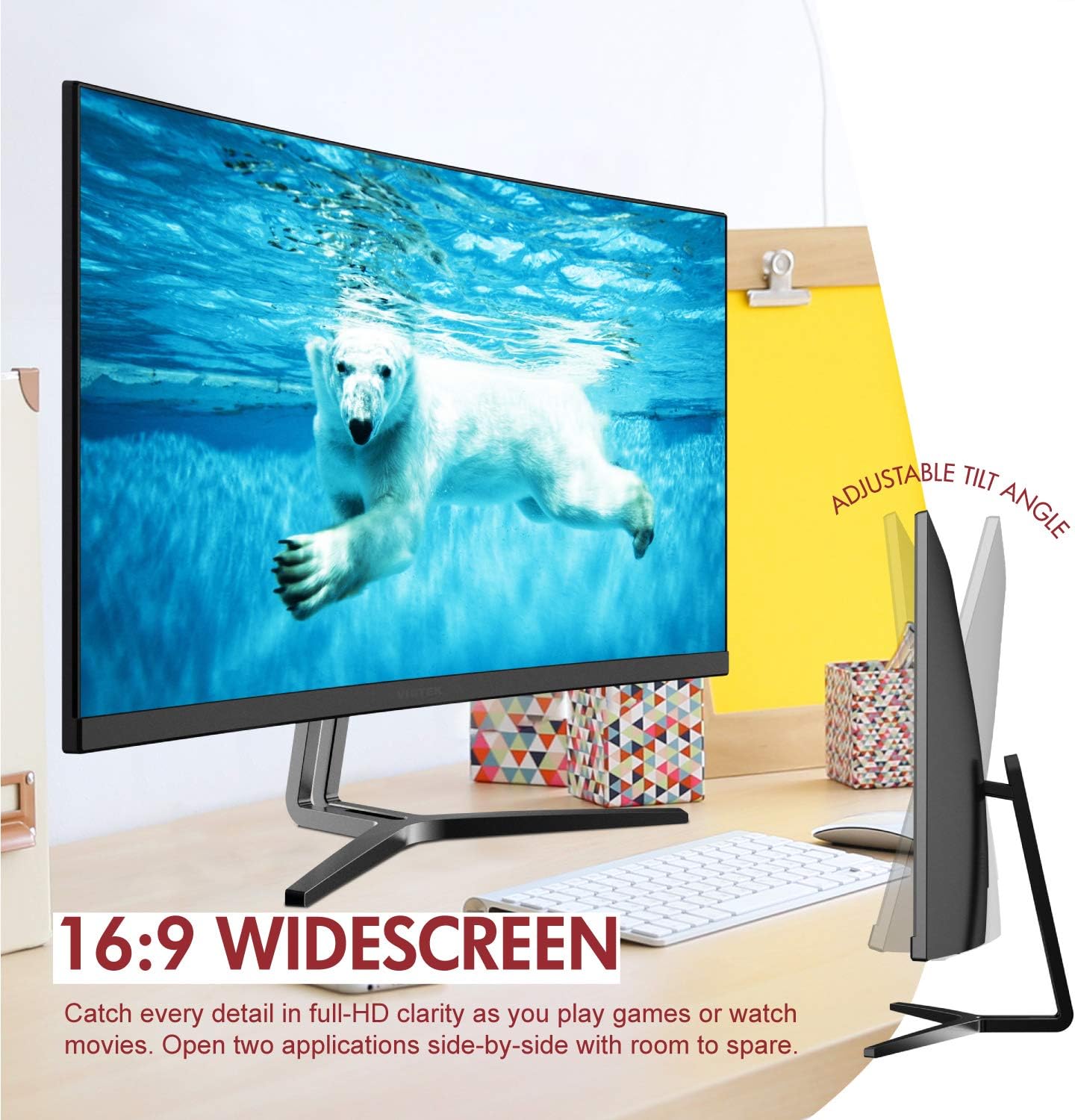
Image: The Viotek NB24CW monitor with its stand, highlighting the 16:9 widescreen aspect ratio and adjustable tilt angle. The monitor is shown displaying a polar bear underwater.
2. デバイスへの接続
モニターは HDMI および VGA 接続をサポートしています。
- HDMI接続: Connect one end of the HDMI cable (included) to the HDMI port on your computer or gaming console, and the other end to the HDMI 1.4 port on the monitor.
- VGA接続: Connect one end of the VGA cable (not included) to the VGA port on your computer, and the other end to the VGA port on the monitor.

画像: 詳細な view of the monitor's rear panel, illustrating the HDMI 1.4 and VGA input ports for connecting to various devices.
3. 電源接続
電源アダプタをモニターの電源入力に接続し、アダプタを電源コンセントに差し込みます。
4. VESAマウント(オプション)
The monitor is VESA 75x75mm compatible. Use the included VESA adapter to mount the monitor to a wall or compatible monitor arm.

Image: The back of the Viotek NB24CW monitor, highlighting its VESA mounting capability, integrated speakers, and connectivity options including VGA and HDMI.
操作手順
1. 電源のオン/オフ
モニターの右下にある電源ボタンを押して、電源をオンまたはオフにします。
2. オンスクリーンディスプレイ(OSD)メニュー
Use the buttons next to the power button to navigate the OSD menu. This menu allows you to adjust various settings such as brightness, contrast, color temperature, input source, and audio volume.
3. ディスプレイ設定の調整
- 輝度コントラスト: Adjust these settings for optimal visual comfort.
- 色の設定: Select from preset color modes or customize RGB values.
- 入力ソース: 自動検出が失敗した場合は、HDMI と VGA 入力を手動で選択します。
- ブルーライト軽減: この機能を有効にすると、長時間使用時の目の疲れを軽減できます。
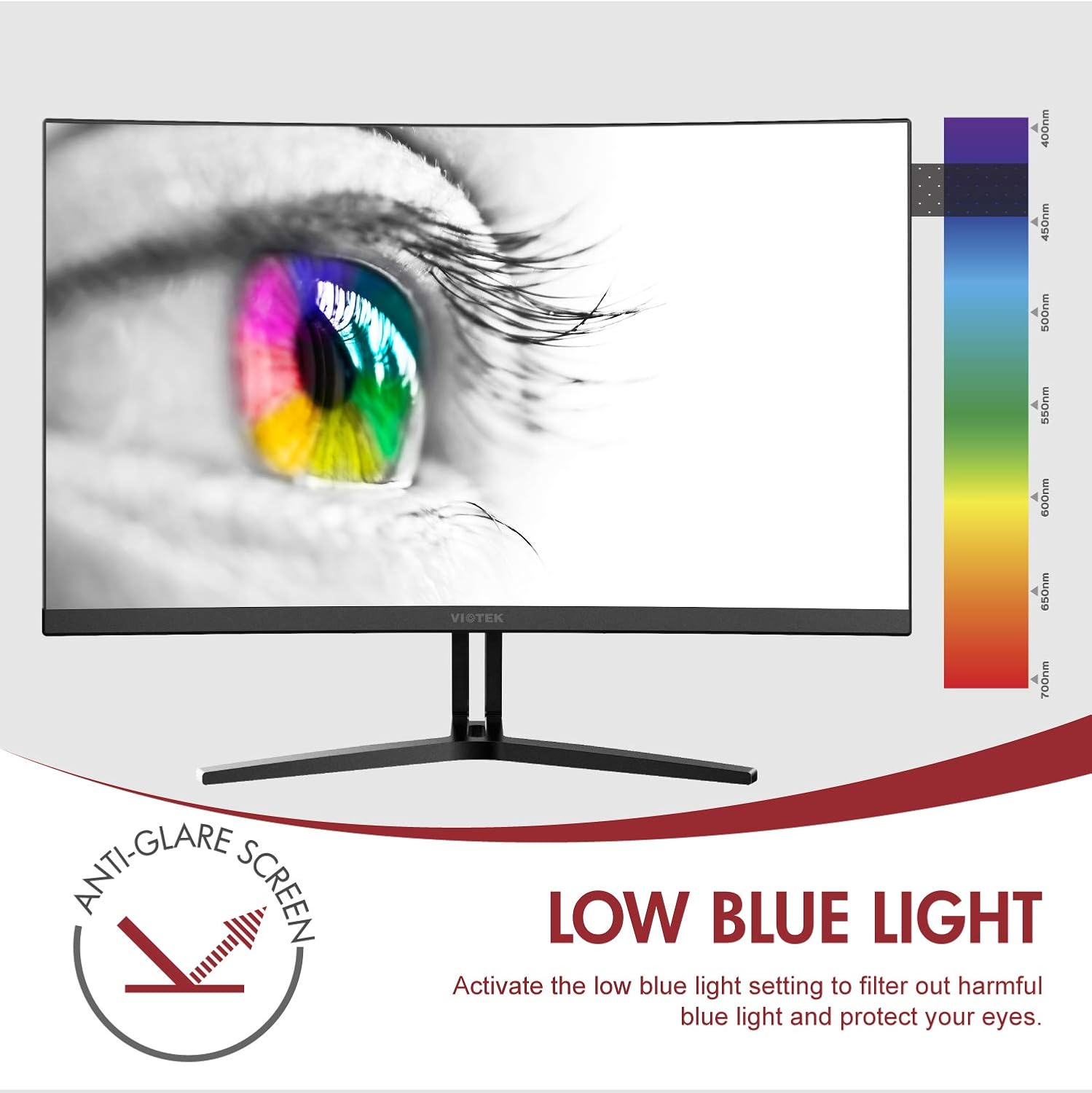
Image: The monitor screen showing an eye with a color spectrum, indicating the Low Blue Light feature designed to protect vision.
4. ゲーム機能
The NB24CW monitor includes features optimized for gaming:
- フリーシンク: Enable FreeSync in the OSD menu and on your compatible graphics card to eliminate screen tearing and stuttering.
- GamePlus: Access GamePlus features like integrated crosshairs for improved aiming in FPS/RTS games.
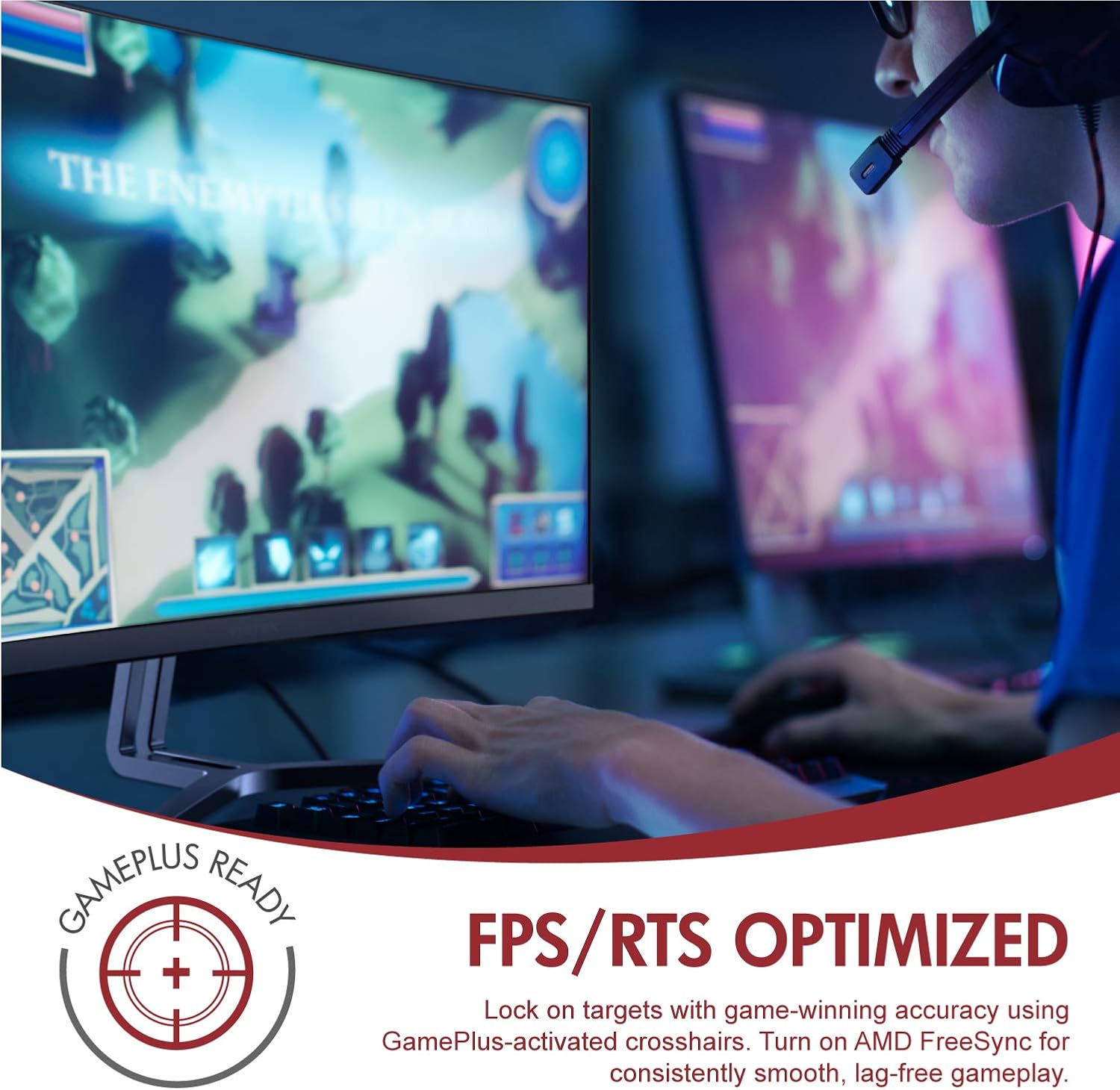
Image: A user engaged in gaming on the Viotek NB24CW monitor, highlighting its FPS/RTS optimized features and GamePlus functionality for enhanced gameplay.
メンテナンス
- 画面の掃除: 柔らかく乾いた、糸くずの出ない布で画面を優しく拭いてください。頑固な汚れには、軽くamp布に水または画面専用の洗浄液を含ませてください。画面に直接液体を吹きかけないでください。
- Cのクリーニングasing: モニターの汚れを拭くときは、柔らかく乾いた布を使用してください。asing. 刺激の強い化学薬品や研磨材の使用は避けてください。
- ストレージ: If storing the monitor for an extended period, disconnect it from power, pack it in its original packaging, and store in a cool, dry place.
トラブルシューティング
| 問題 | 考えられる原因 | 解決 |
|---|---|---|
| 画面に画像がありません | 電源ケーブルが外れている、入力ソースが正しくない、ビデオ ケーブルが緩んでいる。 | Check power connections, select correct input source via OSD, ensure video cable is securely connected. |
| 画像がぼやけたり歪んだりする | 解像度が正しくありません。ビデオ ケーブルに障害があります。 | Set display resolution to 1920x1080p, try a different HDMI cable. |
| スピーカーから音が出ない | Volume too low, audio source not selected, external speakers connected. | Increase volume in OSD and computer settings, ensure audio is routed to monitor, disconnect external speakers if not needed. |
| 画面のちらつき | Refresh rate mismatch, faulty cable, FreeSync issue. | Ensure refresh rate is set to 75Hz, try a different video cable, disable FreeSync temporarily to diagnose. |
仕様
| 特徴 | 詳細 |
|---|---|
| モデル | NB24CW |
| 画面サイズ | 24インチ |
| パネルタイプ | LED Curved |
| 曲率 | 1800R |
| 解決 | 1920 x 1080 (フルHD) |
| アスペクト比 | 16:9 |
| リフレッシュレート | 75Hz |
| 応答時間 | 5ミリ秒 |
| View角度 | 178° |
| コントラスト比 | 1,000,000:1(動的) |
| カラーサポート | 16.7万色、sRGB 96% |
| 接続性 | HDMI 1.4 x 1、VGA x 1 |
| オーディオ | Built-in Speakers (2x4Ω/3W) |
| VESA互換性 | 75x75mm (Adapter Included) |
| アダプティブ同期 | フリーシンク |
| 傾斜調整 | -5°~15° |
| 特集 | Bezel-less design, GamePlus, FPS/RTS modes, Low Blue Light, Anti-glare screen |

Image: The Viotek NB24CW monitor showcasing its key performance specifications: 1080p resolution, 1800R curvature, 75Hz refresh rate, and 5ms response time.
保証情報
Your Viotek NB24CW monitor is covered by a 3年間のメーカー限定保証. This warranty covers defects in materials and workmanship under normal use. Additionally, Viotek offers an industry-leading ゼロトレランス デッドピクセルポリシー, ensuring your display is free from dead pixels.
For full warranty terms and conditions, please refer to the official Viotek webサイトをご覧いただくか、カスタマー サポートにお問い合わせください。

Image: A visual representation of Viotek's commitment to quality, featuring a "3 Year Warranty" and "Zero Dead Pixel - Parts & Labor" guarantee.
カスタマーサポート
For technical assistance, warranty claims, or general inquiries, please contact our 100% U.S.-based Customer Support Team. They are available 7 days a week via live-chat, email, and social media support.
- Webサイト: ホームページ
- メールアドレス: Refer to the Viotek web特定の電子メール連絡先のサイト。
- ライブチャット: Available on the official Viotek webサイト。
製品終了view ビデオ
ビデオ: 公式製品view video for the Viotek NB24CB (similar model to NB24CW) monitor, showcasing its curved display, thin design, connectivity ports, and key features like 75Hz refresh rate, FreeSync, and built-in speakers. This video provides a visual guide to the monitor's design and capabilities.
Ask a question about this manual
Ask about setup, troubleshooting, compatibility, parts, safety, or missing instructions. Manuals+ will review the question and use this page’s manual context to help answer it.