
1.製品オーバーview
The HP t430 Thin Client is designed for desktop virtualization and cloud-based applications, offering a streamlined computing experience. It features an Intel Celeron N4000 dual-core processor, DDR4 memory, solid-state storage, and supports 4K display output. Its compact design includes a built-in VESA mount for flexible placement options, such as mounting behind a display or discreetly on or under a desk. The system comes with a simplified operating system, providing an intuitive user interface.
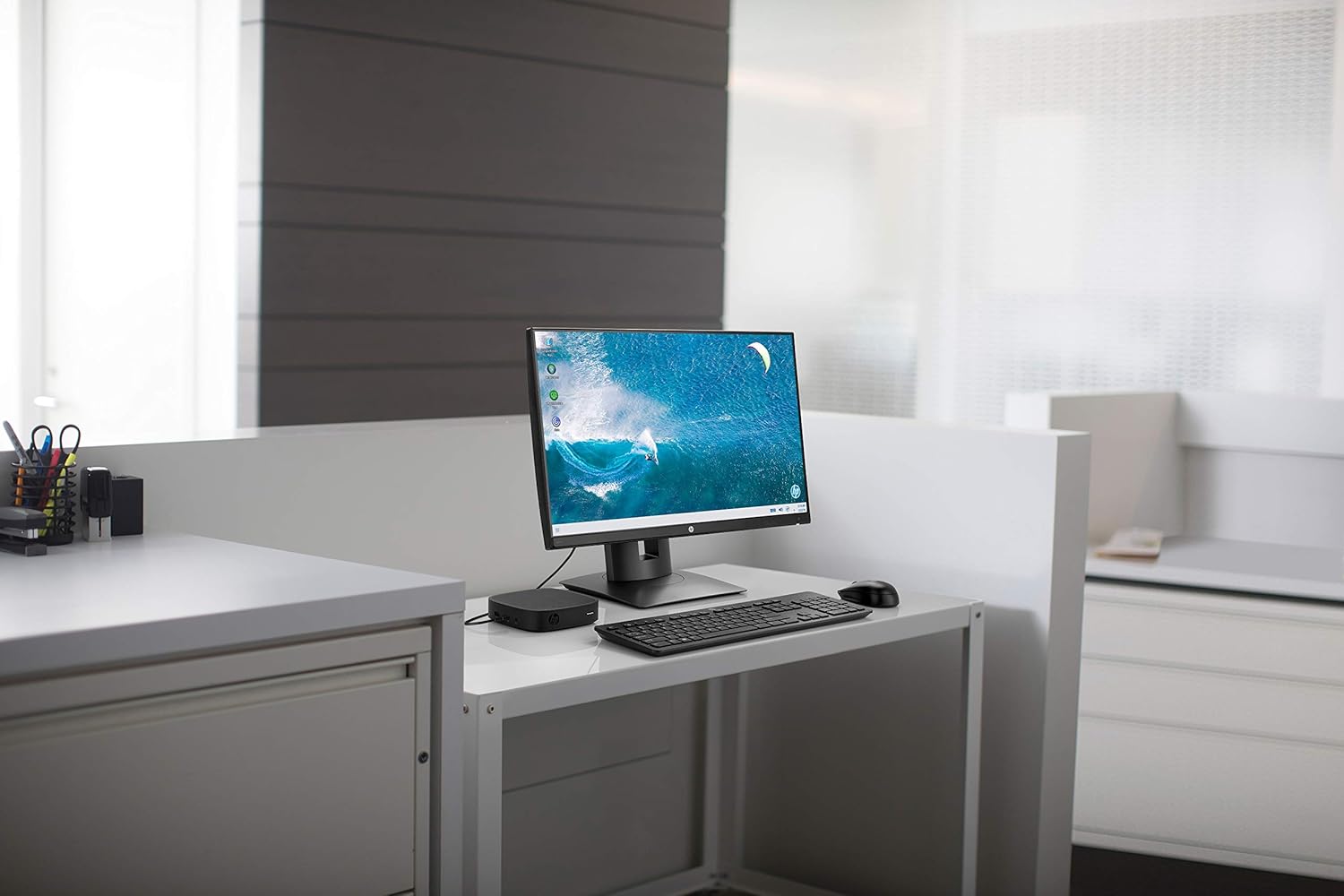
図1.1: HP t430 Thin Client in a typical office setup, connected to a display and peripherals.
2. セットアップ手順
2.1 デバイスの開梱
Carefully remove all components from the packaging. The box should contain the HP t430 Thin Client unit. Ensure no components are damaged during unpacking.
2.2 周辺機器の接続
- ディスプレイを接続する: Use an HDMI or DisplayPort cable to connect your monitor to the corresponding port on the HP t430 Thin Client. The device supports up to 4K resolution.
- キーボードとマウスを接続します。 Plug your USB keyboard and mouse into the available USB ports on the thin client.
- ネットワークに接続(オプション): For a wired network connection, connect an Ethernet cable from your router or network switch to the RJ-45 port on the thin client. For wireless connectivity, ensure your Wi-Fi network is available during initial setup.
- 接続電源: Plug the power adapter into the thin client's power input, then connect the adapter to a power outlet.
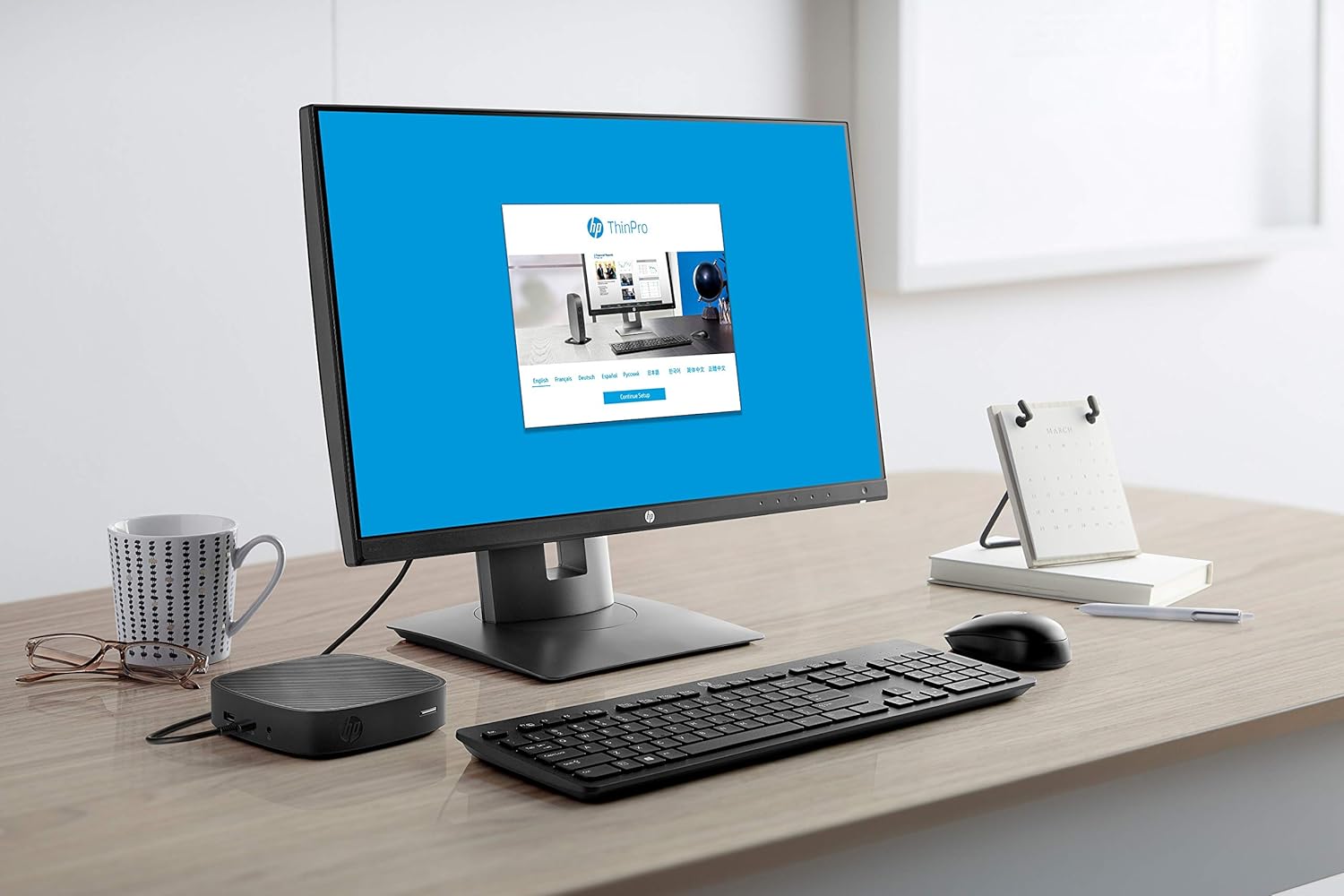
図2.1: HP t430 Thin Client with HP ThinPro login screen, demonstrating a ready-to-use state.
2.3 初回電源投入
After connecting all necessary peripherals and power, press the power button on the HP t430 Thin Client. The device will boot up, and the operating system (HP Smart Zero Core) will load. Follow any on-screen prompts for initial configuration, such as network setup or user login.
3. 操作手順
3.1 電源オン/オフ
- 電源を入れるには: Press the power button located on the front of the thin client.
- 電源を切るには: Use the shutdown option within the operating system's menu. Alternatively, press and hold the power button for several seconds for a forced shutdown (use only when necessary).
3.2 Operating System Navigation
The HP t430 Thin Client runs on HP Smart Zero Core, designed for simplicity and ease of use. Navigate the interface using the connected keyboard and mouse. Access applications and settings through the main menu or desktop icons.
3.3 ネットワーク接続
- 有線ネットワーク: イーサネット ケーブルが接続されている場合、デバイスは自動的に有線ネットワーク接続を確立します。
- ワイヤレスネットワーク: To connect to a Wi-Fi network, access the network settings within the operating system. Select your desired Wi-Fi network and enter the password if prompted.
3.4 USBポートの使用
The thin client is equipped with USB ports for connecting various devices such as external storage, printers, or other peripherals. Simply plug the USB device into an available port.
4. メンテナンス
4.1デバイスのクリーニング
- 清掃する前に、デバイスの電源がオフになっており、プラグが抜かれていることを確認してください。
- 柔らかく糸くずの出ない布を軽く拭いてください。amp外装面を拭くときは、水または中性洗剤をご使用ください。
- Avoid using harsh chemicals, abrasive cleaners, or spraying liquids directly onto the device.
- 通気口にほこりやごみが入らないようにしてください。
4.2ソフトウェアアップデート
Regularly check for and apply operating system and firmware updates as recommended by HP. These updates often include security patches and performance improvements. Refer to the HP support website for specific instructions on updating your HP t430 Thin Client.
5。 トラブルシューティング
5.1 一般的な問題と解決策
| 問題 | 考えられる解決策 |
|---|---|
| 電源なし |
|
| ディスプレイ出力なし |
|
| ネットワーク接続の問題 |
|
| 周辺機器が応答しない |
|
If you encounter issues not listed here or if the suggested solutions do not resolve the problem, please refer to the HP support webさらにサポートが必要な場合は、サイトをご覧いただくか、HP カスタマー サービスまでお問い合わせください。
6. 技術仕様
| 特徴 | 仕様 |
|---|---|
| モデル名 | 430 tXNUMX |
| モデル番号 | 3VQ03AT#ABA |
| プロセッサ | Intel Celeron N4000 Dual-core (2 Core) |
| プロセッサ速度 | 1.10 GHz(最大2.6 GHzバースト) |
| RAMメモリ | 2 GB DDR4 SDRAM |
| ストレージ | 16GB SSD |
| オペレーティング·システム | HP Smart Zero Core |
| グラフィックス | Integrated Intel Graphics (Dedicated Graphics Card Description) |
| ビデオ出力 | HDMI、DisplayPort |
| 最大ディスプレイ解像度 | 3840 x 2160 (4K) |
| USBポート | 合計2つのUSBポート |
| ネットワーク接続 | Ethernet (RJ-45), Wi-Fi |
| 追加機能 | マイクロフォン |
| 寸法(高さx幅x奥行き) | 5.3 x 5.3 x 1.3インチ |
| 重さ | 1.6 ポンド |
| 含まれるコンポーネント | t430 シンクライアント |
7. 保証情報
The HP t430 Thin Client comes with a 3年間の限定保証. For detailed terms and conditions, including coverage specifics and how to make a warranty claim, please refer to the official HP warranty documentation included with your product or visit the official HP support webサイトでご確認ください。保証を有効にするために購入証明書を保管してください。
8. カスタマーサポート
For technical assistance, product information, or to download drivers and software updates, please visit the official HP support webサイト:
https://support.hp.com
You may also find contact information for HP customer service in your region on the support website. When contacting support, please have your product model number (3VQ03AT#ABA) and serial number ready.