
導入
This manual provides essential information for setting up, operating, maintaining, and troubleshooting your Intel NUC 7 Business Mini PC (model NUC7i5DNKPC). This compact and powerful PC is designed for business environments, featuring a 7th Generation Intel Core i5 processor, 256GB NVMe SSD, 8GB DDR4-2133 memory, and Windows 10 Pro. It includes Intel vPro Technology for remote manageability and enhanced security, and Intel HD Graphics 620 supporting dual 4K monitors.
箱の中身
パッケージにすべてのアイテムが揃っていることを確認します。
- Intel NUC 7 Business Mini PC Unit
- VESAマウントプレート
- Power Supply/Adapter (Note: An AC power cord is not included and must be supplied by the user. A 3-prong "laptop style" cord with 3 round pins in a triangle formation is required.)
- 取扱説明書(本書)
製品終了view
Familiarize yourself with the ports and features of your Intel NUC.
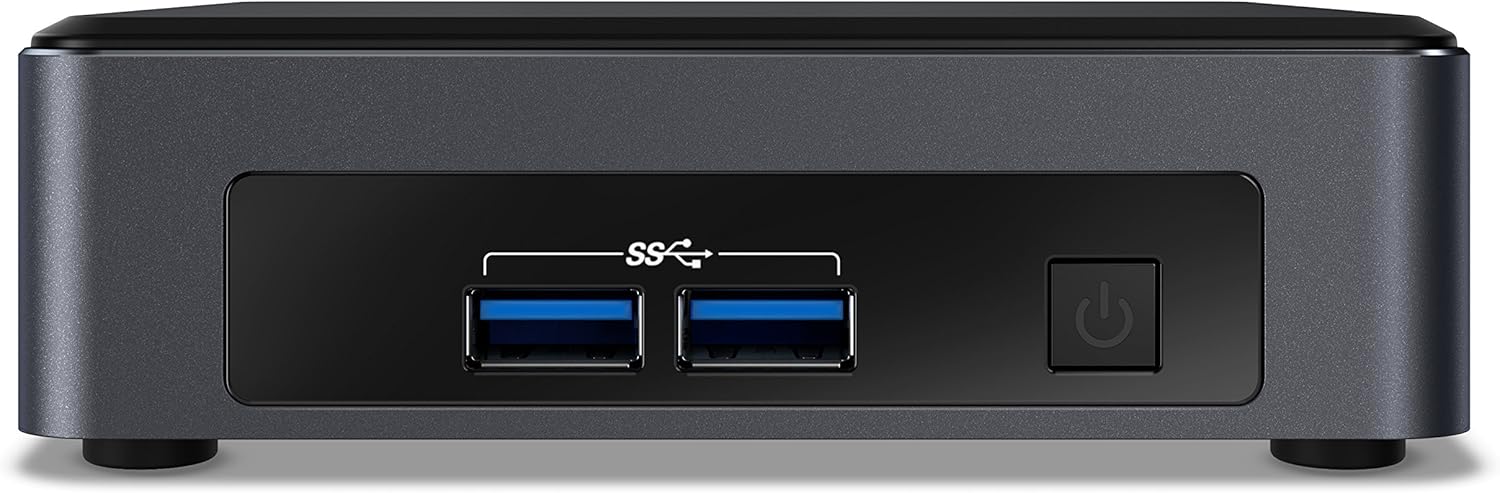
図 1: フロントパネル This image shows the front of the Intel NUC 7 Business Mini PC. It features two USB 3.0 ports (marked with "SS" for SuperSpeed) and a power button on the right side.

図 2: 背面パネル。 This image displays the rear of the Intel NUC 7 Business Mini PC. From left to right, it includes a 19V DC power input, two HDMI ports (one labeled "Protected UHD"), an Ethernet port, and two additional USB 3.0 ports.

Figure 3: Internal Access. This image shows the Intel NUC 7 Business Mini PC with its top cover partially removed, illustrating access to internal components for potential upgrades or maintenance.
設定
- 接続電源: Connect the power adapter to the 19V DC input port on the rear of the NUC. Plug the AC power cord (not included) into the power adapter and then into a wall outlet.
- ディスプレイを接続する: Connect your monitor(s) to the HDMI ports on the rear of the NUC using HDMI cables. The NUC supports dual 4K displays.
- 周辺機器を接続します。 Connect your USB keyboard, mouse, and any other USB devices to the available USB 3.0 ports (two on the front, two on the rear).
- ネットワークに接続(オプション): For a wired internet connection, connect an Ethernet cable from your router or modem to the Ethernet port on the rear of the NUC. For wireless connectivity, the NUC includes built-in Wi-Fi and Bluetooth.
- 電源オン: Press the power button located on the front panel of the NUC. The system will boot up.
- Windows 10 Proの初期セットアップ: Follow the on-screen instructions to complete the initial setup of Windows 10 Pro, including language, region, network settings, and user account creation.
操作手順
- 基本操作: Once Windows 10 Pro is set up, you can use the NUC like any standard desktop computer. Launch applications, browse the web、管理する files.
- デュアルディスプレイのサポート: Utilize the two HDMI ports to connect multiple monitors for an extended desktop experience. Configure display settings within Windows.
- インテル vPro テクノロジー: This NUC includes Intel vPro Technology, enabling remote management and enhanced security features. Consult your IT administrator or Intel documentation for specific vPro setup and usage.
- シャットダウン/再起動: To properly shut down or restart the NUC, use the options available in the Windows Start Menu. Avoid simply unplugging the power cable to prevent data loss.
メンテナンス
- クリーニング: Keep the NUC clean by gently wiping the exterior with a soft, dry cloth. Do not use liquid cleaners directly on the device. Ensure ventilation openings are free from dust and obstructions.
- ソフトウェアアップデート: Regularly update Windows 10 Pro and Intel drivers to ensure optimal performance, security, and compatibility. Access Windows Update through the Settings menu.
- データのバックアップ: データの損失を防ぐために、重要なデータを定期的に外部ドライブまたはクラウド ストレージにバックアップしてください。
トラブルシューティング
- 電源が入らない / システムが起動しない:
- Ensure the power adapter is securely connected to the NUC and a working power outlet.
- Verify that you are using a compatible 3-prong AC power cord with the power adapter. This cord is not included with the NUC.
- 別のデバイスで電源コンセントをテストします。
- モニターに表示がありません:
- Check that the HDMI cables are securely connected to both the NUC and the monitor.
- モニターの電源がオンになっており、正しい入力ソース (HDMI 1、HDMI 2 など) に設定されていることを確認します。
- Try connecting to a different HDMI port on the NUC or using a different monitor/cable if available.
- インターネット接続なし:
- 有線接続の場合は、イーサネット ケーブルが正しく接続され、ルーター/モデムが動作していることを確認してください。
- For wireless connections, check Wi-Fi settings in Windows to ensure you are connected to the correct network and the signal is strong.
- Restart your router/modem and the NUC.
- システムパフォーマンスの問題:
- Windows とドライバーが最新であることを確認します。
- Check for background applications consuming excessive resources using Task Manager.
- 過熱を防ぐために十分な換気を確保してください。
仕様
| 特徴 | 詳細 |
|---|---|
| モデル名 | Intel NUC 7 Business |
| モデル番号 | BLKNUC7I5DNKPC1 |
| プロセッサ | 7th Generation Intel Core i5-7300U (2.6 GHz CPU Speed) |
| オペレーティング·システム | ウィンドウズ10プロ |
| ラム | 8GB DDR4-2133 (Max 32GB, 1 slot available) |
| ストレージ | 256GB NVMe SSD |
| グラフィックス | インテル HD グラフィックス 620 (統合) |
| ビデオ出力 | 2x HDMI (Supports dual 4K displays, Max Resolution: 3840 x 2160 pixels) |
| USBポート | 4x USB 3.0 (Total) |
| ネットワーク | Ethernet, Wi-Fi (802.11b/g/n), Bluetooth |
| 特集 | Intel vPro Technology, Hardware TPM 2.0, Microphone |
| 寸法(長さx幅x高さ) | 5.59 x 4.88 x 4.49インチ |
| 重さ | 2.2 ポンド |
| 色 | 黒 |
| 欧州連合 | 735858382656 |
保証情報
The Intel NUC 7 Business Mini PC comes with a 3年間の限定保証. For detailed terms and conditions, please refer to the official Intel warranty documentation or visit the Intel support webサイトでご確認ください。保証請求に備えて購入証明書を保管してください。
サポート
さらに詳しいサポート、テクニカルサポート、ドライバーのダウンロード、その他のドキュメントについては、インテルの公式サポートをご覧ください。 website. You can typically find support resources by searching for "Intel NUC support" or by navigating to Intelの公式サポートページ.