
1. はじめに
This manual provides essential information for the safe and efficient operation of your Digi International WR21-L52A-DE1-TB Cellular Wireless Router. Please read this manual thoroughly before installation and use, and retain it for future reference. This device is designed to provide reliable cellular connectivity for various applications.
2. 安全情報
- 電源: Use only the power adapter supplied with the device. Using an incorrect adapter may damage the device and void the warranty.
- 換気: Ensure adequate ventilation around the router. Do not block ventilation openings.
- 環境: Avoid exposing the device to extreme temperatures, humidity, direct sunlight, or corrosive environments.
- サービス: ご自身でデバイスを開けたり修理したりしないでください。すべての修理は資格のある専門家にご依頼ください。
- アンテナ: Ensure antennas are securely connected before powering on the device.
3. パッケージ内容
パッケージにすべてのアイテムが揃っていることを確認します。
- Digi International WR21-L52A-DE1-TB Cellular Wireless Router
- 電源アダプター
- Antennas (quantity may vary)
- イーサネットケーブル
- クイックスタートガイド(付属している場合)
不足または破損した品目がある場合は、直ちに販売店にご連絡ください。
4.製品オーバーview
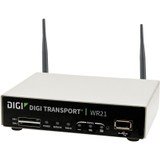
画像: 正面 view of the Digi International WR21-L52A-DE1-TB Cellular Wireless Router. This image displays the compact form factor of the device, likely showing ports for antennas, power, and network connections.
The Digi International WR21-L52A-DE1-TB is a robust cellular wireless router designed for reliable and secure connectivity. It features multiple connectivity options and is suitable for various industrial and enterprise applications requiring remote access and data transfer over cellular networks.
5. セットアップ
5.1. SIMカードのインストール
- ルーターの電源がオフになっており、電源から切断されていることを確認します。
- Locate the SIM card slot(s) on the device. Refer to the device's physical markings for exact location.
- Insert the activated cellular SIM card into the slot with the gold contacts facing down and the notched corner oriented correctly. Push until it clicks into place.
- If applicable, secure the SIM card tray or cover.
5.2.アンテナ接続
- Identify the cellular antenna ports (typically labeled 'MAIN' and 'DIV' or similar).
- Screw the provided cellular antennas onto the corresponding ports until finger-tight. Do not overtighten.
- 最適な信号受信のためにアンテナを配置します。
5.3. 電源接続
- 電源アダプタをルーターの電源入力ポートに接続します。
- 電源アダプターを適切なコンセントに差し込みます。
- The router will power on automatically or may require pressing a power button. Observe the LED indicators for power status.
5.4. ネットワーク接続(オプション)
- To connect a device via Ethernet, plug one end of an Ethernet cable into an available LAN port on the router.
- Plug the other end of the Ethernet cable into the network port of your computer or other network device.
6. 操作手順
6.1.電源のオン/オフ
- 電源オン: Connect the power adapter. The device will typically power on automatically. Observe the power LED.
- 電源を切る: Disconnect the power adapter from the electrical outlet. For controlled shutdown, refer to the device's web interface or specific documentation for a software shutdown procedure if available.
6.2. アクセス Web インタフェース
- Ensure your computer is connected to the router via Ethernet or Wi-Fi (if enabled).
- 開く web ブラウザ(例:Chrome、Firefox、Edge)。
- Enter the router's default IP address (e.g., 192.168.1.1 or 192.168.0.1) into the address bar and press Enter. Refer to the Quick Start Guide or device label for the exact default IP address.
- Enter the default username and password when prompted. These are typically found on a label on the device or in the Quick Start Guide.
- Upon successful login, you will access the router's configuration interface.
6.3. 基本設定
内で web インターフェースでは、さまざまな設定を構成できます。
- Cellular Settings: Verify APN settings, signal strength, and connection status.
- ネットワーク設定: Configure LAN IP address, DHCP server, and port forwarding.
- 安全: Change default login credentials, configure firewall rules, and VPN settings.
- ファームウェアアップデート: 最適なパフォーマンスとセキュリティを確保するために、ファームウェアのアップデートを確認して適用します。
7. メンテナンス
- クリーニング: ルーターの外装を清掃する際は、柔らかく乾いた布を使用してください。液体クリーナーやエアゾールクリーナーは使用しないでください。
- ファームウェアの更新: 定期的にメーカーの webファームウェアのアップデートについては、こちらのサイトをご覧ください。ファームウェアを最新の状態に保つことで、最新の機能、セキュリティパッチ、パフォーマンスの向上が保証されます。
- 環境条件: Ensure the router is operating within its specified temperature and humidity ranges to prevent overheating or damage.
8。 トラブルシューティング
8.1. No Cellular Connection
- Verify the SIM card is correctly inserted and activated with your cellular provider.
- Check antenna connections and ensure they are positioned for optimal signal.
- ログイン web interface to check cellular signal strength and connection status.
- ルーターを再起動します。
8.2. アクセスできない Web インタフェース
- コンピュータがイーサネット経由でルーターに直接接続されていることを確認します。
- Verify your computer's IP address is in the same subnet as the router (e.g., if router is 192.168.1.1, computer should be 192.168.1.x).
- ブラウザのキャッシュをクリアするか、別のブラウザを使用してみてください。
- If you forgot the password, a factory reset might be necessary (refer to specific device documentation for this procedure, as it will erase all configurations).
8.3. 接続速度が遅い
- Check cellular signal strength in the web interface. Weak signal can lead to slow speeds.
- Ensure antennas are properly positioned and unobstructed.
- Verify your cellular data plan has not reached its data cap or is being throttled.
- Restart the router and connected devices.
9. 仕様
| 特徴 | 説明 |
|---|---|
| モデル | WR21-L52A-DE1-TB |
| ブランド | デジインターナショナル |
| 接続プロトコル | セルラー |
| 接続技術 | USB |
| 制御方法 | リモート |
| 特集 | ウィス |
| 対応デバイス | パソコン |
| 推奨用途 | 家 |
| 欧州連合 | 747356312219 |
10. 保証とサポート
保証の詳細については、製品に付属の保証書を参照するか、Digi Internationalの公式ウェブサイトをご覧ください。 website. Technical support is available through the manufacturer's support channels. Please have your product model number (WR21-L52A-DE1-TB) and serial number ready when contacting support.