
BenQ EX3501R
BenQ EX3501R Ultrawide Curved Gaming Monitor User Manual
Model: EX3501R
1. セットアップ
1.1 モニターの開梱
すべての部品をパッケージから慎重に取り出してください。以下のすべての部品が揃っていることを確認してください。
- BenQ EX3501R Monitor
- モニタースタンド(ベースとネック)
- 電源アダプター
- 電源コード
- HDMIケーブル
- DisplayPortケーブル
- USB-Cケーブル
- ユーザーマニュアル(このドキュメント)
1.2 スタンドの組み立て
スタンドをモニターに取り付けるには、次の手順に従います。
- 傷がつかないように、モニターの表面を下にして、柔らかく清潔な布の上に置きます。
- スタンドネックをモニターの背面に取り付けます。カチッと音がしてしっかりと固定されていることを確認してください。
- Connect the stand base to the neck, tightening any screws as indicated in the quick start guide.

図1: 前面 view of the BenQ EX3501R monitor with its stand.
1.3接続ケーブル
Connect the necessary cables to the monitor and your computer. The monitor supports various input options:
- 力: 電源アダプタをモニターに接続し、電源コンセントに接続します。
- ビデオ入力: Use either the HDMI, DisplayPort, or USB-C cable to connect your computer to the monitor.
- USB-C: The USB-C port supports video, data transfer, and power delivery, allowing for a single-cable connection with compatible devices.
- USB 3.0ポート: Utilize the integrated USB 3.0 ports for connecting peripherals.
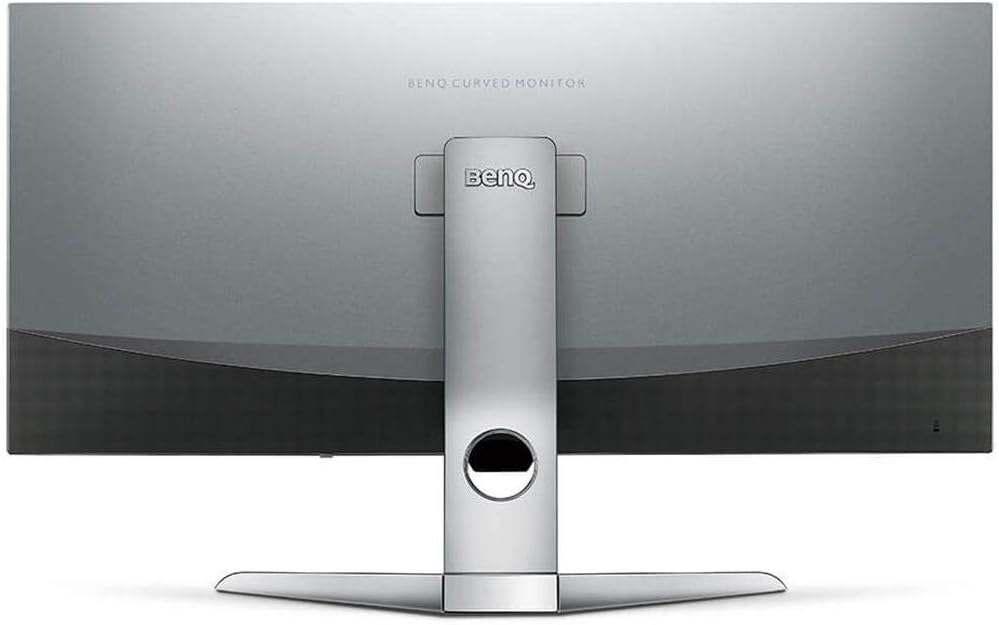
図2:背面 view of the monitor displaying the connectivity ports.
2. モニターの操作
2.1 電源オン/オフ
Press the power button, usually located on the bottom right side of the monitor, to turn it on or off. The power indicator light will illuminate when the monitor is active.
2.2 オンスクリーンディスプレイ(OSD)ナビゲーション
Use the joystick or buttons located on the monitor's underside to navigate the On-Screen Display (OSD) menu. This menu allows you to adjust various settings such as brightness, contrast, color modes, and input sources.
2.3 Display Features and Eye-Care Technology
The BenQ EX3501R incorporates several technologies designed to enhance view快適な体験と目の疲れを軽減します。
- ブライトネスインテリジェンスプラス(BI+): This patented technology automatically senses ambient lighting conditions and adjusts the screen's brightness and color temperature to provide optimal viewing comfort and protect your eyes during extended use.
- ブルーライト軽減: Filters out harmful blue light emissions to reduce eye fatigue. Multiple levels of blue light reduction are available.
- ZeroFlicker™: Eliminates screen flickering at all brightness levels, further reducing eye strain and discomfort.
- HDR (ハイ ダイナミック レンジ): Offers enhanced brightness and contrast, bringing greater detail and vibrancy to HDR video content.
ビデオ1: オーバーview of BenQ's Eye-Care technology, including Low Blue Light, ZeroFlicker, and Brightness Intelligence Plus, demonstrating how these features work to reduce eye strain and adjust screen settings automatically based on ambient light.
2.4 解像度とリフレッシュレート
The monitor features a QHD (3440x1440) resolution and a 100Hz refresh rate, providing a smooth and detailed visual experience. The 21:9 ultrawide aspect ratio offers ample screen space for multitasking, such as viewing multiple documents side-by-side without needing a second monitor.
2.5 AMDフリーシンク
For a fluid gaming experience, the monitor supports AMD FreeSync technology, which synchronizes the monitor's refresh rate with your graphics card's frame rate to eliminate screen tearing and stuttering.
3. メンテナンス
3.1 モニターの掃除
To maintain optimal performance and appearance, regularly clean your monitor:
- 画面: 柔らかく糸くずの出ない布で画面を優しく拭いてください。頑固な汚れには、画面に直接拭くのではなく、モニター専用のクリーニング液を布につけて使用してください。
- 外観: 柔らかく乾いた布を使用して、モニターのほこりやゴミを拭き取ってください。asing して立ちます。
研磨剤入りのクリーナー、ワックス、溶剤はモニターの表面を傷つける可能性があるため、使用しないでください。
3.2 一般的なお手入れのヒント
- モニターの通気口を塞がないでください。
- モニターを直射日光の当たる場所や熱源の近くに置かないでください。
- 物理的な損傷を防ぐために、モニターを慎重に取り扱ってください。
4。 トラブルシューティング
If you encounter issues with your BenQ EX3501R monitor, refer to the following common troubleshooting steps:
4.1 何も表示されない、または黒い画面が表示される
- 電源ケーブルがモニターと電源コンセントの両方にしっかりと接続されていることを確認してください。
- ビデオ ケーブル (HDMI、DisplayPort、または USB-C) がモニターとコンピューターの両方にしっかりと接続されていることを確認します。
- モニターの OSD メニューで正しい入力ソースが選択されているかどうかを確認します。
- コンピュータを再起動します。
4.2 ちらつきや不安定な画像
- Ensure the ZeroFlicker™ feature is enabled in the OSD menu.
- ビデオ ケーブルの接続が緩んでいないか確認します。
- グラフィック カード ドライバーを最新バージョンに更新します。
- AMD FreeSync を使用する場合は、グラフィック カードの設定で正しく構成されていることを確認してください。
4.3 Color or Brightness Issues
- OSD メニューから明るさ、コントラスト、色の設定を調整します。
- Enable or disable Brightness Intelligence Plus (B.I.+) to see if it resolves the issue.
- OSD メニューから工場出荷時設定へのリセットを実行します。
5. 仕様
Key technical specifications for the BenQ EX3501R monitor:
| 特徴 | 仕様 |
|---|---|
| 画面サイズ | 35インチ |
| 最大画面解像度 | 3440 x 1440ピクセル(QHDウルトラワイド) |
| アスペクト比 | 21:9 |
| リフレッシュレート | 100Hz |
| 曲率 | 1800R |
| パネルタイプ | VA(垂直配置) |
| 接続性 | USB-C、HDMI、ディスプレイポート |
| 特集 | AMD FreeSync, Brightness Intelligence Plus, Low Blue Light, ZeroFlicker |
| アイテム重量 | 21.3ポンド |
| 製品寸法 | 6.88 x 3.47 x 12.93インチ |
6. 保証とサポート
6.1製品保証
The BenQ EX3501R monitor typically comes with a 3-year manufacturer's warranty. Please refer to the warranty card included in your product packaging for specific terms and conditions, or visit the official BenQ web詳細な保証情報については、サイトをご覧ください。
6.2 カスタマーサポート
For further assistance, technical support, or warranty claims, please contact BenQ customer service. You can find contact information and support resources on the official BenQ webサイト: www.benq.com/en-us/support.html
関連文書EX3501R


Ask a question about this manual
Ask about setup, troubleshooting, compatibility, parts, safety, or missing instructions. Manuals+ will review the question and use this page’s manual context to help answer it.