
導入
Thank you for choosing the KROM Kernel TKL Mechanical Gaming Keyboard. This compact, tenkeyless (TKL) keyboard is designed for gaming enthusiasts, offering a responsive mechanical experience with customizable RGB backlighting and a Spanish layout. This manual provides detailed instructions for setup, operation, maintenance, and troubleshooting to ensure optimal performance and longevity of your device.
製品終了view
主な特徴
- メカニカルスイッチ: Durable and responsive mechanical key switches for precise input.
- テンキーレス(TKL)設計: Compact form factor without a numeric keypad, ideal for saving desk space and improving mouse movement.
- RGBバックライト: Customizable LED backlighting with various effects and colors.
- マクロ機能: Assign macro functions to any key for personalized commands.
- マルチメディアキー: Dedicated or function-layer multimedia controls for convenience.
- アンチゴースト: 激しいゲームセッション中でも、すべてのキーの押下が正確に登録されることを保証します。
- 耐久性のある構造: 高品質の素材を使用して製造されており、長期間にわたってパフォーマンスを維持します。
- Spanish Layout: Designed with a QWERTY Spanish key layout.
パッケージ内容
- KROM Kernel TKL Mechanical Gaming Keyboard
- USBケーブル(付属)
- ユーザーマニュアル(このドキュメント)
- (Note: Additional accessories may vary by region or specific product bundle.)
画像1.1: KROM Kernel TKL Mechanical Gaming Keyboard packaging, showing the front and back of the box with product features and design.

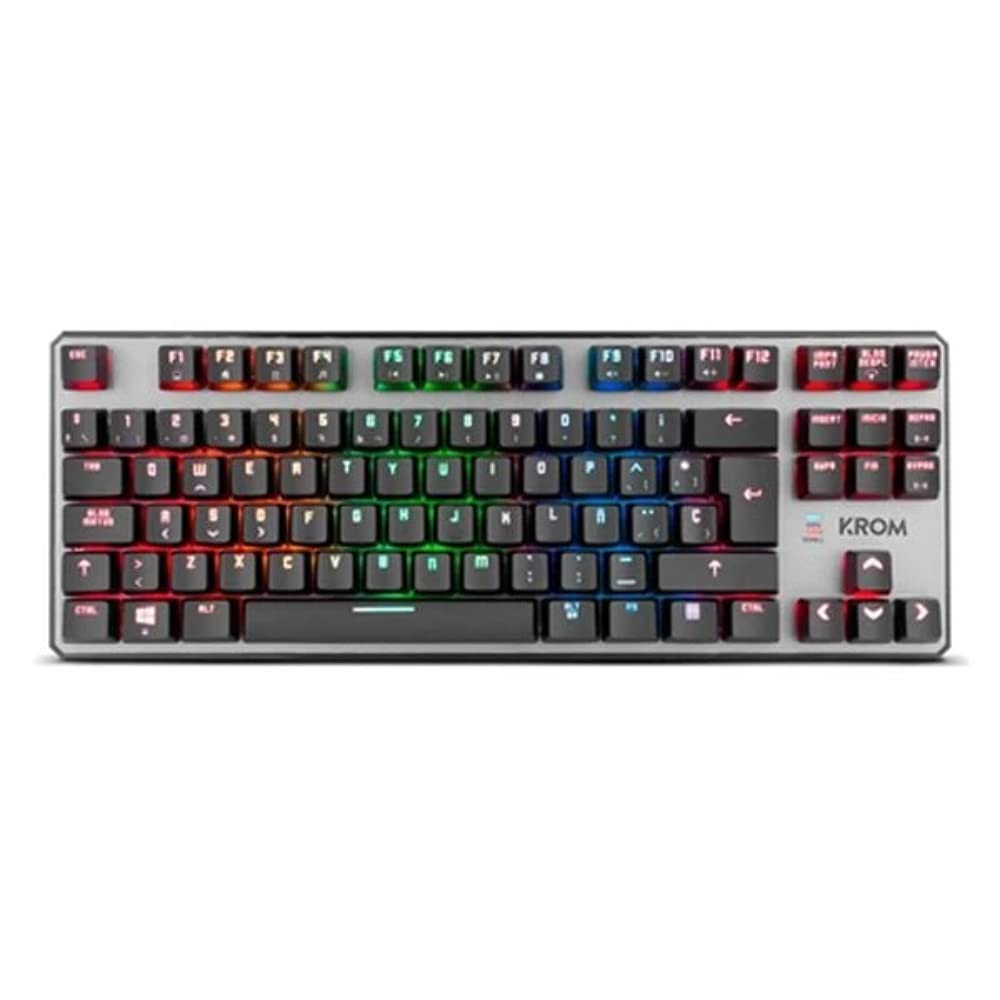
画像1.2: トップダウン view of the KROM Kernel TKL keyboard, showcasing its compact design and vibrant RGB backlighting across all keys.
設定
- キーボードを開梱します。 Carefully remove the KROM Kernel TKL keyboard from its packaging.
- コンピュータに接続します: Locate the USB cable attached to the keyboard. Plug the USB connector into an available USB port on your computer (PC or laptop).
- ドライバーのインストール: The keyboard is plug-and-play. Your operating system (Windows 7/8/8.1/10) should automatically detect and install the necessary drivers. This process may take a few moments.
- 機能の確認: Once drivers are installed, test the keyboard by typing in a text editor or browser to ensure all keys are responsive.
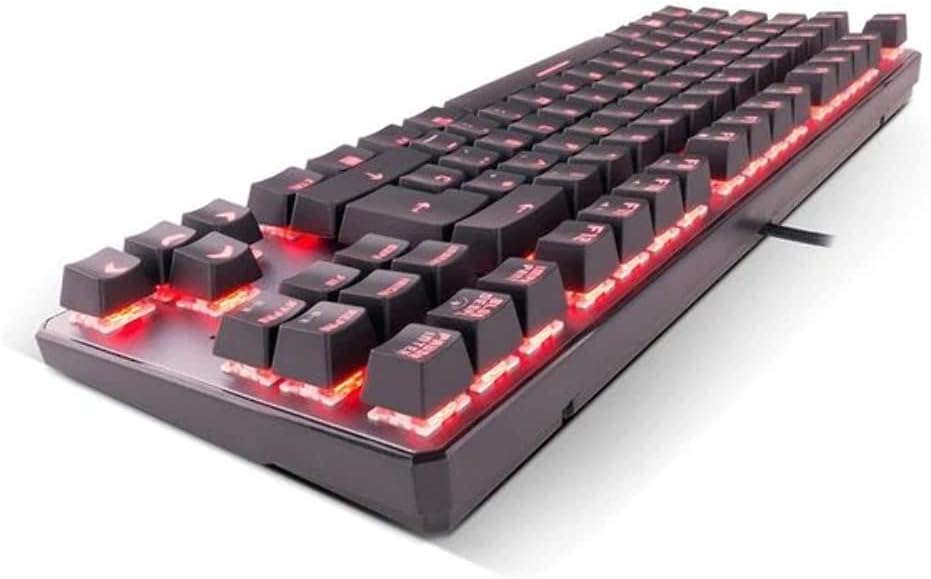
画像2.1: 側 view of the KROM Kernel TKL keyboard, highlighting the red backlighting visible beneath the keycaps and the compact profile.
操作手順
RGBバックライトコントロール
The KROM Kernel TKL keyboard features dynamic RGB backlighting. Use the following key combinations to adjust lighting effects:
- Fn + [キー]: Specific function keys (often F1-F12 or dedicated keys) are used in combination with the Function (Fn) key to cycle through lighting modes, adjust brightness, change speed, or select colors. Refer to the keyboard's keycap legends for specific symbols indicating lighting controls.
- 明るさ調整: Typically Fn + Up/Down arrow keys or dedicated brightness keys.
- 効果速度: Often Fn + Left/Right arrow keys to increase or decrease the speed of dynamic lighting effects.
- モード切り替え: Cycle through various pre-set RGB lighting modes (e.g., wave, ripple, breathing, static color) using a dedicated Fn combination.

画像3.1: The KROM Kernel TKL keyboard displaying its full RGB spectrum backlighting, enhancing the visual appeal during use.
Macro Function Assignment
The keyboard supports on-the-fly macro recording or software-based macro assignment. For on-the-fly recording:
- 録音を開始: Press a specific Macro Record key (often labeled "MR" or a Fn combination).
- Select Target Key: Press the key you wish to assign the macro to.
- 記録シーケンス: Type the sequence of keys you want to record as the macro.
- 録音終了: Press the Macro Record key again to save the macro.
Note: Detailed macro programming instructions may require specific software or refer to the full digital manual available on the KROM webサイト。
マルチメディアとショートカット キー
Access multimedia functions and system shortcuts using the Fn key in combination with the F-keys (F1-F12) or other designated keys. Common functions include:
- 音量コントロール: Fn + Fx (e.g., F1-F3 for Mute, Volume Down, Volume Up).
- メディア再生: Fn + Fx (e.g., F5-F8 for Play/Pause, Stop, Previous Track, Next Track).
- アプリケーションショートカット: Fn + Fx (e.g., F9-F12 for Email, Web Browser, My Computer, Calculator).

画像3.2: クローズアップ view of the KROM Kernel TKL keyboard's keycaps, clearly showing the Spanish QWERTY layout and secondary functions.
メンテナンス
適切なメンテナンスを行うことで、キーボードの寿命とパフォーマンスが向上します。
- クリーニング:
- 清掃する前に、キーボードをコンピューターから取り外してください。
- 圧縮空気缶を使用して、キーキャップ間のほこりやゴミを取り除きます。
- キーキャップとキーボードの表面を、柔らかくて少し硬めの布で拭いてください。amp糸くずの出ない布で拭いてください。湿気を避けてください。
- 強力な化学薬品、研磨剤入りの洗剤、溶剤は使用しないでください。
- ストレージ: キーボードは、直射日光や極端な温度を避け、乾燥した涼しい場所に保管してください。
- 取り扱い: Avoid dropping the keyboard or exposing it to liquids. Do not attempt to disassemble the keyboard as this may void the warranty.

画像4.1: 副業file view of the KROM Kernel TKL keyboard, illustrating its ergonomic tilt and compact design.

画像4.2: A close-up image showing a mechanical switch on the KROM Kernel TKL keyboard, highlighting its design and potential for easy replacement (CIY Technology).

画像4.3: The CIY Technology logo, indicating that the keyboard features hot-swappable mechanical switches for easy customization or replacement.
トラブルシューティング
If you encounter issues with your KROM Kernel TKL keyboard, refer to the following common solutions:
- キーボードが応答しない:
- USB ケーブルがキーボードとコンピューターの両方にしっかりと接続されていることを確認します。
- キーボードをコンピューターの別の USB ポートに接続してみてください。
- コンピュータを再起動します。
- 別のコンピューターでキーボードをテストして、問題がキーボードにあるのかシステムにあるのかを判断します。
- バックライトが機能しない、または正しくない:
- Check if the backlighting is turned off. Use the Fn key combinations to cycle through lighting modes and adjust brightness.
- Ensure no software conflicts are interfering with the lighting controls.
- キーが登録されない、または二重入力される:
- 影響を受けたキーを圧縮空気でクリーニングし、ゴミを取り除きます。
- If the keyboard uses hot-swappable switches (like the "CIY Technology" mentioned in an image), try gently removing and re-inserting the switch for the problematic key.
- オペレーティング システム ドライバーが最新であることを確認してください。
- マクロ機能が動作しない:
- Review the macro programming steps to ensure correct recording.
- Check if any software is overriding the keyboard's native macro functions.
仕様
| 特徴 | 詳細 |
|---|---|
| モデル番号 | NXKROMKRNLTKL |
| キーボードタイプ | 機械 |
| レイアウト | Spanish QWERTY (TKL) |
| バックライト | RGB LED |
| 繋がり | Wired USB (Gold-plated) |
| ケーブル長さ | 180 cm (Braided) |
| 作動力 | 60±10g |
| ポーリングレート | 1000Hz |
| 内部メモリ | 64 KB (for macros/profiles) |
| 消費電流 | 100~260mA |
| 巻tage | 5.0 +/- 0.25 V |
| 寸法(長さ×幅×高さ) | 361 x 133.5 x 22.5 ミリメートル |
| 重さ | 950±30g |
| 互換性 | Windows 7 / 8 / 8.1 / 10 |
| 特集 | Macro function assignment, Multimedia keys, Shortcut keys |
保証とサポート
KROM products are designed for reliability and performance. This product comes with a standard manufacturer's warranty. For specific warranty terms and conditions, please refer to the warranty card included with your product or visit the official KROM webサイト。
For technical support, driver downloads, or further assistance, please visit the KROM official support page or contact their customer service. Contact information can typically be found on the KROM webサイトまたは製品のパッケージ。
KROM公式 Webサイト: www.kromgaming.com (注: これはプレースホルダーです URL, please verify the actual KROM support webサイト。)