
導入
This manual provides comprehensive instructions for the setup, operation, and maintenance of your NETUM NT-R3 Mini 1D CCD Bluetooth Barcode Scanner. Please read this guide thoroughly to ensure proper use and to maximize the performance of your device.
パッケージ内容
開梱したら、以下にリストされているすべてのアイテムが揃っていて良好な状態であることを確認してください。
- 1 x NETUM Mini Bluetooth Barcode Scanner (NT-R3)
- USB充電ケーブル x 1
- クイックスタートガイド x 1
- 1 x 2.4 GHz Adapter
製品終了view
The NETUM NT-R3 is a compact and versatile 1D CCD barcode scanner designed for portability and ease of use. Its ring-style design allows for comfortable wear, enhancing productivity in various environments.

Image: The NETUM NT-R3 Mini Barcode Scanner, a small black electronic device with a screen and button, designed to be worn on a finger with an adjustable ring structure.
主な特徴:
- Ring Design: マグネシウム合金casing and trigger for durability and ease of use.
- 180°回転: Unique rotatable design for scanning from various angles.
- CCD Scanning: Reads 1D barcodes directly from LCD screens of computers or mobile devices, including poorly printed or damaged barcodes.
- ワイヤレス接続: Supports Bluetooth (SPP, HID) and 2.4 GHz wireless connections.
- 幅広い互換性: Compatible with Windows XP/7/8/8.1/10, Google Android, iOS, and Mac OS X.
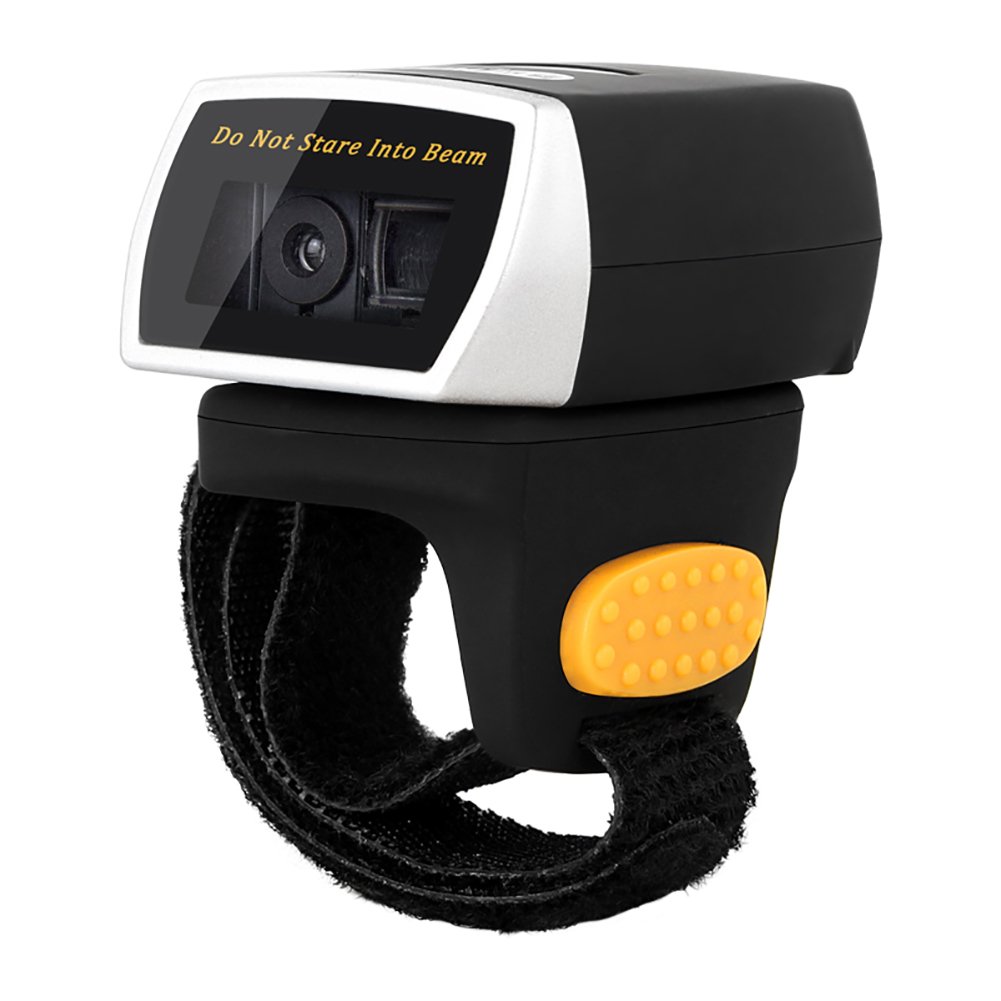
Image: The NETUM NT-R3 Mini Barcode Scanner demonstrating its 180-degree rotation design, allowing for flexible scanning angles.

Image: The NETUM NT-R3 Mini Barcode Scanner held in a hand, illustrating its compact dimensions (50mm x 44mm x 38mm) and light weight (50g), emphasizing its strong compatibility with various devices.
セットアップと接続
1. スキャナの充電
Before initial use, fully charge the scanner using the provided USB charging cable. Connect the small end of the USB cable to the scanner's charging port and the other end to a USB power source (e.g., computer, USB wall adapter). The charging indicator light will show the charging status.
2.電源のオン/オフ
To power on the scanner, press and hold the trigger button for a few seconds until you hear a beep and see the indicator light. To power off, press and hold the trigger button again until the indicator light turns off.
3.接続オプション
The NT-R3 scanner offers two primary connectivity methods:
Bluetooth Connection (HID Mode - Keyboard Emulation)
- スキャナーの電源がオンになっていることを確認します。
- Scan the "Bluetooth HID Mode" barcode (refer to the Quick Start Guide for specific barcodes).
- ホスト デバイス (スマートフォン、タブレット、コンピューター) で Bluetooth を有効にし、利用可能なデバイスを検索します。
- Select "NETUM Barcode Scanner" or a similar name from the list of devices.
- The scanner will beep to confirm successful pairing.
In HID mode, scanned barcodes are input directly as keyboard entries into any active text field.
Bluetooth Connection (SPP Mode - Serial Port Profile)
SPP mode is typically used for applications that require direct data communication with the scanner. This mode requires specific software on the host device to interpret the data. Refer to your application's documentation for SPP setup.
- スキャナーの電源がオンになっていることを確認します。
- Scan the "Bluetooth SPP Mode" barcode (refer to the Quick Start Guide).
- Follow the instructions provided by your specific application for connecting to an SPP device.
2.4GHzワイヤレス接続
- Plug the provided 2.4 GHz adapter into a USB port on your computer.
- スキャナーの電源がオンになっていることを確認します。
- Scan the "2.4G Wireless Mode" barcode (refer to the Quick Start Guide).
- The scanner will automatically connect to the adapter. A successful connection is indicated by a specific beep or light pattern (refer to the Quick Start Guide for details).
The 2.4 GHz connection offers a wireless range of up to 10 meters (30 feet).
動作モード
The NETUM NT-R3 scanner supports two data upload modes:
1. インスタントアップロードモード
In this mode, scanned barcodes are immediately transmitted to your connected device. This is suitable for real-time data entry.
2. ストレージモード
The scanner can store up to 2000 barcodes in its built-in flash memory. This mode is useful when working out of range of your host device. Barcodes can be uploaded later when a connection is established.
Image: A visual representation of the two upload modes. Instant Upload Mode shows barcodes being sent directly to a device. Storage Mode shows barcodes being stored internally and then uploaded later.
To switch between modes, scan the corresponding configuration barcodes found in the Quick Start Guide.
バーコードのスキャン
バーコードをスキャンするには:
- スキャンウィンドウをバーコードに向けてスキャナーを持ちます。
- Press the trigger button. A red scanning line will appear.
- Align the red scanning line across the entire barcode.
- Once successfully scanned, the scanner will emit a beep, and the indicator light will flash.
The NT-R3 is capable of reading 1D barcodes from various surfaces, including:
- 印刷されたラベル
- LCD screens (computers, smartphones, tablets)
- Poorly printed or damaged barcodes
メンテナンス
バッテリーケア
- バッテリーの寿命を延ばすには、バッテリーを頻繁に完全に放電しないようにしてください。
- 継続的に使用しない場合でも、スキャナーを定期的に充電してください。
- スキャナーを長期間使用しない場合は、涼しく乾燥した場所に保管してください。
クリーニング
- スキャナーの外側を清掃するには、柔らかく乾いた糸くずの出ない布を使用してください。
- スキャンウィンドウには、レンズクリーニングクロスまたは柔らかい布を軽く使用してください。amp水または中性で研磨剤を含まない洗剤で洗ってください。
- デバイスを損傷する恐れがあるため、強力な化学薬品、溶剤、研磨材は使用しないでください。
トラブルシューティング
| 問題 | 考えられる原因 | 解決 |
|---|---|---|
| スキャナーの電源が入りません。 | バッテリー残量が少なくなりました。 | スキャナーを少なくとも 2 時間充電してください。 |
| スキャナーが Bluetooth 経由で接続されません。 | Incorrect mode selected; device not discoverable; out of range. | Ensure "Bluetooth HID Mode" or "SPP Mode" is scanned. Make sure Bluetooth is enabled on the host device and the scanner is within 10 meters. Try re-pairing. |
| Scanner does not connect via 2.4 GHz adapter. | Adapter not properly inserted; incorrect mode selected. | Ensure the 2.4 GHz adapter is securely plugged in. Scan the "2.4G Wireless Mode" barcode. |
| スキャナーがバーコードを読み取りません。 | Barcode is unreadable; scanner not aligned; scanner in storage mode. | Ensure the barcode is clear and well-lit. Align the red line across the entire barcode. If in storage mode, switch to instant upload mode or upload stored data. |
| スキャンしたデータが正しく表示されません。 | Keyboard layout mismatch (for HID mode). | Scan the appropriate keyboard layout barcode (e.g., US, UK, French) from the Quick Start Guide. |
技術仕様
| 特徴 | 詳細 |
|---|---|
| モデル番号 | NT-R3 |
| スキャン技術 | 1D CCD |
| 接続性 | Bluetooth (SPP, HID), 2.4 GHz Wireless, USB |
| 互換性のあるオペレーティングシステム | Windows XP/7/8/8.1/10, Google Android, iOS, Mac OS X |
| スキャンレート | 260秒amp1秒あたり |
| ストレージ容量 | 最大2000個のバーコード(ストレージモード) |
| 電池のタイプ | リチウム金属電池1個(付属) |
| 電源 | 電池駆動 |
| 営業巻tage | 5ボルト |
| 最高保管温度 | 摂氏45度 |
| 認定資格 | CE, ISO, RoHS |
| メーカー | Guangzhou Netum Electronic Technology Co.,Ltd. |
| 原産国 | 中国 |
保証とサポート
返品規則
この製品は、販売者の返品ポリシーに従って、購入後 30 日以内に返金または交換を受けることができます。
メーカー情報
Manufacturer: Guangzhou Netum Electronic Technology Co.,Ltd.
For further assistance or technical support, please refer to the contact information provided in your Quick Start Guide or visit the official NETUM webサイト。
注: スペアパーツの入手可能性と保証されたソフトウェア更新に関する情報は、現時点では入手できません。