
1. はじめに
The ASUS K31CD-DS71 VivoPC Desktop is a powerful and versatile computer designed for various computing needs. This manual provides essential information to help you get started, operate, and maintain your system effectively.
This desktop features an Intel Core i7 3.6GHz Processor, 16GB DDR4 Memory, and a 2TB 7200RPM HDD, running on Windows 10 Home. It offers extensive connectivity options for peripherals and network access.
2. 箱の中身
セットアップを進める前に、パッケージに以下のアイテムがすべて含まれていることを確認してください。
- ASUS K31CD-DS71 VivoPC Desktop Unit
- USBキーボード
- USBマウス
- 電源コード
- クイックマニュアル
- 保証書
3.セットアップガイド
3.1 周辺機器の接続
重要な周辺機器を接続するには、次の手順に従ってください。
- モニターを接続します。 Connect your monitor to the desktop using an HDMI or VGA cable. Ensure the cable is securely fastened at both ends.
- キーボードとマウスを接続します。 Plug the USB keyboard and USB mouse into any available USB ports on the rear or front of the desktop.
- ネットワークに接続する(オプション): For a wired internet connection, connect an Ethernet cable from your router or modem to the RJ45 LAN port on the rear of the desktop. For wireless connectivity, ensure your Wi-Fi network is available during initial setup.
- 接続電源: Plug the power cord into the power input on the rear of the desktop, then plug the other end into a grounded electrical outlet.
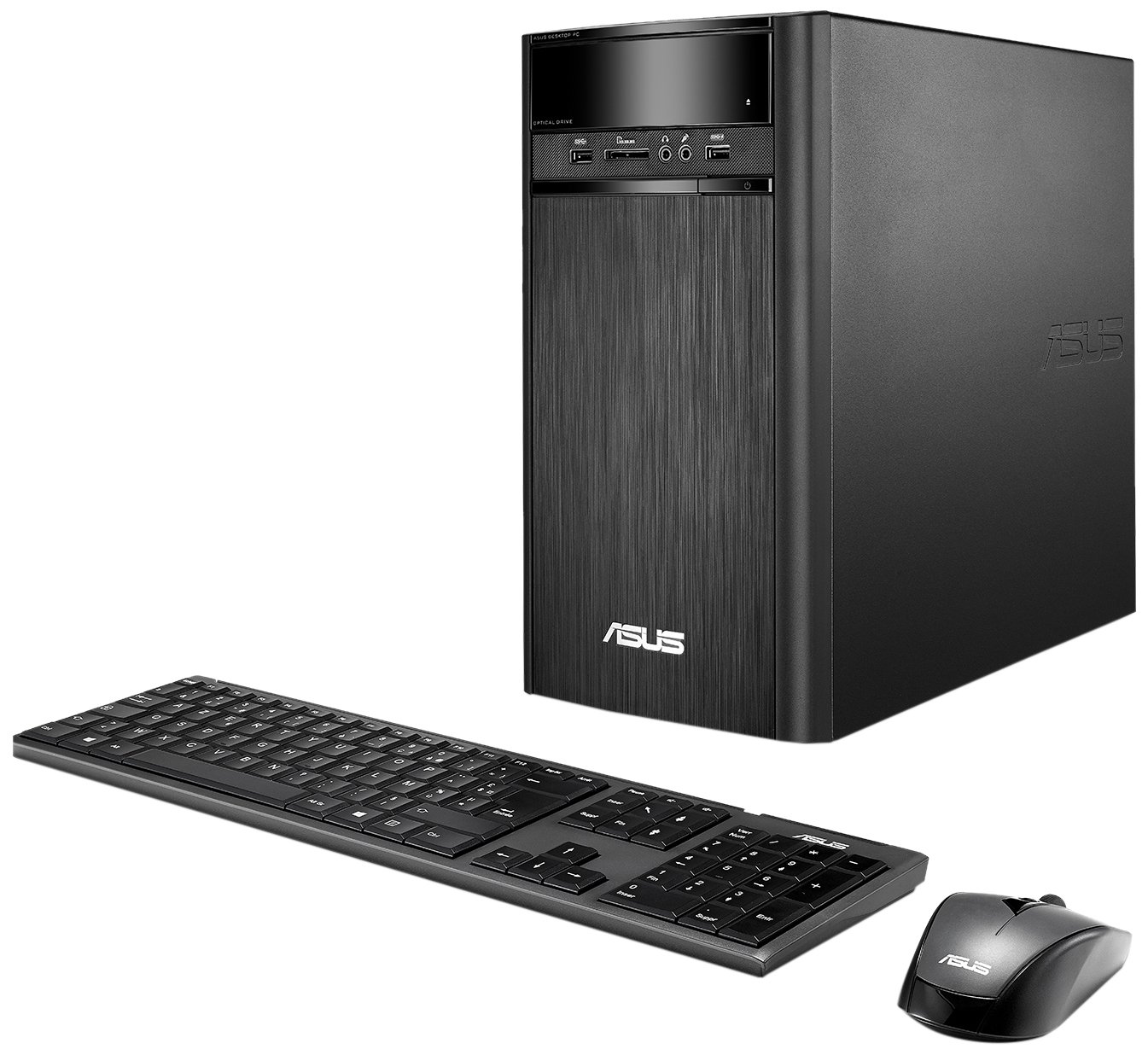
Figure 3.1: ASUS K31CD-DS71 VivoPC Desktop connected to a monitor.
3.2 初回電源投入とWindowsのセットアップ
すべての周辺機器を接続した後:
- 電源オン: Press the power button located on the front of the desktop. The system will boot up.
- Windows 10 Home セットアップ: Follow the on-screen instructions to complete the initial Windows 10 Home setup. This includes selecting your region, language, accepting terms, and creating a user account.
- ドライバーのインストール: The system comes with pre-installed drivers. Windows Update will automatically download and install any necessary updates or additional drivers after connecting to the internet.
4. 操作手順
4.1 フロントパネルの機能
フロント パネルからは、頻繁に使用するポートや光学ドライブに簡単にアクセスできます。

Figure 4.1: Front panel of the desktop.
- Optical Drive (DVD-ROM): Insert CDs or DVDs for data access or media playback.
- Card Reader (6-in-1): さまざまなメモリ カード フォーマットを読み取ります。
- ヘッドフォンジャック: Connect headphones for private audio.
- マイクジャック: 音声入力用のマイクを接続します。
- USB 3.0ポート: 互換性のあるデバイスとの高速データ転送用の 2 つのポート。
4.2 背面パネルの接続
The rear panel houses various ports for connecting monitors, network cables, and other peripherals.

図 4.2: 背面パネルの接続ポート。
- USB 3.1ポート: 高速 USB ポート 2 つ。
- USB 3.0ポート: Two additional high-speed USB ports.
- USB 2.0ポート: Two standard USB ports.
- HDMI-Out Port: Connect to a monitor or TV for digital video and audio output.
- VGAポート: Connect to a monitor for analog video output.
- RJ45 LAN ポート: 有線ネットワーク接続用。
- 8-channel Audio I/O: Multiple audio jacks for surround sound systems.
4.3 ワイヤレス接続
The desktop supports fast 802.11ac Wi-Fi for wireless internet access.
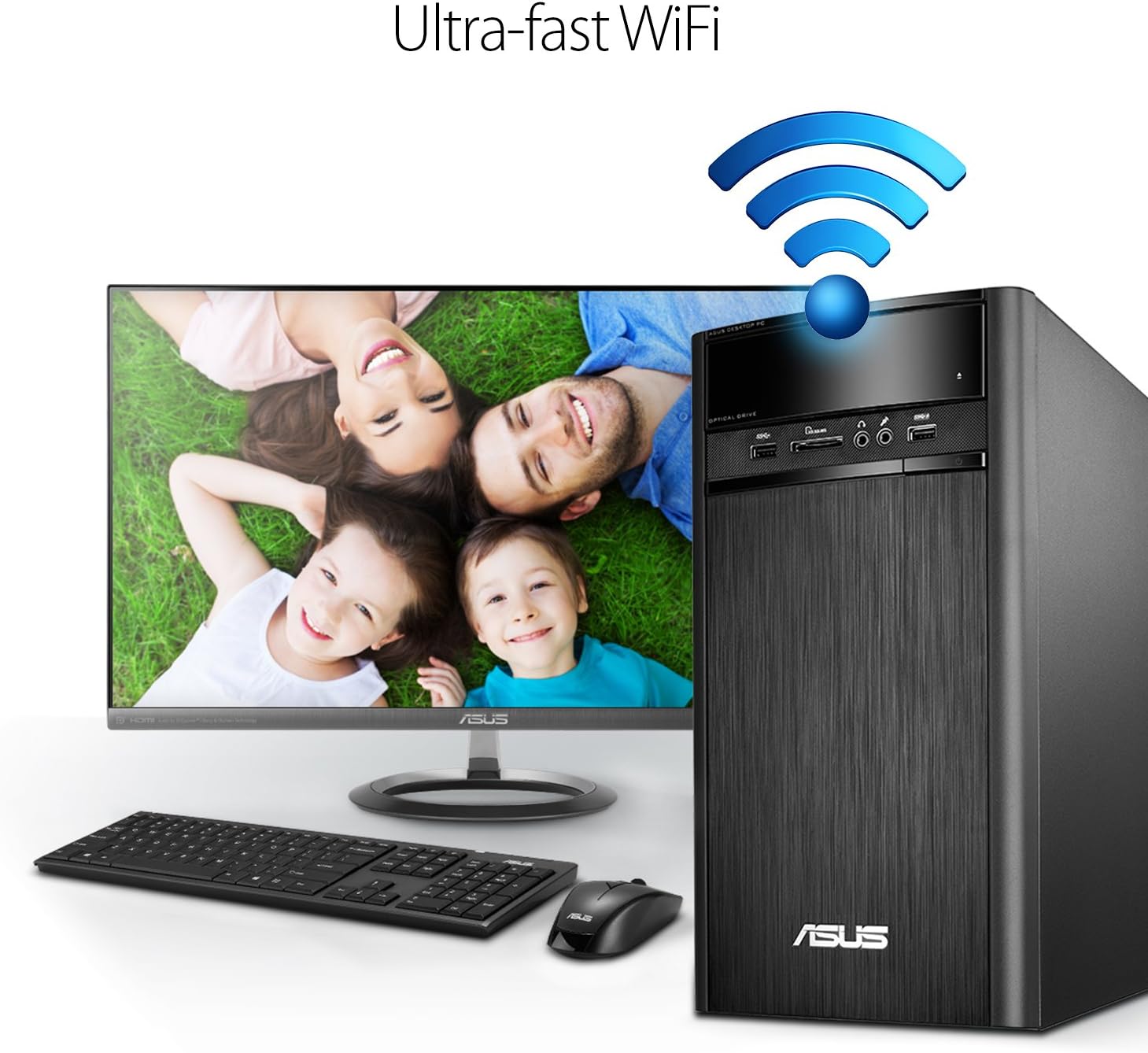
Figure 4.3: Wireless connectivity for the desktop.
To connect to a Wi-Fi network, navigate to the network settings in Windows 10, select your desired network, and enter the password if prompted.
4.4 オーディオ機能
The ASUS K31CD-DS71 incorporates SonicMaster Audio technology, which combines hardware, software, and tuning to deliver enhanced audio quality for various applications, including music, movies, and games.
5. メンテナンス
5.1一般的なケア
- 過熱を防ぐため、デスクトップを風通しの良い場所に置いてください。
- Avoid placing liquids or heavy objects on top of the unit.
- 外側は柔らかく乾いた布で拭いてください。刺激の強い化学薬品は使用しないでください。
- Regularly clean dust from the vents using compressed air to maintain optimal airflow.
5.2ソフトウェアアップデート
Ensure your Windows 10 Home operating system is kept up-to-date. Windows Update automatically downloads and installs critical updates, security patches, and driver updates. You can manually check for updates by going to 設定 > 更新とセキュリティ > Windows Update.
5.3 ドライバーの更新
While Windows Update handles most driver updates, you may occasionally need to update specific drivers (e.g., graphics or chipset) from the ASUS support website for optimal performance or to resolve compatibility issues. Always download drivers from the official ASUS support page for your specific model.
6。 トラブルシューティング
This section addresses common issues you might encounter with your ASUS K31CD-DS71 VivoPC Desktop.
6.1 電源と起動の問題
- 電源なし: Ensure the power cord is securely connected to both the desktop and the electrical outlet. Verify the outlet is functional.
- システムが起動しない: If the system powers on but does not display anything on the screen, check the monitor's power and cable connections. Try restarting the computer. If the issue persists, it may indicate a hardware problem.
- オペレーティング システムが読み込まれません: If Windows 10 fails to load, try accessing the Windows Recovery Environment (usually by interrupting the boot process a few times) to perform startup repair or system restore.
6.2 接続の問題
- インターネット接続なし(有線): Check if the Ethernet cable is properly connected. Verify your router/modem is working correctly.
- インターネット接続なし(ワイヤレス): Ensure Wi-Fi is enabled in Windows settings. Check if your Wi-Fi network is visible and you are entering the correct password. Restart your router/modem.
- 周辺機器が検出されません: If a USB device is not recognized, try plugging it into a different USB port. Ensure the device's drivers are installed.
6.3 オーディオの問題
- 音が出ない: Check volume levels in Windows and on your speakers/headphones. Ensure audio cables are correctly plugged into the appropriate jacks. Verify audio drivers are installed and up-to-date in Device Manager.
問題が解決しない場合は、ASUSサポートにお問い合わせください。 webサイトをご覧いただくか、カスタマーサービスにお問い合わせください。
7. 仕様
Below are the detailed specifications for the ASUS K31CD-DS71 VivoPC Desktop:
| 成分 | 仕様 |
|---|---|
| ブランド | エイスース |
| モデル番号 | K31CD-DS71 |
| オペレーティング·システム | Windows 10 ホーム |
| CPUモデル | インテル Core i7-7700 |
| CPU速度 | 3.6GHz帯 |
| RAMメモリ搭載 | 16GB DDR4 |
| ハードディスクの説明 | 2TB (7200 RPM) HDD |
| Optical Storage Device | DVD-RW |
| グラフィックスコプロセッサ | インテル HD グラフィックス 630 (統合) |
| 接続技術 | HDMI, VGA, LAN, USB, Wi-Fi (802.11ac) |
| USBポート | 2x USB 3.1, 4x USB 3.0, 2x USB 2.0 |
| オーディオI/O | 1x Headphone, 1x Microphone, 1x 8-channel Audio I/O |
| カードリーダー | 6-in-1 |
| アイテムの寸法(LxWxH) | 15.4 x 7.1 x 13.8インチ |
| アイテム重量 | 13.7 ポンド |
| 色 | 黒 |
8. 保証とサポート
8.1 保証情報
The ASUS K31CD-DS71 VivoPC Desktop comes with a 1年間の国内保証, which includes 1-way free shipping for service. Please refer to the included Warranty Card for detailed terms and conditions, including coverage, limitations, and how to initiate a warranty claim.
8.2 カスタマーサポート
For technical assistance, troubleshooting beyond this manual, or warranty service, please contact ASUS customer support. You can find contact information and additional resources on the official ASUS support website. Have your product model number (K31CD-DS71) and serial number ready when contacting support.