
1. はじめに
This manual provides detailed instructions for setting up, operating, and maintaining your Epson L485 Wi-Fi Inktank Printer. Please read this manual thoroughly to ensure proper use and to maximize the performance and longevity of your device.
製品終了view
The Epson L485 is a versatile all-in-one printer offering print, scan, and copy functionalities with the added convenience of Wi-Fi Direct. It features an innovative ink tank system designed for high-volume printing with impressive page yields and a high print resolution for quality output.

図1: 前面 view of the Epson L485 Wi-Fi Inktank Printer.
箱の中身
- エプソン L485 プリンターユニット
- ソフトウェアCD
- 電源ケーブル
- 保証書
- Set of Original Epson Ink Bottles (Black, Cyan, Magenta, Yellow)
ビデオ1: オーバーview of the Epson L485 Wi-Fi Inktank Printer's features and design.
2.セットアップガイド
Follow these steps to set up your Epson L485 printer for the first time.
Video 2: Step-by-step guide on how to set up your Epson InkTank Printer.
2.1 Initial Printer Preparation
- プリンターを開梱します。 プリンターを梱包から慎重に取り出します。保護テープや保護材をすべて取り除きます。
- チェックバルブの位置: Locate the ink tank valve on the side of the printer. Ensure it is in the upright (printing) position.
- Open Ink Tank Unit: Gently unhook the ink tank unit from the side of the printer and open its lid to access the ink tanks.
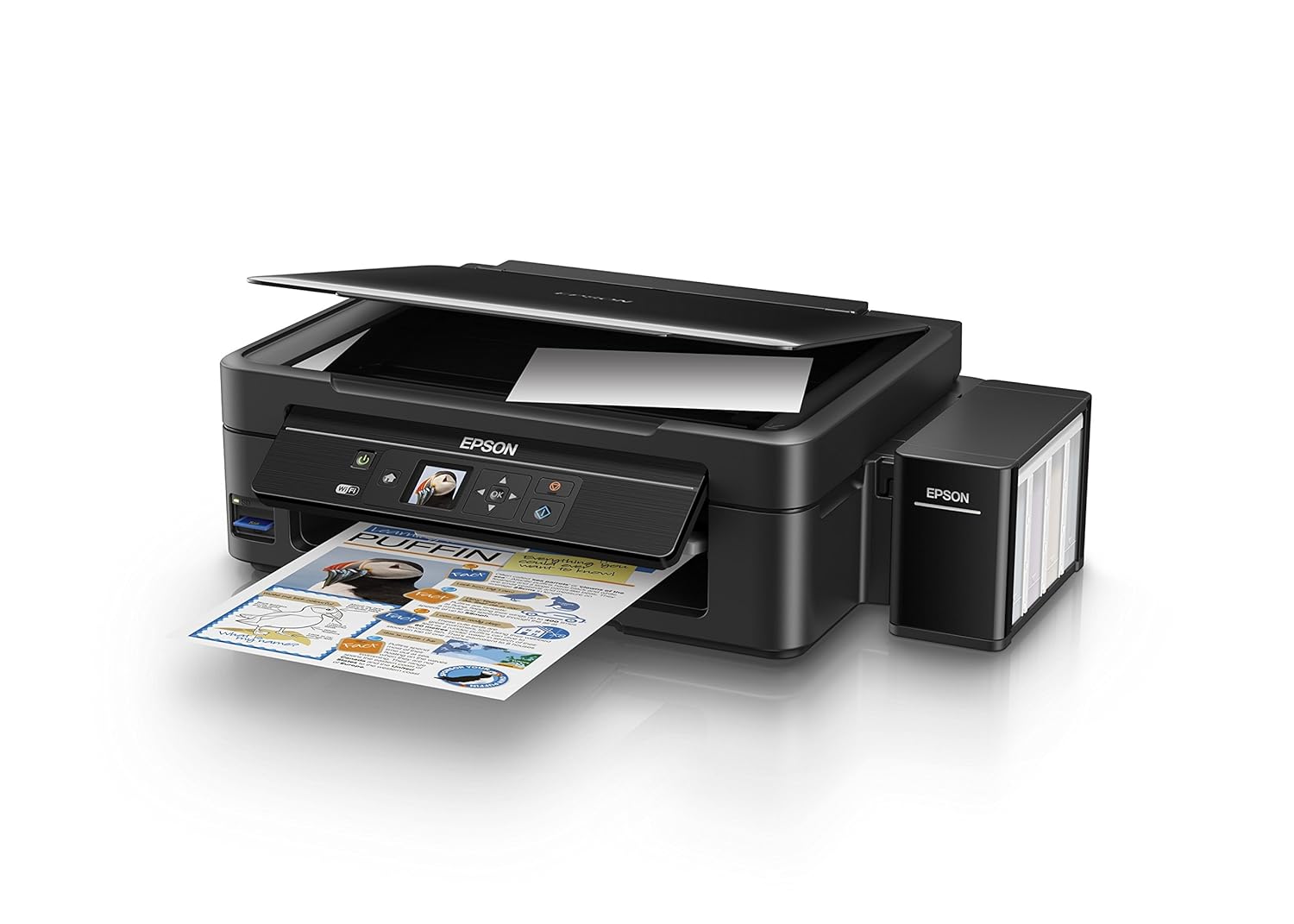
Figure 2: The ink tank unit unhooked and open, showing the ink reservoirs.
2.2 インクタンクの充填
- Prepare Ink Bottles: Snap off the tip of each ink bottle and remove the cap.
- インクタンクを充填する: Match the color of the ink bottle with the corresponding ink tank. Carefully pour the entire contents of each ink bottle into its respective tank. Do not overfill.
- 安全なキャップ: Once all tanks are filled, replace the caps securely on the ink tanks.
- Close Ink Tank Unit: Close the lid of the ink tank unit and re-hook it to the printer.

Figure 3: Demonstrating the process of filling an ink tank with a yellow ink bottle.

Figure 4: The four color ink bottles used for the Epson L485 printer.
2.3 Power On and Ink Charging
- 接続電源: Plug the power cable into the printer and then into a wall outlet.
- Turn On Printer: 電源ボタンを押して、プリンターの電源をオンにします。
- Initiate Ink Charge: Press and hold the 'Ink Charge' button (usually indicated by a droplet icon) for 3 seconds until the lights start blinking. The initial ink charging process takes approximately 20 minutes. Do not turn off or unplug the printer during this process.
- 完了: The lights will stop blinking when ink charging is complete.
2.4 ドライバのインストール
- ソフトウェア CD を挿入します: Insert the provided Software CD into your computer's CD/DVD drive. If your computer does not have a CD drive, download the latest drivers from the official Epson support webサイト。
- 画面上の指示に従ってください: Follow the prompts on your computer screen to install the printer drivers and utilities. Agree to the license agreement and select 'Start & Connection' for setup.
- Connect USB Cable (if prompted): If setting up via USB, connect the USB cable between the printer and your computer when prompted by the installation software.
2.5 接続設定
The Epson L485 supports both USB and Wi-Fi connectivity.
USB接続
Connect the USB cable from the printer to an available USB port on your computer. The printer should be recognized automatically after driver installation.
Wi-Fi設定
The printer features an LCD screen for easy Wi-Fi setup without needing a PC.
- Access Wi-Fi Setup: On the printer's control panel, navigate to the 'Wi-Fi Setup' option using the arrow keys and press 'OK'.
- ネットワークを選択: Choose your desired wireless network from the list and enter the password if required.
- 接続を確認: Once connected, the Wi-Fi indicator light will be solid, and the LCD screen will confirm the setup is complete.

Figure 5: Demonstrating wireless printing from a smartphone to the Epson L485 printer.
3. プリンターの操作
3.1 印刷
The Epson L485 delivers high-quality prints with a resolution of 5760 dpi. It offers print speeds of up to 33 ppm for black and 15 ppm for color documents.
- ロード・紙: 後部給紙トレイに用紙をセットします。用紙ガイドを用紙サイズに合わせて調整します。
- 印刷ジョブを選択: コンピューターまたはモバイル デバイスから、印刷するドキュメントまたは画像を選択します。
- 設定を調整します: Choose your print settings (e.g., paper size, print quality, color/black & white) in the print dialog box.
- 印刷: 「印刷」をクリックしてジョブをプリンターに送信します。

Figure 6: The Epson L485 printer in action, producing a vibrant print.
3.2スキャン
The printer features a sheetfed scanner with an optical resolution of 1200 dpi x 2400 dpi for clear and detailed scans.
- ドキュメントを配置: Lift the scanner lid and place your document face-down on the scanner glass, aligning it with the corner mark.
- スキャンを開始: コンピューターから Epson Scan ソフトウェアを開くか、プリンターのコントロール パネルのスキャン機能を使用します。
- 設定を調整します: 解像度、カラー モード、保存先フォルダーなどのスキャン設定を選択します。
- スキャン開始: Begin the scanning process.

Figure 7: The scanner bed of the Epson L485 printer with the lid open.
3.3 コピー
プリンターのコントロールパネルから直接コピーを作成します。
- ドキュメントを配置: Place the document you wish to copy on the scanner glass.
- コピー機能を選択: On the printer's LCD screen, navigate to the 'Copy' option.
- 設定を調整します: Select the number of copies, color or black & white, and other copy settings.
- コピーを開始: 「開始」ボタンを押してコピーを開始します。
3.4 Wi-Fiダイレクト
Wi-Fi Direct allows you to connect your mobile devices directly to the printer without a router, enabling convenient wireless printing.
- Enable Wi-Fi Direct: On the printer's control panel, go to 'Wi-Fi Setup' and select 'Wi-Fi Direct'. Follow the on-screen instructions to enable it and view ネットワーク名とパスワード。
- モバイルデバイスを接続: On your mobile device, go to Wi-Fi settings, find the printer's Wi-Fi Direct network, and connect using the provided password.
- 印刷: Use an Epson printing app (e.g., Epson iPrint) or your device's native print function to print directly to the printer.
4. メンテナンス
4.1 インク補充
When ink levels are low, refill the tanks using genuine Epson ink bottles. Refer to section 2.2 for detailed ink filling instructions. Always use the correct color ink for each tank.
4.2 クリーニング
定期的にクリーニングすると、印刷品質が維持され、プリンターの寿命が延びます。
- 外装清掃: プリンタの外側を柔らかくて乾いた布で拭いてください。amp 布。 研磨剤入りのクリーナーの使用は避けてください。
- プリントヘッドのクリーニング: If print quality declines (e.g., missing lines, incorrect colors), perform a print head cleaning using the printer's utility software on your computer or through the printer's control panel menu.
- ノズルチェック: Run a nozzle check pattern to diagnose print quality issues before performing a head cleaning.
5。 トラブルシューティング
このセクションでは、Epson L485 プリンターで発生する可能性のある一般的な問題について説明します。
5.1 プリンターが応答しない
- プリンタの電源がオンになっており、電源コンセントにしっかりと接続されていることを確認します。
- Check the USB cable connection to both the printer and computer, or verify the Wi-Fi connection status.
- プリンターとコンピューター/モバイル デバイスの両方を再起動します。
5.2 印刷品質が悪い
- Perform a nozzle check to identify clogged nozzles. If necessary, run a print head cleaning cycle.
- インクレベルを確認し、少ないタンクがあれば補充します。
- Ensure you are using genuine Epson ink and appropriate paper types for your print job.
5.3 紙詰まり
- Turn off the printer and carefully remove any jammed paper from the paper tray, output tray, or inside the printer.
- 用紙が正しくセットされ、折り目や汚れがないことを確認してください。url編。
6. 仕様
| ブランド | エプソン |
| モデル名 | L485 |
| 接続技術 | Wi-Fi |
| 印刷技術 | インクジェット |
| 特集 | メモリーカードスロット |
| 色 | 黒 |
| プリンタ出力 | 色 |
| 最大印刷速度(カラー) | 15ppm |
| 最大印刷速度(モノクロ) | 33ppm |
| アイテム重量 | 6001グラム |
| プリンターの種類 | インクジェット |
| スキャナタイプ | シートフィード |
| 最大コピー速度(白黒) | 33ppm |
| 表示タイプ | 液晶 |
| 対応デバイス | スマートフォン |
| インク色 | 黒、シアン、マゼンタ、イエロー |
| 解決 | 5760×5760 DPI |
| 追加のプリンター機能 | オールインワン(印刷、スキャン、コピー) |
| 最大メディアサイズ | A4 |
| 用紙サイズ | A4 |
| 両面印刷 | いいえ |
7. 保証とサポート
Your Epson L485 Wi-Fi Inktank Printer comes with a free installation service and an onsite warranty.
7.1 Free Installation and Onsite Warranty
To avail free installation for your printer, please contact Epson support after receiving your product. The onsite warranty covers manufacturing defects and ensures professional assistance at your location.
7.2 サポートにお問い合わせください
For installation, support, or any technical assistance, please contact Epson customer service:
- 電話: 1860 3000 1600 (Timings: 9 am - 6 pm)