
ACGAM ACGAM R1
ACGAM R1 Bluetooth 4.0 ワイヤレス VR ゲームパッド 取扱説明書
Model: ACGAM R1 (Item Model Number: 20171213-REMOTE)
ブランド: ACGAM
導入
The ACGAM R1 Bluetooth 4.0 Wireless VR Gamepad is a versatile control device designed for use with various smart devices, including Android phones, tablets, and VR headsets. It offers multiple operating modes, functioning as a game controller, wireless mouse, music controller, and selfie camera shutter. This manual provides detailed instructions for setup, operation, and troubleshooting to ensure optimal use of your device.
パッケージ内容
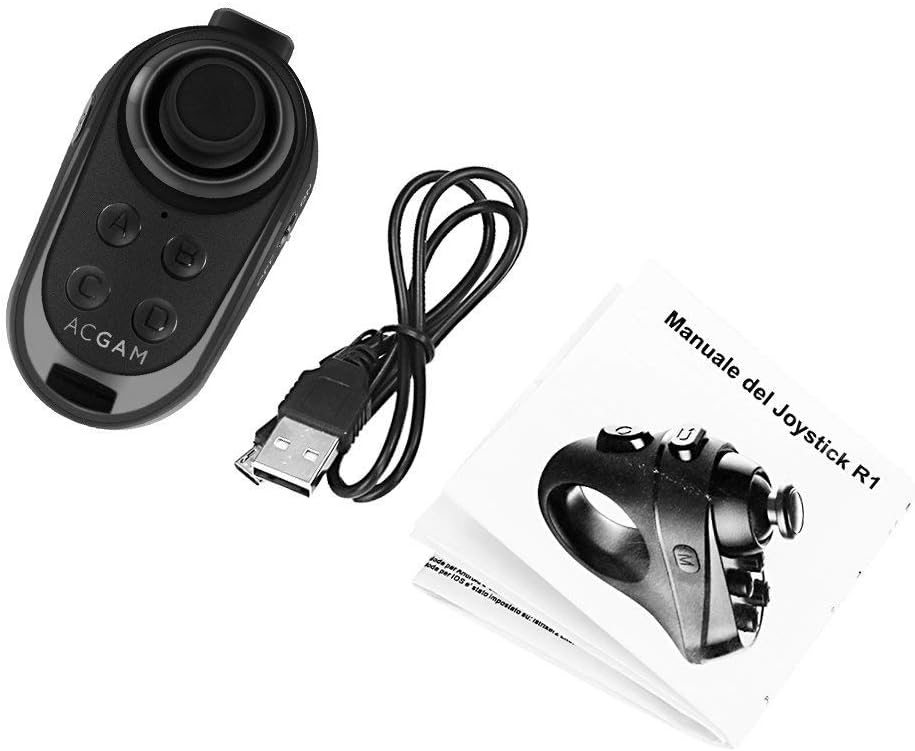
Image: The ACGAM R1 gamepad, a USB charging cable, and a printed instruction manual are included in the package.
- ACGAM R1 Bluetooth 4.0 Wireless VR Gamepad
- USB充電ケーブル
- 取扱説明書
製品終了view

画像: 正面 view of the ACGAM R1 gamepad, showing the joystick and main buttons.
The ACGAM R1 features an ergonomic design for comfortable single-hand operation. It includes a joystick for navigation, four main action buttons (A, B, C, D), a mode button, and a return button. The device is designed to be worn on a finger, allowing for intuitive control.

Image: Icons illustrating the multi-functional capabilities of the ACGAM R1, including game control, mouse functionality, selfie shutter, tablet control, music playback, and mobile phone interaction.
寸法
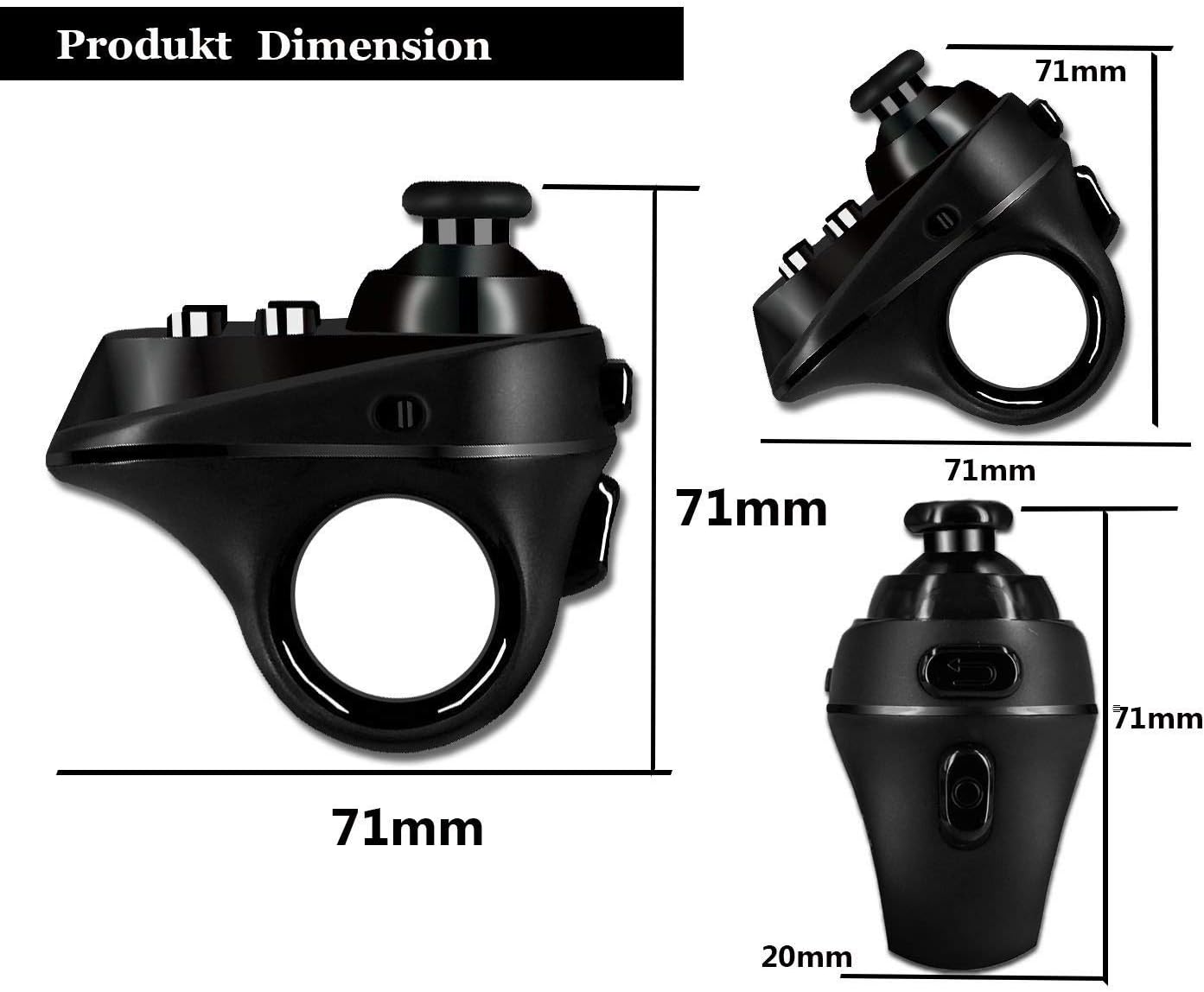
Image: Technical drawing displaying the product dimensions: 71mm (length) x 71mm (width) x 20mm (thickness).
- Product Dimensions: 2.91 x 3.03 x 1.61 inches (71mm x 71mm x 20mm)
- 商品の重量: 2.24オンス
仕様
| 特徴 | 詳細 |
|---|---|
| ブランド | ACGAM |
| モデル名 | ACGAM R1 |
| 商品型番 | 20171213-リモート |
| 接続技術 | Bluetooth 4.0、USB(充電用) |
| コントローラータイプ | ゲームパッド、リモコン |
| 対応デバイス | VR Headsets, Android Phones, Tablets, iOS (limited functionality) |
| 特集 | Wireless, Multi-functional (Game, Mouse, Music, Selfie Shutter) |
| ヒューマンインターフェイス入力 | Mouse, Buttons, Joystick |
| 色 | 黒 |
| バッテリー | Built-in Lithium Battery, 3.7V / 180mAh |

Image: A table comparing Bluetooth 3.0 and Bluetooth 4.0, highlighting faster search and connection, quicker disconnect, smoother data transmission, and lower battery consumption for Bluetooth 4.0, which the ACGAM R1 utilizes.
セットアップとペアリング
- 電源オン: Locate the power switch on the side of the ACGAM R1 gamepad and slide it to the 'ON' position. A blue indicator light will begin to flash, indicating it is in pairing mode.
- Bluetooth を有効にする: On your smart device (Android phone, tablet, etc.), go to the Bluetooth settings and ensure Bluetooth is enabled.
- 検索する デバイス: Initiate a scan for new Bluetooth devices. The ACGAM R1 should appear in the list of available devices.
- 接続する: Select the ACGAM R1 from the list to pair. The blue indicator light on the gamepad will stop flashing and remain solid once successfully connected.
The ACGAM R1 utilizes Bluetooth 4.0 for fast and stable connections with low power consumption.
動作モードと機能
The ACGAM R1 supports multiple operating modes, each optimized for different functions. To switch between modes, press and hold the 'Mode' button (usually labeled 'M' or located on the side) and then press one of the four main action buttons (A, B, C, D) to select the desired mode. The specific button combinations for each mode are detailed below.
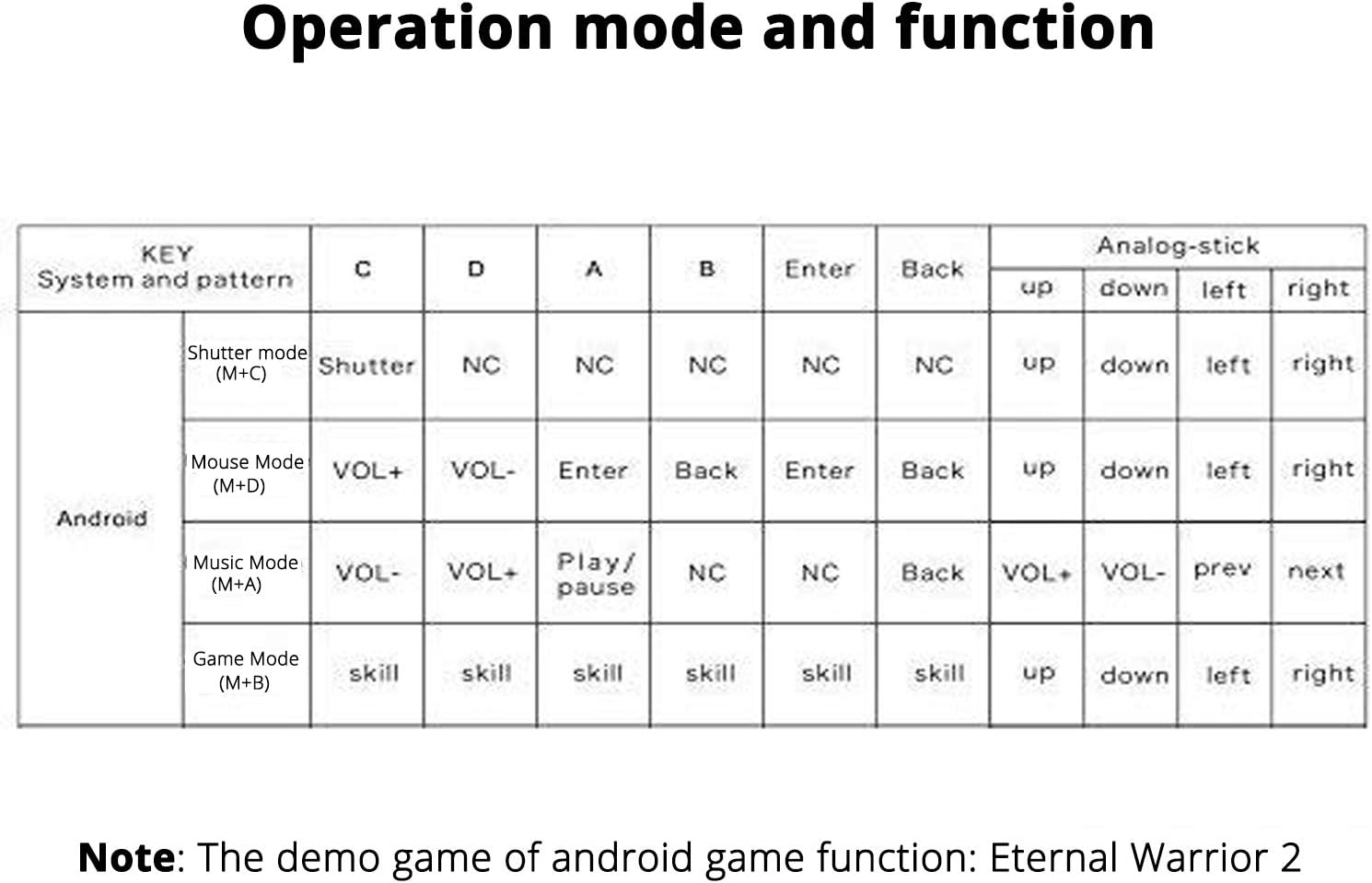
Image: A table outlining the button assignments for Shutter Mode (M+C), Mouse Mode (M+D), Music Mode (M+A), and Game Mode (M+B) on Android devices, including functions for the analog stick.
1. Shutter Mode (M+C)
In Shutter Mode, the gamepad acts as a remote control for your camera. This is ideal for taking selfies or group photos without needing to touch your phone.
- ボタンC: Activates the camera shutter.
- アナログスティック: Not applicable in this mode.
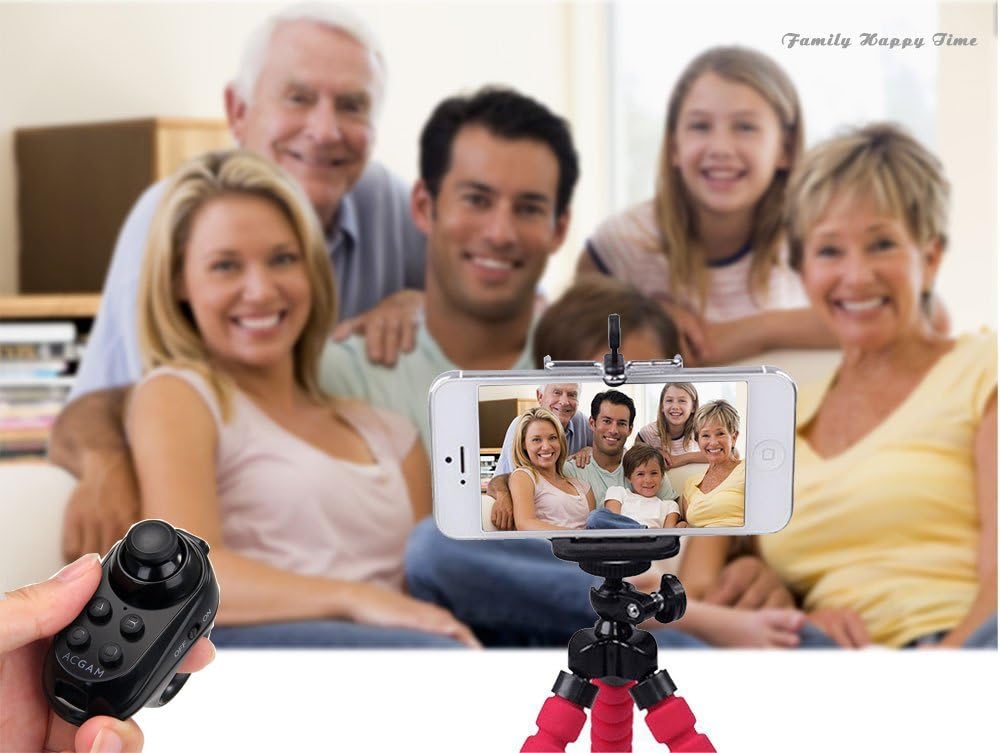
Image: The ACGAM R1 gamepad held in hand, remotely controlling a smartphone mounted on a tripod to capture a family photo.
2. Mouse Mode (M+D)
This mode allows you to control a cursor on your device's screen, similar to a computer mouse. Useful for navigating menus or interacting with applications.
- VOL + / VOL-: 音量を調整します。
- 入力: 選択を確認します。
- 戻る: 前の画面に戻ります。
- アナログスティック: Moves the cursor (Up, Down, Left, Right).
3. Music Mode (M+A)
Control media playback on your device, including playing, pausing, and skipping tracks.
- VOL + / VOL-: 音量を調整します。
- 再生/一時停止: 再生を切り替えます。
- 戻る: 前の画面に戻ります。
- アナログスティック: VOL+ (Up), VOL- (Down), Previous Track (Left), Next Track (Right).
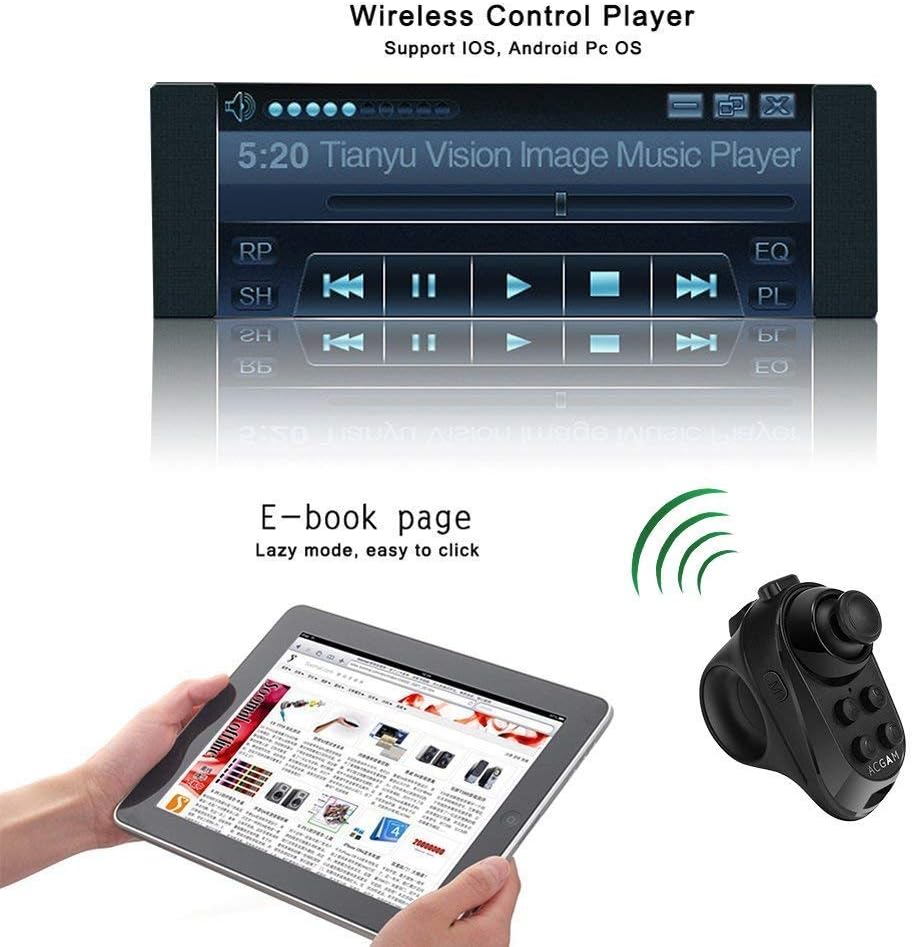
Image: The ACGAM R1 gamepad wirelessly controlling a music player interface on a car stereo display and turning pages in an e-book on a tablet.
4. Game Mode (M+B)
Optimized for gaming, this mode provides control for compatible games. Button functions may vary depending on the game.
- Skill Buttons: Buttons A, B, C, D, Enter, Back are typically assigned to in-game actions or skills.
- アナログスティック: Controls movement (Up, Down, Left, Right).

Image: A hand holding the ACGAM R1 gamepad, positioned next to a pair of VR glasses, suggesting its use for controlling virtual reality experiences.
充電
The ACGAM R1 features a built-in rechargeable lithium battery. To charge the device, connect the provided USB charging cable to the gamepad's charging port and to a standard USB power source (e.g., computer USB port, USB wall adapter). The indicator light will typically show charging status and turn off or change color when fully charged.
トラブルシューティング
- デバイスがペアリングされない:
- Ensure the gamepad is powered on and the blue indicator light is flashing.
- Verify Bluetooth is enabled on your smart device.
- Move the gamepad closer to your device to ensure it's within range.
- 以前にペアリングしたことがある場合は、携帯電話の Bluetooth 設定でデバイスを「忘れて」、再度ペアリングしてみてください。
- Recharge the gamepad if the battery is low.
- Functions Not Working Correctly:
- Ensure you are in the correct operating mode for the desired function (e.g., Music Mode for music control). Refer to the "Operating Modes and Functions" section for mode switching instructions.
- Some functions, particularly in Game Mode, may require specific app or game compatibility.
- For iOS devices, functionality may be limited compared to Android.
- 遅延または切断:
- ゲームパッドとデバイスの間に障害物がないことを確認してください。
- 他のワイヤレス デバイスからの干渉を最小限に抑えます。
- Re-pair the device if disconnections are frequent.
安全情報
- デバイスを極端な温度、直射日光、湿気にさらさないでください。
- 落としたり、強い衝撃を与えないでください。
- お子様の手の届かない場所に保管してください。
- 充電には付属の USB ケーブルまたは認定された USB ケーブルのみを使用してください。
- デバイスを分解または変更しようとしないでください。
保証とサポート
For warranty information and technical support, please refer to the contact details provided with your purchase or visit the official ACGAM webサイトでご確認ください。保証請求に備えて購入証明書を保管してください。
Ask a question about this manual
Ask about setup, troubleshooting, compatibility, parts, safety, or missing instructions. Manuals+ will review the question and use this page’s manual context to help answer it.