
導入
This manual provides essential information for setting up, operating, and maintaining your Dell Professional P2217H 21.5" FHD 1080p LED-Lit Monitor. Please read these instructions carefully before using your monitor.
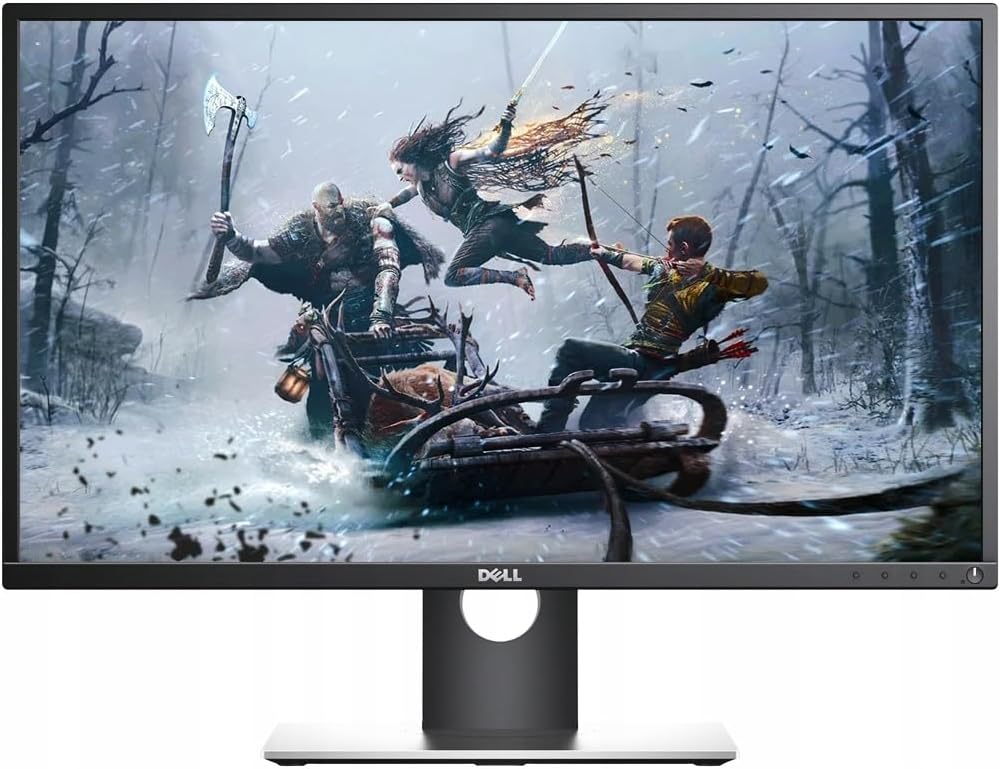
Figure 1: Dell Professional P2217H Monitor
セットアップ手順
1. 開梱と組み立て
Carefully remove all components from the packaging. The monitor comes with a stand that requires simple, tool-less assembly. Attach the stand base to the stand riser, then connect the assembled stand to the back of the monitor until it clicks securely into place.

図2:背面 view of the monitor with stand attachment area.
The monitor is also VESA mount compatible, allowing for alternative mounting solutions if desired.
2. ケーブルの接続
Connect the power cable to the monitor and a power outlet. Use the provided HDMI cable to connect your computer to the monitor. The monitor also supports DisplayPort and VGA connections. For optimal display quality, HDMI or DisplayPort is recommended.

Figure 3: Available ports on the back of the monitor.
The monitor features a cable management system on the stand to keep your workspace tidy.
3. 初回電源投入
Press the power button located on the bottom right of the monitor to turn it on. Ensure your computer is also powered on. The monitor should automatically detect the input signal. If not, you may need to manually select the input source using the on-screen display (OSD) menu.
操作手順
1. モニターの位置調整
The Dell P2217H monitor offers flexible adjustability for enhanced view快適性と生産性の向上:
- 高さ調整: モニターを好みの高さに上げたり下げたりできます view高さ。
- 画面の垂直角度(前方または後方)を調整します。
- ピボット: 画面を 90 度回転して、横向きと縦向きを切り替えます。
- スイベル: モニターをベース上で水平に回転させます。

Figure 4: Monitor adjustability features.
2. オンスクリーンディスプレイ(OSD)メニュー
The OSD menu allows you to configure various display settings. The control buttons are located on the bottom bezel of the monitor. Press any button (except the power button) to bring up the OSD menu. Use the navigation buttons to browse options and adjust settings such as:
- 輝度コントラスト: 全体的な輝度とコントラストのレベルを調整します。
- 入力ソース: HDMI、DisplayPort、または VGA 入力を手動で選択します。
- 色の設定: Customize color temperature (Warm, Cool, Custom) or select preset modes.
- ディスプレイの設定: アスペクト比、シャープネス、その他の画像プロパティを調整します。
技術仕様
| 特徴 | 仕様 |
|---|---|
| ブランド | デル |
| モデル番号 | P2217H |
| 立ち画面表示サイズ | 21.5インチ |
| 画面解像度 | 1920x1080 (FHD 1080p) |
| アスペクト比 | 16:9 |
| スクリーン表面の説明 | 光沢のある |
| USB 2.0 ポートの数 | 2 |
| USB 3.0 ポートの数 | 3 |
| アイテム重量 | 10.8ポンド |
| 製品寸法(長さx幅x高さ) | 19.64 x 7.09 x 18.81インチ |
| 色 | 黒 |
| メーカー | デルマーケティングUSA、LP |
| 初回利用可能日 | 10年2016月XNUMX日 |
メンテナンス
To ensure the longevity and optimal performance of your Dell P2217H monitor, follow these maintenance guidelines:
- 画面の掃除: 柔らかく糸くずの出ない布で画面を優しく拭いてください。頑固な汚れには、モニター専用のクリーニング液を布に含ませ、画面に直接拭き取らないでください。
- Cのクリーニングasing: モニターを清掃するには、柔らかく乾いた布を使用してください。asing. 研磨剤入りの洗剤は使用しないでください。
- 換気: 過熱を防ぐため、モニターの通気口が塞がれていないことを確認してください。
- 電源を切る: 長期間使用しない場合は必ずモニターの電源をオフにしてください。
トラブルシューティング
Dell P2217H モニターで問題が発生した場合は、次の一般的なトラブルシューティング手順を参照してください。
- 画面が表示されない/画面が暗い:
- 電源ケーブルがモニターと電源コンセントの両方にしっかりと接続されているかどうかを確認してください。
- Verify that the video cable (HDMI, DisplayPort, or VGA) is firmly connected to both the monitor and your computer.
- OSD メニューで正しい入力ソースが選択されていることを確認します。
- OSD メニューで明るさとコントラストの設定を調整します。
- If the screen remains dim or shows a faint image, try unplugging the video input and turning the monitor on to see if the initial configuration screen appears. If not, the monitor may require service.
- 画像品質の問題:
- Adjust resolution settings on your computer to match the monitor's native resolution (1920x1080).
- ビデオ ケーブルに損傷や接続の緩みがないか確認してください。
- OSD メニューで色設定を調整します。
- モニターがオンにならない:
- 電源ケーブルが接続されており、電源コンセントが機能していることを確認します。
- 電源ボタンをしっかりと押します。
保証とサポート
Your Dell Professional P2217H monitor may come with a 90-day warranty. For specific warranty details and support, please refer to your purchase documentation or contact Dell customer service.
法的免責事項: The product box may have been opened for inspection, but the item is confirmed to be new and unused.
公式製品ビデオ
Video 1: Dell Social Media Support. This video provides general support information from Dell.