
1. はじめに
This manual provides detailed instructions for the Plugable USB-C to DisplayPort Bi-Directional Cable (Model USBC-DP). This cable is designed to connect USB-C enabled devices to DisplayPort monitors or DisplayPort enabled devices to USB-C displays, supporting high-resolution video and audio transmission.

Image: The Plugable USB-C to DisplayPort Bi-Directional Cable, showcasing both the USB-C and DisplayPort connectors.
2. 主な特徴
- 双方向接続: Supports both USB-C to DisplayPort and DisplayPort to USB-C video output, offering flexible connection options.
- 高解像度サポート: Enables resolutions up to 4K at 60Hz (3840x2160).
- プラグ&プレイ: 操作にはドライバーやソフトウェアのインストールは必要ありません。
- 耐久性に優れたデザイン: Features an aluminum shell on both connectors and a nylon braided cable for enhanced durability.
- 幅広い互換性: Compatible with systems supporting DisplayPort Alt Mode over USB-C, USB4, or Thunderbolt 3/4, including various MacBooks, iPads, HP, Dell, Lenovo, Microsoft Surface, and LG Gram models.
3. セットアップ手順
Follow these steps to connect your device using the Plugable USB-C to DisplayPort Bi-Directional Cable:
- ポートを識別します: Ensure your source device (e.g., laptop, tablet) has a USB-C port that supports DisplayPort Alt Mode, USB4, or Thunderbolt 3/4. Ensure your display device (e.g., monitor, TV) has a DisplayPort input.
- USB-C端を接続します: Insert the USB-C connector of the cable into the compatible USB-C port on your source device.
- DisplayPort 側を接続します: Insert the DisplayPort connector of the cable into the DisplayPort input on your display device.
- デバイスの電源をオンにします: ソースデバイスとディスプレイデバイスの両方の電源がオンになっていることを確認します。
- 表示設定を構成します。 Your display should automatically detect the connection. If not, you may need to manually select the DisplayPort input on your monitor or adjust display settings on your source device (e.g., extend, mirror, or primary display mode).

画像: クローズアップ view of the USB-C and DisplayPort connectors, illustrating the connection process.
4. 操作手順
Once connected, the cable facilitates video and audio transmission between your devices. Here are common operating modes:
- ミラーモード: Duplicates your source device's screen onto the external display. This is useful for presentations or sharing content.
- 拡張モード: デスクトップを複数の画面に拡張し、作業スペースの拡大とマルチタスクを可能にします。
- プライマリ表示モード: Uses the external display as the sole output, with the source device's screen turned off.
To switch between these modes, access your operating system's display settings:
- ウィンドウズ: Right-click on the desktop, select "Display settings," and choose your preferred display option.
- MacOSの: Go to "System Settings" (or "System Preferences"), then "Displays," and adjust the arrangement or mirroring options.

Image: A laptop connected to an external monitor, demonstrating both extend and mirror display modes for enhanced productivity.
5. 互換性
The Plugable USB-C to DisplayPort Bi-Directional Cable is compatible with a wide range of devices and operating systems:
サポートされているデバイス:
- M1–M4 MacBooks (base and Pro/Max models)
- Intel Thunderbolt Macs (late 2016 and newer)
- iPhone 15/16 and Pro models
- iPad Pro/Air/mini
- HP ProBook/EliteBook/Spectre x360
- Dell XPS/Latitude/Inspiron
- Lenovo ThinkPad/IdeaPad/Yoga
- Microsoft Surface Pro/Go/Book/Laptop
- LGグラム
- Thousands of other standards-compliant USB-C laptops.
サポートされているオペレーティングシステム:
- ウィンドウズ10/11
- macOS 11以降
- ChromeOS 100以上
- リナックス
注記:
- Requires a system with DisplayPort Alt Mode over USB-C, USB4, or Thunderbolt 3/4.
- Fully compatible with DisplayPort source devices and full-featured USB-C displays.
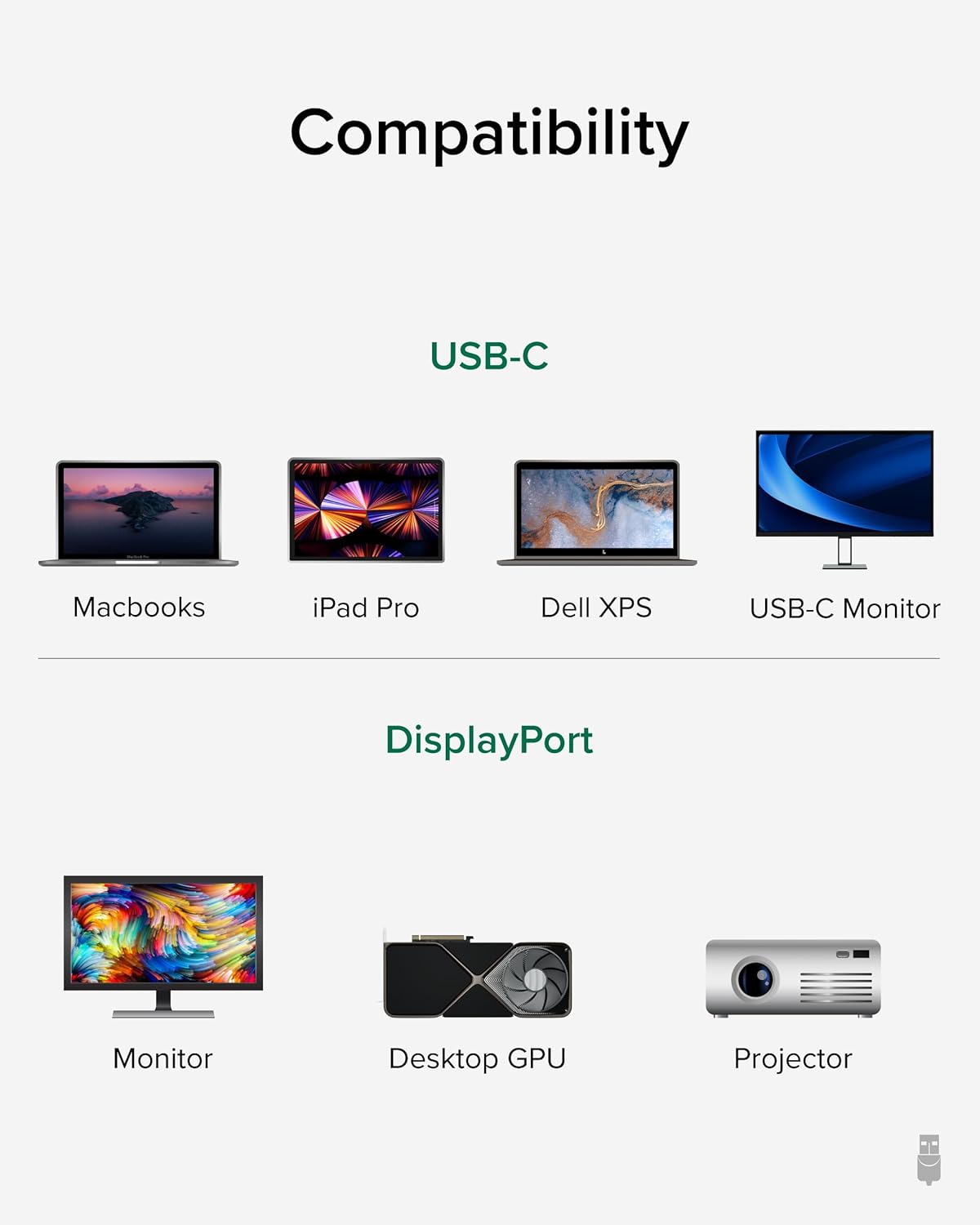
Image: A visual guide illustrating compatibility with various USB-C devices (MacBooks, iPad Pro, Dell XPS, USB-C Monitor) and DisplayPort devices (Monitor, Desktop GPU, Projector).
6. メンテナンス
To ensure the longevity and optimal performance of your Plugable USB-C to DisplayPort Bi-Directional Cable, follow these maintenance guidelines:
- 取り扱いにはご注意ください: 特にコネクタ付近では、ケーブルを過度に曲げたり、ねじったり、引っ張ったりしないでください。
- 適切に保管してください: When not in use, coil the cable loosely and secure it with the included cable tie or a similar fastener. Avoid tight coiling that can stress the internal wires.
- 清潔に保ちます: ケーブルとコネクタは定期的に柔らかく乾いた布で拭き、ほこりやゴミを取り除いてください。刺激の強い化学薬品や研磨剤の使用は避けてください。
- コネクタの保護: Ensure connectors are not exposed to liquids or extreme temperatures.
7。 トラブルシューティング
If you encounter issues with your Plugable USB-C to DisplayPort Bi-Directional Cable, consider the following troubleshooting steps:
- 表示/信号なし:
- Ensure both devices are powered on and the cable is securely connected at both ends.
- Verify that your source device's USB-C port supports DisplayPort Alt Mode, USB4, or Thunderbolt 3/4. Not all USB-C ports support video output.
- Check your display's input source settings and ensure the correct DisplayPort input is selected.
- 問題を切り分けるために、互換性のある別のケーブルまたはデバイスでテストしてください。
- ちらつきや断続的な表示:
- ケーブルが損傷したり、ねじれたりしていないことを確認してください。
- Reduce the display resolution or refresh rate in your device's display settings to see if stability improves.
- Update your graphics drivers on your source device.
- 音声なし:
- Check your computer's sound settings and ensure the DisplayPort output is selected as the audio device.
- Ensure your monitor has built-in speakers or is connected to external audio.
- 解像度/リフレッシュ レートが期待どおりでない:
- Verify that both your source device and display support the desired resolution and refresh rate.
- Ensure your device's display settings are configured for the desired output.
8. 仕様
| 特徴 | 詳細 |
|---|---|
| ブランド | プラグ可能 |
| モデル番号 | USBC-DP |
| ケーブル長さ | 6フィート(1.8メートル) |
| 最大解像度 | 4K (3840x2160) 60Hz |
| コネクタ1 | USB-C オス |
| コネクタ2 | DisplayPort オス |
| 互換性 | DisplayPort Alt Mode over USB-C, USB4, Thunderbolt 3/4 |
| 材料 | Aluminum connector shells, Nylon braided cable |
| アイテム重量 | 1.6オンス |
| 製品寸法 | 0.39 x 6 x 6.5インチ |
9. 公式製品ビデオ
Video: Product Summary: Plugable USB-C to DisplayPort Adapter Cable. This video provides a comprehensive overview of the cable's features, functionality, and benefits.
10. 保証とサポート
Plugable products are designed for reliability and ease of use. This device includes lifetime support from our North American team of connectivity experts.
For further assistance, please visit the Plugable support webサイトにアクセスするか、カスタマーサービスにお問い合わせください。