
ロジクール M337
Logitech M337 Bluetooth マウス ユーザー マニュアル
モデル: M337
導入
The Logitech M337 Bluetooth Mouse is a versatile wireless mouse designed for seamless connectivity and comfortable use. It features a 10-meter wireless range, a laser-grade optical sensor for precise tracking, and an LED indicator light. Powered by a single AA battery, it offers extended battery life for up to 10 months.
This manual provides detailed instructions for setting up, operating, and maintaining your M337 Bluetooth Mouse, along with troubleshooting tips and product specifications.
パッケージ内容
- ロジクール M337 Bluetooth マウス
- 単三電池1本(プリインストールまたは付属)
- ユーザードキュメント
設定
1. バッテリーの取り付け
The Logitech M337 mouse uses one AA battery. If the battery is not pre-installed, follow these steps:
- マウスの裏側にある電池ボックスのカバーを見つけます。
- カバーをスライドさせて開きます。
- 単三電池 1 本を挿入し、プラス (+) 端子とマイナス (-) 端子がコンパートメント内のインジケータと正しく揃っていることを確認します。
- 電池カバーをしっかりと閉じてください。

画像: 下側 view of the Logitech M337 mouse, illustrating the location of the battery compartment and power switch.
2. マウスの電源を入れる
Locate the On/Off switch on the underside of the mouse. Slide the switch to the "On" position. An LED indicator light on the top of the mouse will illuminate briefly.
3.Bluetoothペアリング
The M337 mouse connects via Bluetooth. Follow these steps to pair it with your device:
- デバイス (コンピューター、タブレット、スマートフォン) で Bluetooth が有効になっていることを確認します。
- On the underside of the mouse, press and hold the 接続ボタン (often located near the optical sensor or power switch) for a few seconds until the LED indicator on the top of the mouse starts blinking rapidly. This indicates the mouse is in pairing mode.
- デバイスで Bluetooth 設定に移動し、新しいデバイスを検索します。
- Select "Logitech M337" from the list of available devices.
- Follow any on-screen prompts to complete the pairing process. Once successfully paired, the LED indicator on the mouse will stop blinking and remain solid for a moment, then turn off.
これで、マウスを使用する準備が整いました。
マウスの操作
基本機能
- 左クリック: 項目を選択したり、リンクを開いたりするための主なボタン。
- 右クリック: コンテキスト メニューと追加オプションの 2 番目のボタン。
- スクロールホイール: 文書を上下にスクロールして web ページをスクロールします。スクロールホイールは中クリックボタンとしても機能します。
- 多機能ボタン: Located below the scroll wheel. This button's function can vary depending on your operating system and installed Logitech software. It often defaults to a gesture button for Windows (e.g., Task View) or Mac (e.g., Mission Control).
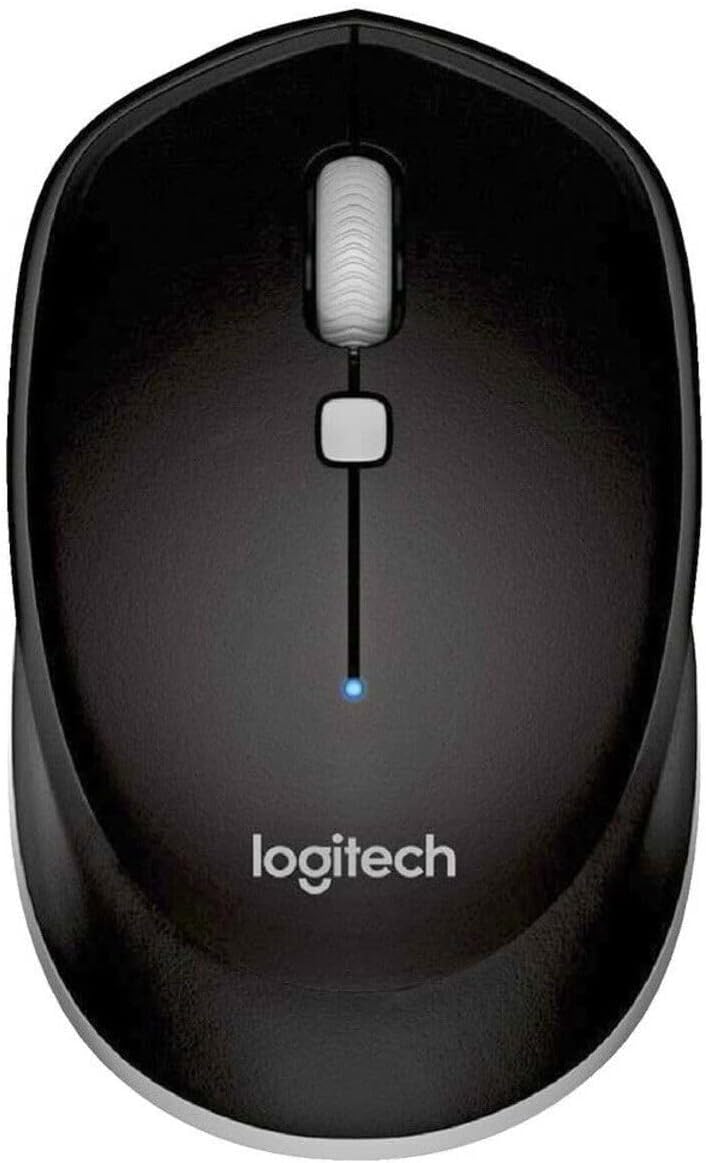
画像: トップダウン view of the Logitech M337 mouse, highlighting the left and right click buttons, scroll wheel, and multi-function button.
両手利きのデザイン
The M337 mouse features a symmetrical design, making it comfortable for both left-handed and right-handed users. Its contoured shape fits naturally in the palm of your hand.

Image: A person using the Logitech M337 mouse alongside a laptop on a wooden desk, demonstrating its compact size and comfortable grip.

Image: A woman using the Logitech M337 mouse with her laptop at a cafe table, showcasing its portability and suitability for various environments.
メンテナンス
クリーニング
To clean your mouse, gently wipe it with a soft, damp cloth. Avoid using harsh chemicals or abrasive cleaners, as these can damage the surface.
バッテリー寿命
The M337 mouse is designed for long battery life, up to 10 months with typical use. Battery life may vary based on usage and computing conditions. When the battery is low, the LED indicator on the mouse may flash to alert you. Replace the AA battery when necessary.
ストレージ
When not in use for extended periods, it is recommended to turn off the mouse using the On/Off switch on the underside to conserve battery life.
トラブルシューティング
- マウスが反応しない:
- マウスの電源がオンになっていることを確認してください。
- バッテリーを確認してください。必要であれば交換してください。
- デバイスで Bluetooth が有効になっていることを確認してください。
- マウスをデバイスと再度ペアリングしてみてください。
- Move the mouse closer to your device to ensure it's within the 10-meter range.
- カーソルの動きが遅れたり不規則になったりする:
- マウスが清潔で反射しない表面上にあることを確認してください。
- 他のワイヤレス デバイスからの干渉がないか確認してください。
- マウスを再度ペアリングします。
- デバイスの Bluetooth ドライバーを更新します。
- Cannot pair the mouse:
- Ensure the mouse is in pairing mode (LED blinking rapidly).
- Remove any previous pairings of the M337 from your device's Bluetooth settings and try again.
- デバイスとマウスを再起動します。
仕様
| 特徴 | 詳細 |
|---|---|
| モデル番号 | M337 |
| 接続性 | Bluetoothワイヤレス |
| ワイヤレス範囲 | 最大10メートル(33フィート) |
| センサー技術 | Laser-grade Optical Tracking |
| 電池のタイプ | 単三電池1本 |
| バッテリー寿命 | 最長10か月 |
| 寸法(長さ×幅×高さ) | 7.32 x 4.96 x 3.27インチ |
| 重さ | 2.89オンス |
| 色 | 黒 |
| メーカー | GAXIWILO (Brand: Logitech) |
| 初回利用可能日 | 21年2016月XNUMX日 |
保証とサポート
保証情報およびテクニカルサポートについては、ロジクールの公式ウェブサイトをご覧ください。 webロジクールのウェブサイトをご覧いただくか、カスタマーサービスまでお問い合わせください。保証請求の際に購入証明書を保管してください。
You can find additional support resources, FAQs, and driver downloads by visiting the ロジクール サポートページ.
Ask a question about this manual
Ask about setup, troubleshooting, compatibility, parts, safety, or missing instructions. Manuals+ will review the question and use this page’s manual context to help answer it.