
1. はじめに
ご購入ありがとうございますasing the ELECOM M-XGM10DBBK Wireless 5-Button BlueLED Mouse. This mouse is designed for comfort and precision, featuring an ergonomic shape that fits naturally in your hand and BlueLED technology for reliable tracking on various surfaces. This manual provides essential information for proper setup, operation, and maintenance of your device.
2.製品オーバーview
The M-XGM10DBBK mouse is part of the "EX-G" series, known for its ergonomic design and comfortable grip. It features five buttons, including dedicated back and forward buttons, to enhance productivity.
主な特徴:
- 人間工学に基づいたデザイン: Shaped to fit the hand for ultimate grip comfort.
- BlueLEDセンサー: Provides precise tracking on a wide range of surfaces, including glass and fabric.
- 5ボタン機能: Includes left, right, scroll wheel, and dedicated back/forward buttons.
- 2.4GHzワイヤレス接続: Offers a stable connection with a range of approximately 10 meters (3 meters on steel desks).
- カスタマイズ可能なボタン: Button functions can be re-assigned using the free "ELECOM Mouse Assistant" software (Windows/Mac only).
- バッテリーインジケーター: Alamp indicates remaining battery life.
コンポーネント:
マウスのコンポーネントについて理解しておきましょう。

図2.1:上 view マウスのメインボタンを強調表示します。
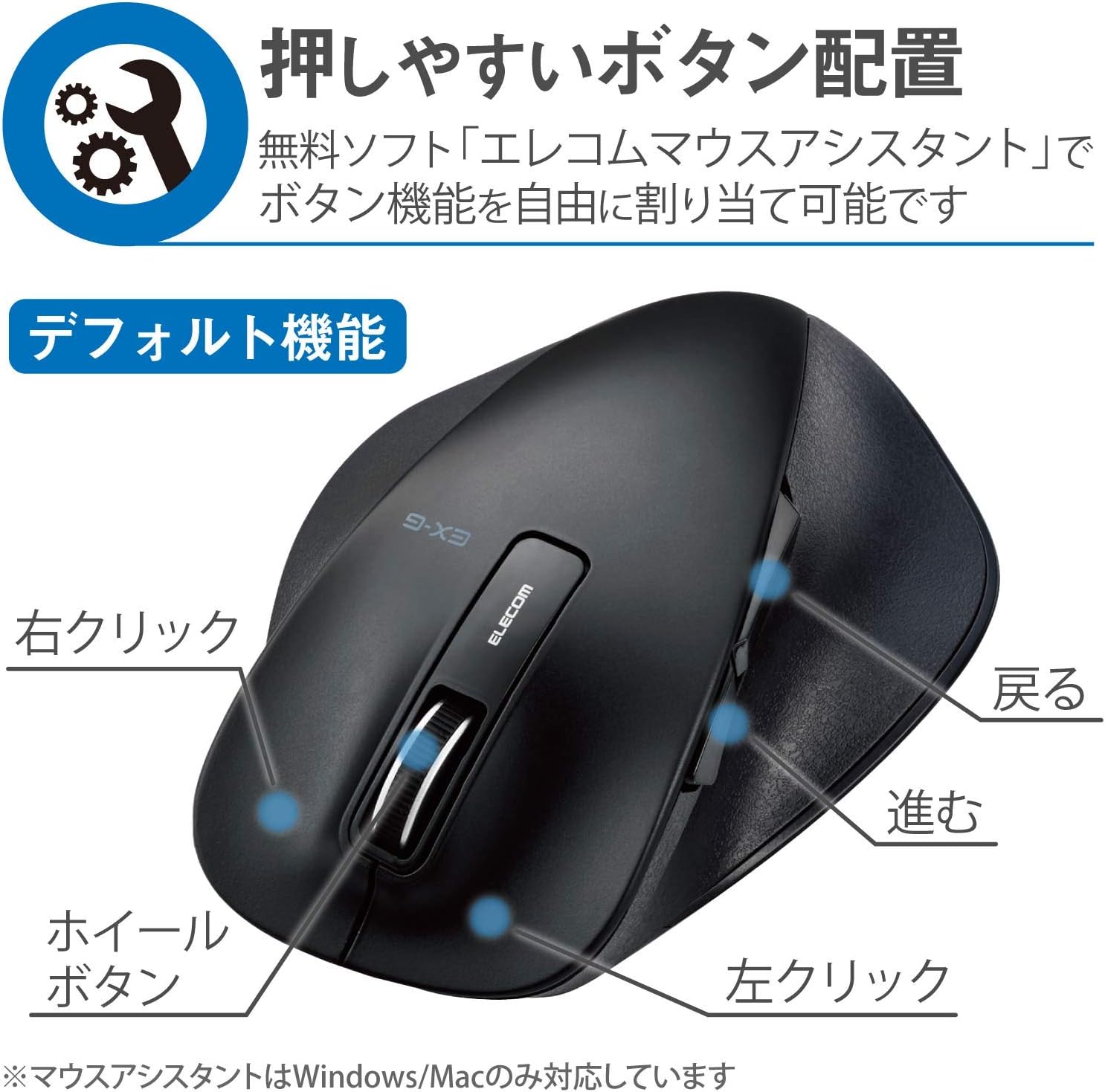
図2.2:側面 view of the mouse, showing the back and forward buttons.
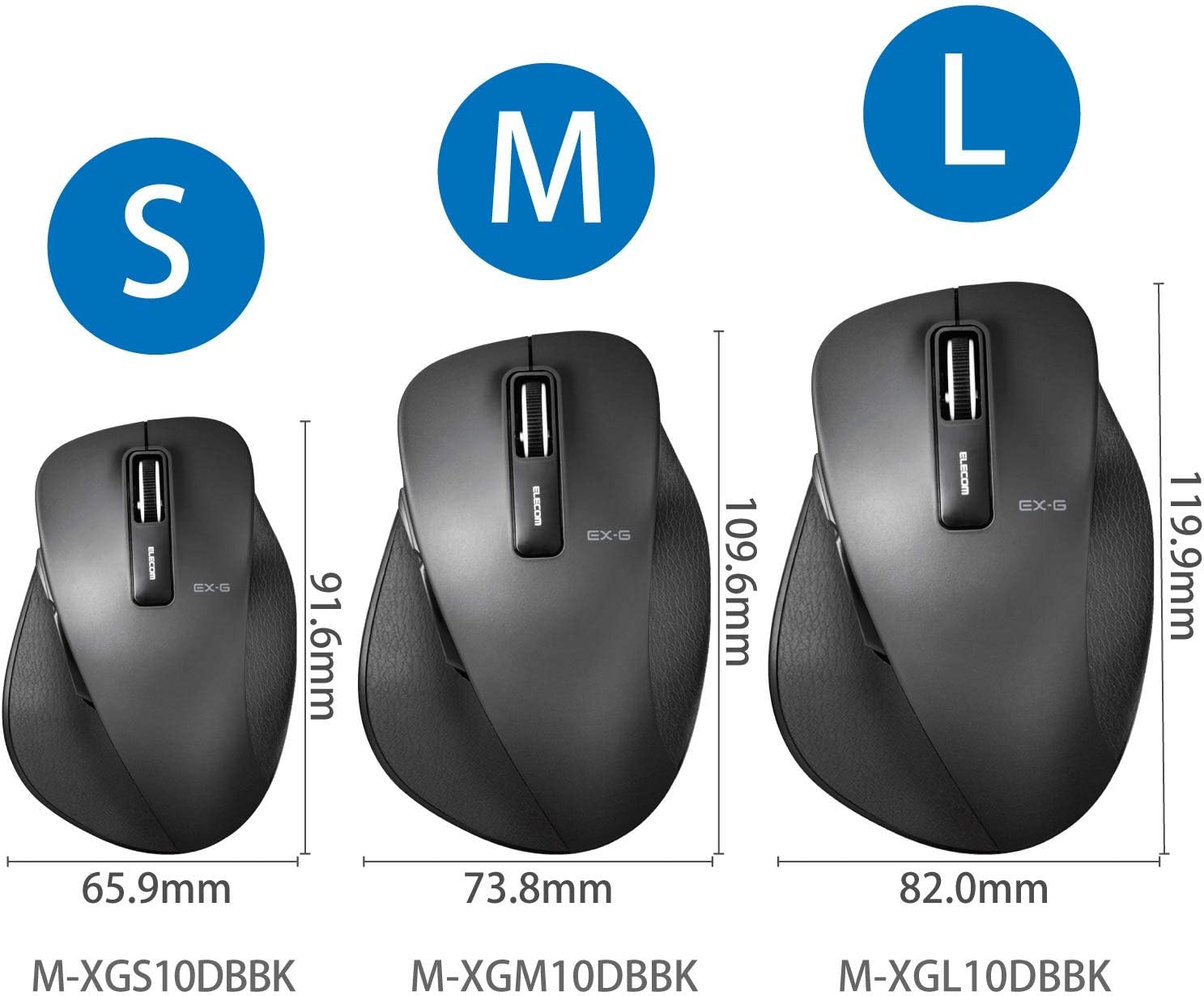
Figure 2.3: Size comparison of EX-G mice (S, M, L). The M-XGM10DBBK is the M size.

図2.4:下 view of the mouse, indicating the optical sensor, power switch, and receiver storage compartment.

Figure 2.5: Illustration of the durable Omron switches used for the left and right click buttons.
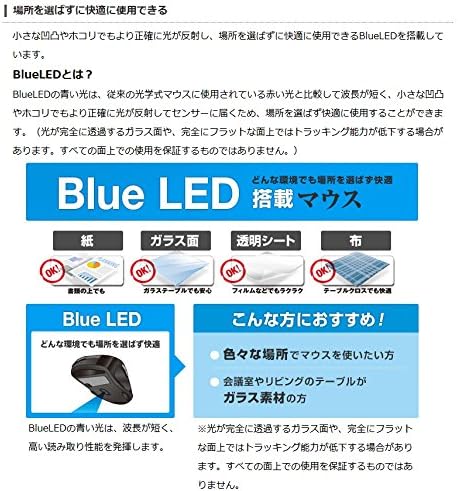
Figure 2.6: Explanation of BlueLED technology, demonstrating its versatility on different surfaces. Note: Tracking performance may decrease on completely transparent or perfectly flat surfaces.

Figure 2.7: Details on 2.4GHz wireless, battery indicator, and 2000 DPI resolution for smooth operation.

Figure 2.8: The ELECOM M-XGM10DBBK mouse is certified to work with Chromebooks.
3. セットアップ
3.1 バッテリーの取り付け
- Locate the battery cover on the bottom of the mouse.
- カバーをスライドさせて開きます。
- Insert one AA alkaline, manganese, or nickel-metal hydride battery, ensuring correct polarity (+/-).
- 電池カバーをしっかりと閉じてください。
3.2 受信機の接続
- マウスの底面にある収納部から USB レシーバーを取り出します。
- USB レシーバーをコンピューターの使用可能な USB-A ポートに接続します。
- コンピュータは必要なドライバを自動的に検出し、インストールします。これには数分かかる場合があります。
3.3電源オン
- マウスの底面にある電源スイッチを「オン」の位置にスライドします。
- これで、マウスを使用する準備が整いました。
4. 操作手順
4.1 基本機能
- 左クリック: 一次選択とアクティベーション。
- 右クリック: コンテキスト メニューを開きます。
- スクロールホイール: 文書を巻物にして web pages vertically. Can also be clicked for middle-click functionality.
4.2 Back/Forward Buttons
The dedicated back and forward buttons located on the side of the mouse allow for quick navigation in web ブラウザと file 探検家。
- を押す 戻る button to go to the previous page or folder.
- を押す フォワード button to go to the next page or folder.
4.3 Customizing Buttons (ELECOM Mouse Assistant)
For advanced customization, download the free "ELECOM Mouse Assistant" software from the official ELECOM website. This software allows you to re-assign functions to the mouse buttons according to your preferences. Please note that this software is compatible with Windows and macOS only.
5. メンテナンス
5.1 クリーニング
最適なパフォーマンスと衛生状態を維持するために、マウスを定期的に清掃してください。
- 電源スイッチを使用してマウスの電源をオフにします。
- 柔らかく乾いた布を使用してマウスの表面を拭きます。
- 頑固な汚れには、軽くamp布を水または中性洗浄液で湿らせ、すぐに拭いて乾かしてください。
- 強力な化学薬品、研磨剤、溶剤の使用は避けてください。
- Gently clean the optical sensor area on the bottom of the mouse with a cotton swab if tracking issues occur.
5.2 電池の交換
When the battery indicator lamp flashes or the mouse performance degrades, replace the battery:
- マウスの電源を切ります。
- 電池カバーを開きます。
- 古いバッテリーを取り外し、地域の規制に従って廃棄してください。
- 正しい極性を確認して、新しい単三電池を挿入します。
- Close the battery cover and turn the mouse back on.
6。 トラブルシューティング
マウスで問題が発生した場合は、次の一般的な問題と解決策を参照してください。
| 問題 | 考えられる原因 | 解決 |
|---|---|---|
| マウスが反応しない | Low battery; Power switch off; Receiver not connected; Receiver interference. | Replace battery; Turn power switch ON; Ensure receiver is firmly plugged in; Try a different USB port; Move closer to the receiver. |
| カーソルの不規則な動き | 光学センサーの汚れ、不適切な表面、干渉。 | Clean optical sensor; Use on a suitable mouse pad or surface; Reduce interference from other wireless devices. |
| ボタンが機能しない | ソフトウェアの競合、ドライバーの問題。 | Restart computer; Reinstall mouse drivers; Check for conflicting software. |
| ワイヤレス接続の問題 | 距離が遠すぎる; 障害物; 干渉。 | Ensure mouse is within range (10m); Remove obstructions between mouse and receiver; Avoid using near other 2.4GHz devices. |
7. 仕様
| 特徴 | 詳細 |
|---|---|
| モデル番号 | M-XGM10DBBK |
| 接続方法 | 2.4GHzワイヤレス(USB-Aレシーバー) |
| センサータイプ | BlueLED Optical |
| ボタン | 5 buttons (Left, Right, Scroll Wheel, Back, Forward) |
| 解決 | 2000DPI |
| 寸法(幅×奥行き×高さ) | 73.8 x 109.6 x 40.8 mm (M Size) |
| 重さ | 約151.95g(電池含む) |
| 電源 | 1 x AA battery (Alkaline, Manganese, or Ni-MH) |
| 推定バッテリー寿命 | Approx. 722 days (based on typical usage) |
| 対応OS | Windows 11, 10, RT8.1, 8.1, 7, Vista; macOS High Sierra 10.13, OS X 10.10; Chrome OS |
| 色 | 黒 |
8. 保証とサポート
8.1 保証情報
この製品には、 6ヶ月保証 ご購入日から1年間有効です。保証請求の際は、購入証明書を保管してください。保証は通常の使用における製造上の欠陥を対象としています。誤用、事故、不正な改造、または通常の摩耗や損耗による損傷は保証の対象外となります。
8.2 カスタマーサポート
For technical assistance, troubleshooting, or warranty inquiries, please visit the official ELECOM website or contact ELECOM customer support. Contact details can typically be found on the ELECOM webサイトの「サポート」または「お問い合わせ」セクションをご覧ください。