1. はじめに
This manual provides essential information for the safe and efficient use of your Canon PIXUS MG7730 Black Inkjet Multifunction Printer. Please read this manual thoroughly before using the printer and keep it for future reference. The PIXUS MG7730 is designed for high-quality photo and document printing, copying, and scanning, featuring advanced connectivity and user-friendly operation.
2.製品オーバーview
The Canon PIXUS MG7730 is a versatile multifunction printer equipped with a 6-color hybrid ink system, ensuring vibrant photos and crisp text. It offers seamless wireless connectivity and intuitive controls for a streamlined user experience.
主な特徴:
- 6-Color Hybrid Ink System: Utilizes both dye-based and pigment-based inks for superior photo quality and sharp black text.
- ワイヤレス接続: Supports Wi-Fi (802.11n) and NFC for easy printing from various devices.
- 直感的なタッチパネル: Features a 3.5-inch LCD touch screen with an intelligent touch system for simple navigation.
- 自動両面印刷: Saves paper by automatically printing on both sides of the page.
- CD/DVD Label Printing: Print directly onto compatible CD/DVD discs.
- PIXUS Cloud Link: Print from and scan to cloud services like Instagram, Facebook, and Dropbox.
- デュアル用紙トレイ: フロント2-stage cassette paper feeding allows for simultaneous loading of different paper types (e.g., photo paper and plain paper).

図2.1: 前面 view of the Canon PIXUS MG7730 printer.

Figure 2.2: The Canon PIXUS MG7730 printer integrated into a modern home office environment.

Figure 2.3: Close-up of the 3.5-inch LCD touch panel display for intuitive operation.
3. セットアップ
Follow these steps to set up your Canon PIXUS MG7730 printer for the first time.
3.1開梱と配置
- プリンターをパッケージから取り出し、保護テープや保護材をすべて取り除きます。
- Place the printer on a stable, level surface with adequate space around it for ventilation and operation.
3.2電源接続
- 電源コードをプリンターに接続し、次に壁のコンセントに接続します。
- 電源ボタンを押して、プリンターの電源をオンにします。
3.3 インクカートリッジの取り付け
The PIXUS MG7730 uses BCI-371 and BCI-370 series ink cartridges.
- Open the printer's top cover to access the ink cartridge slots.
- Unpack each ink cartridge (BCI-371XL BK, BCI-371XL C, BCI-371XL M, BCI-371XL Y, BCI-371XL GY, BCI-370XL PGBK).
- Insert each cartridge into its corresponding slot until it clicks into place. Ensure all cartridges are correctly seated.
- 上部カバーを閉じます。

Figure 3.1: Proper installation of BCI-371 and BCI-370 series ink cartridges.
Relevant Ink Cartridge Links:BCI-370XL (PGBK),BCI-371XL (BK),BCI-371XL (M),BCI-371XL (GY),BCI-371XL (Y),BCI-371XL (C)
3.4 用紙のセット
The printer features front 2-stage paper feeding. You can load different paper types simultaneously.
- Pull out the upper paper cassette for photo paper or the lower cassette for plain paper.
- Load the paper with the print side facing down. Adjust the paper guides to fit the paper size.
- Push the paper cassette back into the printer.

Figure 3.2: Demonstrating the front 2-stage paper feeding system for loading different paper types.
3.5 ソフトウェアとネットワーク接続
- Install the printer drivers and software from the provided CD-ROM or Canon's official webサイト。
- Follow the on-screen instructions to connect the printer to your Wi-Fi network.
- For NFC-enabled devices, touch your smartphone to the NFC mark on the printer to establish a direct connection for printing.
4. 操作手順
This section covers the basic operations of your PIXUS MG7730 printer.
4.1 Basic Printing (Documents and Photos)
- プリンターの電源がオンになっており、デバイスに接続されていることを確認します。
- Load the appropriate paper into the paper tray.
- From your computer or smart device, open the document or photo you wish to print.
- Select "Print" from the application's menu. Adjust print settings (e.g., paper size, print quality, duplex printing) as needed.
- 「印刷」をクリックすると印刷プロセスが開始されます。

Figure 4.1: The printer actively printing a photo from the front paper tray.
4.2 コピー
- Place the document face down on the scanner glass or face up in the Automatic Document Feeder (if available).
- On the printer's touch panel, select "Copy".
- Adjust settings such as number of copies, paper type, and copy quality.
- Press the "Start" button (Color or Black) to begin copying.
4.3スキャン
- 書類をスキャナーガラスの上に置きます。
- On the printer's touch panel, select "Scan".
- スキャンしたファイルの保存先を選択する file (例: コンピューター、クラウド サービス)。
- Adjust scan settings (e.g., resolution, color mode) and press "Start".
4.4 CD/DVD Label Printing
- Open the disc tray cover on the printer.
- Place a printable CD/DVD onto the disc tray, ensuring it is correctly aligned.
- Insert the disc tray into the printer's disc printing slot.
- Use the Canon software on your computer to design and print the label.

Figure 4.2: The printer performing CD/DVD label printing with a disc in the tray.
4.5 Smartphone/Tablet Printing
The PIXUS MG7730 supports printing directly from smartphones and tablets via Wi-Fi or NFC.
- Canon PRINT Inkjet/SELPHYアプリ: Download and install the app on your smart device. Connect to the same Wi-Fi network as your printer to print photos and documents.
- NFC Printing: For NFC-enabled Android devices, simply touch the device to the NFC mark on the printer to initiate printing.
- PIXUS Cloud Link: Access and print photos from online services like Instagram directly from the printer's touch panel or via the app.
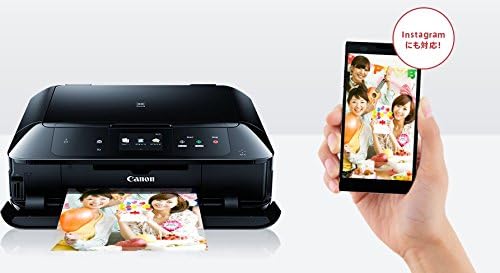
Figure 4.3: Printing photos wirelessly from a smartphone, highlighting Instagram compatibility.

Figure 4.4: Visual representation of PIXUS Cloud Link connectivity with various online services.
5. メンテナンス
定期的なメンテナンスにより、プリンターの最適なパフォーマンスと寿命が確保されます。
5.1 インクカートリッジの交換
When an ink cartridge runs low or is empty, a message will appear on the LCD screen. Replace cartridges as follows:
- プリンタの電源が入っていることを確認してください。上部カバーを開けてください。
- 空のカートリッジのタブを押して解除し、持ち上げて取り出します。
- Unpack a new genuine Canon BCI-371 or BCI-370 series ink cartridge.
- Insert the new cartridge into the correct slot and push down until it clicks.
- 上部カバーを閉じます。
5.2 プリントヘッドのクリーニング
If print quality declines (e.g., streaks, faded colors), perform a print head cleaning:
- From the printer's touch panel, navigate to "Setup" > "Maintenance" > "Cleaning".
- Follow the on-screen prompts to perform a standard or deep cleaning.
- Print a nozzle check pattern to verify improvement.
5.3一般的なクリーニング
- プリンタの外側を柔らかくて乾いた布で拭いてください。amp糸くずの出ない布。
- Clean the scanner glass regularly with a glass cleaner and a soft cloth to prevent dust and smudges from affecting scan quality.
- Periodically clean the paper feed rollers using the maintenance option in the printer's menu to prevent paper jams.
6。 トラブルシューティング
This section addresses common issues you might encounter with your PIXUS MG7730 printer.
6.1 プリンターが応答しない
- プリンタの電源がオンになっているかどうかを確認します。
- 電源コードがしっかりと接続されていることを確認してください。
- Ensure the printer is properly connected to your computer or network (Wi-Fi status light should be on).
- プリンターとコンピューター/ルーターの両方を再起動します。
6.2 印刷品質が悪い
- インクレベルを確認し、空または残量が少ないカートリッジを交換します。
- プリントヘッドのクリーニングとノズルのチェックを実行します(セクション5.2を参照)。
- Ensure you are using genuine Canon ink cartridges and appropriate paper types for your print settings.
- Align the print head if print quality issues persist.
6.3 紙詰まり
- プリンタの電源を切り、電源コードを抜きます。
- すべてのカバーを慎重に開き、破れないようにゆっくりと引っ張りながら詰まった用紙を取り除きます。
- Check both front and rear paper trays, as well as the internal paper path.
- 用紙が正しくセットされており、過剰にセットされていないことを確認します。
- すべてのカバーを閉じ、電源コードを差し込み、プリンタの電源をオンにします。
6.4 ネットワーク接続の問題
- Wi-Fi ルーターが正しく機能していることを確認します。
- プリンターが Wi-Fi ルーターの範囲内にあることを確認してください。
- Re-enter your Wi-Fi password on the printer's touch panel.
- If using a direct connection, ensure your smart device's Wi-Fi is enabled and connected to the printer's direct connection network.
7. 仕様
| 特徴 | 仕様 |
|---|---|
| モデル名 | MG7730 |
| ブランド | キヤノン |
| 製品寸法(奥行き×幅×高さ) | 37 x 43.5 x 14.8 cm |
| アイテム重量 | 9.32キログラム |
| 色 | 黒 |
| プリンタ出力 | 色 |
| 印刷技術 | Inkjet (Photo Print, Document Print, Copy, Scan) |
| 最大印刷解像度(カラー) | 9600 x 2400 dpi |
| 最大印刷速度(カラー) | 10ページ/分 |
| 最大印刷速度(モノクロ) | 15ページ/分 |
| スキャナタイプ | 写真 |
| 最大シート容量 | 125枚 |
| シートサイズ | A4, Hagaki (Postcard) |
| 両面印刷 | はい(自動) |
| 接続技術 | NFC、Wi-Fi |
| ワイヤレスタイプ | 802.11n |
| 対応デバイス | スマートフォン、タブレット |
| 立ち画面表示サイズ | 3.5インチ |
| 特集 | Wireless LAN (Wi-Fi), Memory card printing, Disc label printing, Wired LAN, LCD monitor, Automatic duplex printing, Smartphone compatible, Wi-Fi Direct, 2-stage paper tray |
| メーカーにより製造中止 | いいえ |
8. 保証とサポート
Your Canon PIXUS MG7730 printer comes with a standard manufacturer's warranty. For detailed information regarding warranty terms, coverage, and duration, please refer to the warranty card included with your product or visit the official Canon webあなたの地域のサイト。
テクニカルサポート、ドライバーのダウンロード、その他のリソースについては、キヤノンのサポートをご覧ください。 website or contact Canon customer service. Keep your product model number (MG7730) and serial number handy when seeking support.
キヤノンサポート Webサイト: キヤノン