
1. はじめに
The Aputure Amaran HR672S is a high-performance LED video light panel designed for professional photography and videography. Featuring a high Color Rendering Index (CRI) of 95+, it ensures accurate and vibrant color reproduction. This light panel operates at a fixed color temperature of 5500K, providing a daylight-balanced output. It includes a wireless remote control for convenient adjustments and can be powered by either an AC adapter or NP-F series batteries.
2. 安全情報
- Do not operate the light panel with wet hands or in damp 環境。
- 電源のボリュームを確認してくださいtage は製品の要件 (110 ~ 240V) に適合します。
- 不快感や損傷を引き起こす可能性があるため、LED ライトを目に直接当てないようにしてください。
- Keep the light panel away from flammable materials.
- Do not disassemble or modify the product. Refer servicing to qualified personnel.
- Always use the provided power adapter and recommended batteries.
- 過熱を防ぐために、運転中は適切な換気を確保してください。
3. パッケージ内容
以下にリストされているすべてのアイテムがパッケージに含まれていることを確認してください。
- 1 x Aputure Amaran HR672S LED Light Panel
- ワイヤレスリモコン x 1
- 1 x Power Adapter (AC 110-240V to DC 15V)
- 1 x Light Bracket with 1/4 to 3/8 Screw
- 1 x White Diffusion Filter
- 1 x Orange Diffusion Filter
- キャリーバッグ x 1。
- ユーザーマニュアル(英語)1冊
- 2 x NP-F970 Batteries (if included in specific kit)
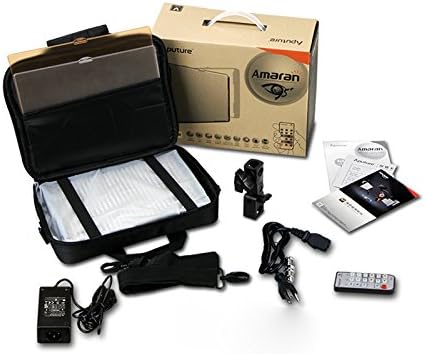
Image: All components included in the Aputure Amaran HR672S LED Video Light Panel package, neatly arranged.
4.製品オーバーview
4.1フロント View
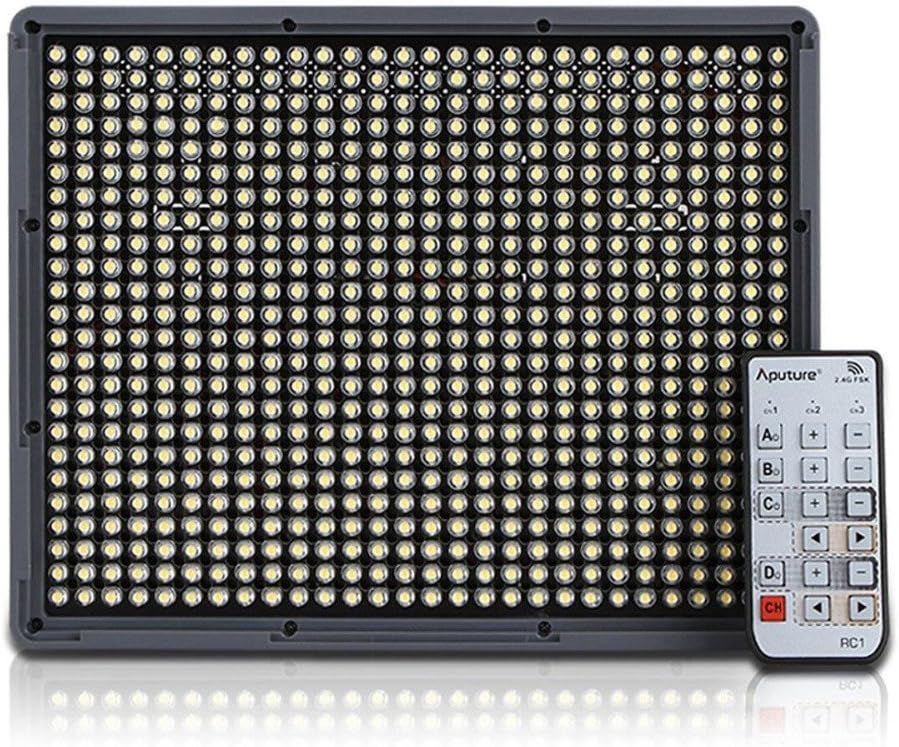
Image: The front face of the Aputure Amaran HR672S LED light panel, showing the array of 672 LED bulbs.
4.2 Back Panel Controls and Battery Slots

Image: The rear of the light panel, displaying the digital display, power switch, dimmer knob, channel/group buttons, and dual NP-F battery slots.
4.3 Diffusion Filter Installation

Image: A hand demonstrating the process of sliding a diffusion filter into the designated slot on the light panel.
5. セットアップ
5.1 ライトパネルの取り付け
- Attach the provided light bracket to the 1/4-inch screw thread at the bottom of the HR672S light panel.
- Secure the light bracket onto a standard light stand or tripod using the 1/4-inch or 3/8-inch screw adapter. Tighten securely.
- Adjust the angle of the light panel using the tilt mechanism on the bracket.
5.2 ライトパネルの電源供給
The HR672S can be powered in two ways:
- AC電源: Connect the DC 15V power adapter to the DC input port on the back of the light panel. Plug the adapter into a suitable wall outlet (110-240V).
- バッテリー電源: Insert two fully charged NP-F series batteries (e.g., NP-F970) into the battery slots on the back of the light panel. Ensure they click into place. The light will automatically draw power from the batteries when AC power is not connected or is interrupted.
5.3 Attaching Diffusion Filters
Slide either the white or orange diffusion filter into the grooves on the front of the light panel. The white filter provides softer light, while the orange filter can be used for color correction or creative effects.
6. 操作
6.1 電源オン/オフ
Locate the power switch on the back of the light panel. Flip it to the 'ON' position to power on the device. Flip it to 'OFF' to power off.
6.2 明るさの調整
Rotate the dimmer knob on the back panel to adjust the light intensity. The brightness level will be displayed on the digital screen.
6.3 ワイヤレスリモコンの使用
The HR672S comes with a 2.4GHz wireless remote control for convenient operation.
- チャンネルの設定: Press the 'Channel' button on the light panel to cycle through available channels (1-3). Ensure the remote control is set to the same channel.
- グループの設定: Press the 'Group' button on the light panel to assign it to a group (A, B, C, D). The remote control can then control lights assigned to specific groups or all groups simultaneously.
- リモート操作: Use the corresponding buttons on the remote to power on/off, adjust brightness, and select channels/groups.
6.4色温度
The Aputure Amaran HR672S has a fixed color temperature of 5500K. No adjustment is needed or possible for color temperature on this model.
7. メンテナンス
- クリーニング: Use a soft, dry cloth to clean the light panel. Do not use abrasive cleaners or solvents.
- ストレージ: 使用しないときは、ライトパネルをキャリーバッグに入れて、直射日光や湿気を避け、涼しく乾燥した場所に保管してください。
- バッテリーのケア: If using batteries, remove them if the light will not be used for an extended period. Store batteries in a cool, dry place.
- ケーブル検査: Regularly inspect power cables and connections for any signs of damage. Replace damaged cables immediately.
8。 トラブルシューティング
| 問題 | 考えられる原因 | 解決 |
|---|---|---|
| ライトが点灯しない | No power supply; Batteries depleted; Power switch off | Check AC adapter connection; Replace/recharge batteries; Ensure power switch is 'ON' |
| リモコンが動作しない | Incorrect channel/group; Remote battery depleted; Obstruction | Match channel/group on light and remote; Replace remote battery; Ensure clear line of sight |
| 光がちらつく | Unstable power; Faulty connection; Overheating | Ensure stable power source; Check all cable connections; Allow light to cool down |
| Light output is too harsh | No diffusion filter used | Attach the white diffusion filter to soften the light |
9. 仕様
| 特徴 | 詳細 |
|---|---|
| モデル | Amaran HR672S |
| クリ | 95以上 |
| 力 | 45W |
| ビーム角度 | 25度 |
| 色温度 | 5500K |
| 電源入力 | 交流110-240V |
| 電源 | DC15V |
| リモート周波数 | 2.4GHz |
| リモートチャネル | 3 |
| Remote Groups | 4 (A/B/C/D) |
| Luminous Flux (0.5m) | 18800ルクス |
| Luminous Flux (1m) | 6040ルクス |
| アイテム重量 | 4ポンド(約1.81kg) |
| パッケージ寸法 | 10.9 x 8.8 x 4.8インチ(約27.7 x 22.4 x 12.2 cm) |
| 電池が必要 | 2 Lithium Ion (NP-F series) |
10. 保証とサポート
Aputure products are covered by a limited warranty. For specific warranty terms and conditions, please refer to the warranty card included with your product or visit the official Aputure website. For technical support, troubleshooting assistance, or service inquiries, please contact Aputure customer support through their official channels.
オンラインリソース:
- 公式Aputure Webサイト: www.aputure.com
- 製品サポートページ: 公式 web特定の製品のサポート ページのサイト。