
1. はじめに
This manual provides essential information for the safe and efficient operation of your Canon PIXMA iP8720 Wireless Inkjet Photo Printer. Please read this manual thoroughly before using the printer and retain it for future reference. The Canon PIXMA iP8720 is designed for high-quality photo and document printing, supporting various media sizes up to 13" x 19".
2. 安全情報
- 損傷や怪我を防ぐために、プリンターは常に安定した水平な場所に置いてください。
- 通気口を塞がないでください。プリンターの周囲に十分なスペースを確保し、適切な空気の流れを確保してください。
- Use only the power cord supplied with the printer. Connect it to a grounded electrical outlet.
- プリンターを水や過度の湿気から遠ざけてください。
- プリンターをご自身で分解したり修理したりしないでください。資格のあるサービス担当者にご相談ください。
- インクカートリッジは子供の手の届かないところに保管してください。
3. パッケージ内容
パッケージにすべてのアイテムが揃っていることを確認します。
- Canon PIXMA iP8720 Wireless Inkjet Photo Printer
- セットアップCD-ROM(Windows/Mac用)
- 電源コード
- Setup Ink Tanks (PGI-250 Pigment Black, CLI-251 Cyan, CLI-251 Magenta, CLI-251 Yellow, CLI-251 Gray, CLI-251 Black)
- プリントヘッド
- USBケーブル(別売りの場合があります)
- マニュアルおよびその他の文書
4. セットアップ
4.1. Unboxing and Physical Placement
Carefully remove the printer from its packaging. Remove all protective tapes and packing materials. Place the printer on a flat, stable surface with adequate space for paper loading and output. Connect the power cord to the printer and a wall outlet.

図1: 前面 view of the Canon PIXMA iP8720 printer with a photo being printed.
4.2. Ink Tank Installation
- プリンタの上部カバーを開きます。
- 各インクタンクをパッケージから取り出します。
- Carefully insert each ink tank into its corresponding slot, matching the color and shape. Press down until it clicks into place.
- 上カバーを閉じます。プリンターは初期セットアッププロセスを実行します。

図2: 内部 view of the Canon PIXMA iP8720 printer showing the ink tank compartments.
4.3。 ソフトウェアとドライバーのインストール
Insert the Setup CD-ROM into your computer's drive and follow the on-screen instructions. Alternatively, download the latest drivers and software from the official Canon website by searching for "Canon iP8720 drivers".
4.4. ワイヤレス(Wi-Fi)設定
The Canon iP8720 supports wireless connectivity. For optimal performance, ensure your Wi-Fi network is stable and strong. If you encounter connectivity issues, consider connecting the printer directly to your computer via a USB cable for a more reliable and faster data transfer.
ビデオ1: オーバーview of the Canon IP8720 Wireless Printer, highlighting its features and connectivity options.
5. プリンターの操作
5.1.用紙のセット
Open the paper support and extend the output tray. Adjust the paper guides to fit the width of your paper. Load paper into the rear tray with the print side facing up. The printer supports various paper types and sizes, including glossy photo paper and large formats up to 13" x 19".
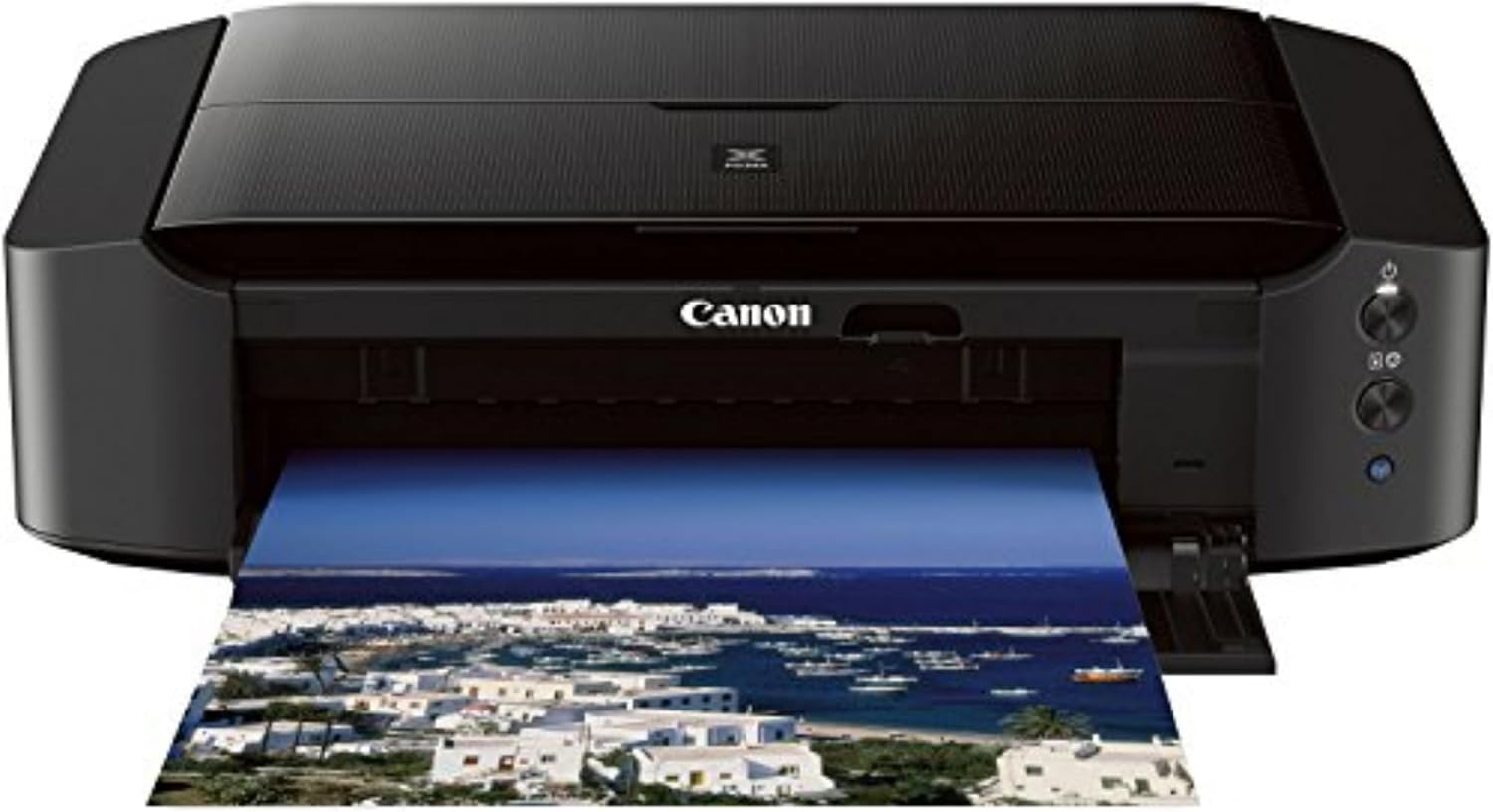
Figure 3: The Canon PIXMA iP8720 printer with paper loaded in the rear tray, ready for printing.
5.2. 文書と写真の印刷
From your computer or mobile device, select the document or photo you wish to print. Access the print settings to choose paper type, size, print quality (e.g., standard, high), and other options. Confirm your selections and initiate the print job. The printer offers fast print speeds of 14.5 images per minute (ipm) for black and 10.4 ipm for color.
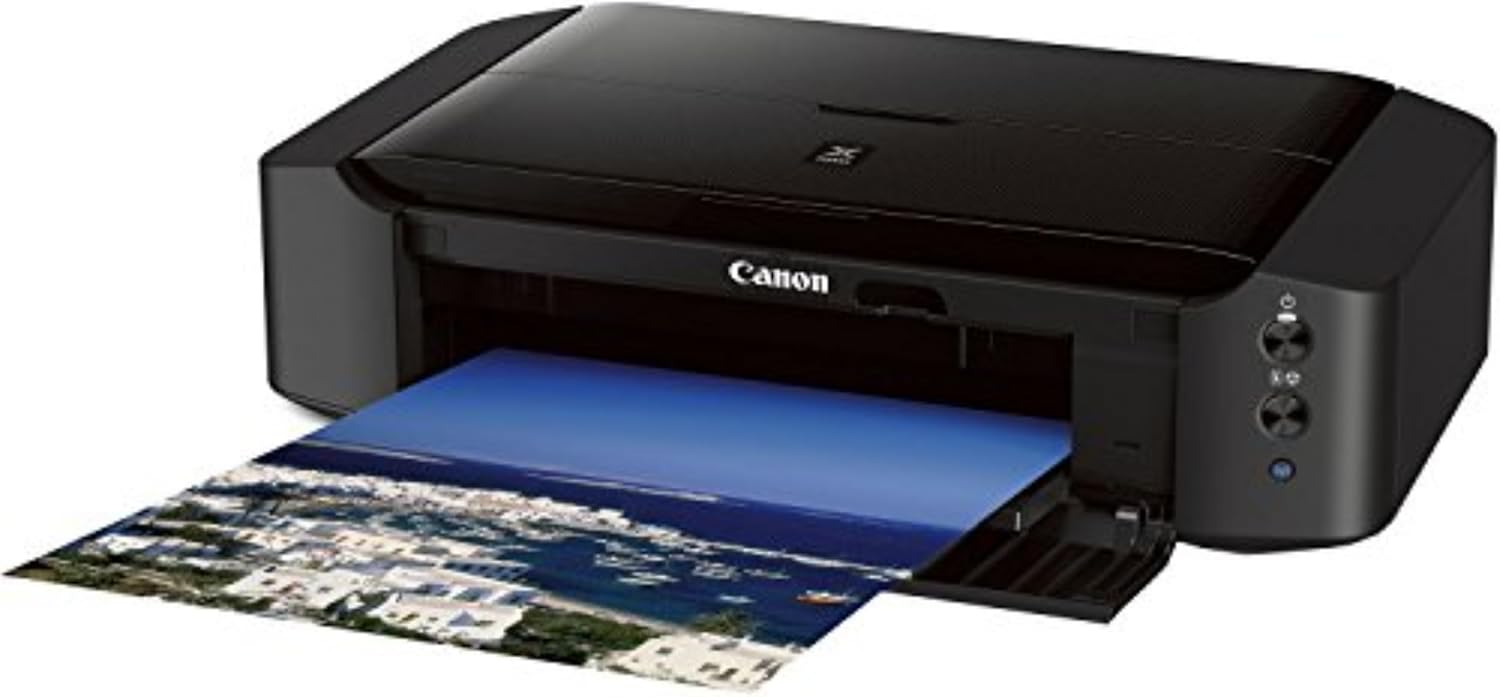
Figure 4: The Canon PIXMA iP8720 printer in operation, with a printed photo emerging from the front output tray.
5.3. Special Printing Features
- フチなし印刷: Print photos without margins up to 13" x 19".
- CD/DVD Printing: Utilize the included disc tray to print directly onto compatible CDs and DVDs.
- エアプリント: Print wirelessly from compatible iPhone, iPad, or iPod touch devices without needing drivers.
- Google クラウド プリント: Print from Gmail and Google Docs on mobile devices, or from Google Chrome browser on various operating systems.
- PIXMA Printing Solutions (PPS): Use the free PPS app to print photos and documents from your compatible mobile device.
- フルHDムービープリント: Software that allows printing still images from Full HD movie clips captured with select Canon cameras.
- 私のイメージガーデン: Software for organizing and printing photos with features like facial recognition and automatic layout suggestions.
- クリエイティブパークプレミアム: An exclusive service for users of genuine Canon inks, offering access to photos, templates, and more.
- 静音モード: Reduces operational noise for printing in quiet environments.
- ワイヤレスPictBridge: Print photos directly from a wireless PictBridge (DPS over IP) compatible camera without a computer.
6. メンテナンス
6.1. インクタンクの交換
When an ink tank runs low or is empty, the printer's indicator light will signal. Replace empty tanks with genuine Canon ink tanks (PGI-250 Pigment Black, CLI-251 Cyan, CLI-251 Magenta, CLI-251 Yellow, CLI-251 Gray, CLI-251 Black). Using non-genuine inks may affect print quality and printer longevity.
6.2. Print Head Cleaning and Alignment
If print quality degrades (e.g., streaks, faded colors), perform a print head cleaning or alignment through the printer's utility software on your computer. Regular maintenance helps maintain optimal print quality.
6.3.一般的なクリーニング
プリンタの外側を柔らかくて乾いた布で拭いてください。amp 布で拭いてください。研磨剤入りの洗剤や溶剤の使用は避けてください。用紙搬送路にほこりやゴミが付着しないようにしてください。
7。 トラブルシューティング
- プリンターが応答しません: Check power connections, USB cable (if wired), and Wi-Fi connection. Restart the printer and computer.
- 印刷品質が悪い: Perform print head cleaning and alignment. Ensure genuine Canon ink tanks are used and not expired. Check paper type settings.
- 紙詰まり: Carefully remove any jammed paper following the instructions in the printer's on-screen guide or Canon support webサイト。
- ワイヤレス接続の問題: Ensure your router is functioning correctly and the printer is within range. Re-run the wireless setup process. Consider a wired USB connection if wireless remains unstable.
For further assistance, refer to the comprehensive help section on the official Canon webサイトをご覧いただくか、キヤノンのカスタマーサポートにお問い合わせください。
8. 仕様
| 製品寸法 | 奥行き13.1インチ x 幅23.3インチ x 高さ6.3インチ |
| アイテム重量 | 18.6 ポンド |
| 印刷技術 | インクジェット |
| 接続技術 | Wi-Fi, Wired (USB) |
| 最大メディアサイズ | 13 x 19インチ |
| 最大カラー印刷解像度 | 9600 x 2400 dpi |
| 最大印刷速度(モノクロ) | 14.5ppm |
| 最大印刷速度(カラー) | 10.4ppm |
| インク色 | Black, Gray, Cyan, Magenta, Yellow |
| 特集 | Borderless Printing, Auto Power On, CD-Printing, Auto Power Off |
| モデル番号 | 8746B002 |
| 欧州連合 | 013803230840 |
9. 保証とサポート
The Canon PIXMA iP8720 Wireless Inkjet Photo Printer comes with a limited warranty. For detailed warranty information, product support, and service, please visit the official Canon webご購入の際は、ウェブサイトをご覧いただくか、カスタマーサービスまでお問い合わせください。保証請求の際は、購入証明としてレシートを保管してください。