
1.製品オーバーview
The TP-Link TL-WA750RE is a 150Mbps Universal Wireless Range Extender designed to expand the coverage of an existing wireless network. It eliminates Wi-Fi dead zones by boosting the wireless signal to previously unreachable or hard-to-wire areas. Its compact, wall-mounted design allows for flexible deployment and easy relocation within your home or office.
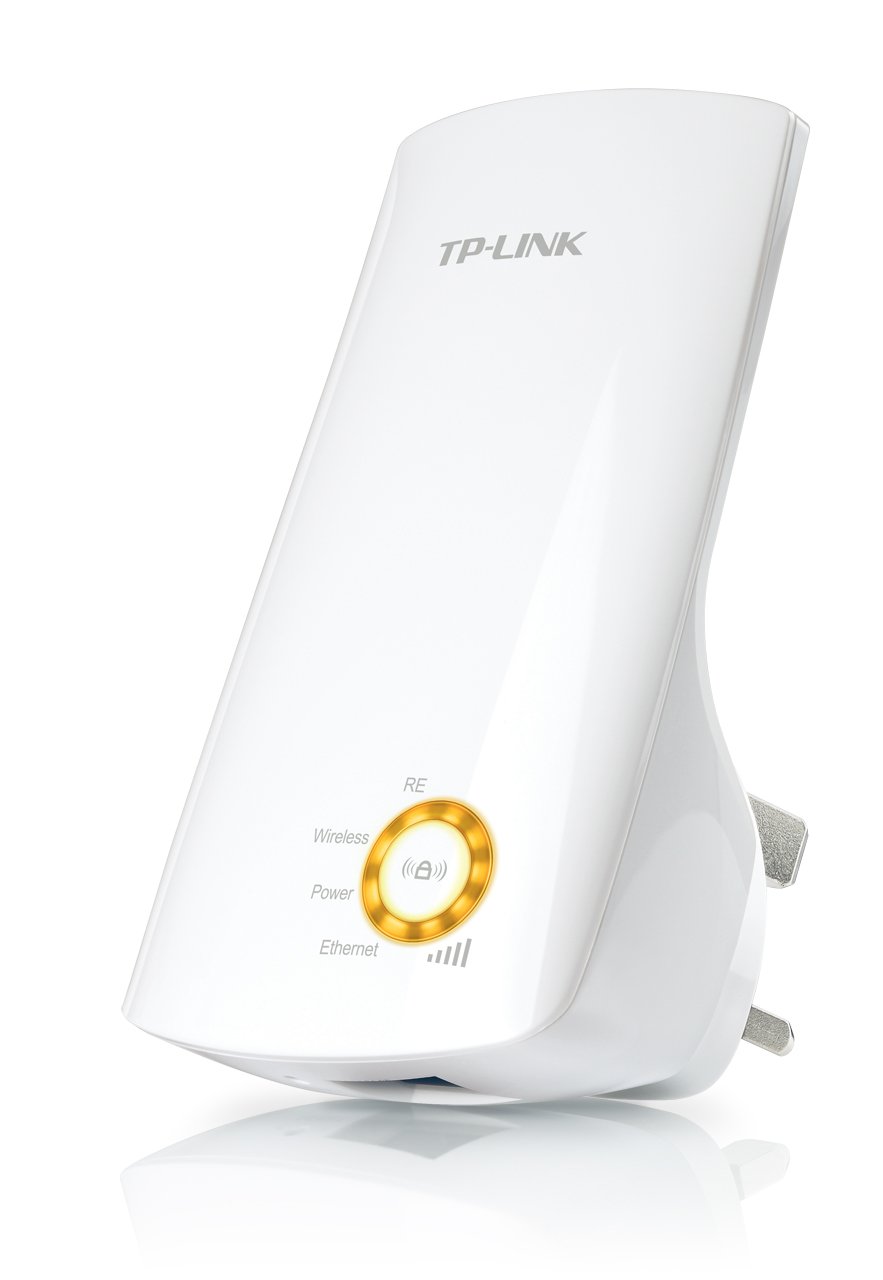
図1: TP-Link TL-WA750RE Universal Wireless Range Extender. This image shows the device in its retail packaging, highlighting its compact design and wall-plug form factor.
2. 主な特徴
- レンジエクステンダーモード: Boosts wireless signal to eliminate Wi-Fi dead zones and extend network coverage.
- コンパクトなデザイン: Small size and wall-mounted design for easy deployment and flexible movement.
- WPS ボタン: Allows for instant setup and secure connection with compatible routers.
- スマートシグナルインジケーター: Helps users find the optimal location for placing the range extender for best performance.
- ユニバーサル互換性: Works seamlessly with all 802.11n/g/b wireless devices.
3. パッケージ内容
製品パッケージには通常、次の項目が含まれます。
- TP-Link TL-WA750RE 150Mbps Universal Wireless Range Extender
- 取扱説明書
4.セットアップガイド
4.1. WPSボタンを使ったクイックセットアップ
- プラグイン: TL-WA750RE をワイヤレス ルーターの近くの電源コンセントに差し込みます。
- ルーターでWPSを有効にする: Press the WPS button on your main wireless router. Refer to your router's manual for the exact location and procedure.
- エクステンダーでWPSを有効にする: Within two minutes, press the WPS button on the TL-WA750RE. The Signal LED on the extender should begin to flash.
- 接続を待つ: The Signal LED will turn solid blue or green when a successful connection is established.
- エクステンダーを再配置します: Unplug the extender and move it to a location between your router and the Wi-Fi dead zone. Ensure the Signal LED indicates a strong connection (e.g., solid blue or green) in the new location.
4.2. 手動設定 Web ブラウザ
- プラグイン: Plug the TL-WA750RE into an electrical outlet near your computer.
- エクステンダーに接続: Connect your computer to the extender's Wi-Fi network (e.g., "TP-LINK_Extender_XXXXXX"). No password is required initially.
- アクセス Web インタフェース: 開く web ブラウザとタイプ http://tplinkrepeater.net or the extender's default IP address (usually 192.168.0.254) into the address bar.
- ログイン: Enter "admin" for both the username and password when prompted.
- 画面上の指示に従ってください: Use the Quick Setup wizard to select your main Wi-Fi network and enter its password.
- エクステンダーを再配置します: Once configured, unplug the extender and move it to an optimal location between your router and the desired coverage area.
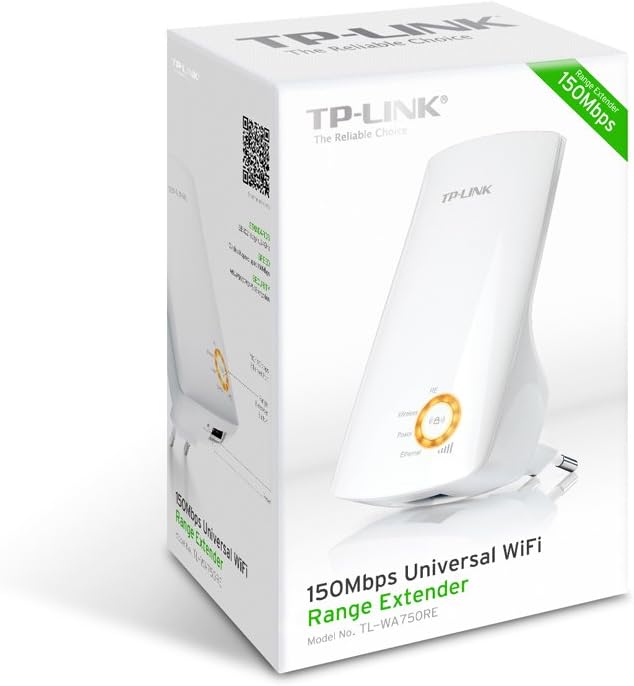
図2: 側 view of the TL-WA750RE. This image illustrates the physical layout of the device, including the WPS button and Ethernet port, which are crucial for setup and operation.
5. レンジエクステンダーの操作
Once the TL-WA750RE is successfully set up, it will automatically extend your existing Wi-Fi network. Devices within the extended range can connect to the network name created by the extender (e.g., "YourNetworkName_EXT").
5.1. スマート信号インジケーター
The Smart Signal Indicator LEDs on the front of the device provide real-time feedback on the signal strength received from your main router. This helps you determine the best placement for the extender:
- 青/緑の点灯: Excellent signal strength.
- 赤一色: Weak signal strength. Consider relocating the extender closer to your router.
- オフ: No connection to the main router.
5.2. イーサネットポートの使用
The TL-WA750RE includes an Ethernet port. This port can be used to connect a wired device, such as a desktop computer, gaming console, or smart TV, to your wireless network, providing a stable wired connection in the extended Wi-Fi area.
6. メンテナンス
- クリーニング: デバイスの清掃には、柔らかく乾いた布をご使用ください。液体クリーナーやエアゾールクリーナーは使用しないでください。
- 配置: エクステンダーを直射日光の当たる場所、熱源の近く、湿度の高い場所に置かないでください。
- ファームウェアの更新: TP-Linkの公式ウェブサイトを定期的にチェックしてください web最適なパフォーマンスとセキュリティを確保するために、ファームウェアの更新についてはサイトをご覧ください。
- 電源サイクル: デバイスに問題が発生した場合は、電源コンセントからプラグを抜き、10 秒間待ってから再度差し込んでみてください。
7。 トラブルシューティング
- Q1: エクステンダーにアクセスできない場合はどうすればよいですか? web 管理ページですか?
- A1: Ensure your computer is connected to the extender's network. Verify that http://tplinkrepeater.net is correctly typed in the browser. If issues persist, try using the extender's IP address (e.g., 192.168.0.254) or reset the extender to factory defaults.
- Q2: My extended network has poor signal or frequent disconnections.
- A2: Check the Smart Signal Indicator on the extender. If it's red or off, the extender is too far from your main router. Relocate the extender to a position where the indicator shows a strong signal (solid blue/green). Ensure there are no major obstructions between the router and the extender.
- Q3: エクステンダーを工場出荷時の設定にリセットするにはどうすればよいですか?
- A3: With the extender powered on, use a pin to press and hold the Reset button (usually a small hole) for approximately 5-10 seconds until all LEDs flash briefly. The extender will then restart with factory default settings.
8. 仕様
| ブランド | TPリンク |
| モデル番号 | TL-WA750RE |
| ワイヤレス標準 | 802.11b/g/n |
| データ転送速度 | 150 Mbps |
| 頻度 | 2.4GHz帯 |
| 特集 | Smart Signal Indicator, WPS Button |
| コネクタタイプ | RJ45(イーサネットポート) |
| アイテム重量 | 0.4 ポンド |
| 色 | 白 |
9. 保証とサポート
9.1. 保証情報
This TP-Link TL-WA750RE device comes with a 2年間保証 ご購入日から1年間有効です。保証請求の際は、購入証明書を保管してください。保証は、通常の使用における材料および製造上の欠陥を対象とします。
9.2. テクニカルサポート
技術的なサポート、トラブルシューティング、その他のお問い合わせについては、TP-Linkの公式サポートをご覧ください。 website or contact their customer service. You can find detailed support resources, FAQs, and contact information at www.tp-link.com/support.