
導入
This manual provides essential information for the proper use and care of your Beats Studio Wireless Over-Ear Headphones. Please read these instructions carefully before using your headphones to ensure optimal performance and longevity. The Beats Studio Wireless headphones offer a premium audio experience with wireless connectivity and Adaptive Noise Canceling technology.
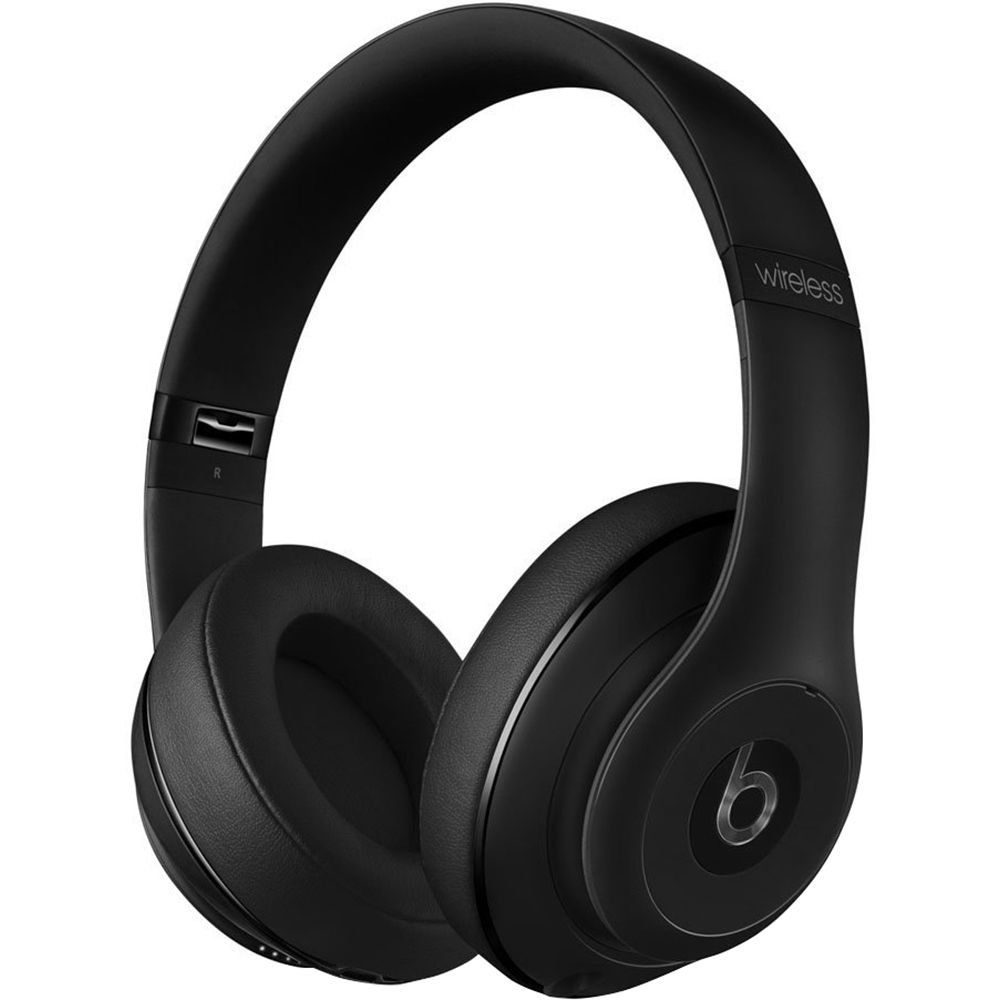
Image: Beats Studio Wireless Over-Ear Headphones in Matte Black, showcasin洗練されたデザイン。
箱の中身
パッケージにすべてのアイテムが含まれていることを確認します。
- Beats Studio Wireless over-ear headphones
- 3.5mm audio cable with RemoteTalk (for wired connection and controls)
- Standard 3.5 mm audio cable (for wired connection without RemoteTalk features)
- USB 2.0 cable (USB-A to USB Micro-B) for charging
- Hard-shell carrying case with carabiner clip

Image: The Beats Studio Wireless headphones, hard-shell carrying case, and various cables laid out from the packaging.
設定
1. ヘッドフォンを充電する
Before first use, fully charge your Beats Studio Wireless headphones. A full charge provides approximately 12 hours of wireless playback or 20 hours of wired playback with Adaptive Noise Canceling enabled.
- Connect the small end of the USB 2.0 cable (USB-A to USB Micro-B) to the Micro-USB port on the right earcup of the headphones.
- Connect the larger end of the USB cable to a USB power adapter (not included) or a powered USB port on a computer.
- The Fuel Gauge LEDs on the right earcup will indicate charging status. When all five LEDs are solid white, the headphones are fully charged.
注記: The headphones cannot be used while charging.
2.Bluetoothペアリング
ヘッドフォンを Bluetooth 対応デバイスとペアリングして、ワイヤレス オーディオを実現します。
- ヘッドフォンが充電され、電源がオフになっていることを確認してください。
- Press and hold the power button on the right earcup for 3-5 seconds until the Fuel Gauge LEDs begin to pulse. This indicates pairing mode.
- デバイスで Bluetooth 設定に移動し、Bluetooth を有効にします。
- Select "Beats Studio Wireless" from the list of available devices.
- Once paired, the Fuel Gauge LEDs will turn solid white.
The headphones have a Bluetooth range of up to 30 feet (9 meters).
3.有線接続
For a wired connection, use the provided 3.5mm audio cables.
- Plug one end of the 3.5mm audio cable into the audio input port on the left earcup.
- もう一方の端をデバイスの 3.5 mm オーディオ出力ジャックに差し込みます。
The RemoteTalk cable allows for inline control of music and calls when connected to compatible devices.
操作手順
1. 電源のオン/オフ
- 電源を入れるには: Press and hold the power button on the right earcup until the Fuel Gauge LEDs illuminate.
- 電源を切るには: Press and hold the power button until the Fuel Gauge LEDs turn off.
2. Controls (Wireless Mode)
The "b" button on the left earcup and the volume buttons control playback and calls.
- 再生/一時停止: Press the "b" button once.
- 次のトラック: Press the "b" button twice quickly.
- 前のトラック: Press the "b" button three times quickly.
- ボリュームアップ: 一番上の音量ボタンを押します。
- ボリュームダウン: 下の音量ボタンを押します。
- 通話の応答/終了: Press the "b" button once during an incoming call or active call.
- 通話を拒否: Press and hold the "b" button for 2 seconds during an incoming call.
- 音声アシスタントを有効にする: Press and hold the "b" button for 2 seconds (functionality depends on device).
3. Adaptive Noise Canceling (ANC)
The Beats Studio Wireless headphones feature Dual-Mode Adaptive Noise Canceling. ANC is automatically active when the headphones are powered on. There are two modes:
- Full ANC: Engaged when listening to music or media, providing maximum noise reduction.
- ANC Only: When the audio cable is unplugged and the headphones are powered on, ANC will automatically switch to a more aggressive mode to reduce external noise without playing audio.
メンテナンス
1. 清掃
ヘッドフォンの外観とパフォーマンスを維持するには:
- イヤーカップとヘッドバンドを、柔らかく乾いた糸くずの出ない布で拭いてください。
- 研磨剤入りの洗剤、アルコール、化学溶剤は使用しないでください。
- 開口部に湿気が入らないようにしてください。
2. ストレージ
When not in use, store your headphones in the provided hard-shell carrying case to protect them from damage.
- Fold the headphones carefully to fit into the case.
- Keep headphones away from extreme temperatures and humidity.
3. バッテリーのお手入れ
バッテリー寿命を延ばすには:
- バッテリーを頻繁に完全に放電することは避けてください。
- 長期間使用しない場合でも、定期的にヘッドフォンを充電してください。
- 涼しく乾燥した場所に保管してください。
トラブルシューティング
If you encounter issues with your Beats Studio Wireless headphones, try the following solutions:
電源が入らない/電源が入らない
- ヘッドホンが完全に充電されていることを確認してください。USBケーブルを使って電源に接続してください。
- USB ケーブルと充電ポートに損傷がないか確認してください。
音が出ない / 断続的な音声
- 無線:
- Ensure headphones are paired and connected to your device.
- ヘッドフォンとデバイスの両方の音量レベルを確認してください。
- Move closer to your device to avoid interference or exceeding Bluetooth range.
- ヘッドフォンとデバイスのペアリングを解除し、再度ペアリングしてみてください。
- 有線:
- Ensure the 3.5mm audio cable is securely plugged into both the headphones and your audio source.
- Try a different 3.5mm audio cable if available.
ペアリングの問題
- Ensure the headphones are in pairing mode (pulsing Fuel Gauge LEDs).
- デバイスの Bluetooth をオフにしてからオンにします。
- Forget "Beats Studio Wireless" from your device's Bluetooth list and attempt to pair again.
- 他の Bluetooth デバイスがペアリング プロセスに干渉していないことを確認します。
Adaptive Noise Canceling (ANC) Not Working
- Ensure the headphones are powered on. ANC requires power.
- Check for any obstructions around the external microphones on the earcups.
仕様
Key technical specifications for the Beats Studio Wireless Over-Ear Headphones:
- モデル名: スタジオ
- 接続技術: Bluetooth (Wireless), 3.5 mm Jack (Wired)
- ワイヤレス通信技術: ブルートゥース
- Bluetooth範囲: 最大30フィート(9メートル)
- 騒音制御: Active Noise Cancellation (Dual-Mode Adaptive Noise Canceling)
- バッテリー寿命: Approximately 12 hours (wireless), 20 hours (wired with ANC)
- 電池のタイプ: リチウムイオン電池1個(充電式)
- コントロールタイプ: Media Control (on-earcup "b" button, volume buttons)
- マイクロフォン: ハンズフリー通話機能内蔵
- フォームファクター: オーバーイヤー
- 耳の配置: オーバーイヤー
- 材料: プラスチック
- 商品の重量: 約9.2オンス(0.26キログラム)
- 製品寸法: 9.6 x 7.3 x 4.5インチ
- メーカー: Beats Electronics、LLC
- 発売日: 1年2013月XNUMX日

画像: クローズアップ view of the headphone's inner band, displaying the model number B0501.
保証とサポート
For warranty information and customer support, please refer to the official Beats web購入サイトをご覧いただくか、カスタマーサービスに直接お問い合わせください。保証請求のために購入証明書を保管してください。
注記: This product is an older model. Specific warranty terms may vary based on purchase date and region. Please consult the manufacturer's official resources for the most accurate and up-to-date information.
さらにサポートが必要な場合は、次のサイトをご覧ください。 Beatsサポート