
1. はじめに
The Canon PowerShot S110 is a compact digital camera designed for high-quality imaging and versatile shooting. It features a 12.1 Megapixel High-Sensitivity CMOS sensor, a DIGIC 5 Image Processor, and a bright f/2.0 lens with 5x Optical Zoom. This camera also includes built-in Wi-Fi for convenient image sharing and a capacitive touch panel LCD for intuitive operation. This manual provides essential information for setting up, operating, and maintaining your PowerShot S110 camera.

図1.1: フロント view Canon PowerShot S110デジタルカメラ。この画像では、カメラのレンズ、フラッシュ、そしてコンパクトなデザインが確認できます。
2. 箱の中身
パッケージに以下のすべての項目が含まれていることを確認してください。
- キヤノン PowerShot S110 デジタルカメラ
- バッテリーパック
- バッテリー充電器
- USBケーブル
- HDMIケーブル
- リストストラップ
- Software CD-ROM (for bundled software)
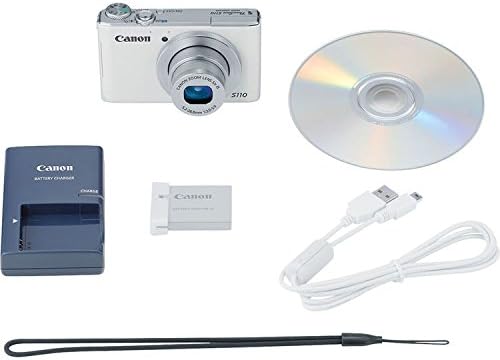
図2.1: The Canon PowerShot S110 camera alongside its standard accessories, including the battery, charger, cables, and software disc.
3. セットアップ
3.1. バッテリーの充電
- 付属のバッテリー パックを付属のバッテリー チャージャーに挿入します。
- 充電器を電源コンセントに差し込みます。充電表示ランプが点灯します。
- 充電が完了すると、インジケーターライトが点灯または消灯します。バッテリーを取り外してください。
3.2. バッテリーとメモリーカードの挿入
- カメラの底面にあるバッテリー/カード収納部のカバーを開きます。
- Insert the charged battery pack firmly until it clicks into place.
- Insert an SD/SDHC/SDXC memory card into the card slot with the label facing the correct direction, pushing until it clicks.
- 収納部カバーをしっかりと閉めてください。
3.3. 初期設定
Upon first power-on, you will be prompted to set the date, time, and language. Follow the on-screen instructions using the camera's controls or touch screen.
3.4.Wi-Fiへの接続
The PowerShot S110 features built-in Wi-Fi for image transfer. To connect:
- を押す メニュー button and navigate to the Wi-Fi settings.
- Select your desired connection method (e.g., connect to a smartphone, computer, or Wi-Fi printer).
- Follow the on-screen prompts to establish a connection. For smartphone connectivity, download the free Canon CameraWindow app.
4. 操作
4.1. 基本的な写真撮影
写真を撮るには:
- を押してカメラの電源を入れます 力 ボタン。
- 3.0 インチの LCD 画面を使用してショットをフレーミングします。
- シャッターボタンを半押ししてピントを合わせます。ピントが合うとフォーカスフレームが緑色に変わります。
- シャッターボタンを完全に押して画像を撮影します。
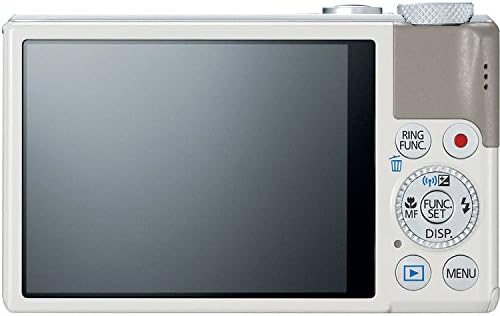
図4.1: 後方 view of the Canon PowerShot S110, showing the LCD screen, control buttons, and the control ring.
4.2.撮影モード
The PowerShot S110 offers various shooting modes accessible via the mode dial or menu:
- スマートオート: The camera automatically selects optimal settings based on the scene.
- プログラムAE(P): The camera sets aperture and shutter speed, while you control other settings like ISO and white balance.
- シャッター優先AE(Tv): シャッタースピードを設定すると、カメラが絞りを調整します。モーションブラーのコントロールに最適です。
- 絞り優先AE(Av): You set the aperture, and the camera adjusts the shutter speed. Useful for controlling depth of field.
- マニュアル(M): 絞り、シャッタースピード、ISO を完全に制御します。
- Custom (C): 好みの設定を保存して呼び出します。
- 特殊シーンモード(SCN): Includes modes like Portrait, Smooth Skin, Handheld Night Scene, Snow, and Fireworks for specific situations.
- クリエイティブフィルター: Apply effects such as Toy Camera Effect, Miniature Effect, Super Vivid, and Color Accent.
- 映画ダイジェスト: Records a short video clip before each still image and compiles them into a daily video.
4.3.ビデオ録画
To record Full HD (1080p) video:
- 専用の 映画 button (red dot icon) located on the rear of the camera.
- もう一度ボタンを押すと、録音が停止します。
The camera supports zooming during video recording, and audio is captured in stereo. Videos can be viewed on an HDTV via the HDMI output.
4.4. Image Stabilization (Intelligent IS)
The Intelligent IS system automatically selects the optimal image stabilization mode for your shooting conditions:
- 通常のIS: Corrects general camera movement for stills.
- パンニングIS: Disables vertical shake correction when panning horizontally.
- マクロ(ハイブリッド)IS: Corrects shift-type shake common in close-up photography.
- ダイナミックIS: Effective for video shooting at wide-angle, reducing shake while walking.
- パワードIS: Compensates for hand movement during telephoto video recording.
- 三脚IS: Automatically disables IS when a tripod is detected.
4.5. Touch Panel LCD and Control Ring
The 3.0-inch capacitive touch panel allows for intuitive control:
- タッチシャッター: Tap the screen to focus and take a picture.
- Playback Gestures: Use pinch-to-zoom and swipe gestures to navigate images.
- 設定の調整: Quickly select camera settings by tapping.
The control ring around the lens barrel can be customized to adjust settings such as focus, aperture, shutter speed, ISO, or exposure compensation. Use the dedicated RING FUNC. button to select its function.
4.6. RAW+JPEG Recording
The camera supports simultaneous recording of RAW and JPEG images, providing maximum flexibility for post-processing. RAW files capture all sensor data, while JPEG files are processed in-camera for immediate use.
4.7. GPS Tagギング
Utilize the Canon CameraWindow app on your smartphone to record GPS data. This data can then be wirelessly transferred to your camera to tag images with location information, aiding in organization.
4.8. Image Transfer and Printing
Images and videos can be transferred wirelessly to social networking sites via CANON iMAGE GATEWAY, to a PC, or to iOS/Android devices using the Canon CameraWindow app. You can also print directly to Wi-Fi compatible printers.
5. メンテナンス
5.1. カメラのクリーニング
- カメラ本体: 柔らかく乾いた布で拭いてください。頑固な汚れには、軽く湿らせた布を使用してください。amp水で洗い流し、完全に乾燥させてください。
- レンズ: レンズブロワーで埃を吹き飛ばし、レンズクリーニングクロスで優しく拭き取ってください。指でレンズ表面に触れないようにしてください。
- LCDスクリーン: Use a soft, dry cloth. For smudges, use a screen cleaner specifically designed for electronics.
Do not use organic solvents such as alcohol, benzene, or paint thinner, as these can damage the camera finish.
5.2. バッテリーのお手入れ
- バッテリーを使用しないときは、涼しく乾燥した場所に保管してください。
- バッテリーの寿命を延ばすために、バッテリーを頻繁に完全に放電することは避けてください。
- カメラを長期間使用しない場合は、バッテリーを取り外してください。
5.3. ストレージ
Store the camera in a dry, well-ventilated area, away from direct sunlight, high temperatures, and humidity. Consider using a desiccant to prevent mold growth, especially in humid environments.
6。 トラブルシューティング
6.1. カメラがオンにならない
- バッテリーが完全に充電され、正しく挿入されていることを確認してください。
- 電池ケースのカバーがしっかりと閉まっていることを確認してください。
6.2. Lens Error / Lens Not Extending
- Check for any obstructions around the lens barrel.
- Turn the camera off and then on again. If the error persists, contact customer support.
6.3. 画像がぼやけている
- レンズが汚れていないことを確認してください。
- Confirm that the camera has focused correctly (focus frame turns green).
- In low light, use a higher ISO setting or enable flash.
- Hold the camera steady or use a tripod, especially with slower shutter speeds.
6.4. Wi-Fi接続の問題
- Ensure your smartphone or computer's Wi-Fi is enabled and within range.
- Verify that the correct password or network settings are entered.
- Restart both the camera and the connecting device.
- Ensure the Canon CameraWindow app is updated to the latest version.
7. 仕様
| モデル名 | キヤノン パワーショット S110 |
| フォトセンサー解像度 | 12.1 MP |
| フォトセンサータイプ | シーモス |
| 光学ズーム | 5x |
| 最小焦点距離 | 24ミリメートル |
| 最大焦点距離 | 120ミリメートル |
| 最大絞り | 絞り値2.0 |
| 画像安定化 | 光学 |
| 表示タイプ | 3.0インチLCDタッチスクリーン |
| ビデオ解像度 | フルHD1000p |
| 接続性 | HDMI、USB、Wi-Fi |
| サポート File 形式 | JPEG、RAW |
| フラッシュメモリタイプ | SD/SDHC/SDXC |
| アイテム重量 | 6.98オンス |
8. 保証とサポート
8.1. 保証情報
The Canon PowerShot S110 Digital Camera comes with a 限定1年間保証. This warranty covers defects in materials and workmanship under normal use. For full terms and conditions, please refer to the warranty card included with your product or visit the official Canon webサイト。
8.2. カスタマーサポート
For technical assistance, service, or additional information, please contact Canon customer support. You can find contact details and support resources on the official Canon webサイト: www.usa.canon.com/support.
Before contacting support, please have your camera's model name (PowerShot S110) and serial number ready.