
導入
This manual provides comprehensive instructions for the installation, operation, and maintenance of your Dell DW1397 Broadcom 802.11a/b/g Wireless Card. Please read this manual carefully before proceeding with installation to ensure proper functionality and to avoid potential issues.
Important Compatibility Note: This wireless card is not compatible with IBM, Lenovo, Thinkpad, or HP brand laptops. Attempting to install it in these systems may result in non-functionality or system instability.
製品終了view

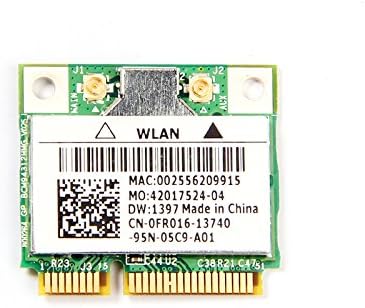
The Dell DW1397 Broadcom Wireless Card is an internal Mini PCI Express component designed to provide wireless network connectivity to compatible laptops. It supports 802.11a/b/g standards, operating on both 2.4 GHz and 5 GHz frequency bands, with a maximum data transfer rate of 54 Mbps.
- モデル: Dell DW1397 (Broadcom BCM94312HMG)
- 無線規格: 802.11a/b/g compliant
- 周波数帯域: 2.4GHzまたは5GHz
- データレート: 最大54Mbps
- インタフェース: ミニPCIエクスプレス
セットアップとインストール
Installing the Dell DW1397 wireless card requires opening your laptop. If you are not comfortable performing this procedure, it is recommended to seek assistance from a qualified technician. Ensure your laptop is powered off and disconnected from all power sources before beginning.
- ワークスペースを準備する: 清潔で静電気のない場所で作業してください。静電気防止リストストラップの使用を検討してください。
- Power Down Laptop: Shut down your laptop completely and remove the battery. Disconnect the AC adapter.
- Access Mini PCI Express Slot: Refer to your laptop's service manual for instructions on how to open the chassis and locate the Mini PCI Express slot. This often involves removing a bottom panel or keyboard.
- 古いカードを削除します(該当する場合): If replacing an existing wireless card, carefully disconnect any antenna cables attached to it and remove the screw securing the card. Gently slide the old card out of the slot.
- 新しいカードをインストール: Align the Dell DW1397 card with the Mini PCI Express slot. Gently push the card into the slot at an angle until it is fully seated. Press the card down and secure it with the screw.
- アンテナを接続する: Carefully reattach the antenna cables to the corresponding connectors on the new wireless card. Ensure a secure connection.
- ラップトップを組み立て直す: Close the laptop chassis, reinsert the battery, and reconnect the AC adapter.
- ドライバーのインストール: Power on your laptop. Windows may automatically detect and install basic drivers. If not, you may need to download the latest drivers from the Dell or Broadcom support website for your specific laptop model and operating system.
操作手順
Once the wireless card is installed and drivers are in place, you can connect to wireless networks.
- Wi-Fiを有効にする: Ensure your laptop's Wi-Fi function is enabled. This is often done via a physical switch, a function key combination (e.g., Fn + F2), or through software settings in your operating system.
- Connect to a Network (Windows):
- Click the Wi-Fi icon in the system tray (usually bottom-right corner).
- 利用可能なネットワークのリストから、希望するワイヤレス ネットワークを選択します。
- 「接続」をクリックし、プロンプトが表示されたらネットワーク セキュリティ キー (パスワード) を入力します。
- 接続されると、Wi-Fi アイコンにアクティブな接続が表示されます。
- Connect to a Network (Other OS): Consult your operating system's documentation for specific steps to connect to a wireless network.
メンテナンス
The Dell DW1397 wireless card requires minimal maintenance. Follow these guidelines to ensure optimal performance:
- ドライバーの更新: Periodically check the Dell or Broadcom support websites for updated drivers. Keeping your drivers current can improve performance, stability, and security.
- システムアップデート: Ensure your operating system is up-to-date, as system updates often include network-related improvements.
- 物理検査: If you experience persistent issues, a physical inspection of the card and antenna connections (after powering down the laptop) can help identify loose connections.
トラブルシューティング
| 問題 | 考えられる原因 | 解決 |
|---|---|---|
| Wi-Fi ネットワークが検出されませんでした。 | Wi-Fi disabled, incorrect drivers, card not seated correctly. |
|
| Cannot connect to a specific network. | Incorrect password, network out of range, router issue. |
|
| Wi-Fi 速度が遅い。 | Interference, outdated drivers, network congestion. |
|
| Card not recognized by laptop. | Incompatible laptop model, improper installation, faulty card. |
|
仕様
| 特徴 | 詳細 |
|---|---|
| ブランド | ブロードコム |
| モデル | DW1397 (BCM94312HMG) |
| ハードウェアインターフェイス | ミニPCIエクスプレス |
| ワイヤレス規格 | 802.11a / B / G |
| 周波数帯域 | 2.4GHz、5GHz |
| データ転送速度 | 最大54Mbps |
| 対応デバイス | Laptop (excluding IBM/Lenovo/Thinkpad/HP) |
| アイテム重量 | 0.8オンス |
| パッケージ寸法 | 6.4 x 4.8 x 0.4インチ |
| 欧州連合 | 613846759409 |
保証とサポート
This product is typically covered by the manufacturer's standard warranty. For specific warranty terms, duration, and support, please refer to the documentation provided with your purchase or visit the official Broadcom support website. For driver downloads and further technical assistance, please visit the Dell or Broadcom support portals.
- Broadcom Support: www.broadcom.com/support
- Dellサポート: www.dell.com/support